peterb86513089
Inspiring
March 28, 2021
Answered

Does "Select and Mask" actually work?

  • March 28, 2021
  • 3 replies
  • 2298 views

PS version 22.2.

I have been trying to learn how to use Select and Mask to create detailed masks in landscape scenes; for example waterfronts or skies (yes - I know there is a select sky feature now). And for the life of me I can't get Select and Mask to do what I want or expect. I have read the Adobe Photoshop Users Guide (?) a.k.a. Adobe Photoshop Help (PDF version) and Adobe Photoshop Learn &  Support - Users Guide (webpage), and I have spent hours viewing YouTube videos. And also consulted Martin Evening's very good books on Photoshop for photographers. And what I come away with is a sense that no one really uses Select and Mask, at least not totegether as in the workspace. Google searches, YouTube searches, for Select and/or Mask find individual hits for Select or Mask - and if I do find a video which describes the Select and Mask workspace it merely gives a tour of the buttons and sliders and definitions as cane be found in the Adobe literature - nothing meaningful in how to create masks. Oh everyone gives the canned example of a persons hair against a unifrom color background.

When I try to create a mask it is either within or outside of the boundry I am aiming for and I go back and forth pressing the Alt key to add to or remove from the mask and it only gets worse and worse. No amount of fiddling with radius size seems to make any difference.

Anyone able to use Select and Mask worksapce with any success? Or am I wasting my time on something broken?

Peter
This topic has been closed for replies.
Correct answer mglush

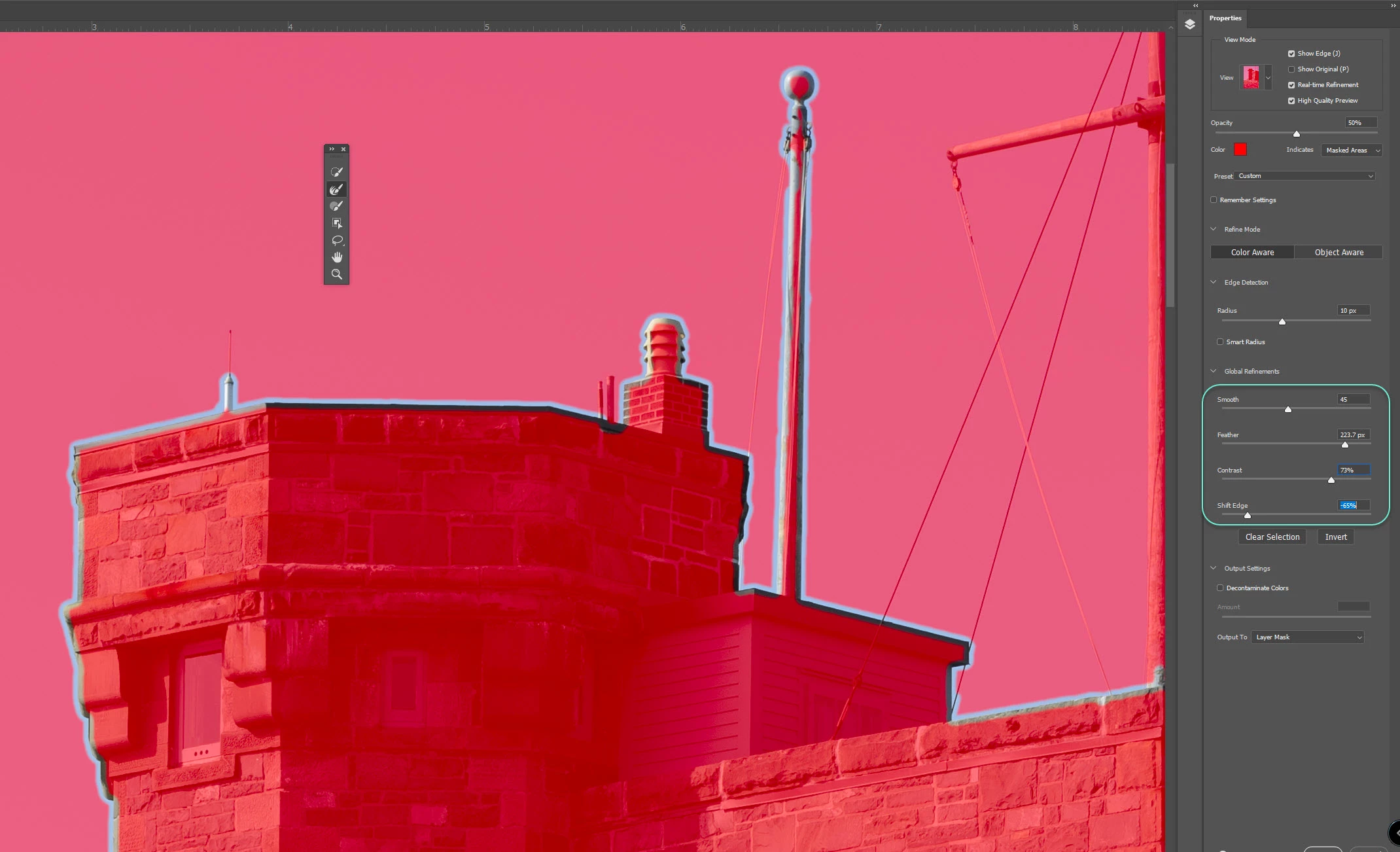
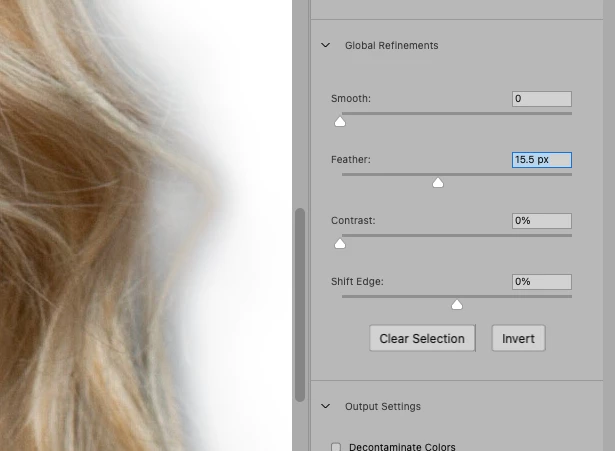
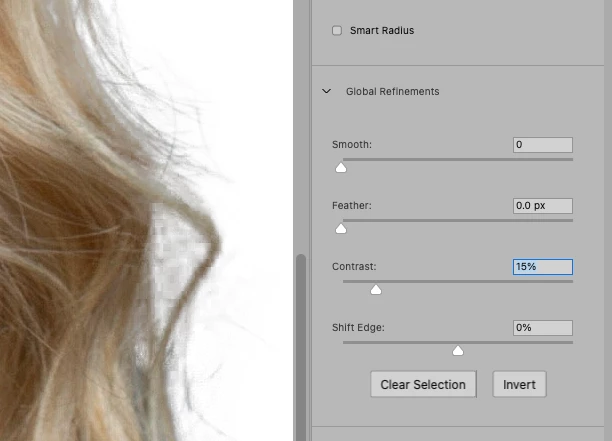
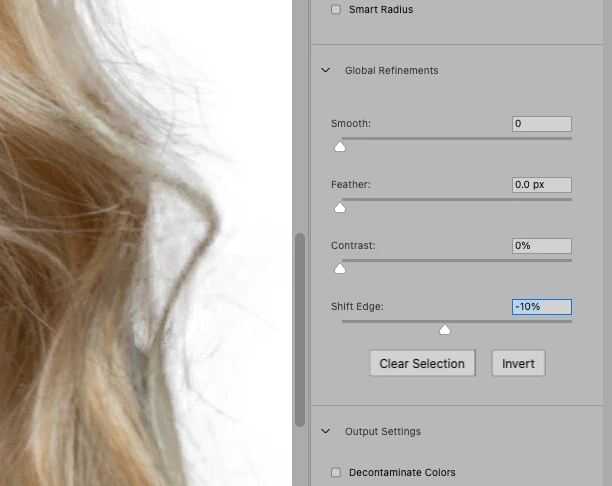
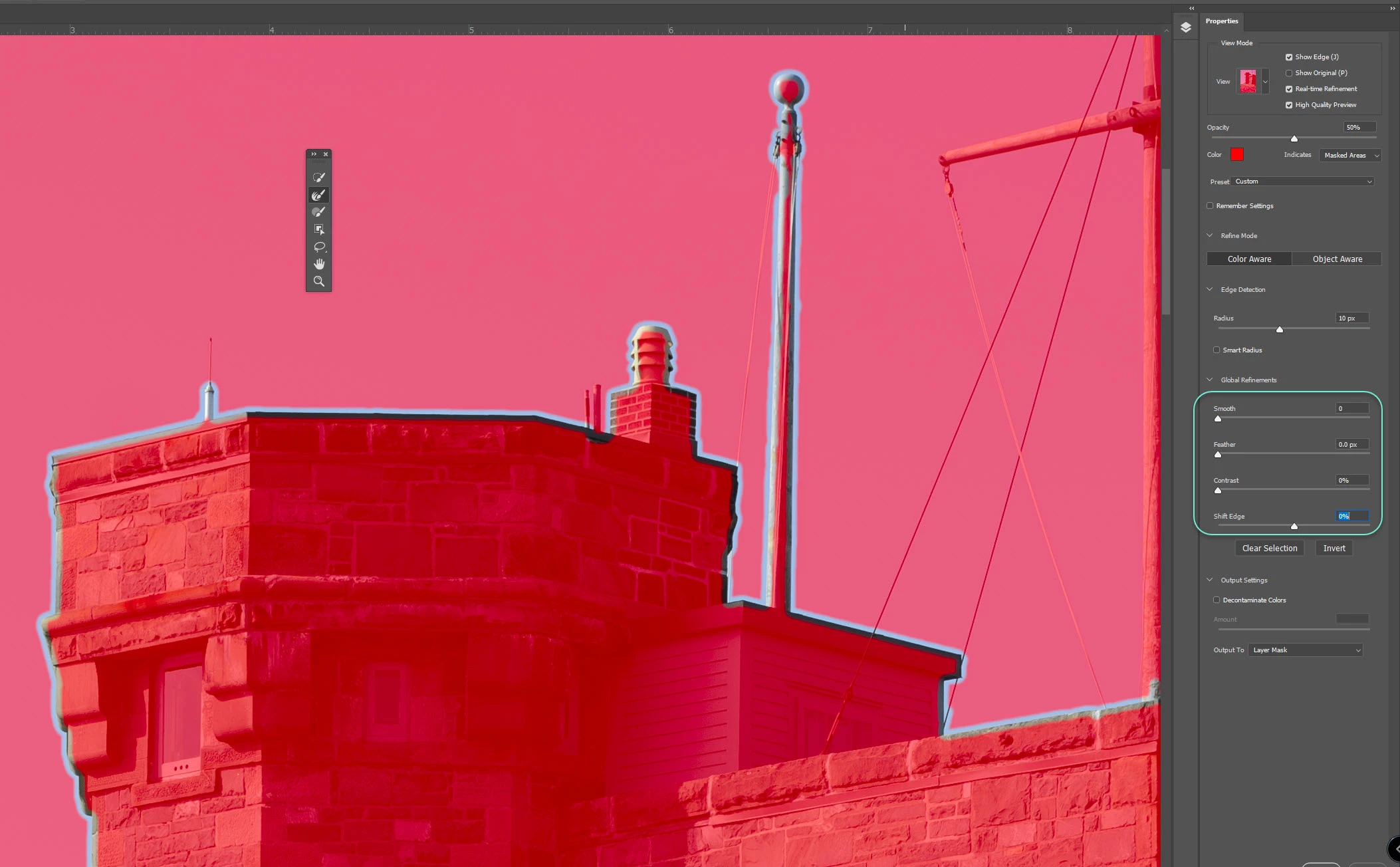
Trying to recreate some of the cause and effects that Jesus demonstrated, particularly with the Global Refinements - Smooth, Feather, Contrast, and Shift Edge.

I see no difference in the edge definition between the two - the first image has the sliders at the default, the second I pulled all four sliders.

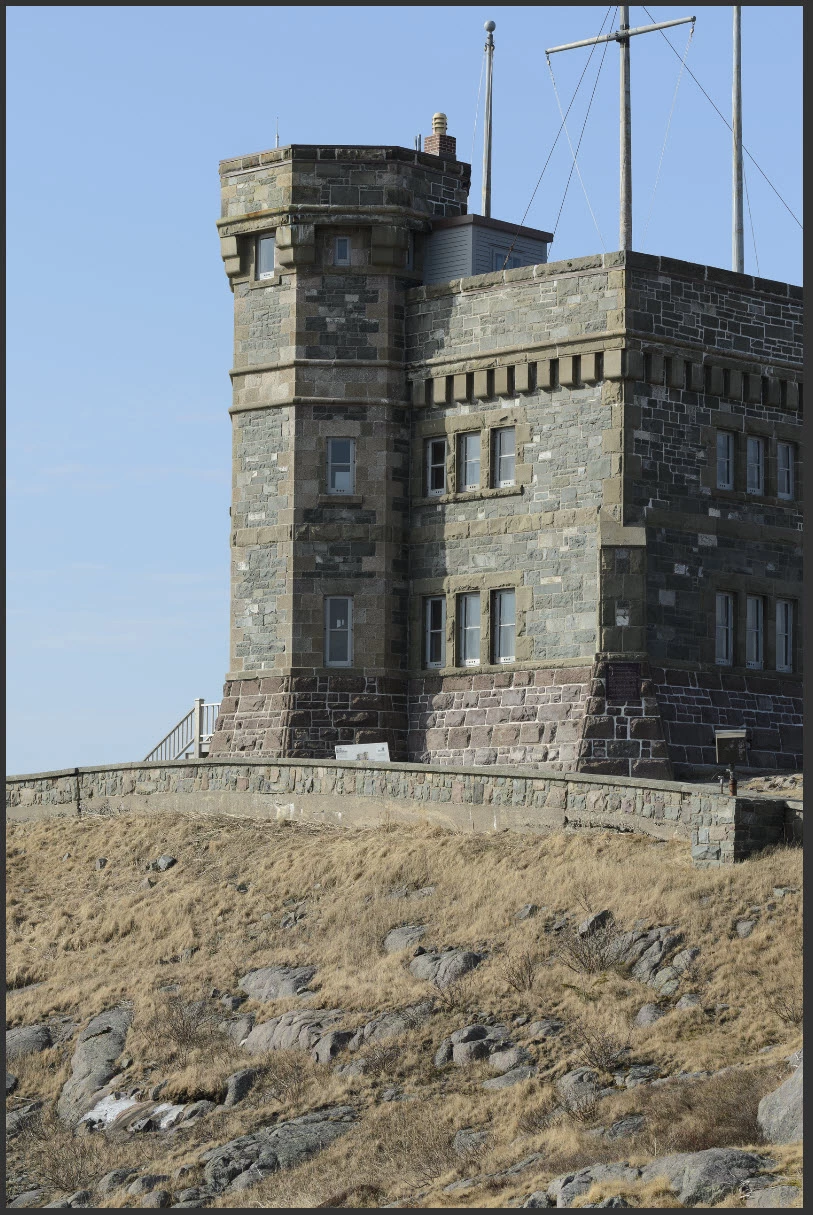
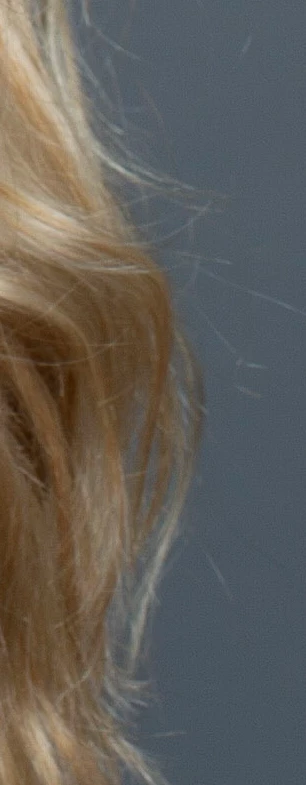
Here is the full image without mask overlay.


Peter


Hi!


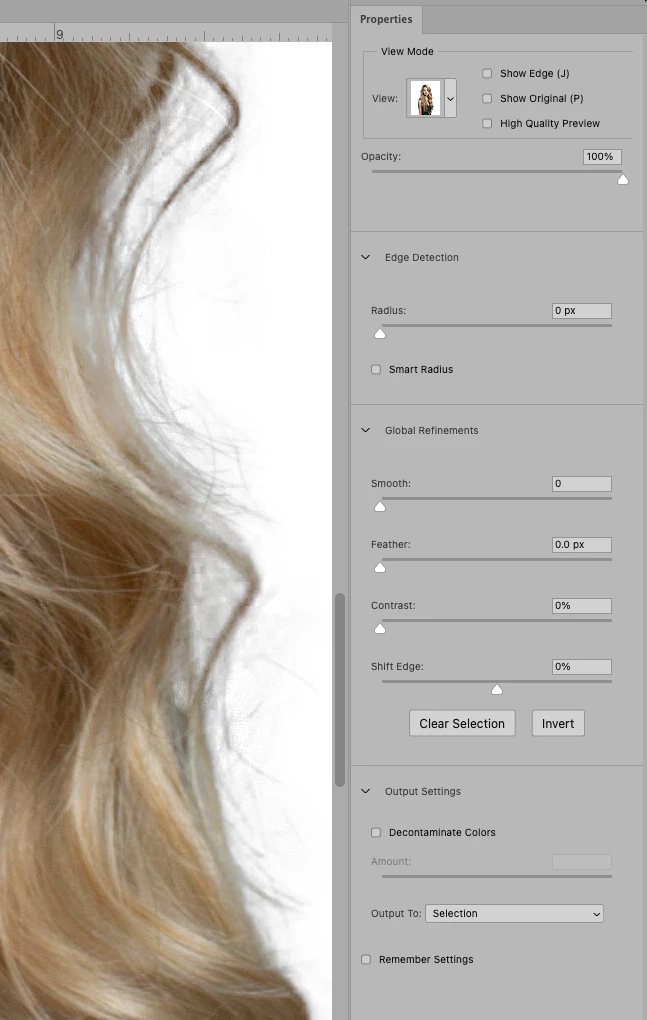
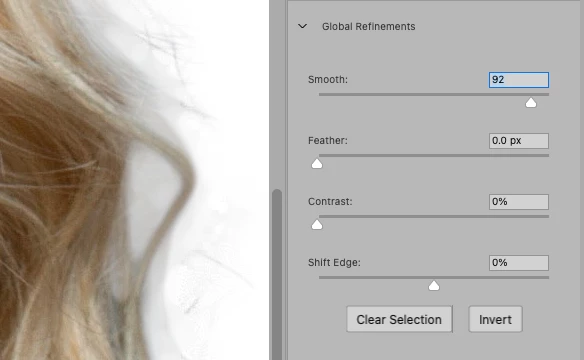
The sliders you are talking about are to use after you have defined the area of transparency. It looks like you have the box for Show Edges still checked. Once you've made your selection, uncheck Show edges and change the view to another color like white or black depending on your image (this image had a med. blue background. Then once you can see the edge you can use the Refind Brush tool to refine the selection, and then use the sliders below to make adjustments. Here are a few screenshots to show you how the sliders work:


I have found that the shift edge slider works really well to get the selection tightened up to the image--especially ones like you have above. The samples below are just quick and dirty to give you an idea of what the sliders do. I would spend a lot more time refining the selection in a real-world project.


\

And here is the original

I hope this helps,

Michelle

3 replies

chanaart
Community Expert
Community Expert
March 29, 2021

I use it all the time! 

Helpful!


mglush
Community Expert
Community Expert
March 28, 2021

Hi!

I understand your frustration, and yes I use Select and Mask now a lot. I found that Colin Smith (PhotoshopCafe.com) did an excellent video tutorial series on Selections, including Select and Mask. It really helped me to understand what the program was doing and why you push all those sliders and buttons. I highly recommend it. Here is a link to the course so you can read more about it. https://photoshopcafe.com/shop/photoshop-cc-selection-secrets/


Let us know what you think!

Michelle

happie_97
Community Expert
Community Expert
March 29, 2021

I agree with both suggestions. Select and mask is amazing, but I also use just about every selection method depending on the project.

As I was reading your issue, I was thinking whose videos I was going to link you to. I instantly thought of Colin Smith, Jesus Ramirez, and Aaron Nace. 

Michelle has already linked you to Colin Smith. I added Aaron and Jesus below. 


Aaron Nace

https://youtu.be/QCUVl3WIaIo


Jesus Ramirez https://youtu.be/0qcWeuWCkJ4

peterb86513089
Inspiring
March 30, 2021

Hi Michelle,

Thanks for your feedback.

I was trying to follow process that Jesus demontrated in his video. Jesus was showing the effects of these sliders on the edge. In his video, once a selection has been made, and the Show Edge is enabled, he could move the Smooth, Feather, Contrast, and Shift Edge and the effects were immediately seen in the edge definition. In my case I did have a selection made, and was attempting to see the effects of these slider, similar to Jesus' video, but in my case they do nothing. In fact except for the quick select tool in Select and Mask, I can't see any effects on mask definition.

I will go and view his viedo once more.

Peter


Hi again Michelle,

I just checked Jesus' video and you are correct. He first showed the edge and talked about Radius and Smart Radius but then he the disabled Show Edge and changed to a Black and White view. When I do that, yes - I can see a cause and effect of moving the sliders. I will play with that some more and see if I can use it to refine my mask.

Thanks again,

Peter

davescm
Community Expert
Community Expert
March 28, 2021

Yes I use select and mask - but not for every masking job, it really does depend on the subject. Sometimes I will start with quick mask with select and mask, use refine edges for hair/fur edges and tidy up by painting directly on the resulting mask.

However, for smooth edge subjects, such as cars, I would start with the pen tool and create a path which I can convert directly to a vector mask.

For other subjects I might start with a channel, copy it, manipulate it and make a mask from that.

For some images I might use all three of the above. In short, select and mask has its place but there is no single mask method that works for every subject.


Dave