
Participant
May 2, 2010
Answered

Error 16 on Photoshop CS 5

  • May 2, 2010
  • 10 replies
  • 137643 views

Right, so after I installed Photoshop CS5 trial version, I get this error when I run the program:
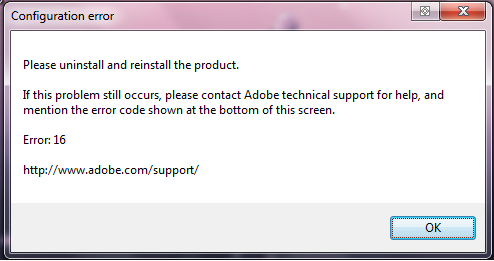
http://i8.photobucket.com/albums/a24/TiaNcAi888/as.png


After I clicked OK on that message, I get this:
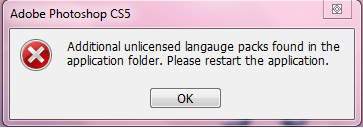
http://i8.photobucket.com/albums/a24/TiaNcAi888/asd.png

I didn't even install any weird language packs. All I have is Windows 7's Japanese and Chinese Languages from the Language Bar. I have tried uninstalling and reinstalling three times. Once without a restart, once with a restart and the last one with a restart, a CS5 cleanup tool and a registry clean. All same error. I've even tried running it as XP compatiblity and of course, ticked the "run as admin" box.

My computer specs are:

Intel i5-430M 2.27GHz

4GB of RAM

Windows 7 32-Bit

ATi HD5730 1GB VRam.

I've contacted live support, and this is what I get: http://pastebin.com/XhrQTemV

Thanks.

    This topic has been closed for replies.
    Correct answer andrew491960

    I've spent many frustrating hours serarching all over trying to find a solution to this one and although I'm on Windows XP, today I finally fix it.

    THis is for WindowsVista/Windows 7 but I got enough from it to fix the problem on Windows XP too

    So here goes

    1. Choose Start > Computer > Organize > Folder And Search Options, and then click the View tab.
    2. In the Advanced Settings section, deselect the Use Sharing Wizard (Recommended) option and click OK.
    3. Navigate to \Program Files\Common Files\Adobe\.
    4. Right-click the Adobe PCD folder and choose Properties.
    5. In the Attributes section, deselect Read-Only, click Apply, and then click OK.
    6. In the Security tab, make sure that Administrators and System are listed and permissions for security are set to Full Control. If not, do the following:
    1. Click Edit.
    2. If the User Account Control (UAC) elevation prompt appears, then follow the instructions to accept it.
    3. Make the necessary changes.
    7. Click Advanced.
    8. In the Owner tab, click Edit and accept the UAC elevation prompt if it appears.
    9. In the Change Owners Section, click Administrators.
    10. Select the Replace Owner On Subcontainers and Objects option and then click Apply.
    11. In the Permissions tab, click Edit and accept the UAC elevation prompt if it appears.
    12. Select Replace Permission Entries On All Child Objects With Entries Shown Here That Apply To Child Objects.
    13. Click OK and Yes until you have closed the FLEXnet Properties dialog box.
    14. Launch your Adobe application.

    Hope this helps you guys.

    Andy

    10 replies

    Participant
    October 23, 2011

    Please help I do not have a "Replace Permission Entries On All Child Objects (...)" checkbox at all! My detailed post about this is here: http://forums.adobe.com/message/3985740#3985740 . Please help me in finding the solution.

    Gordan

    Just to add that my problem was resolved. The forementioned solution above works perfectly in my case as well, on Windows xp pro, with CS3 design premium already installed from way before. Thanks to help from Noel

    Message was edited by: 528491528491

    June 24, 2010

    Ok I've tried everything listed in this post but still get the error mess

    age. Anyone got any more suggestions???

    May 10, 2010

    You guys are one hell of a group giving a solution to a glitch that even adobe support team unable to solve...now I am running adobe photoshop cs5 extended full version (no more the 30-day trial page)....anybody interested? drop me a line

    antonindanek2
    Participating Frequently
    May 8, 2010

    Just to be sure that the not changing read-only attr is the problem: You guys who have used the solution above, when you return to properties of that Adobe PCD folder, is the read-only attributed checked or not? Because when I uncheck it, it asks me for administrators privilages and than it gets unchacked - it looks like it's workin', but when I return, It's there again.

    Participating Frequently
    May 8, 2010

    Well since I found the solution and used it and it worked, I never thought to check if the Adobe PCD folders read only sttribute was indeed still unchecked... Now on checking it, I have discovered it is indeed checked as it was in the beginning.. While I do not pretend to know why, the solution worked for me so I have no reason to question it.. Very curious to know why we need to uncheck it in the first place now though...

    Anyone?

    Participating Frequently
    May 8, 2010

    It's common to see that unchecking an option like read only gets rechecked on it's own. I don't know why.

    Some of the problem would seem to lie with the OS, then. Or at least with a lack of either understanding or implementation or the inability to implement a complete solution to interface between OS and app.

    I noticed that I never got asked by UAC permission to mess with the changes first.

    There is something seriously amiss when one group of computers requires these changes, and another does not, when both have the same OS and program.So we need to look at what differences exist between those that need these changes and those that don't. It's a job for Adobe at least,and if this problem shows on all three OS's, then it would seem to be peculiar to Adobe. However, at this point, I would rule nothing out, from HW to BIOS configuration to board config, likre overclocking. For the record, I am overclocked on an Asus M4A77TD board running an Athlon II 630. RAM is Crucial-CT2KIT25664BA1339-PC3-10600 2x2G DDR3 running on 533MHz timing. XP HD is WDT Win7 is Seagate. Video is NVidia 9500.


    Adobe Employee
    May 3, 2010

    I thought you might like to know we have updated the support documentation for this issue.  The answer can now also be found in '"Configuration error" when you launch Creative Suite 5 products' (cpsid_82744).  If you see any additional issues, regarding this error, which are not addressed by the document, please leave comments and we will update it as quickly as possible.

    tiancaixAuthor
    Participant
    May 2, 2010

    Hahaha. Well I googled alot but I couldn't find the solution. That's why I posted. Thoust power must be greater thanst me.


    Participating Frequently
    May 3, 2010

    I was just lucky, the soloution had only been posted that same day.. but I am persistent

    tiancaixAuthor
    Participant
    May 2, 2010

    Woot works. Thanks dude . It's amazing that ppl are the solution, not Adobe. LOL.

    Participating Frequently
    May 2, 2010

    Well I couldn't believe they had no mention at all of it on the Adobe site, then I guess it's probably due to it only having just been released. Anyway, I don't pretend to have solved it by myself but I'd almost given up when I stumbled across this thread and a few minutes later the solution, so had to come back and let you guys know.

    Glad it solved the problem for you, just goes to show the power of the internet and Google eh!.

    Have fun and catch ya later maybe, when the next bug surfaces lol

    Andy

    andrew491960Correct answer
    Participating Frequently
    May 2, 2010

    I've spent many frustrating hours serarching all over trying to find a solution to this one and although I'm on Windows XP, today I finally fix it.

    THis is for WindowsVista/Windows 7 but I got enough from it to fix the problem on Windows XP too

    So here goes

    1. Choose Start > Computer > Organize > Folder And Search Options, and then click the View tab.
    2. In the Advanced Settings section, deselect the Use Sharing Wizard (Recommended) option and click OK.
    3. Navigate to \Program Files\Common Files\Adobe\.
    4. Right-click the Adobe PCD folder and choose Properties.
    5. In the Attributes section, deselect Read-Only, click Apply, and then click OK.
    6. In the Security tab, make sure that Administrators and System are listed and permissions for security are set to Full Control. If not, do the following:
    1. Click Edit.
    2. If the User Account Control (UAC) elevation prompt appears, then follow the instructions to accept it.
    3. Make the necessary changes.
    7. Click Advanced.
    8. In the Owner tab, click Edit and accept the UAC elevation prompt if it appears.
    9. In the Change Owners Section, click Administrators.
    10. Select the Replace Owner On Subcontainers and Objects option and then click Apply.
    11. In the Permissions tab, click Edit and accept the UAC elevation prompt if it appears.
    12. Select Replace Permission Entries On All Child Objects With Entries Shown Here That Apply To Child Objects.
    13. Click OK and Yes until you have closed the FLEXnet Properties dialog box.
    14. Launch your Adobe application.

    Hope this helps you guys.

    Andy

    Participant
    June 11, 2011

    THANKS A LOT! It finally works! Event with flash cs5.5☺☺

    (note: you must run the program as administrator)

    Thanks Andrew

    Participant
    May 2, 2010

    I am also have the same problem

    I'm using Windows Vista

    anyone can help us ??

    and yeah btw I read the live support conversation LOL

    It happens all the time everywhere

    May 2, 2010

    FirstKnight_1 wrote:

    and yeah btw I read the live support conversation LOL

    It happens all the time everywhere

    You can't blame these poor devils in India, they probably never used Photoshop but just follow a script.


    I blame Adobe for not hiring the right support personnel.

    Participant
    May 2, 2010

    Hi, i'm getting same error too :/ Using Windows 7