Copy link to clipboard
Copied
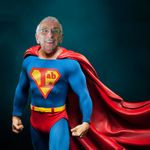
Whenever I use fill it outright adds to whatever I'm filling like this


The above image has a soft outline but when I fill it it makes it bigger with a hard outline. If I were to keep on clicking fill it would simply get bigger and bigger everytime.
Selecting an area and then filling also gives me that horrid hard outline because it just fills the entire selected area. How would I just fill an entire shape whilst maintaining softness?

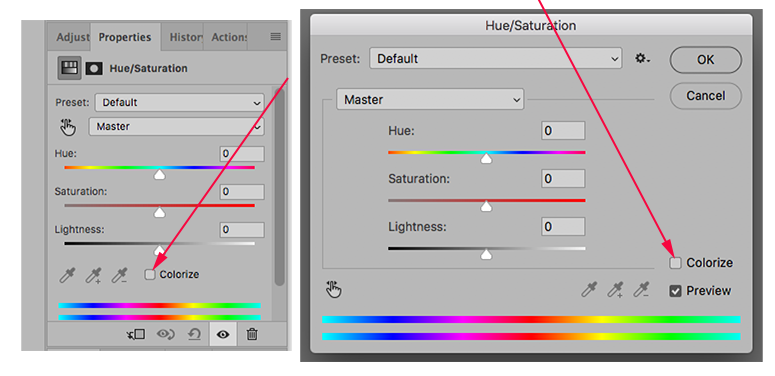
On the left: as an Adjustment layer from the Layers panel. On the right: as Image > Adjustments..

Note that with Edit > Fill anywhere tone appears in the Selection, the full value of the Fill color will appear
Copy link to clipboard
Copied
If you have a selection or a color with a soft edge a feathered selection what you ar seeing is paint build up in the soft feathered area.

Copy link to clipboard
Copied
Edit > Fill fills with the full value of the color wherever in the Selection tone value appears.
Try this instead: Note that Colorize has been checked.

Copy link to clipboard
Copied
I seem to have a different window to you. I can't find colourise anywhere and it just either fills the entire layer of whatever is selected with the hard outline still present.
This comes up when i click Edit > Fill:

Copy link to clipboard
Copied

On the left: as an Adjustment layer from the Layers panel. On the right: as Image > Adjustments..

Note that with Edit > Fill anywhere tone appears in the Selection, the full value of the Fill color will appear
Copy link to clipboard
Copied
Ah i see, thanks. Is there anyway to do this to a single area of a layer, rather than the whole layer?
Copy link to clipboard
Copied
Yes. Make a Selection of the area before calling up Hue/Saturation.
It would be prudent (not a must), after making the Selection (with 8 px or more, not zero). in Options bar: Tolerance), to click Cmd+J to put that Selection of a separate layer and apply Hue/Saturation there.
Find more inspiration, events, and resources on the new Adobe Community
Explore Now