One more go. I replied in a hurry this morning and didn't even register that Trevor also suggested color balance, as well as the ACR filter. That's also a good option.
Anyway.
In addition to the yellow cast, the image is also severely underexposed. Incidentally I think that's the main reason you get these unpleasant casts to begin with. So start off with a Curves adjustment to increase exposure.
Then ctrl-click the green channel thumbnail to load it as a luminosity selection. This is the channel where the yellowish highlights are most pronounced, so this is where it will have maximum effect. Add a Color Balance layer with this selection as the mask. Push the blue slider way over towards blue, until it looks right:
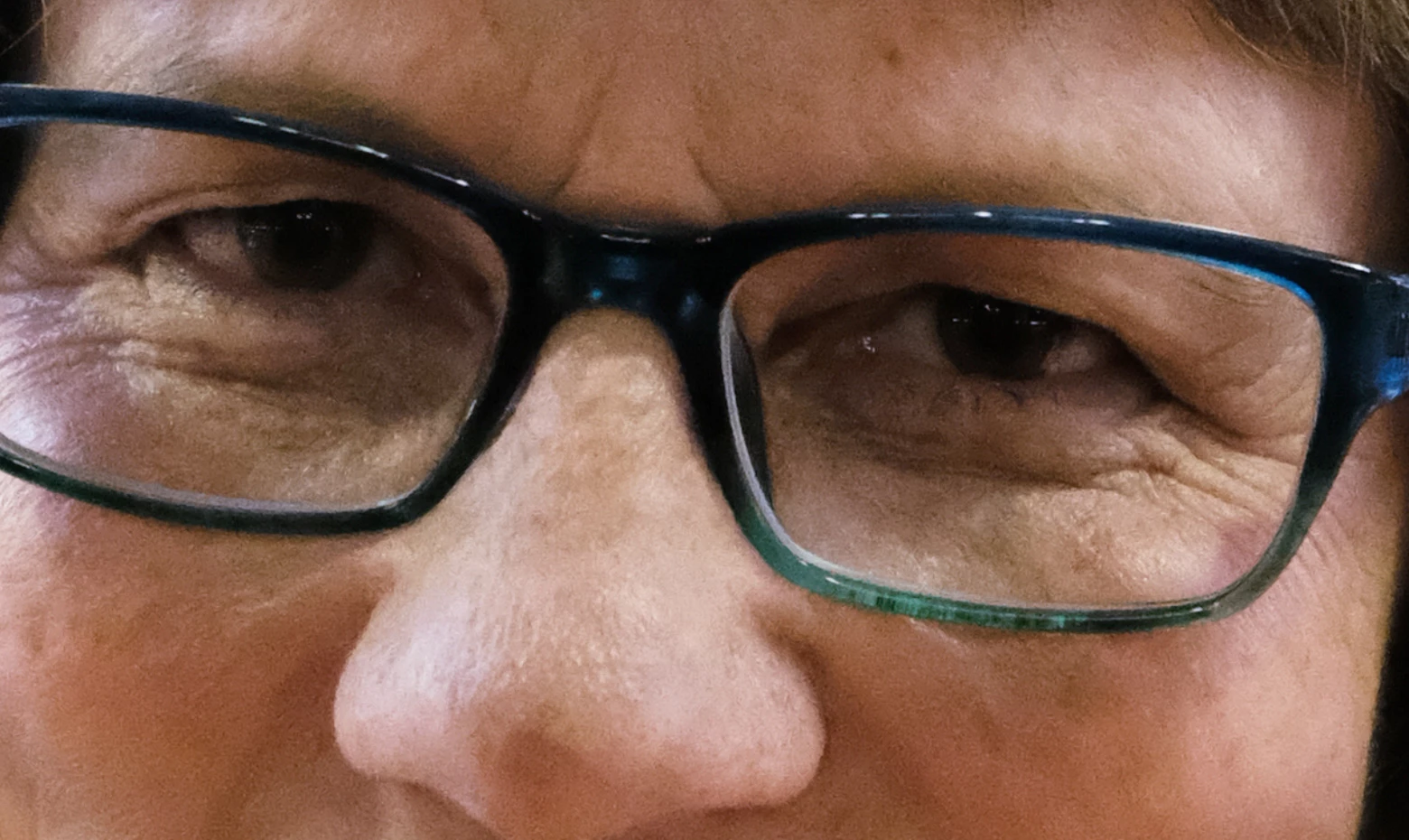
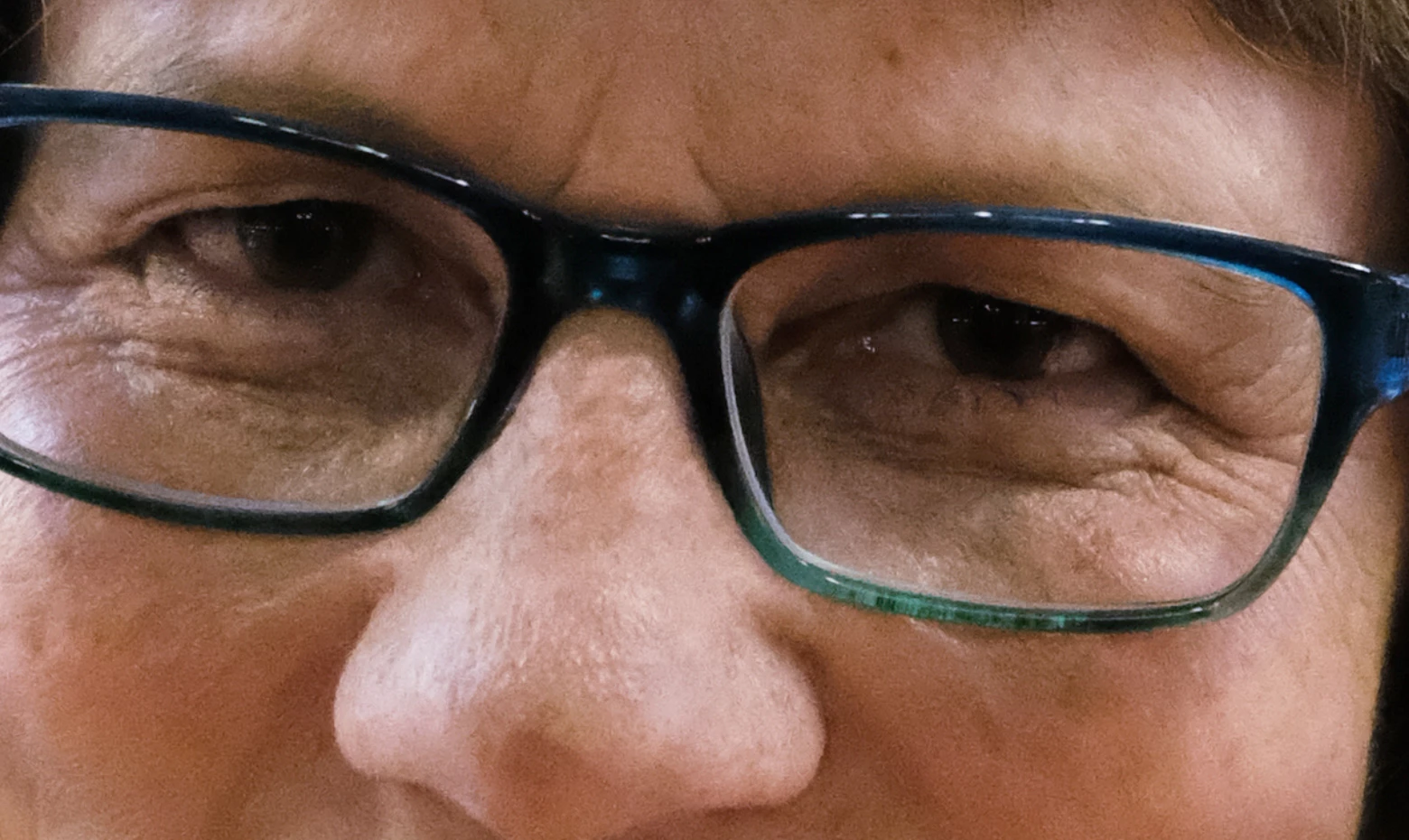
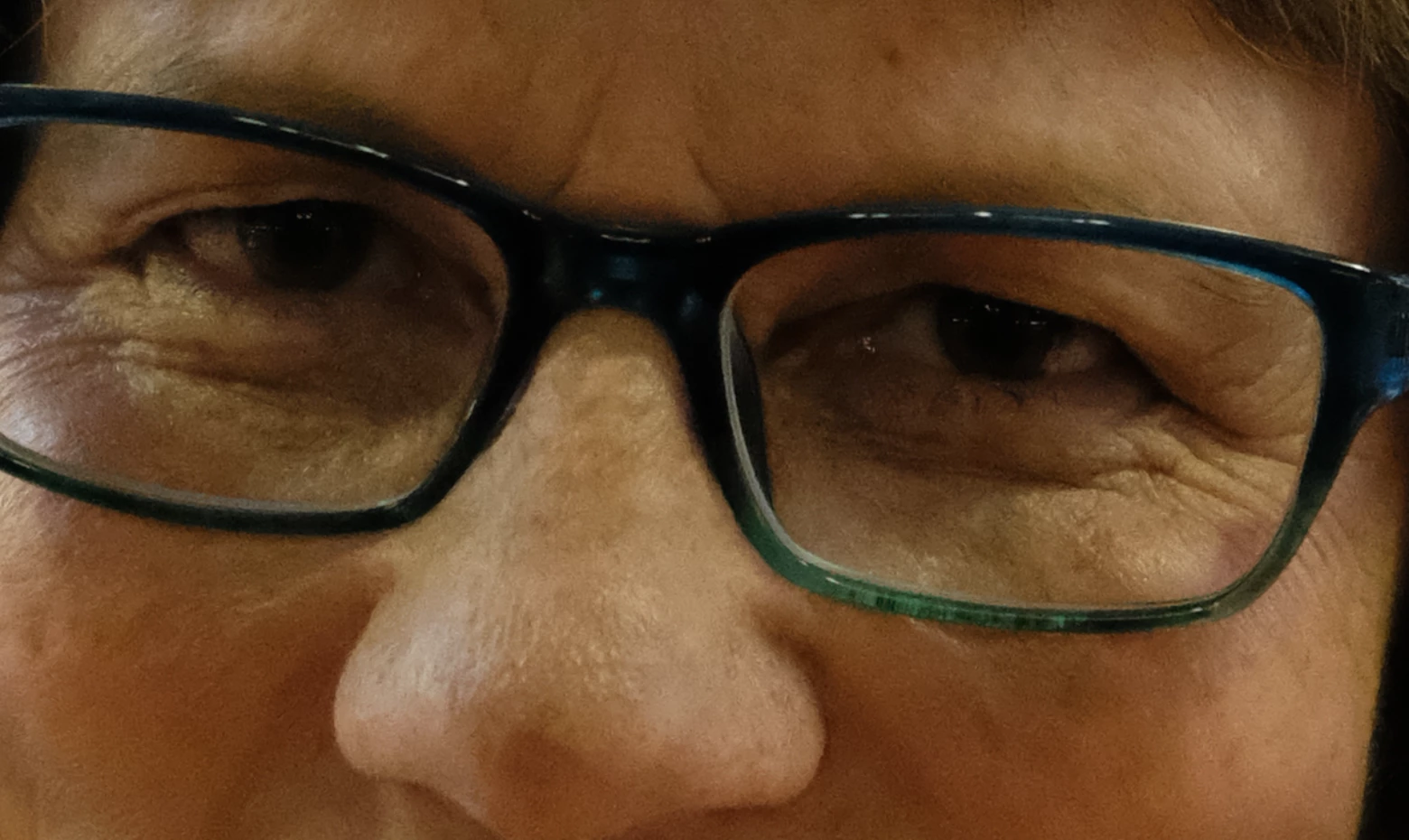
Still, there are some curious "bloodless" areas under the eyes. I suspect this is some optical effect from the glasses, but regardless it has to go. There's no way around doing that locally. Make some color adjustment towards red/magenta, and add a black mask so the adjustment is hidden. Then carefully paint it in with a soft brush at low opacity. Do the opposite to the red areas bordering it:


 AdChoices