Inspiring
April 13, 2019
Question

Help with Perfect Bevel Effect Please

  • April 13, 2019
  • 4 replies
  • 3010 views

Hi everyone.

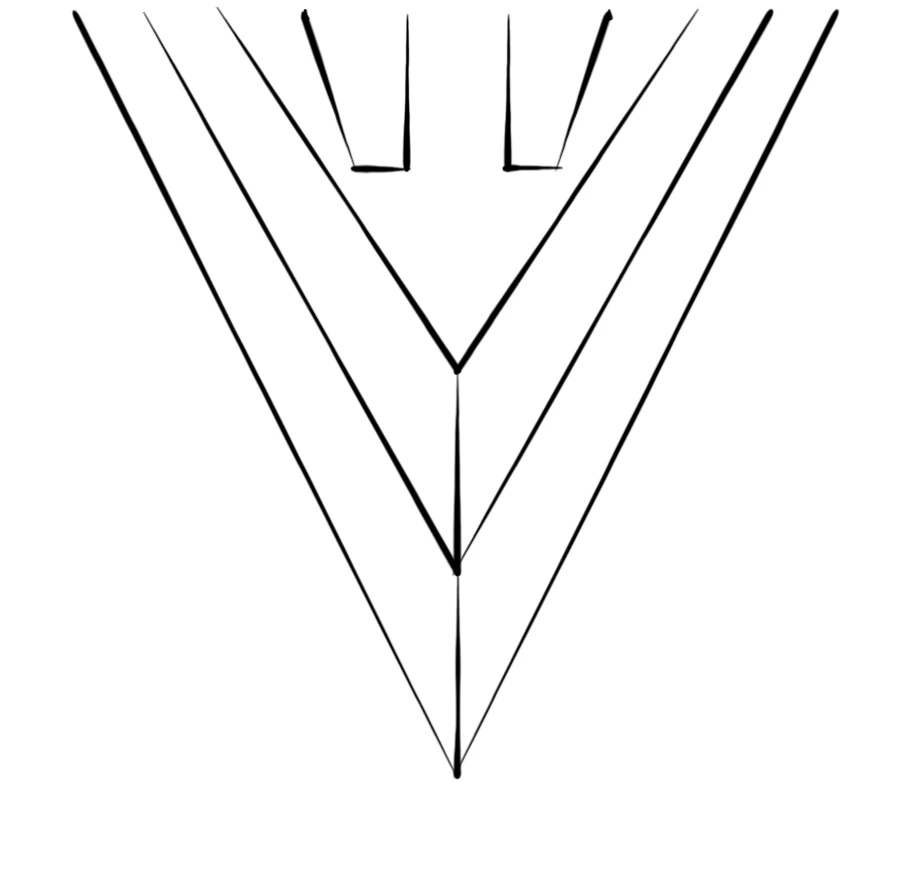
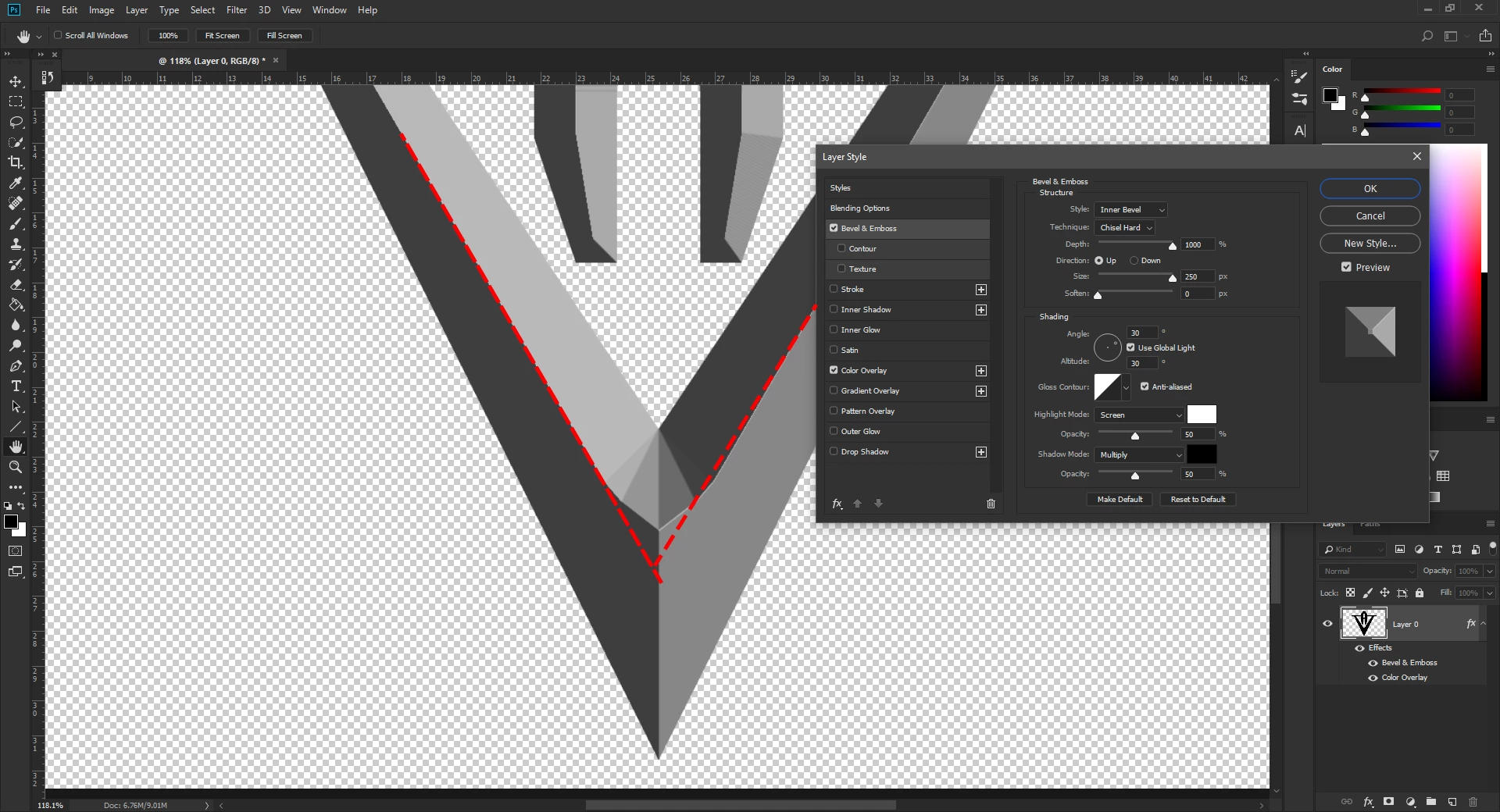
I have this triangular shape in Photoshop, which I'm trying to apply a Bevel & Emboss effect on. Everything works fine until the bevel reaches the angle turn. As you can see from the screenshot the bevel curves around the angle but I'd like it to go straight as displayed by the red dashed lines. The objective is to make the shape look like the attached sketch. If anyone could give me some tips, I'd be infinitely grateful.

Thanks in advance!

P.S. Is there any way to get rid of the broken planes artefact inside the bevel?
This topic has been closed for replies.

4 replies

Inspiring
April 14, 2019

Thanks for your input guys!


ponytail1414​, I went to bed early yesterday, hence my late reply, sorry. Yes I did make sure there were no white lines, even imported a vector path and filled it, to be 100% sure, but still the same thing happened.

rayek.elfin​, I just tried converting the png to a 3D object in Photoshop. Sadly, the same curvature appears as in traditional 2D version. Very impressive job you did there with Blender. I actually do have a correct 3D object, though it's done in SketchUp not in Blender. I remember I tried learning Blender several years ago but dropped it after 15 minutes, because of its UI mess and unnecessary complexity and uncomfortable controls but never stopped admiring works created with Blender.  I heard the people behind Blender have plans to remaster the program soon and make it more welcoming, is it true?

Trevor.Dennis​​, I hope I understood you right. Please see the screenshots below. Did you mean to mask the area left of the vertical guide and then copy the result and flip horizontally? Here's what I got:

Thanks again guys, for your help. Great community!

davescm
Community Expert
Community Expert
April 14, 2019

Hi

You asked about Blender. The interface has changed considerably in the 2.8 version and a beta is now available to try. Just google Blender 2.8 Beta

Dave

Trevor.Dennis
Community Expert
Community Expert
April 14, 2019

You can fudge it without resorting to 3D by using separate layers for each side, like Ponytail suggested, and checking Layer Mask Hides Effect.

rayek.elfin
Legend
April 14, 2019

I made a quick test in Blender for you. Download the Blender file here:

http://www.upl.co/uploads/beveltest1555207467.zip

You will need Blender 2.8 to open it. Download it here:

https://www.blender.org/2-8/

Feel free to experiment with the lighting and materials. I just played around a bit to show you what is possible. The lighting is not great, but easily adjustable.

Btw, this is a realtime render in Blender's new awesome Eevee render engine! What you see in the viewport is what you get!

rayek.elfin
Legend
April 14, 2019

Here is one with a bit more 'glimmer'.

http://www.upl.co/uploads/beveltestglimmer1555210516.zip

Leslie Moak Murray
Community Expert
Community Expert
April 13, 2019

What if you split the sides into 2 separate layers and applied the bevel & emboss to each separately, then joined them together?

The above isn't exactly how it would look, but you get the idea.

Leslie Moak Murray
Community Expert
Community Expert
April 13, 2019

Gah I didn't mean apply separately -- I meant to say apply it to the half, then dupe and flip that layer and join them.