Participant
October 28, 2020
Answered

How do I: create a shape, select only that shape, fill only that shape with a gradient?

  • October 28, 2020
  • 2 replies
  • 272 views

I've created triangles on a background image. I used a new layer.

When I try to add a gradient to that image by using "blending options" the shape disappears. 

When I press G I get "Could not use the gradient tool because the smart object is not directly editable. 
 

This topic has been closed for replies.
Correct answer Bojan Živković11378569

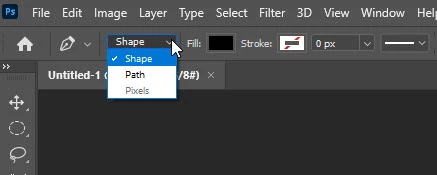
After activating Pen tool take a look at Options bar with settings for tool. You can set Shape from the first drop down list what will instruct Photoshop to create new shape layer in the Layers panel when you start drawing.

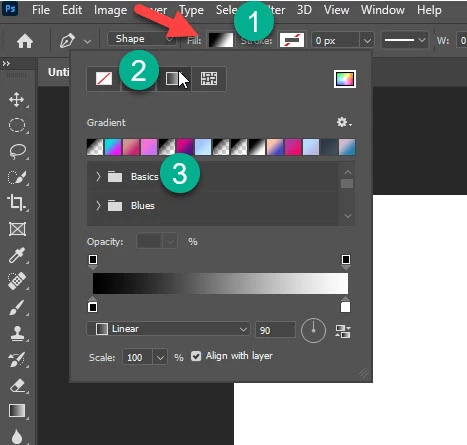
For fill use second drop down list Fill. Click on rectangle to appear fly out menu where you can choose Gradient for fill method and appropriate gradient fill for your shape. You can change fill type or gradient and after drawing shape from the Options bar or Properties panel with shape layer selected.

2 replies

Bojan Živković11378569
Community Expert
Community Expert
October 28, 2020

After activating Pen tool take a look at Options bar with settings for tool. You can set Shape from the first drop down list what will instruct Photoshop to create new shape layer in the Layers panel when you start drawing.

For fill use second drop down list Fill. Click on rectangle to appear fly out menu where you can choose Gradient for fill method and appropriate gradient fill for your shape. You can change fill type or gradient and after drawing shape from the Options bar or Properties panel with shape layer selected.

Participant
October 28, 2020

BTW, I've used the pen tool to create my shape. 

It doesn't seem to recognise it as an independent object...