Inspiring
May 21, 2021
Answered

How do I delete Adobe's printer profiles?

  • May 21, 2021
  • 2 replies
  • 5206 views

I need a current answer to this question for Mac OS 11. I just set up a new computer, and Adobe "helpfully" installed scores of completely-useless-to-me profiles (various camera types, etc) that  I have to scroll through, in order to get to the handful that I actually use. I need to get these things off my system (or, at the very least, group them together at the bottom of the list, somehow) in order to not have my workflow grind to a halt, having to scroll through all of this stuff I did not want or ask for. Please help!


They are not in the ColorSync folder in LIbrary, btw. I've looked everywhere

Correct answer nateStatic

Hey, I think I found the mystery profiles. First, I realized that I have also seen those Arri etc. profiles in Photoshop, and that they do not appear in ColorSync Utility. Going by what I know from the next subject (after the dashed line below), and because they do not show up in ColorSync Utility, I theorized that the profiles could be in a central location for Adobe only, which would be under /Library (root, not user). I dug around in 

/Library/Application Support/Adobe/

and found the profiles here:


/Library/Application Support/Adobe/Color/MPProfiles
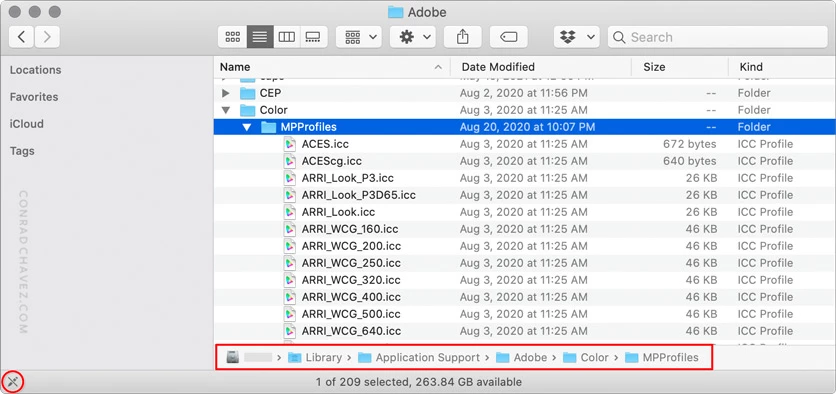


That folder has restricted permissions because it is within a system location, not within a user account, but you could try changing or overriding permissions if you wanted to try to rip out those profiles.


- - - - - - - - - - - -


Regarding how to organize profiles in the Print dialog: The following is my sense of it, it might need to be confirmed by someone like @TheDigitalDog…but the reason the Epson profiles appear on a line above the rest in the Print dialog box is because Photoshop detects that they are part of a printer driver installation on that computer. Because the profile menu can include both manufacturer’s profiles and user-added profiles that are all for the same Epson printer model, but only the manufacturer’s profiles appear above the line. From testing, I believe that the profiles that appear above the line are not in any of the usual ColorSync folder locations, but deep in an installed printer driver package. For example, the following profile appears above the line in my copy of Photoshop:


/Library/Printers/EPSON/InkjetPrinter2/ICCProfiles/Pro3880.profiles/Contents/Resources/Epson Stylus Pro 3880_3885_3890 ArchivalMattePaper.icc


That’s inside a macOS printer driver package, not a regular folder.


I have not tried shoe-horning user-supplied profiles into such a package to see if that would put them above the line. It may not work if macOS security restrictions prevent hacking packages in /Library, which is root level, not user level. But it is something you could look into.


Deleting the profiles from /Library/Application Support/Adobe/Color/MPProfiles got rid of almost all the extra profiles! I always save removed profiles in a backup folder, in case there is trouble of some sort later... but everything works fine right now.  Thanks again for the suggestion!

2 replies

Conrad_C
Community Expert
Community Expert
May 21, 2021

@nateStatic wrote:

I need a current answer to this question for Mac OS 11. I just set up a new computer


Big question: How old was your old computer?

The reason that is a big question is that Apple, not Adobe, added tons of new profiles starting a couple of major versions ago of macOS. Many of the new profiles Apple added have to do with color spaces for pro video editing.


To narrow this down, what are the names of some of the new profiles you don’t need?


@nateStatic wrote:

They are not in the ColorSync folder in LIbrary, btw. I've looked everywhere


“Everywhere” is a lot of places now; there are several paths where profiles can be stored. Can you find the mystery profiles in Apple ColorSync Utility, Profiles tab, Grouped by Location? It can reveal the path location of every profile that you see in a standard ICC profile menu in a standard Mac application.


Inspiring
May 24, 2021

No, the camera-branded ones do not come up on any of the tabs... System, Computer, User, Other... not there. The ones I am looking for, but can not find, are: Kodak, Fuji, and ARRI. There are 10+ profiles of each... it makes for a lot of scrolling through things I do not need, since we've already got a list of 20-ish custom profiles that we do use. At the very least, I wish there was a way to group profiles in the print menu. EPSON profiles (which I've removed, because we don't use them) do seem to group themselves together, separated by a horizontal rule, in the list. Is there a way I can at least achieve that, for the profiles that I do use? having them appear at the top of the list would be even better.

Conrad_C
Community Expert
Community Expert
May 24, 2021

Hey, I think I found the mystery profiles. First, I realized that I have also seen those Arri etc. profiles in Photoshop, and that they do not appear in ColorSync Utility. Going by what I know from the next subject (after the dashed line below), and because they do not show up in ColorSync Utility, I theorized that the profiles could be in a central location for Adobe only, which would be under /Library (root, not user). I dug around in 

/Library/Application Support/Adobe/

and found the profiles here:


/Library/Application Support/Adobe/Color/MPProfiles


That folder has restricted permissions because it is within a system location, not within a user account, but you could try changing or overriding permissions if you wanted to try to rip out those profiles.


- - - - - - - - - - - -


Regarding how to organize profiles in the Print dialog: The following is my sense of it, it might need to be confirmed by someone like @TheDigitalDog…but the reason the Epson profiles appear on a line above the rest in the Print dialog box is because Photoshop detects that they are part of a printer driver installation on that computer. Because the profile menu can include both manufacturer’s profiles and user-added profiles that are all for the same Epson printer model, but only the manufacturer’s profiles appear above the line. From testing, I believe that the profiles that appear above the line are not in any of the usual ColorSync folder locations, but deep in an installed printer driver package. For example, the following profile appears above the line in my copy of Photoshop:


/Library/Printers/EPSON/InkjetPrinter2/ICCProfiles/Pro3880.profiles/Contents/Resources/Epson Stylus Pro 3880_3885_3890 ArchivalMattePaper.icc


That’s inside a macOS printer driver package, not a regular folder.


I have not tried shoe-horning user-supplied profiles into such a package to see if that would put them above the line. It may not work if macOS security restrictions prevent hacking packages in /Library, which is root level, not user level. But it is something you could look into.

TheDigitalDog
Inspiring
May 21, 2021

Adobe doesn't install 'printer profiles' per se (there are some generic CMYK profiles). 

What profiles (provide names) are you asking about? 

ALL profiles should be seen in the ColorSync utility. Even those burried deep in a package as some printer manufacturers like Epson provide. 

Camera profiles are a different beast (they are not ICC profiles and don't show up in the CS utility). 

ACR needs them. ACR would show them IF you have a raw that's being viewed otherwise, the other camera profiles, which are tiny, do not show. 

So in order to help, more specifics from you are needed .

FWIW, The location for .dcp camera profiles should be:
Mac: /Users/user/Library/Application Support/Adobe/CameraRaw/CameraProfiles
Win: C:\Users\user\AppData\Roaming\Adobe\CameraRaw\CameraProfiles

Author “Color Management for Photographers" & "Photoshop CC Color Management/pluralsight"
Inspiring
May 21, 2021
All the ones with "by Adobe" on the end. There are a ton more.
--
-------------------------------------------------
*Nate Seubert - Printing Technologist*
-------------------------------------------------
TheDigitalDog
Inspiring
May 24, 2021

@nateStatic wrote:
All the ones with "by Adobe" on the end. There are a ton more.

Screen capture or specific names necessary.

Author “Color Management for Photographers" & "Photoshop CC Color Management/pluralsight"

