Jim Mooney
Participating Frequently
Mar 11, 2016 11:18 PM UTC
Answered

How do you set Fill Screen as default view mode?

Does anyone have a way to set the Fill Screen view mode as the default view?

This would work if there was a hotkey for it, or if it could be selected while recording an action.

And then run it in the Script Events Manager with the "Open Document" option.

When the zoom tool is selected and the option window is on, there are four options...

Actual Pixels, Fit Screen, Fill Screen, Print Size

But in the Menu options, Fill Screen is NOT an option (for some odd reason).

My only guess is this has to be done with a script, but I cannot find anything online that addresses this problem

and I'm not a script programmer.  Although I know how to use them (and modify them a little).

By the way, I'm using Photoshop CS5

Thanks for any help!

JJMack
JJMackCorrect answer
Community Expert
Mar 13, 2016 10:56 PM UTC

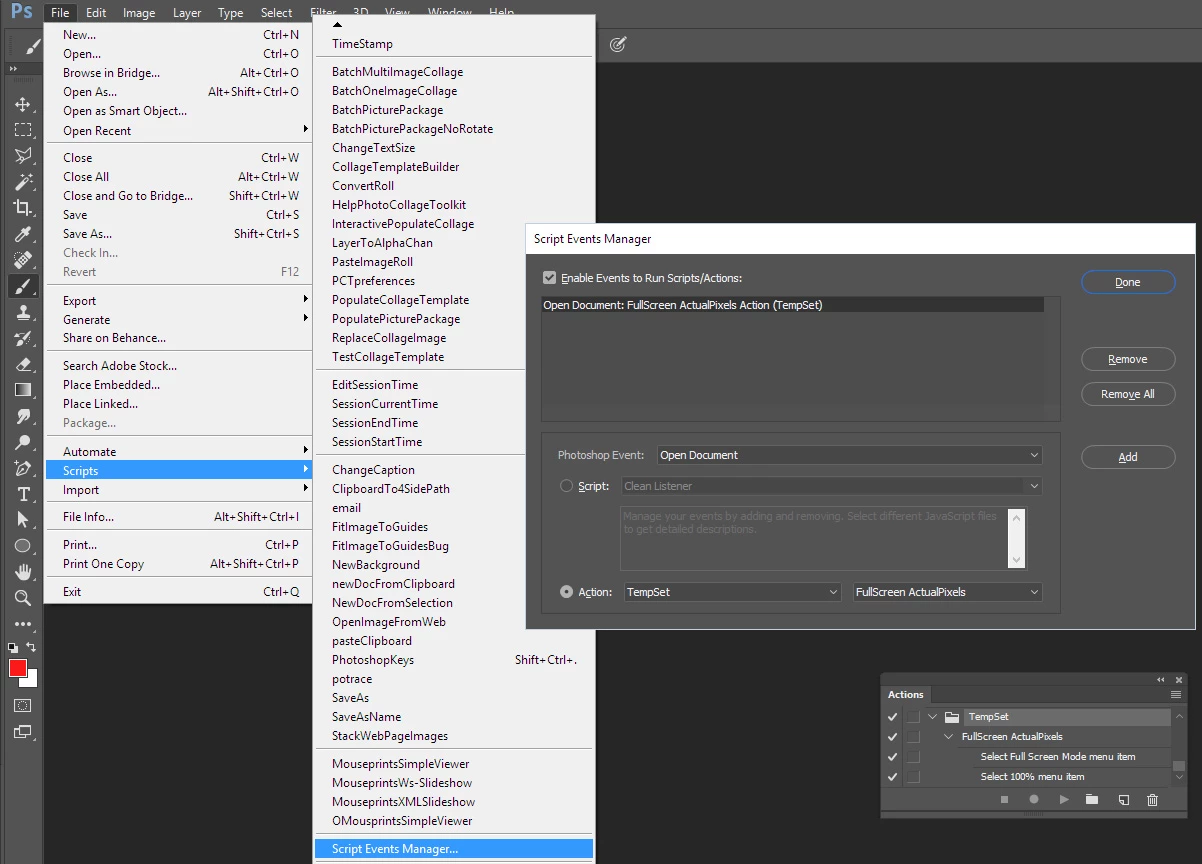
You can insert two menu item into an action in an Actions set. Then set  Script Manager a script even for an open document event to play that action.

JJMack

10 replies

JJMack
Community Expert
JJMackCommunity ExpertCorrect answer
Community Expert
Mar 13, 2016 10:56 PM UTC

You can insert two menu item into an action in an Actions set. Then set  Script Manager a script even for an open document event to play that action.

Translate
JJMack
Jim Mooney
Participating Frequently
Mar 14, 2016 6:39 PM UTC

Thanks for the reply, but Fill screen is not in the menu so it cannot be used through actions as far as I know.  That's my problem.

Translate
JJMack
Community Expert
Community Expert
Mar 14, 2016 6:46 PM UTC

There should be three screen mode in the menu and there is a Shortcut key F also.

Translate
JJMack