

Participant
February 4, 2018
해결됨

HOW TO...a colored and Black & White photo in one??

  • February 4, 2018
  • 2 답변들
  • 778 조회

I saw a photo online from this years school photos, and I really like this technique and wanted to know if someone can help me achieve this. See photo attached:

Thanks

Tina

    이 주제는 답변이 닫혔습니다.
    최고의 답변: Chuck Uebele

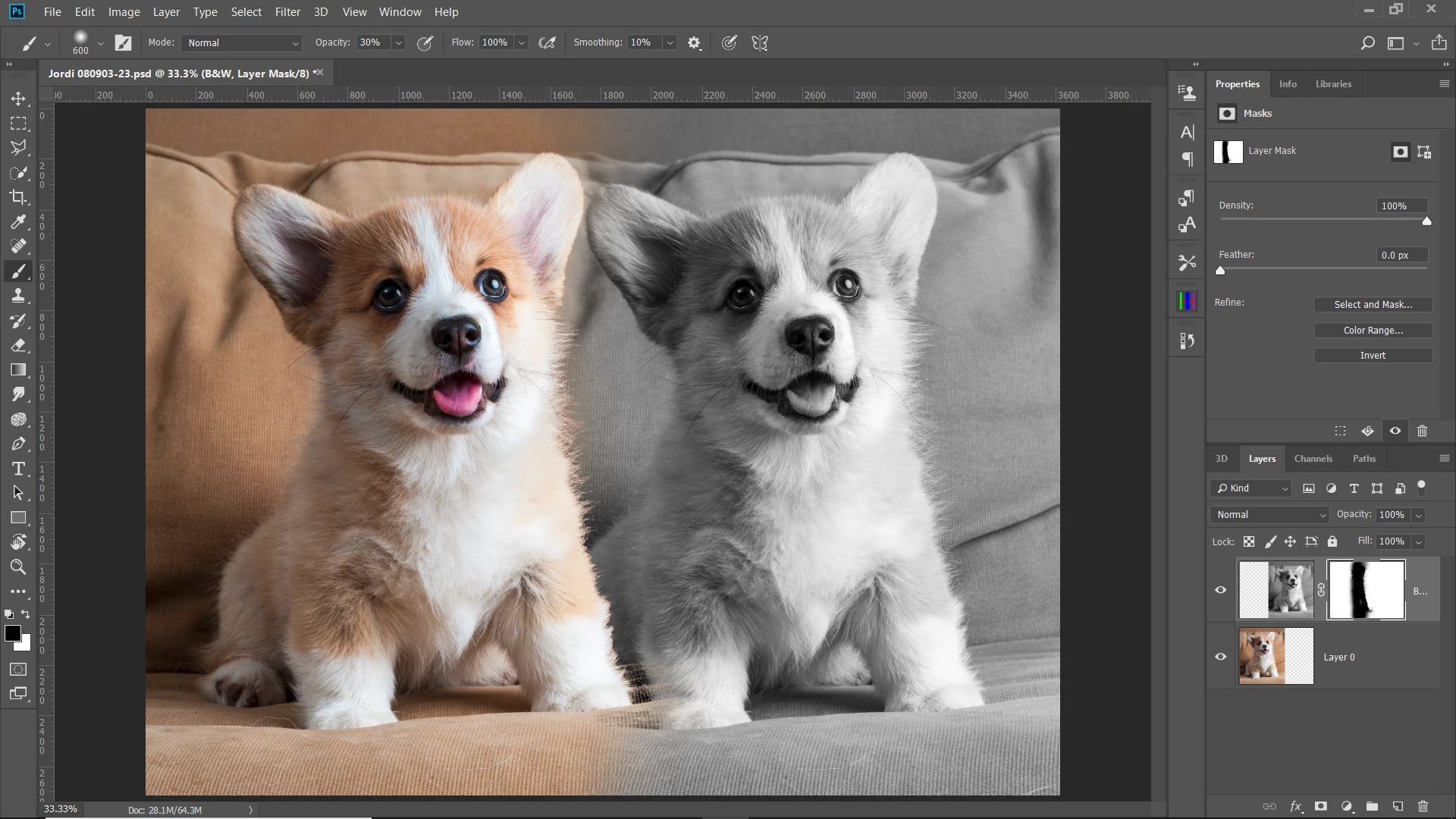
    I'm using the same photo, just for example. If your image that you want isn't B&W, convert it so it is by using a B&W layer mask or desaturating. I positioned the B&W over the color layer and added a layer mask to it.
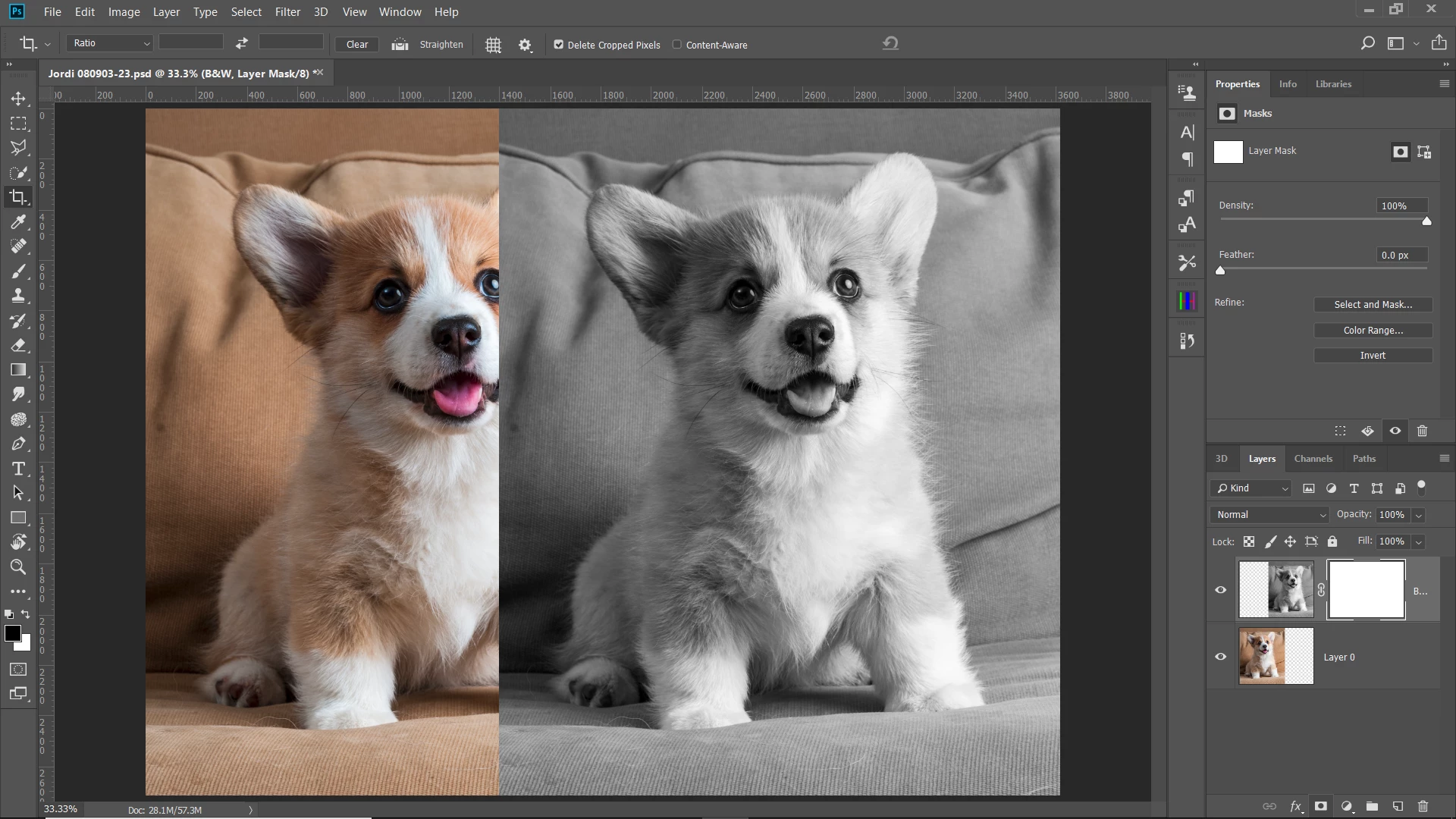
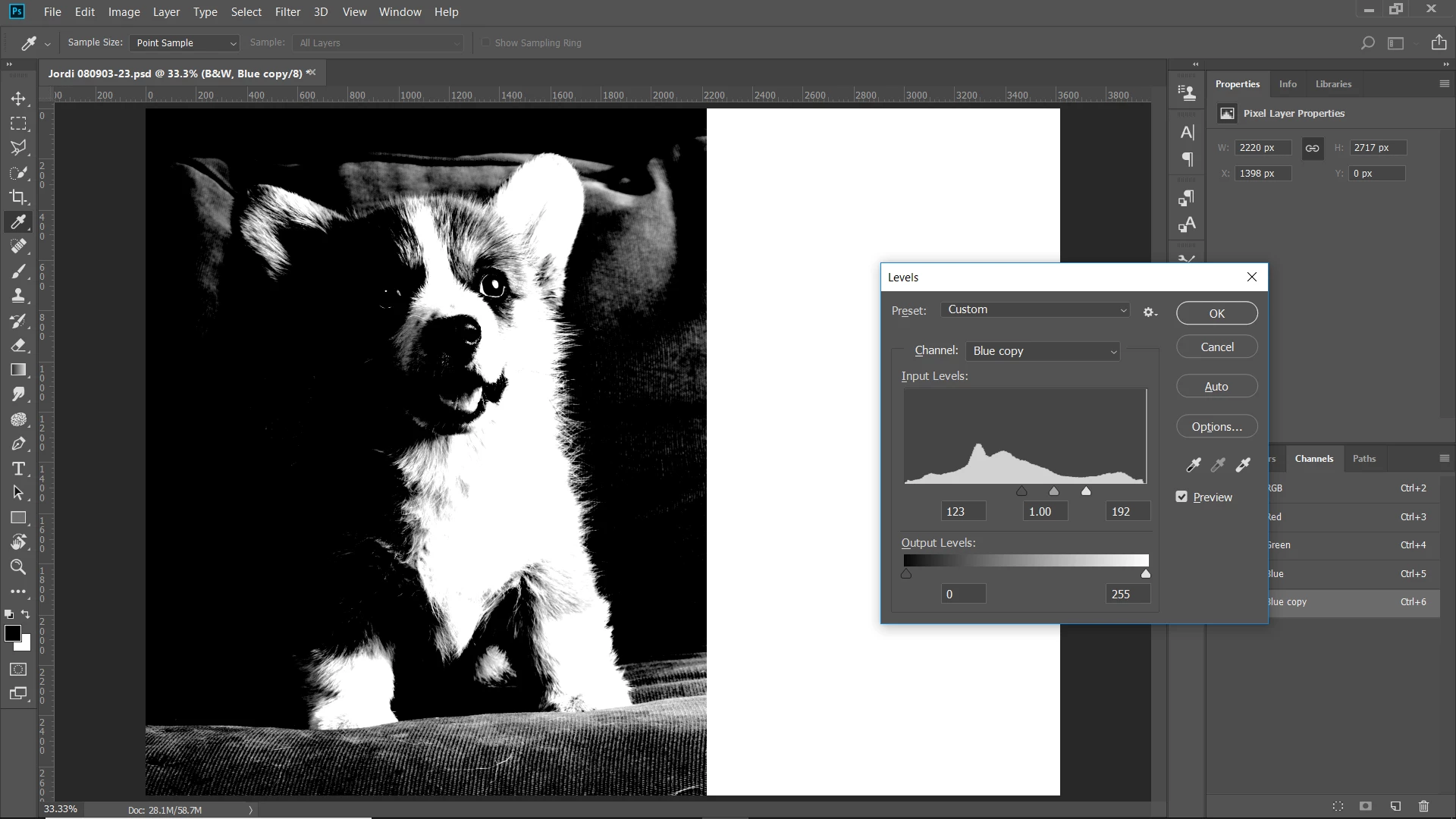
    You need to make a selection of your color subject. This will vary depending upon your subject. For mine, I used the blue channel as it offers the most contrast between the dog and the couch. I duplicated the blue layer:

    Using Levels, I increased the contrast to make a good selection between the dog and the couch.
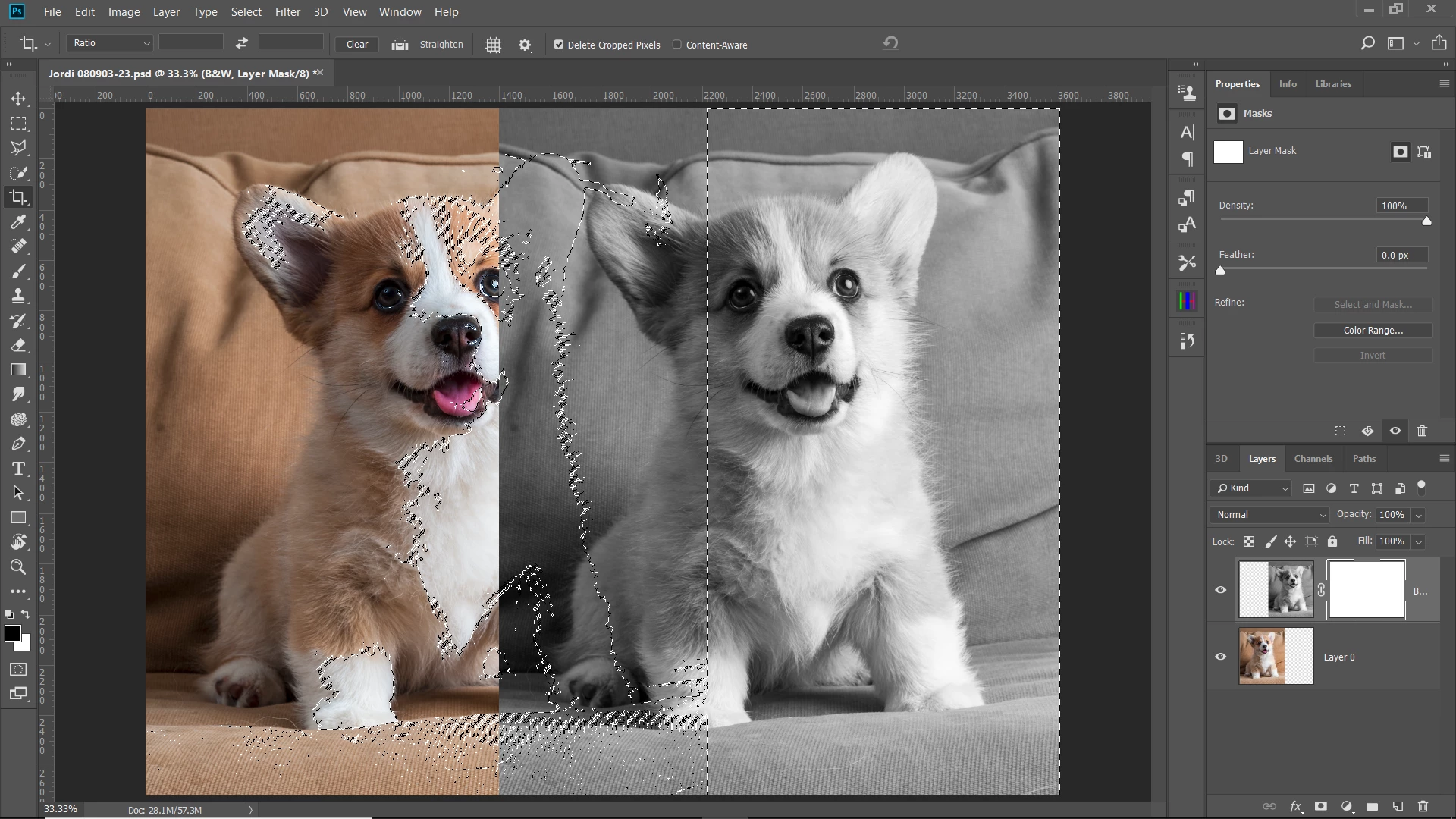
    Clicking on the channel thumbnail while pressing ctrl, made a selection of the channel:
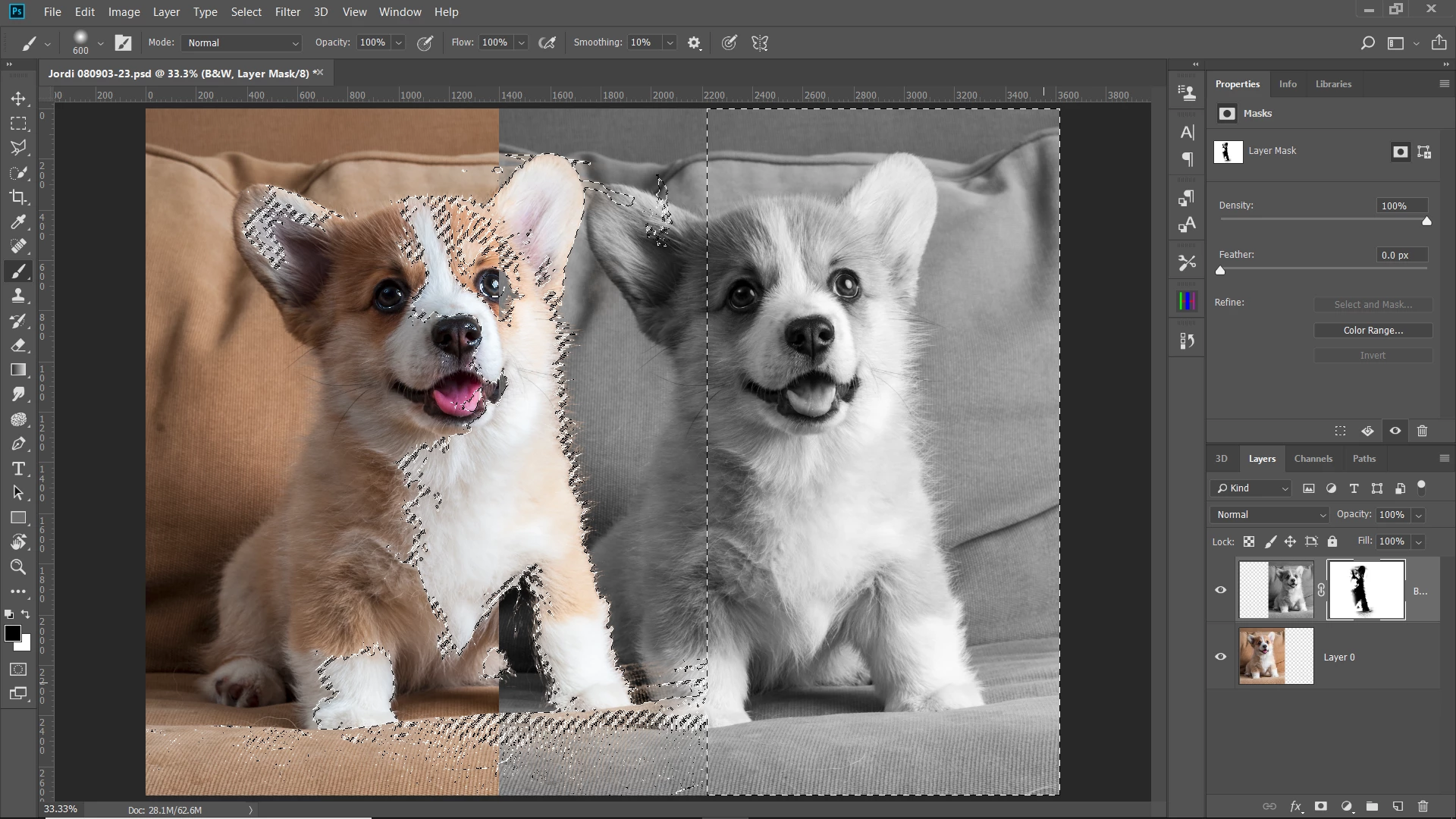
    Now using a black brush with the layer mask selected, I paint out the area of the color dog:
    Now deselect the selection ctrl-D and use a brush to feather the B&W image into the color image.
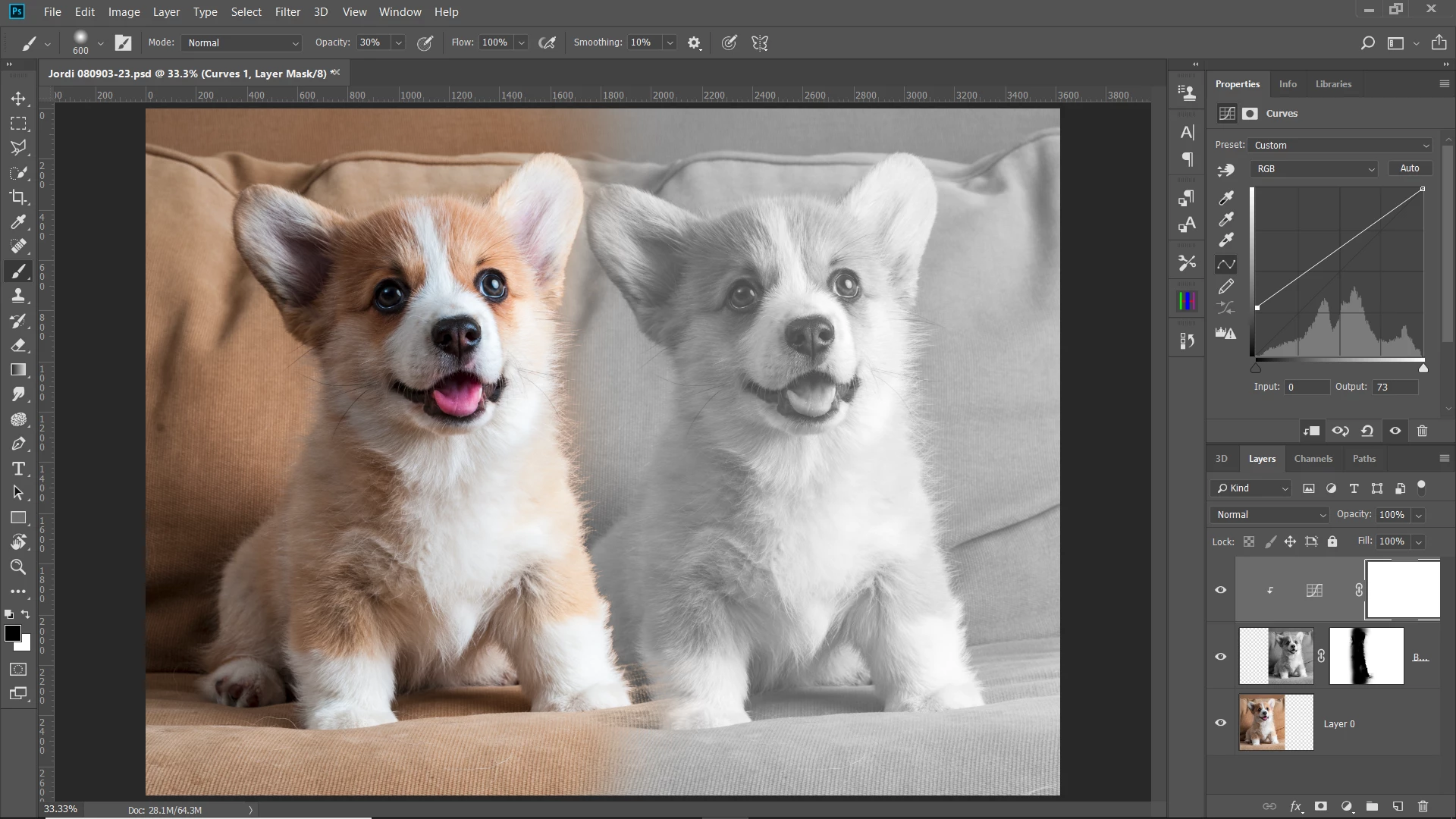
    To lighten the B&W, make a curves adjustment layer and clip it to the B&W layer by clicking between the adjustment layer and the B&W layer in the layer panel while holding the alt key. Then grab the shadow end point of the curve line and raise it to lighten the blacks.
    2 답변

    Omar.Fathy
    Community Expert
    Community Expert
    February 5, 2018

    Hi Tina,

    you can find what you need here in this video:
    black& white.mov - Google Drive

    Chuck Uebele
    Community Expert
    Community Expert
    February 4, 2018

    It's just a matter of making the B&W image and masking it to blend in with the color image. In your example, the color image looks to have a neutral BG. This may have been shot that way, or it was later edited to be neutral. The B&W image was masked to look like it was behind the girl in the color image. The B&W image also looks like the blacks were lightened to give a washed out look.

    ms fixit작성자
    Participant
    February 5, 2018

    Thank you, I am not so great with Photoshop yet. If you could send me the steps that would be great...I use Lightroom for editing photos and for layers I guess I will have to learn photoshop.

    Tina

    Chuck Uebele
    Community Expert
    Community Expert
    February 5, 2018

    I'm using the same photo, just for example. If your image that you want isn't B&W, convert it so it is by using a B&W layer mask or desaturating. I positioned the B&W over the color layer and added a layer mask to it.

    You need to make a selection of your color subject. This will vary depending upon your subject. For mine, I used the blue channel as it offers the most contrast between the dog and the couch. I duplicated the blue layer:

    Using Levels, I increased the contrast to make a good selection between the dog and the couch.

    Clicking on the channel thumbnail while pressing ctrl, made a selection of the channel:

    Now using a black brush with the layer mask selected, I paint out the area of the color dog:

    Now deselect the selection ctrl-D and use a brush to feather the B&W image into the color image.

    To lighten the B&W, make a curves adjustment layer and clip it to the B&W layer by clicking between the adjustment layer and the B&W layer in the layer panel while holding the alt key. Then grab the shadow end point of the curve line and raise it to lighten the blacks.