Inspiring
April 22, 2024
Question

How to add a middle line between two paths?

  • April 22, 2024
  • 4 replies
  • 1186 views

Hi All, 


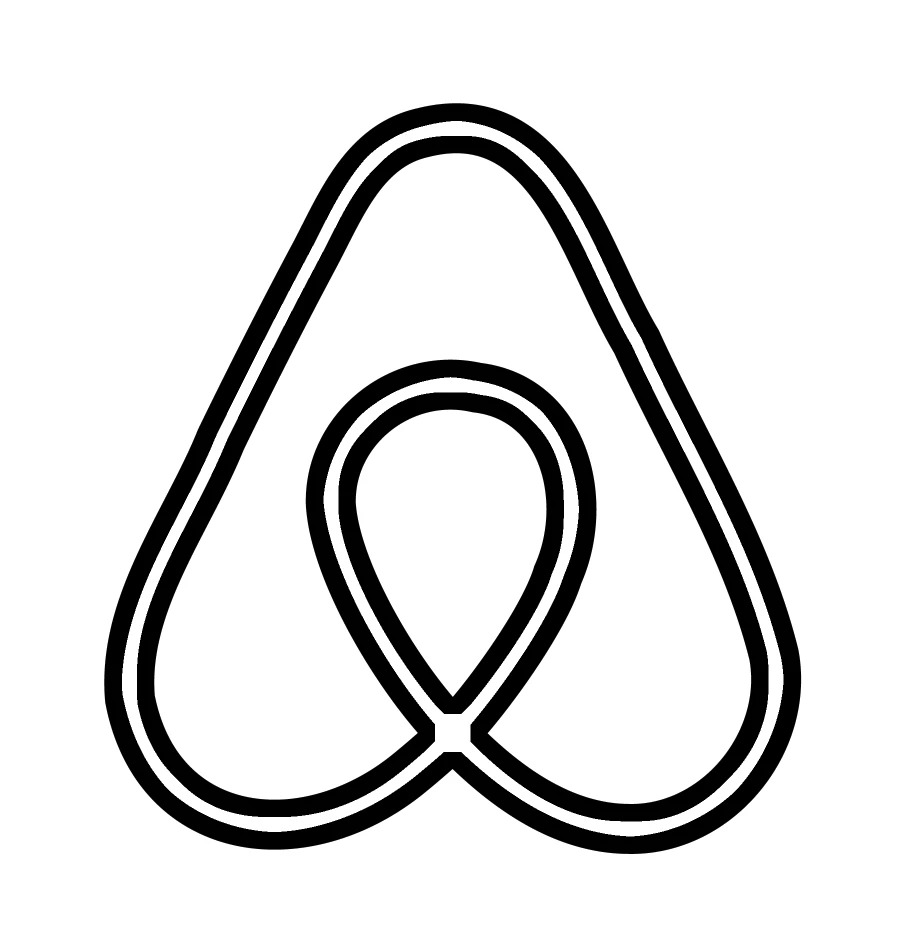
I am trying to add a "middle line" in one of my photoshop images. I haven't found a nice way to do it, although I assme that there is one. Here is a visual representation of what I would like to accomplish: 

 

Ideally I would like to just have a path to represent the middle of the two outer borders, which I can then applyu a stroke to. I have used contract, but this gives me two lines instead of one...


This topic has been closed for replies.

4 replies

Conrad_C
Community Expert
Community Expert
April 22, 2024

I don’t know if this is a good solution for you, but I tried a variation of Myra’s idea of using Layer Styles. Instead, I used two Strokes. Both are set to Position: Inside. The first one is black, and the second one is a thinner white stroke that goes on top of the black stroke.


This could not be done with the graphic as uploaded because Layer Styles apply only to non-transparent areas. So first, I had to click Remove Background in the Contextual Task Bar so that the graphic would have only transparency around it. That gave the Stroke style something to outline properly.


If you applied this to images of different sizes or line weights, you would probably have to adjust the Stroke: Size option for each Stroke instance. But otherwise, you could save this setup in the Styles panel so that you can apply it to other layers in one click.


Bojan Živković11378569
Community Expert
Community Expert
April 23, 2024

I achieved the effect by setting the stroke to black, positioning it inside, and applying a white color overlay. Is that the effect that the original poster is looking for?

White backgorund removed using Blend If slider.


Bojan Živković11378569
Community Expert
Community Expert
April 23, 2024

I might have not written what I want to achieve that clearly, so forgive me. I will try again and try to be as detailed as possible. I want to only create a path that I can later apply a "brush" stroke to. If I just use the stroke tool, then I get a fill inside the object, but not with a brush that I would like... Here is a visual representation:


Are you talking about stroke path https://www.psd-dude.com/tutorials/stroke-path-in-photoshop.aspx? You can choose which brush to use.

pixxxelschubser
Community Expert
Community Expert
April 22, 2024

Es gibt mehrere Möglichkeiten.
Es ist nicht wichtig, ob es sich um Vektorformen oder Pixel handelt. Es auch möglich, entweder eine farbige oder eine transparente Mitte zu erzeugen.


Vektor (mit weißer Mitte)


Vektor (mit transparenter Mitte)


Pixel (mit transparenter Mitte)


------------------------------------------------------------------------------------------------------------------------------------------------------------------

Konstruktion:

Effekt: Schein nach Innen mit Schwarz (aber benutze für eine weiße Mittenkontur einen Schwarz/Weiss Gradienten)


Mischoptionen (Regler für Schwarz etwas nach rechts schieben)


Viel Spass


Myra Ferguson
Community Expert
Community Expert
April 22, 2024

I should add that the Outer Glow approach would be what you add to single stroke (the white in your example) and the Outer Glow would create the two black edges on either side.

ponasAuthor
Inspiring
April 22, 2024

Unfortunately I only have the first image, so the black one. As I have many of those and would like to make an "Action" for adding a stroke in the middle (the stroke is not a solid brush, but a custom one). I hope what I am saying makes sense 🙂

Myra Ferguson
Community Expert
Community Expert
April 22, 2024

You can apply the Outer Glow Layer Style, but you'll need to make some modifications to it. By default, the color applied to Outer Glow is white and the Blend Mode is set to Screen. Change the color to black and the Screen Mode to Multiply. You'll likely need to make the glow area larger, so increase the Size using the slider. It will still appear feathered, so increase the Opacity and decrease the Range. You might also try changing the Technique from Softer to Precise.