Known Participant
January 19, 2022
Question

How to create your own transparent background overlay
  • January 19, 2022
  • 3 replies
  • 1321 views

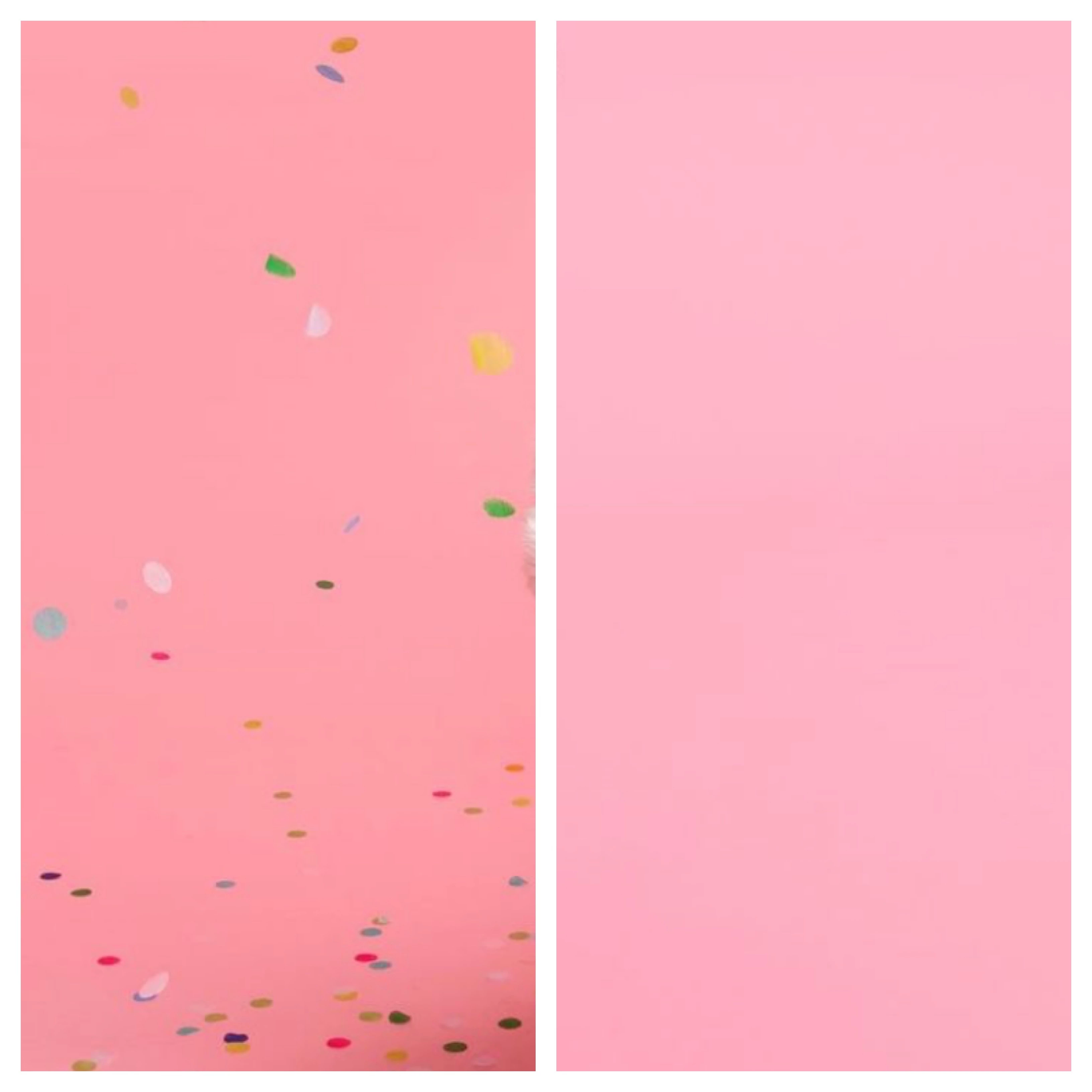
Hi guys, i am intending to create my own confetti transparent overlay layer as im unable to find any natural and realistics ones, but how do i go about doing it?

Would it be better practise if i a) shot the confetti on a empty background without subject, and add that to my photos with the subject instead or would using and creating a confetti overlay layer be better?

This topic has been closed for replies.

3 replies

Trevor.Dennis
Community Expert
Community Expert
January 26, 2022

This took me about five minutes to create


I used this as the template, but you can use the shapes that work for you. This is actual pixel size.

Edit > Define New Brush Preset

Spacing 60%  Note: You can't get an accurate fix on this until you have made the other settings, so you will probably need to come back to it.

Try these settings, but others may work better for your starting shape/template.

I would still tend to keep Angle jitter at 100% to randomise the preset.

Roundness Jitter will have the effect of creating perspective as if some of the confetti is on its side.

The Preview window will be giving a good indication by this stage, so be guided by it.  Scatter at 200% was working for me

This is where the magic begins.  Definitely goe with a Spinal Tap Eleven for colour dynamics.  I've added some Brightness jitter to see if it creates depth but I might turn that off.  It's all part of the fun of using ht eBrush Engine.

Note: Apply Per Tip.  If that is not enabled the colours won't change.

Lets try it out. I am using Green and yellow for foreground Background colours.


c.pfaffenbichler
Community Expert
Community Expert
January 19, 2022

How realistic does it have to be? 

Very simple confetti could be achieved with a Brush. 

Known Participant
January 19, 2022

This is the actual confetti on the paper backdrop, you can see it's quite realistic and the edges are all blurred and blended..

Kevin Stohlmeyer
Community Expert
Community Expert
January 19, 2022

I would definitely shoot the confetti on a neutral or white background, then create a transparency mask in Photoshop to use as an overlay. That way you can control the placement and intensity of the confetti. The only time I'd have a subject in the shot is if they are interacting with the confetti (throwing it, catching it, etc). Otherwise you can put some on their shoulders, clothes, hair as a separate shot and combine.

Known Participant
January 20, 2022

What you mean is you would recommend creating my own transparent confetti overlay from shooting the confetti on a neutral or white background and once I've created that, I use it on my separate photos that has the subject in it, putting some on the backdrop etc to make it more realistic.

what do I search to learn how to make my own transparency layer from a white backdrop? 

Kevin Stohlmeyer
Community Expert
Community Expert
January 20, 2022

You would use a layer mask to hide the background.

Here is how you can make a layer mask, changing the white/neutral background to transparent non-destructively.

https://helpx.adobe.com/photoshop/how-to/layer-mask.html