Participating Frequently
March 4, 2022
해결됨

How to Morph the ENTIRETY of JPG-1 to JPG-2?

  • March 4, 2022
  • 2 답변들
  • 2628 조회

Hello, people.
I'm Very New to Photoshop 2020 v 21.2.2.
Can ya' Please tell me...
How to morph TWO ENTIRE PICTURES? Not just a part of a picture.
I simply want to morph one JPG picture to another picture of the same size.
I'm thinking of just 4 "control?" points, one in each of the four corners.
First picture would fade out, while second picture fades in. Simple, me thinks.
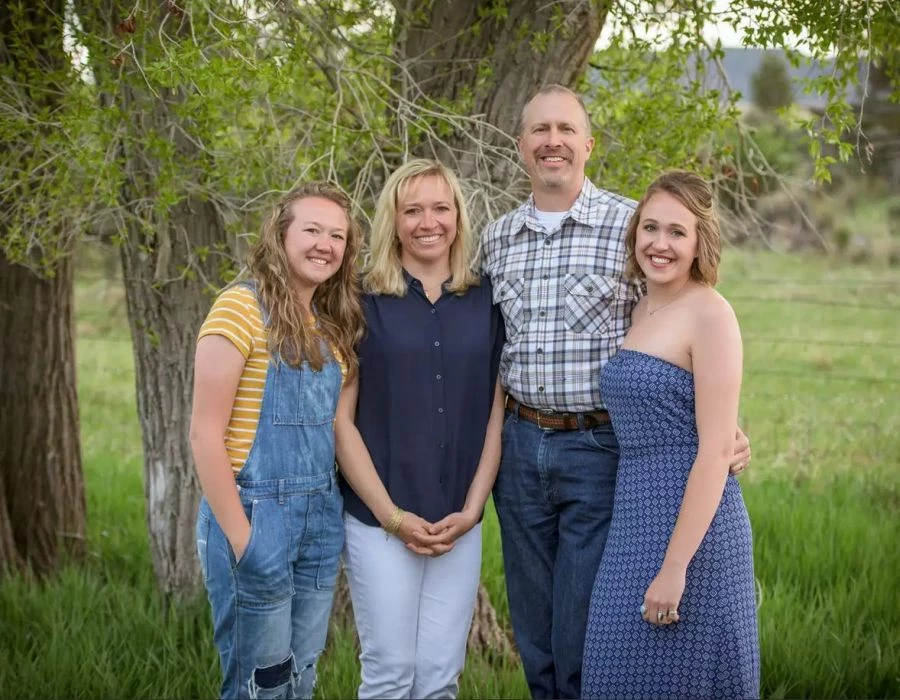
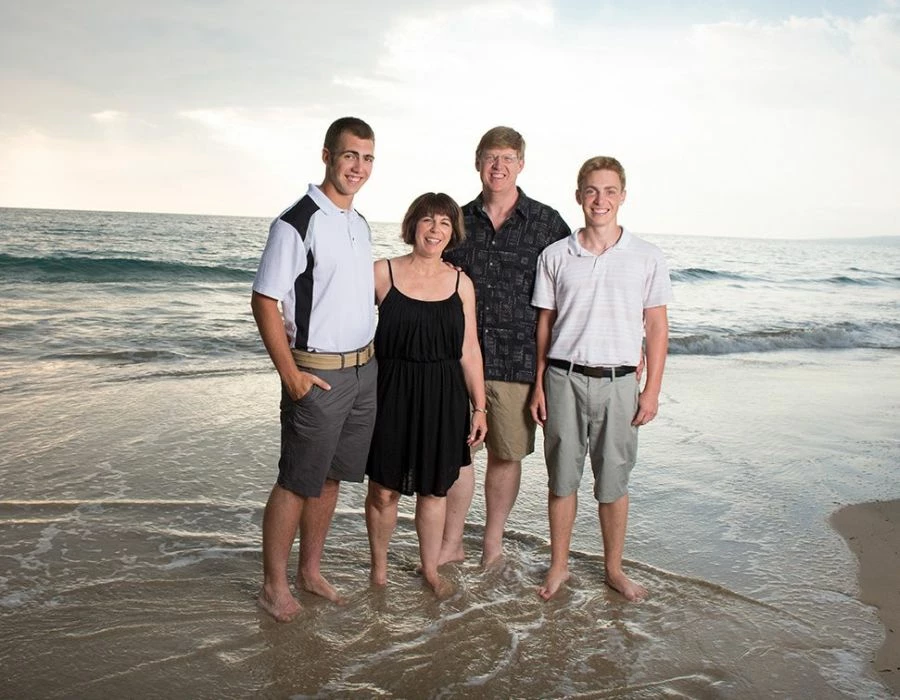
For example, the attached Fam-1 and Fam-2 pictures are the same size.
Just (Morph / Fade) Fam-1 into Fam-2, with about 15 to 20 steps.
Fam-1 will fade out, while Fam-2 fades in.
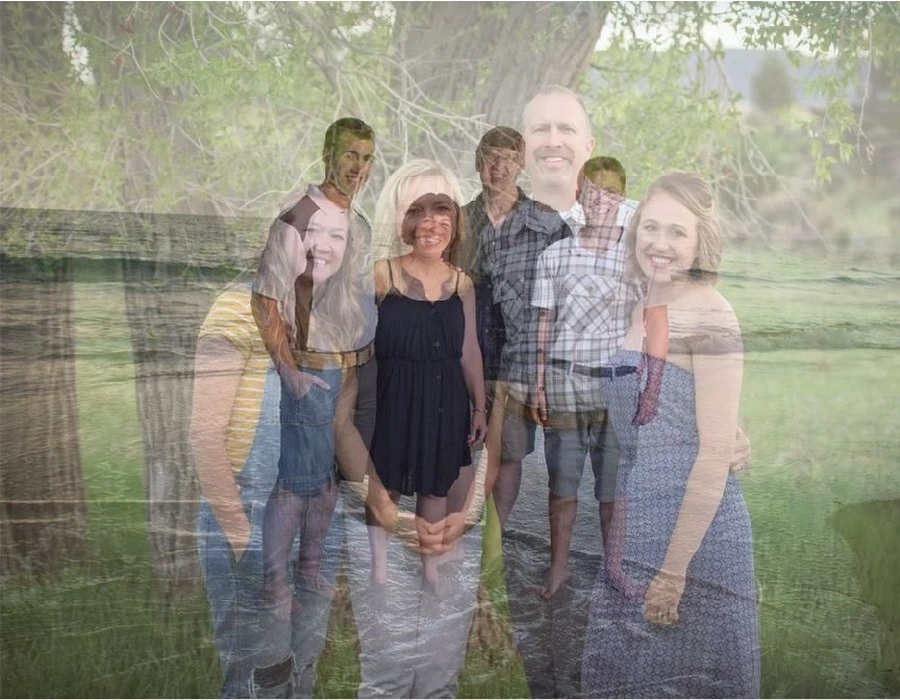
At one point during the Fade in-out, it might look like the Middle.jpg picture.
Is that clear? The final result will be a GIF.
I'm assuming that Photoshop Can do this?
Thanks, people.
Mark
이 주제는 답변이 닫혔습니다.
최고의 답변: Stephen Marsh

@Mark23307055j165 wrote:

Stephen: I got the "load files into stack" done.
I cannot find the "create frame animation" button.
I found... Timeline > Convert Frames > Make Frames From Clips
but I cannot find Make Frames From Layers.
I cannot find any Tween menu item or button.
I told ya'... I'm Very New to Photoshop.
Thanks, though, for your time, guys.


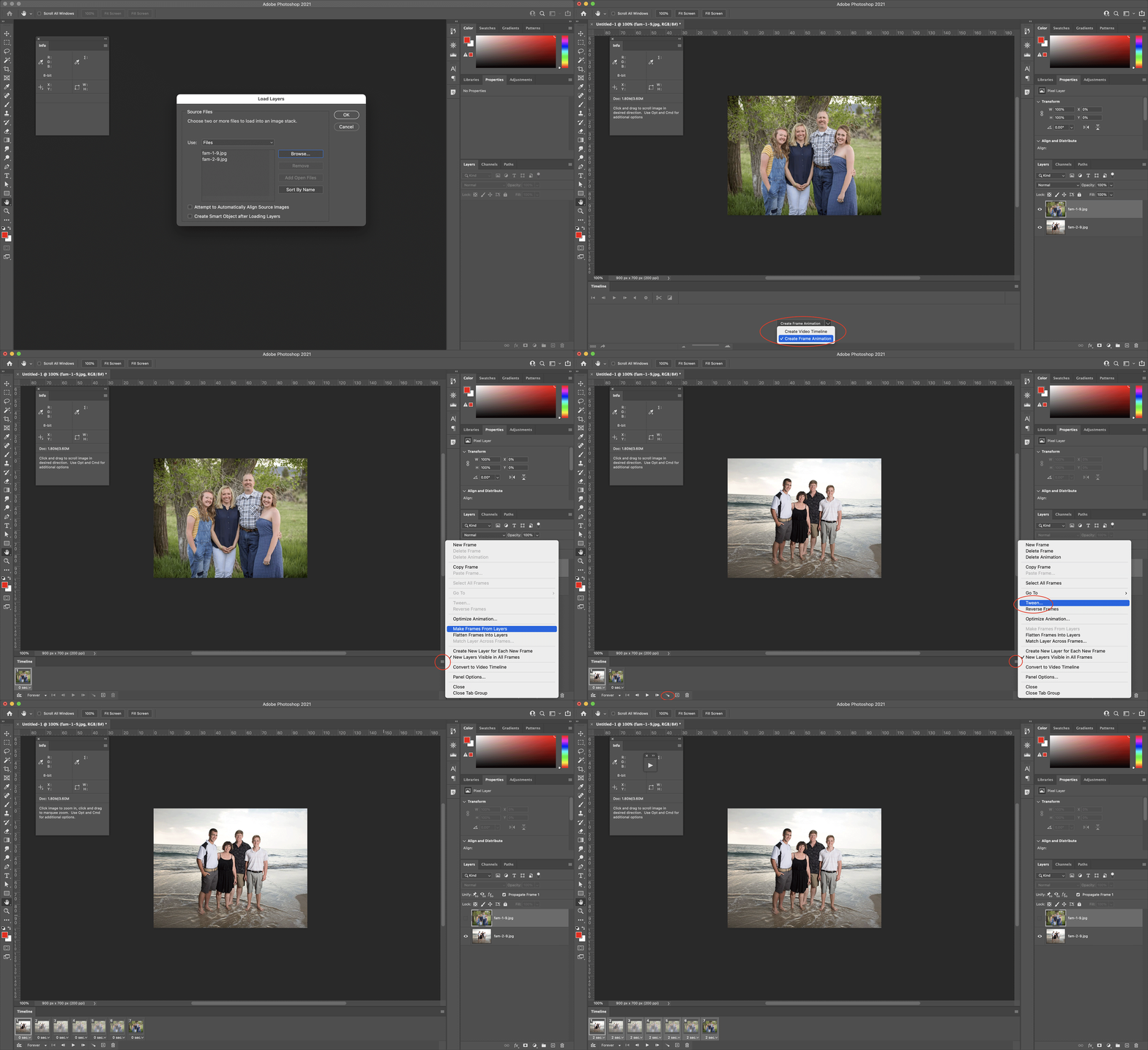
It will just be a case of ensuring that tool-tips are on and hovering over the various buttons and reading the help guide and other various tutorials, videos etc. Here is a step-by-step GIF animation of the key steps outlined in my previous post. Hope this helps!


2 답변

Stephen Marsh
Community Expert
Community Expert
March 5, 2022

This can also be done as a frame animation.


1. Layer the two images into a single file (i.e. File > Scripts > Load files into stack, or one of many other ways)

2. Window > Timeline

3. Press the Create Frame Animation button/menu

4. Use the Make Frames from Layers menu item in the Timeline panel

5. Use the Tween menu item in the Timeline panel (or the Tween button)

6. You can select all frames and change the delay setting

(one can convert between frame and video timelines)


One can either render as a video or save as an animated GIF. Keep in mind that the animated GIF will need to be dithered and can only use a max. of 256 colours for all frames, so image appearance may be compromised compared to a true colour image.

Participating Frequently
March 5, 2022

Thanks very much for the replies, guys,
but you're both talking above my level of understanding.
Mark: How to Drag a layer to a layer in the timeline?
How to create a crossfade transition, (whatever that is)?
Stephen: I got the "load files into stack" done.
I cannot find the "create frame animation" button.
I found... Timeline > Convert Frames > Make Frames From Clips
but I cannot find Make Frames From Layers.
I cannot find any Tween menu item or button.
I told ya'... I'm Very New to Photoshop.
Thanks, though, for your time, guys.

Community Expert
March 7, 2022

You're welcome! And Yeah if you are brand new to Photoshop you might want to search google or hire one of us to help teach.  We try to help on here, but teaching the entire process can be a larger task. depending on a users experience. Luckily Stephen created a nice GIF to show you step by step. As you will learn, there are always many ways of creating things in Photoshop. Stick with the simple method below for now. 


Hope your project turns out great!

Cheers,

mark

headTrix, Inc. | Adobe Certified Training & Consulting
Community Expert
March 5, 2022

Yes this is possible. You have to open Window>Timeline then select "Create Video Timeline" then drag one of your layers to the end of your first layer in the timeline and add a crossfade transition in the middle of the two clips.  You can adjust the amount of time each pic is visisble, and adjust the time of the transition. Then you can export as a video or choose. File>Export>Save for Web(Legacy) to export as an Animated GIF. 


Hope that helps!
mark

headTrix, Inc. | Adobe Certified Training & Consulting