Known Participant
January 30, 2024
Answered

How to remove x-y coordinates indicator when adjusting a path?

  • January 30, 2024
  • 1 reply
  • 1154 views

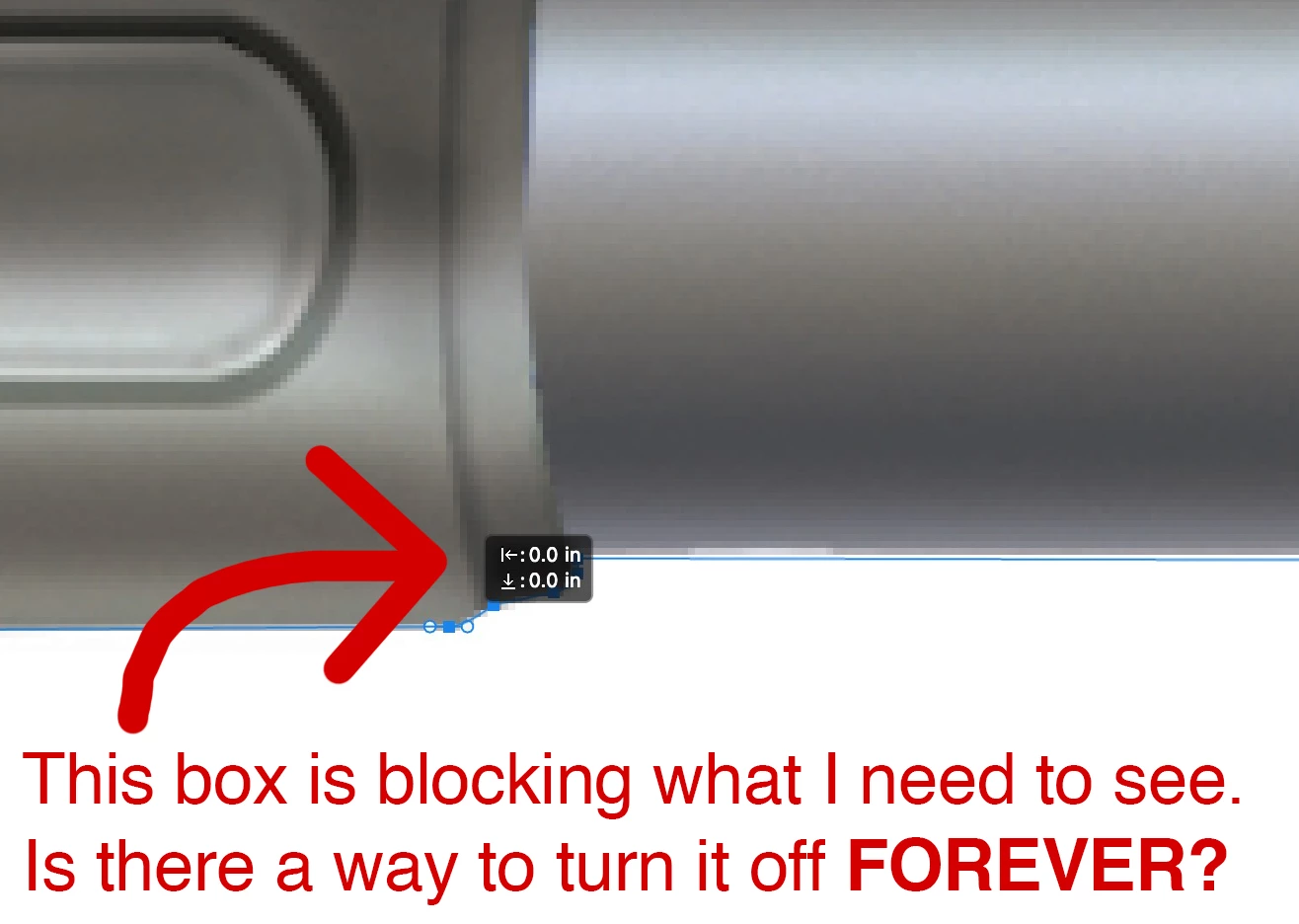
The tiny black x-y coordinate indicator gets in the way when I'm adjusting a path. How do I turn it off?

The attached image explains it better, sinceI'm not sure the right terminology, and there are several parts of the interface that could count as an "x-y coordinate indicator".

Thanks!
Correct answer gener7


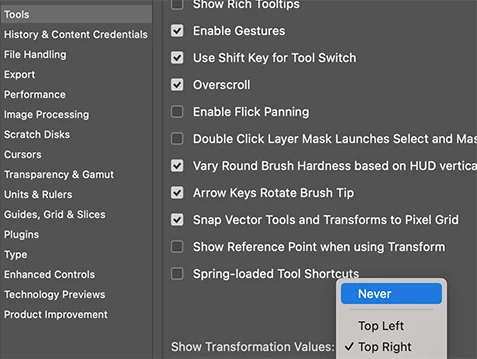
Under Photoshop Preferences > Tools > Show Transformation Values, select "Never".


1 reply

gener7
Community Expert
gener7Community ExpertCorrect answer
Community Expert
January 31, 2024


Under Photoshop Preferences > Tools > Show Transformation Values, select "Never".


km71906051
Inspiring
September 18, 2025

Thank you! I needed this answer, but for InDesign: Preferences > Interface > uncheck Show Transformation Values box.

Trevor.Dennis
Community Expert
Community Expert
September 18, 2025

What would be really useful is a spring loaded shortcut to hide that box, or maybe toggle it's position.

Another posibility would be to add Preferences to what can be saved with Workspaces.  If you used a shortcut to swap between workspaces then you could efectively toggle the state of that pop-up and other Preferences via a shortcut.