
How to Resize Images in Photoshop: 🔎 Quick Tip
Resize Images and Change Resolution
Did you know you can easily resize your images? Sometimes you have a need for a specific image size and/or resolution, such as a passport photo, a web page, or printing an image to fit in a specific picture frame. Using the Image Size dialog box, you can easily adjust the image size (Width and Height) and Resolution.
At first glance, image size and resolution can be confusing. Image size is the Width and Height of the image, often measured in inches. Resolution is the amount of detail in the image and is measured in pixels per inch (ppi). When you change the Width and Height of an image but don’t resample, the number of pixels per inch, or Resolution, changes as you change the dimensions, but the total number of pixels stays the same. If you constrain the proportions, you can set either Width and Height, and the other one will be calculated automatically to keep the aspect ration the same. You can also change the Resolution. If you don't check Resample, only the Width and Height will be adjusted, or you can check Resample to increase or decrease the total number of pixels.
Follow the steps below and watch the video to see how to resize your image. If you want to learn about additional options or just want more information on this topic, check out the related Helpx links at the bottom of this article.
❶ Watch the video
❷ Open an image in Photoshop
Launch Photoshop and open the image you want to resize.
❸ Change the size
If you have an image that you want to save, share, or print at a different size, setting the Width and Height in the Image Size is a simple way to do it.
- From the main menu, choose Image > Image Size.
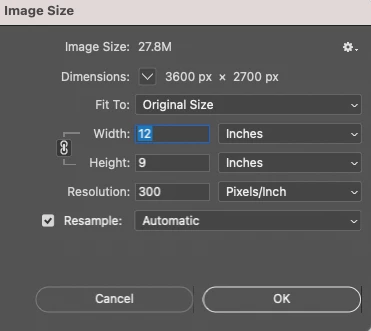
- Choose your preferred unit of measurement to the right of Height and Width, such as Inches.
- Ensure the link between Height and Width is checked to constrain the proportions. You will see a chain link icon connecting Width and Height. This keeps you from making a tall skinny, or short wide image when resizing.
- To change Width and Height without changing the total number of pixels in the image and have Resolution automatically recalculated, deselect Resample Image.
- Enter the value for either Width or Height and the other will automatically change.
- If you only want to change Resolution, and keep the current Width and Height settings, continue on to step 3.
❹ Change the resolution
In some cases, you may want to specify the Width and Height as well as Resolution. In this case, you will need to Resample the image. It is fine to downsize an image, but if you try to make it larger, you should be aware that it will reduce the quality of the image. You either already set the Height and Width above or want to keep them the same and skipped that part. Now you need to choose the interpolation method to use if you want to Resample, and then set the Resolution.
- Check Resample if you want the total number of pixels in the image to adjust automatically.
- Choose the desired interpolation method if you checked Resample. You can read about the choices in the resampling options section here.
- Enter the desired Resolution.
❺ Make the adjustment
- Click on OK to accept the new values and have Photoshop make the adjustments.
- The new image file size now appears at the top of the Image Size dialog box and the old file size is displayed in parentheses.
If you want to learn more about Photoshop in little bite-sized chunks, visit the Quick Tips home page.
Related links:
Basics- Resize, Set Resolution, Crop and Straighten, and Expand Canvas (with videos)
Pixel dimensions and printed image resolution
 AdChoices