
Participant
February 3, 2013
Answered

how to select (all black) image outline using script

  • February 3, 2013
  • 1 reply
  • 3203 views

hi all,

we have thousands of clipart images to convert from wmf to png. We need to apply some processing to each image. We do this by selecting the black outline with contiguous off so it selects all the black. We then inverse the selection and apply processing to the remaining color parts of the image, leaving the black untouched. We can easily automate all of the steps excluding the first black outline selection.

anybody have any idea how we can do this?

alternatively should we do this in illustrator when we do the conversion from wmf to png and create layers there?

thanks.
This topic has been closed for replies.
Correct answer Michael_L_Hale

Hi,

It is important that the inside of any black line is also sharp, so edge only detection would not work.

It would also not work if there are black line inside the coloured area, which a lot of the images do have. The non-contigues selection when doing this manually takes care of those lines not being blurred.

Ps, I'm happy to pay for a script that does this all from a folder with sub folders. If you can make this work, I'm more than happy to compensate you for your time.

Regards, Giscard

Sent from my iPad


Here is an example of a mask created in a way that can be scripted without user input.

The good news is it was easy to create a script that starts with a folder of wmf files in subfolders and end up with processed png file either is the same folder as the wnf used to make the png or in a new folder keeping the original folder structure.

Now it is just a matter of defining what steps to use to smooth an image. If you are happy with the sample mask I can post a script for you to try on a subset of files.

1 reply

Inspiring
February 3, 2013

It would be better if you could use Select Color Range as that doesn’t need to know where the black is in the image.

If a black pixel is in the same place on all of the image you can script the magic wand tool.

You might be able to combine the two. Use color range to find all the black. Use the selection to find the edge. Then use magic wand with the location from step two.

Either one requires using Action Manager( scriptlistener ).

You might also be able to do something with the layer’s blend-if settings. A lot depends on the images and how similar they are to each other.

Participant
February 4, 2013

Thanks Michael, we're trying this now.

Yes images are very similar in the fact that the have a complex hand drawn pure black outline with gradient colour inside.

This gradient being a WMF is only linited to 16 steps, so the banding occurs. This is especially noticable when enlarged.

so the purpose of the surface blur processing is to smooth this banding in the output png image, but keep the black outline sharp and crisp.

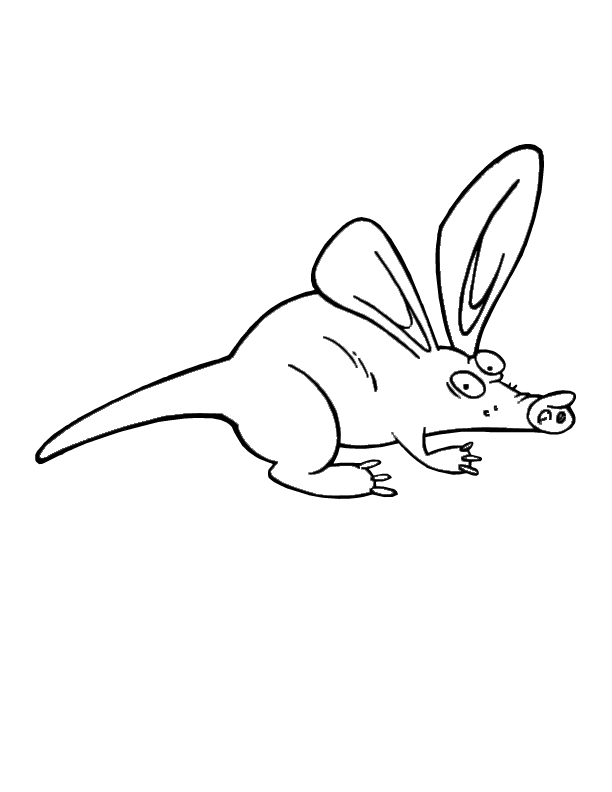
Below is a sample of one of the images done manually. now only 5999 to go

original wmf: https://dl.dropbox.com/u/40046102/Aardvark%20v2.wmf

Imported PNG from WMF through Illustrator, note the colour banding in the blue fill:

when smoothed in photoshop:

Participant
February 5, 2013

If they are all similar to the sample it would be easy to automate the Photoshop side. Let me look into the Illustrator side but I think that will also be easy.

In fact I found that I didn't need to make a selection. I just locked the layer transparency to protect the outside edges and made to passes with surface blur using a low radius and threshold setting.


Hi,

It is important that the inside of any black line is also sharp, so edge only detection would not work.

It would also not work if there are black line inside the coloured area, which a lot of the images do have. The non-contigues selection when doing this manually takes care of those lines not being blurred.

Ps, I'm happy to pay for a script that does this all from a folder with sub folders. If you can make this work, I'm more than happy to compensate you for your time.

Regards, Giscard

Sent from my iPad