

Loot
Inspiring
March 26, 2021
Answered

How to use my display calibration settings with photoshop

  • March 26, 2021
  • 1 reply
  • 4423 views
I have a problem if I use my DisplayCal profile with photoshop, and save an image like a png or jpg the image turns out darker when I view it in another program but looks fine in photoshop before I save it.
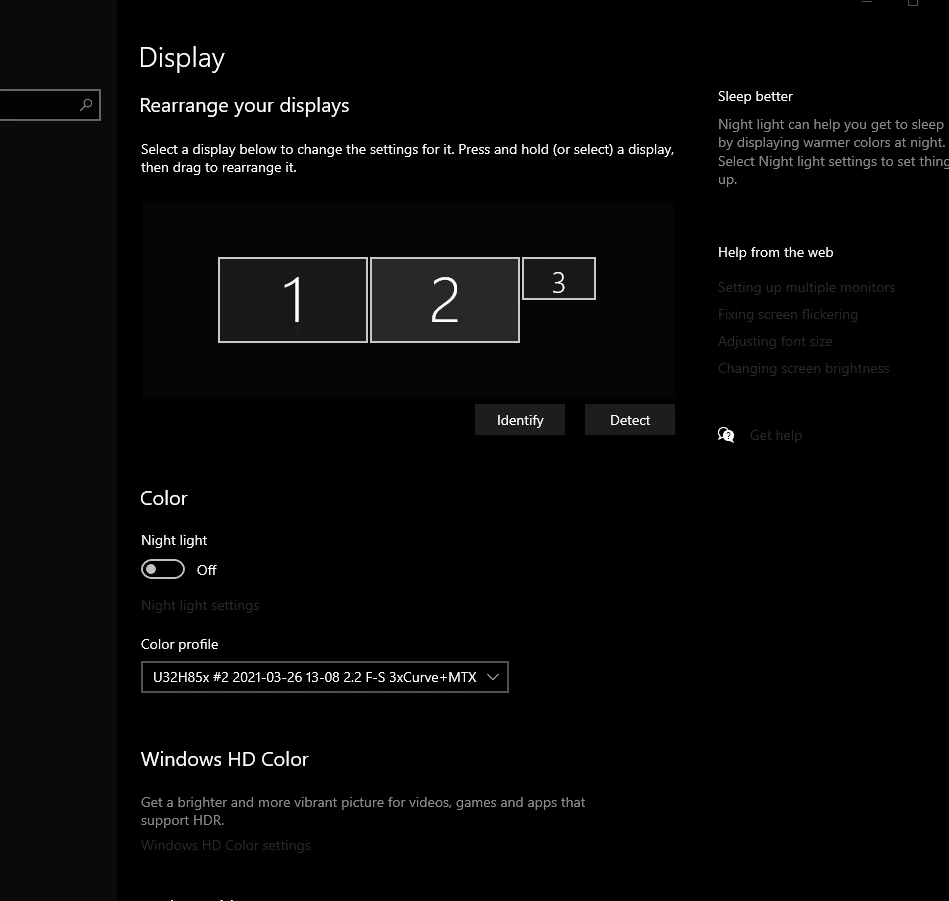
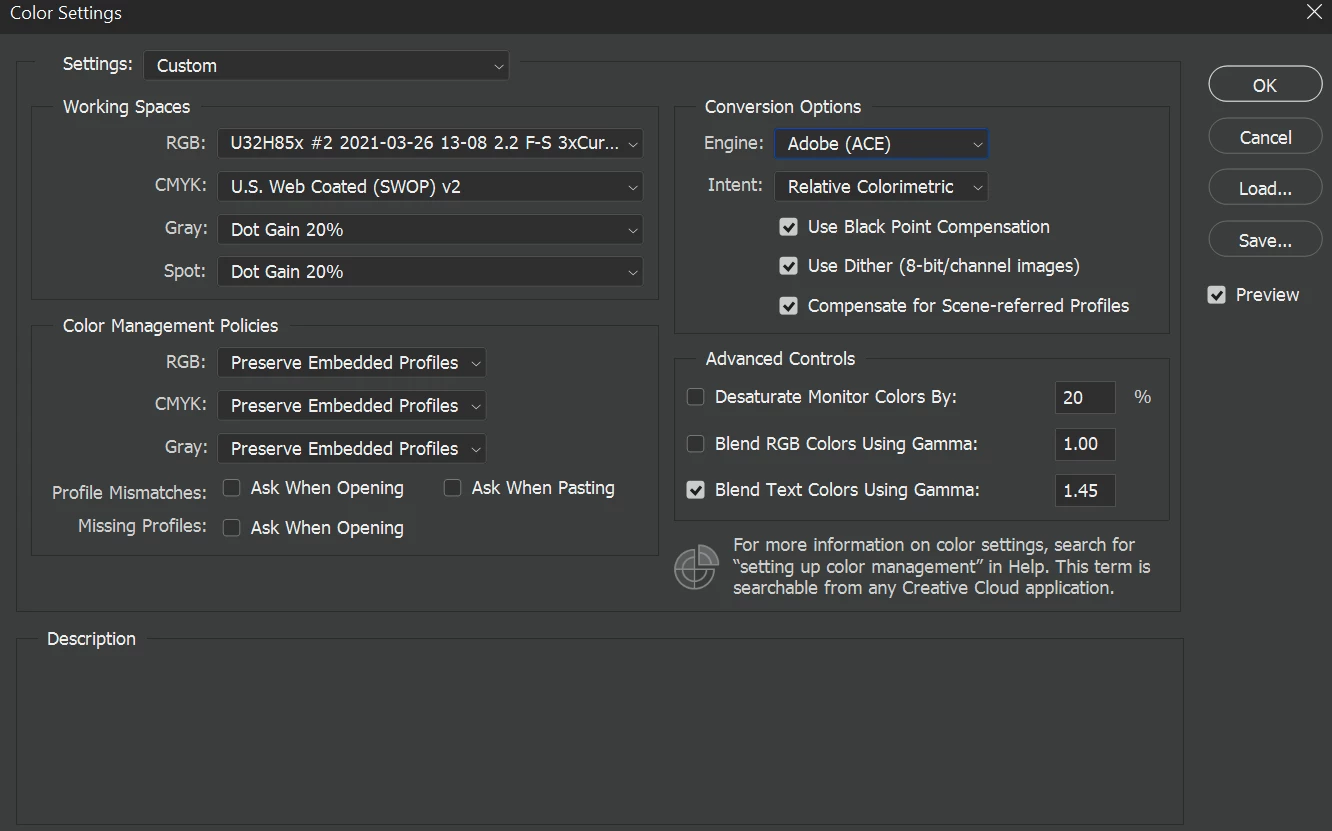
 

So trying the default photoshop setting instead of my calibration it looks fine when previewing images.
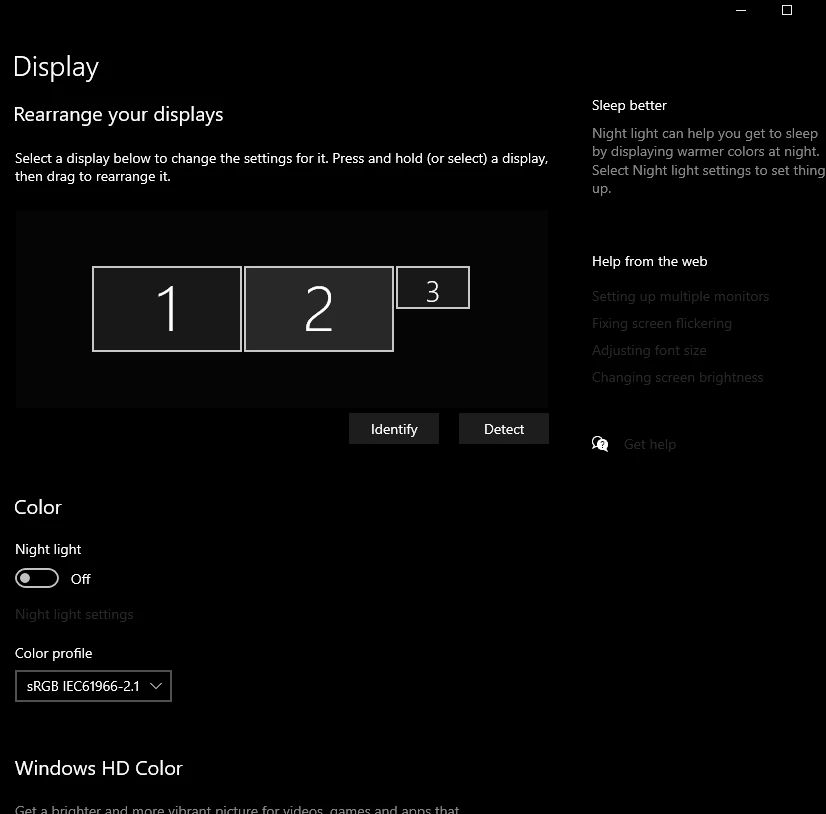
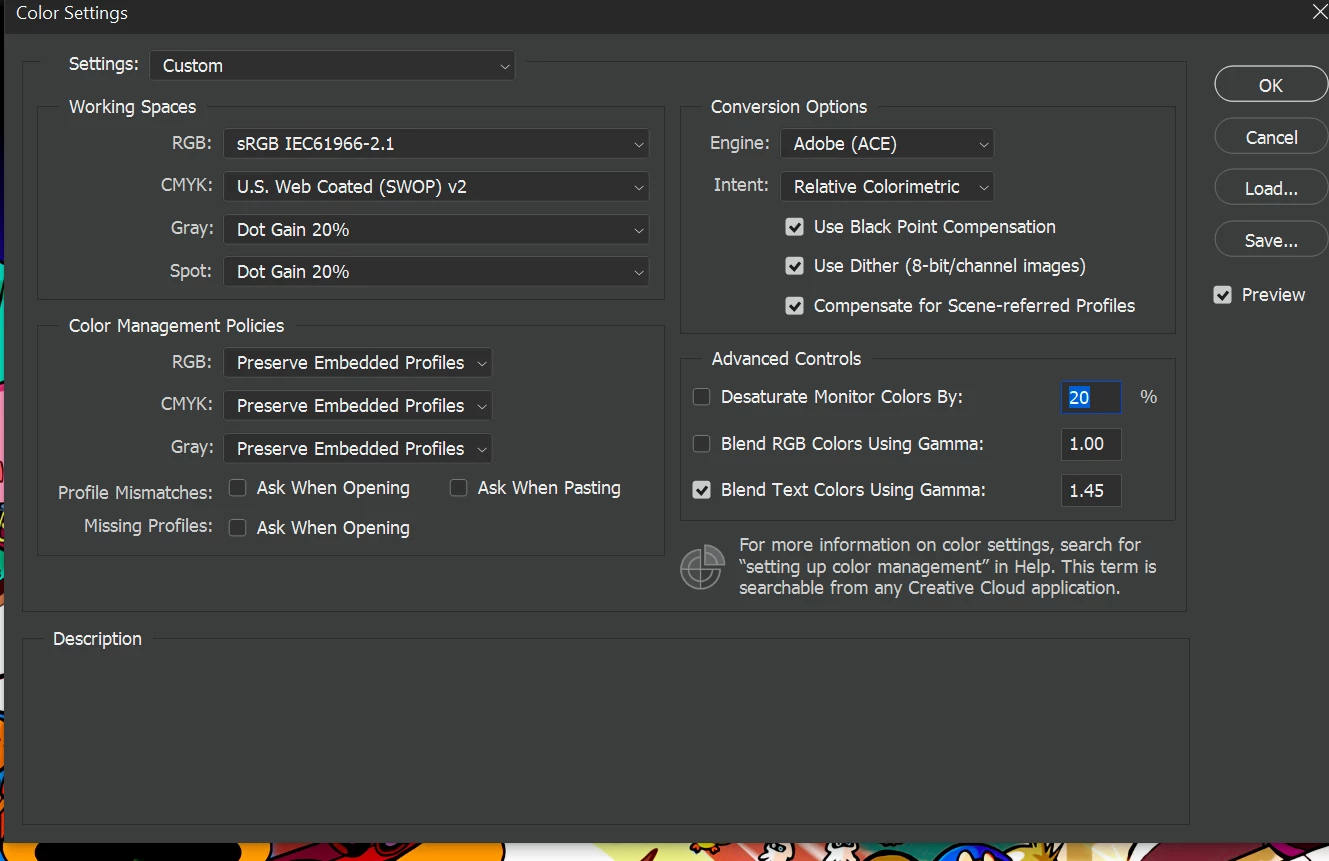


What's the point of calibrating my display if I'm forced to use the photoshop default? can someone tell me what I'm doing wrong?

This topic has been closed for replies.
Correct answer D Fosse

1 more question, I can solve my problem by using srgbIEC61966-2.1 on my display but can't use my calibration? Do you see a problem with this?


No, you can't solve this problem without color management. Color management is the solution, that's all there is to it.


Don't overthink this. Just make your sRGB files in Photoshop, done. It'll be fine.


Most monitors are fairly close to sRGB natively. So even without color management, it will be roughly right. sRGB is the middle of the gauss curve. If you start worrying about the outliers, it will just look worse everywhere else.


Yes, Microsoft could implement color management more widely in the OS-native applications. But the reality is that most people really don't care.

1 reply

D Fosse
Community Expert
Community Expert
March 27, 2021

No, no, don't do that. I don't know why people keep doing this. The monitor profile cannot be used as document profile. If they are the same, that defeats the whole purpose.


Document profile and monitor profile are two different and separate things. You need both, each in its correct place. Color management always requires two profiles, a source and a destination. The source is the document, the destination is the monitor.


Change your color settings back to defaults. The document profile needs to be a standard color space, sRGB, Adobe RGB or ProPhoto.


The monitor profile is automatically set up at system level by the calibration software. Photoshop gets it from the operating system and uses it in a standard profile conversion. This profile conversion happens on the fly, as you work, without any user intervention.


In short, don't do anything! Color management works out of the box. Leave Photoshop color settings at defaults, and don't change anything until you know what you're doing. Run the calibration software, done. Everything is set up automatically.


Oh, one more thing: if you now have a lot of files with your monitor profile embedded, you're in trouble. You need to convert each single one back into one of the standard color spaces. Once you have everything back on track, these files will probably look a bit different than what you've been seeing up till now. So you may have a little work ahead.

Loot
LootAuthor
Inspiring
March 27, 2021

If I use the srgbIEC61966-2.1 working space with my calibrated DisplayCal profile U32H85x #2 2021-03-26 13-08 2.2 F-S 3xCurve+MTX the calibration does not look the same in Photoshop when comparing to the desktop background.

Loot
LootAuthor
Inspiring
March 27, 2021

None whatsoever, if you're thinking about interchangeable files for display across several devices. This is exactly the problem that color management solves.


If it's 100% closed-circuit on your own machine, then yes. In that very special scenario you can work in monitor RGB (using your monitor profile in Photoshop), and then convert to sRGB when done. This should display in all applications as it did when you made it, on your system, on that monitor.


Just as long as we're clear that it will not look like that on someone else's non-color managed desktop, or any of your other monitors.


I'm almost afraid to say this, because there will always be someone out there who takes this as a green light to use your monitor profile in Photoshop. So let me stress this: it is not OK. It's just a limited workaround for a very specific scenario.


If you're making desktop wallpapers for others, there's only one thing to do: work in sRGB. No, you will have no final control over how it will look, but sRGB is the closest thing to a least common denominator we will ever get. sRGB should be roughly right in most situations, at least closer than anything else.


1 more question, I can solve my problem by using srgbIEC61966-2.1 on my display but can't use my calibration? Do you see a problem with this?