Davidfugloe
Participant
April 11, 2018
Answered

I cannot mute a video clip like

  • April 11, 2018
  • 2 replies
  • 6960 views

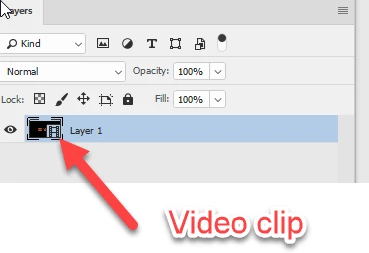
Earlier you could right click on a video clip, and then mute the sound. For some reason I do not get that option any more, instead there are options for motion, such as pan and zoom.

How do I mute the sound on a video clip, and use the sound on a audio file instead.
This topic has been closed for replies.
Correct answer davescm

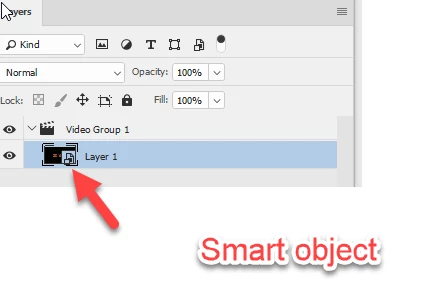
It sounds like your video clip is in a smart object.

Double click the smart object in the layers panel and it should open as a separate document and allow you to access the original clip. Close and save when you have made your changes

Dave

2 replies

Known Participant
March 5, 2021

Similar problem in PS 22.2.0.  I open a .MOV in PS, mute audio, or convert to a smart object and mute, Save (which seems to create a .psb file), and is muted when I play in PS. 

I open an mp4 in PS, mute the audio and works fine in PS. 

But when any of these are rendered to an mp4 output, the audio resurfaces.  How do I kill the audio so that it won't propogate?

Thanks

Bill

jane-e
Community Expert
Community Expert
March 5, 2021


@lasers100 wrote:

convert to a smart object and mute, Save


Follow the directions and screenshots from @davescm in this thread where you posted.

https://community.adobe.com/t5/photoshop/i-cannot-mute-a-video-clip-like/td-p/9813293

~ Jane

Known Participant
March 5, 2021

Where did you mute the audio , in the playback controls or on the clip itself?  Right click the video clip and turn down the audio (or click mute) for the clip


Dave


Hi Dave

You nailed it.  I muted in both the playback control as well as the icon in the audio track bar.  Right clicking on the video to access audio is not something that leapt to mind, but that silenced the exported track.

thanks much

davescm
Community Expert
davescmCommunity ExpertCorrect answer
Community Expert
April 11, 2018

It sounds like your video clip is in a smart object.

Double click the smart object in the layers panel and it should open as a separate document and allow you to access the original clip. Close and save when you have made your changes

Dave