Participant
May 29, 2025
해결됨

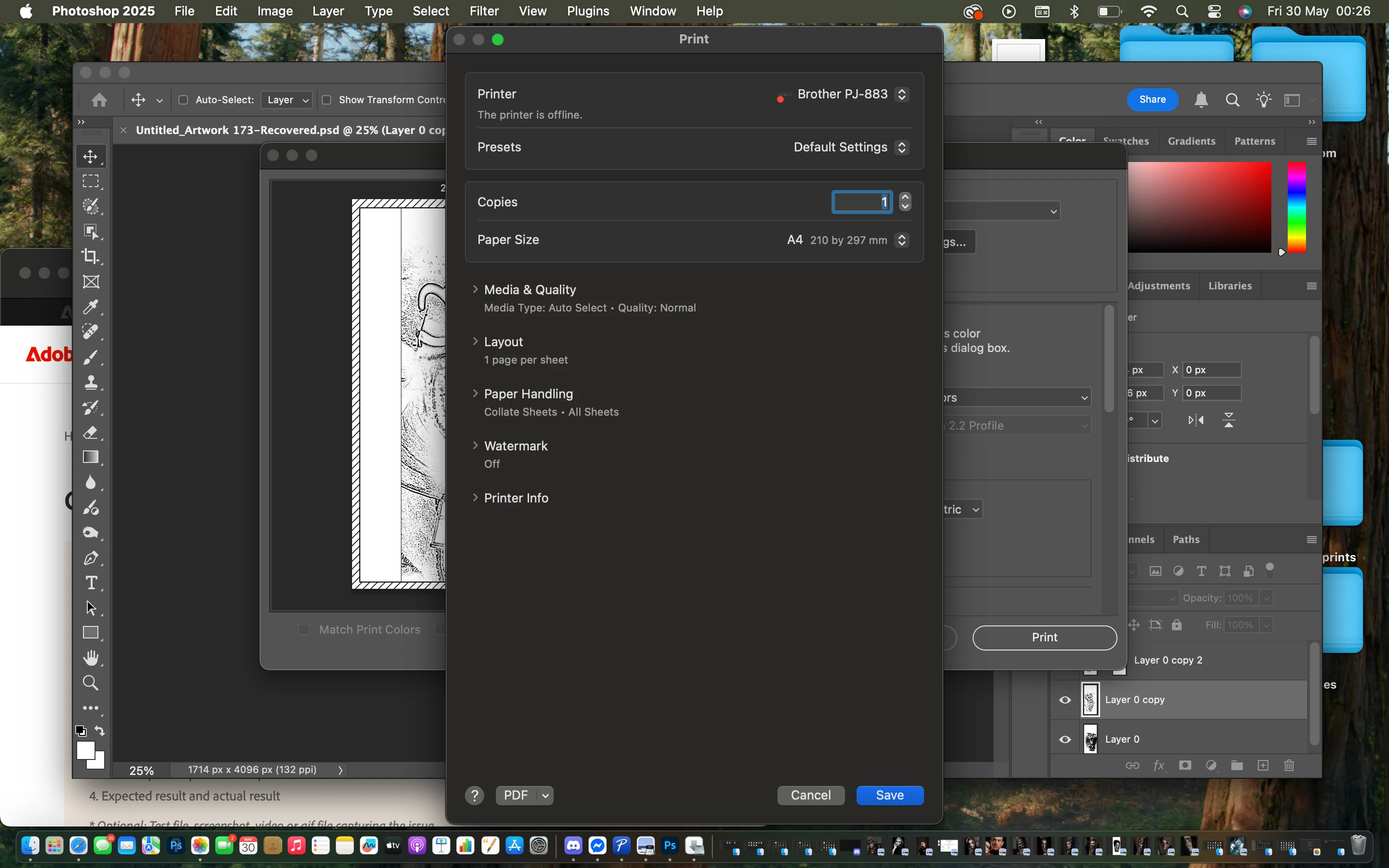
I want to access the advanced printer settings for density selection

  • May 29, 2025
  • 4 답변들
  • 1038 조회

Hello everyone, I would like to access the advanced printer settings for density and even print speed. I have the Brother PJ-883 and I need to print in low density. I am only getting the basic settings. Thanks in advance

최고의 답변: LAMY2017

To reiterate, the poster's Brother PJ-883 is a thermal printer -- heat turns paper black. Black is the only "color" available; no wide-range gray-scale, no color, hardly the printer that one uses with Photoshop.  Draft and Standard are probably the only settings. Yet, I do see the possibility for making art out of 1990s fax-quality print. I did manage for find a load of manuals at

https://support.brother.com/g/b/manualtop.aspx?c=us&lang=en&prod=pj883eus


Also, Create and Print Documents Using Your Computer at

https://support.brother.com/g/s/es/htmldoc/mprint/pj800/usen/html/GUID-465DD092-4D00-4BC0-BFDF-B1C4B5F836F0_30.html?c=us&lang=en&prod=pj883eus&broug=in

contains hyperlinks for the Windows P-Touch Editor and printing using the Win/Mac printr driver.

Printer Settings

https://support.brother.com/g/s/es/htmldoc/mprint/pj800/usen/html/GUID-66A218CA-4D23-40AF-BD70-CE39839C6E3B_105.html?c=us&lang=en&prod=pj883eus&broug=in


Close to an answer:

FAQs & Troubleshooting

What is the JPEG printing and how can I use it?


  • Only JPEG images can be printed.  (Limited to files with the .jpg extension.)
  • The maximum file size is 15.8 MB.
  • The maximum resolutions are as follows:
    PJ-822/PJ-862:
    Height x Width = 1600 x 2200 dots
    PJ-823/PJ-863/PJ-883:
    Height x Width = 2400 x 3300 dots
    If these limits are exceeded, the data received by the printer will be discarded and not printed.
  • 1 printed pixel = 1 dot.
  • This printer performs binary processing (simple binary) to print the image.
  • The image is printed with the height-to-width proportion of the received data.

 

4 답변

LAMY2017답변
Legend
May 31, 2025

To reiterate, the poster's Brother PJ-883 is a thermal printer -- heat turns paper black. Black is the only "color" available; no wide-range gray-scale, no color, hardly the printer that one uses with Photoshop.  Draft and Standard are probably the only settings. Yet, I do see the possibility for making art out of 1990s fax-quality print. I did manage for find a load of manuals at

https://support.brother.com/g/b/manualtop.aspx?c=us&lang=en&prod=pj883eus


Also, Create and Print Documents Using Your Computer at

https://support.brother.com/g/s/es/htmldoc/mprint/pj800/usen/html/GUID-465DD092-4D00-4BC0-BFDF-B1C4B5F836F0_30.html?c=us&lang=en&prod=pj883eus&broug=in

contains hyperlinks for the Windows P-Touch Editor and printing using the Win/Mac printr driver.

Printer Settings

https://support.brother.com/g/s/es/htmldoc/mprint/pj800/usen/html/GUID-66A218CA-4D23-40AF-BD70-CE39839C6E3B_105.html?c=us&lang=en&prod=pj883eus&broug=in


Close to an answer:

FAQs & Troubleshooting

What is the JPEG printing and how can I use it?


  • Only JPEG images can be printed.  (Limited to files with the .jpg extension.)
  • The maximum file size is 15.8 MB.
  • The maximum resolutions are as follows:
    PJ-822/PJ-862:
    Height x Width = 1600 x 2200 dots
    PJ-823/PJ-863/PJ-883:
    Height x Width = 2400 x 3300 dots
    If these limits are exceeded, the data received by the printer will be discarded and not printed.
  • 1 printed pixel = 1 dot.
  • This printer performs binary processing (simple binary) to print the image.
  • The image is printed with the height-to-width proportion of the received data.
 

Larry
NB, colourmanagement
Community Expert
Community Expert
June 4, 2025

@LAMY2017 that’s super helpful, a very thorough answer. I hope @Samuel_Sch does now have access to the proper Brother print software. Actually, I think @Samuel_Sch is using a mac - one of those links of yours shows mac options too I see. 

https://support.brother.com/g/s/es/htmldoc/mprint/pj800/usen/html/GUID-66A218CA-4D23-40AF-BD70-CE39839C6E3B_105.html?c=us&lang=en&prod=pj883eus&broug=in


I hope @Samuel_Sch  can solve printed appearance issues now, rather than feeling limited by the Brother software I'd be recommending altering image appearance in Photoshop anyway, not inside a print drivers options. Yeah there might be some creative opportunities to make the best of a basic seeming printer 


I hope this helps

neil barstow colourmanagement - adobe forum volunteer,

colourmanagement consultant & co-author of 'getting colour right'

See my free articles on colourmanagement online

Help others by clicking "Correct Answer" if the question is answered.

Found the answer elsewhere? Share it here. "Upvote" is for useful posts


NB, colourmanagement
Community Expert
Community Expert
May 31, 2025

@Samuel_Sch I don't think ALL printer driver software includes the options you desire, this is a Photoshop forum where users might discuss how to make image adjustments in Photoshop that are needed to alter printed appearance. Can you do that?

In any case, though, I wonder if you are perhaps using the Apple default print driver rather than the manufacturer's own software? 

Here's some more info I wrote about this and Epson drivers, I hope you can interpret it in the light of your printer model:


Mac: Add printer, AirPrint issue, here are some notes about Apple’s built in (default) Gimp Print / Gutenprint based printer drivers.

Best avoided.  It can print quite differently from the manufacturer's own driver software. 


Does the print driver look different? some options have changed?

Are media names the same as previous drivers you've used, e.g.. is 'Premium Luster Photo Paper' mentioned or are the media types just simplified names like matte or gloss? 


You'll be aware, I'm sure, that the selected media name in the driver must match the selection made when printing ICC profiling patches, (so the ICC profile and media type selection are linked) . BUT is the media name selected previously actually there in the list?

IF the media names listed differ (and have been simplified) then you are perhaps inadvertently using Apple’s default Gimp/ Gutenprint driver rather than Epson’s own. It's not just a matter of installing Epson driver software, you have to select it too. I do know it's very important to use Epson's own driver software. I tripped over this myself on a client site, the driver looked different and I put it down to an OSX update imposed style - took a while to work that one out.


Here's an example of what I'd expect to see in an Epson driver for media name options:


Can you access print settings in an application other than Photoshop, try Preview?

If not, a thorough purge may be in order, perhaps install drivers (downloaded from Epson) again: 


1. Delete all instances of Epson printers from 

System Settings (or System Preferences depending on Mac OS version) / Printers & Scanners -or- System Preferences>Print & Fax, whichever you have.

2. Then go to /Library/Printers and trash the whole Epson folder.

3. Delete the Epson LFP Remote Panel (IF you are using that utility).

4. Then go to Epson online and download the printer drivers yourself.

Do not let the Mac install the printer driver for you.


There’s one more tripwire - in System Settings (or System Preferences depending on Mac OS version) / Printers  - - - , when adding the connected printer

[i.e. click the padlock, enter your password and click the “+” button]


- watch out for the “Use" selection - I recommend you do not select "Airprint" there under "use", but, rather, manually set "use” to the printer name, which will then call on the manufacturer’s own software rather than the default Apple driver (that’s based on Gimp Print / Gutenprint, which misses out some printing options such as specific manufacturers media names). 


Ted landau mac Guru had the same issue:https://www.macworld.com/article/224167/the-trick-to-finding-the-right-printer-driver-for-your-mac.html


I hope this helps

neil barstow, colourmanagement net  - adobe forum volunteer - co-author: 'getting colour right'

google me "neil barstow colourmanagement" for lots of free articles on colour management

Help others by clicking "Correct Answer" if the question is answered.

Found the answer elsewhere? Share it here. "Upvote" is for useful posts.

Conrad_C
Community Expert
Community Expert
May 30, 2025

Your screen shot shows the standard macOS Print dialog box, and also shows the expandable sub-sections that usually contain the advanced options. When you expand and open those sub-sections, are the advanced options still not available?


Your screen shot shows Apple options, by the way. When you print, this is the software that displays options in each box:

  • Photoshop Print dialog box: The options are displayed by Photoshop. In your screen shot, the Photoshop Print dialog box is behind the macOS Print dialog box, so the options you are currently viewing are not supplied by Photoshop, but by macOS. 
  • macOS Print dialog box: This is the box displayed in the foreground of your screen shot. These options are mostly supplied by macOS, not Photoshop. 
  • Printer options: Your screen shot does not show these, because they are displayed when you expand and open the sub-sections of the macOS Print dialog box. Usually, the options you mentioned are in the Printer Settings section. The options in those sub-sections are supplied by the printer’s manufacturer through their printer driver software, which you separately install.  


So that’s the background info. With that in mind, this is how you get to advanced printer options, if available:

  • Make sure the most full-featured version of the printer driver is installed. Sometimes macOS automatically installs a basic printer driver that lacks some options. For some printers (not sure about Brother), advanced options might not be available unless you go directly to the printer manufacturer’s website and download the full, not basic, version of the printer driver and run the installer yourself. More info about that in this article: The trick to finding the right printer driver for your Mac (Macworld magazine)
  • Make sure the latest version of the printer driver is installed. For example, if your Mac is runnning macOS 14 or 15 but the printer driver is for macOS 10.15, it might not work correctly. 
  • Find the printer’s own options. Again, these are not found in the Photoshop Print dialog box or the macOS Print dialog box, but in the buried settings that you get through from the macOS Print dialog box. So in Photoshop choose File > Print, then click Print Settings to get to the macOS Print dialog box that you showed, then expand and open the appropriate sub-section (such as Printer Options) to get to manufacturer-specific printer options.


If you try all those things and the options you want still aren‘t there, contact the printer manufacturer’s tech support for more help, because Photoshop doesn’t control that part of the Print dialog box.

NB, colourmanagement
Community Expert
Community Expert
May 31, 2025

@Conrad_C   helpful post, unfortunately I can't click upvote here for some reason despite being logged in! you make a lot of good points 


neilB

Legend
May 29, 2025

It is a basic, black-only direct-thermal portable printer, Samuel.

I didn't find a manual at brother-usa.com, but a fairly good, indexed online resource.

Clicking on the Support link gets a 404-not found, so I can see why you posted here.

More in a moment, if I find operating instructions. [I found nothing]

--

Try clicking on Media & Quality. That's where the settings on most printers is.

Inside Photoshop: Print a document, then click on Print Settings;

within Print Settings, in the resulting Print dialog, scroll down until you see Printer Options, then look for Print Settings, then Print Quality.

This is all printer-dependent.
Maybe a denizen of this community has the same printer.


Larry