Participant
May 3, 2025
Answered

Image can't be placed back in workspace

  • May 3, 2025
  • 4 replies
  • 580 views

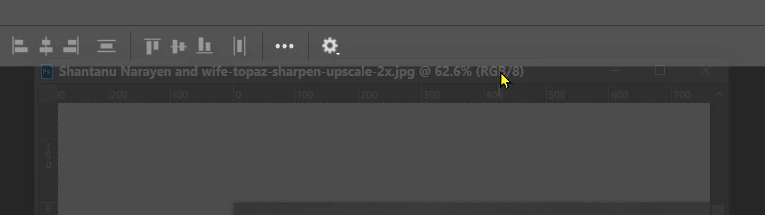
I accidentally detached the image screen I was working on from the workspace and I can't seem to re-attach it back again. I used to be able to simply drag and drop it in. Same goes for my Tools strip and my Layers box. Once they get detached I can't seem to drag and drop them back onto the workspace.  See attached video please.

Any help would be appreciated. Thanks much.

Brian
Correct answer Trevor.Dennis

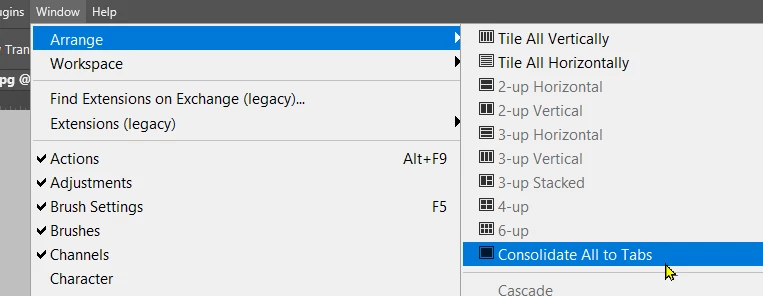
There are a lot of ideas here, but it looks to me that you just need to use Consolidate All to Tabs and your documents will be docked.


It is possible to do this with the mouse, but you don't see the blue line, like with workspace panels. Instead, the document frame appears to become semi-transparent. Release when that happens and you'll be docked.

I hope I have not repeated what someone else has already said.

4 replies

Trevor.Dennis
Community Expert
Trevor.DennisCommunity ExpertCorrect answer
Community Expert
May 4, 2025

There are a lot of ideas here, but it looks to me that you just need to use Consolidate All to Tabs and your documents will be docked.


It is possible to do this with the mouse, but you don't see the blue line, like with workspace panels. Instead, the document frame appears to become semi-transparent. Release when that happens and you'll be docked.

I hope I have not repeated what someone else has already said.

Jeff Arola
Community Expert
Community Expert
May 4, 2025

For the panels drag to the right or left side of the Photoshop interface until you see a blue line then release your mouse to dock the panels.


As for the docking of the Floating Document Windows go to Photoshop 2025>Settings>Workspace and verify Enable Floating Document Window Docking is checked.


Glenn 8675309
Legend
May 3, 2025

Glenn 8675309
Legend
May 3, 2025

Look at what the red arrows are pointing to- it's another way you can do it.  I don't use the menu for this as I typically only work on one image/ canvas at a time.

jane-e
Community Expert
Community Expert
May 3, 2025

@LesToil100 


A couple of things to try:

  • Reset the Essentials workspace (Window menu > Workspace submenu)


You might have to reset preferences, but before you do, try both of these:

  • Quit Photoshop and re-launch
  • Quit Photoshop, reboot your computer, restart your computer, and re-launch Photoshop


If none of these work, you might need to reset your preferences. If you do it manually by renaming the file, then you'll be able to retrieve the file if necessary by renaming it again.

https://helpx.adobe.com/photoshop/using/preferences.html


Read these two sections:

  • Back up preferences
  • Reset Photoshop preferences


Jane