Participant
July 9, 2018
Answered

Is there a way to make the Paint Bucket Tool actually fill a selection witout leaving an outline?

  • July 9, 2018
  • 14 replies
  • 92898 views

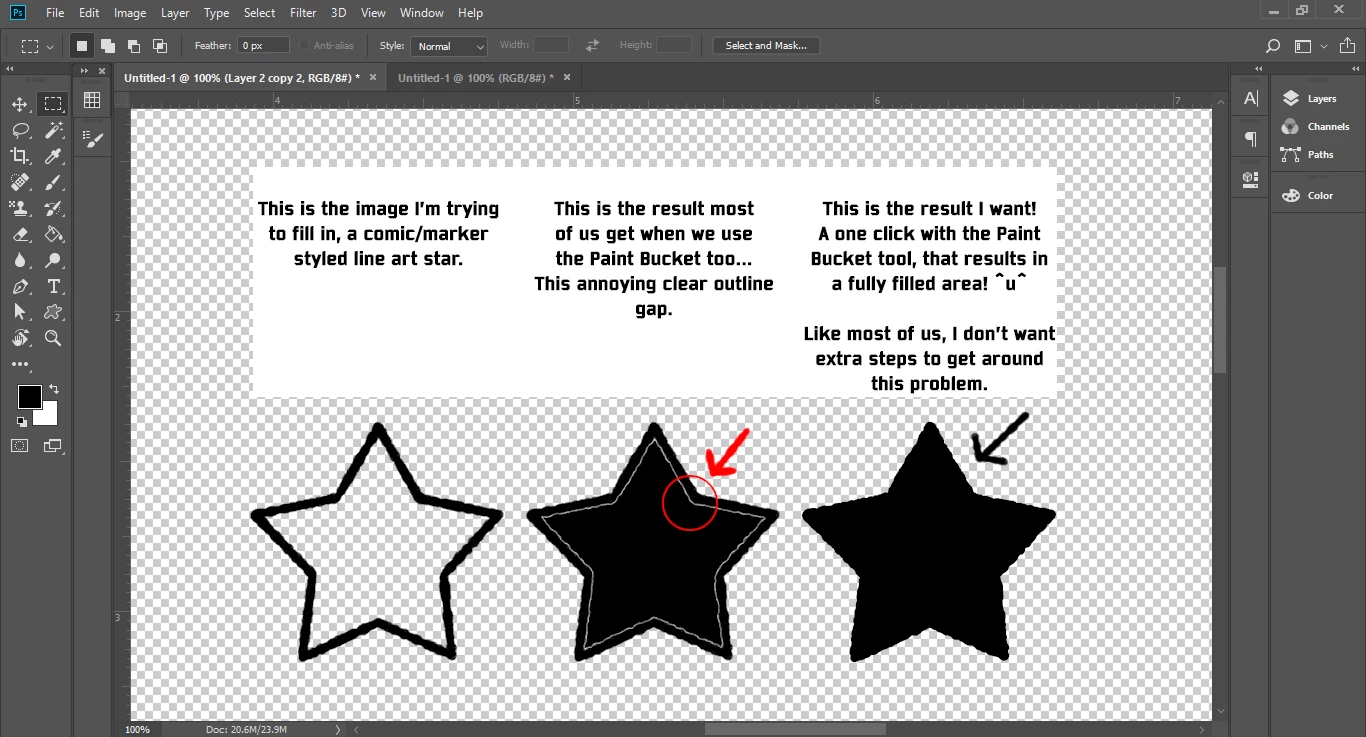
Tired of filling in a closed area with the Paint Bucket tool, and it leaving a small thin outline around the area you wanted to fill in! ME TOO! That's why I'm here asking around, lol.... I'm being silly, but in all seriousness, I have had this problem for a few years now and have never actually found an answer to this problem.

(Look at Image above for example) I want to use the bucket tool in Photoshop(2018) and with ONE CLICK, have it fully fill in a selection without leaving those annoying outline gaps.

I've asked people on many occasions on how to fix this and no one has found a solution so far. Now people have found multiple ways to fill in a section without just clicking once with bucket tool, but it requires more steps and more steps equals a waste of time. Especially when you draw comic's or commissions for fun like I do.
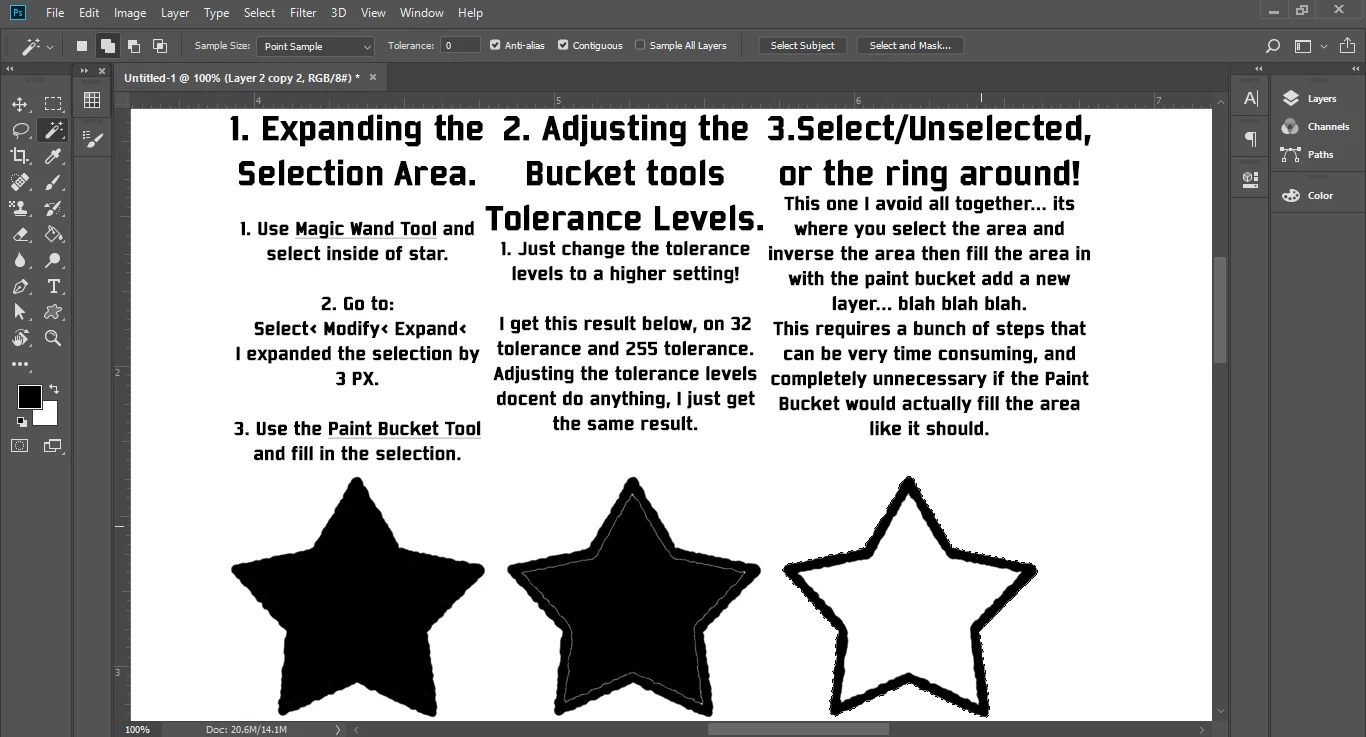
The examples above are the 3 most common ways people have avoided the Bucket problem, but I have also been told to:

- Color it in by hand.

- Color it in illustrator or a different program.

- Double click on with the Paint Bucket tool. (which docent' work because it messes up the line art, by making it blocky/pixelated)

- Photoshop's Paint Bucket can't do that.

and many more odd, time consuming, unhelpful, ways to color in an area. These are not solutions, these are extra steps and answers that are avoiding the question I'm asking...

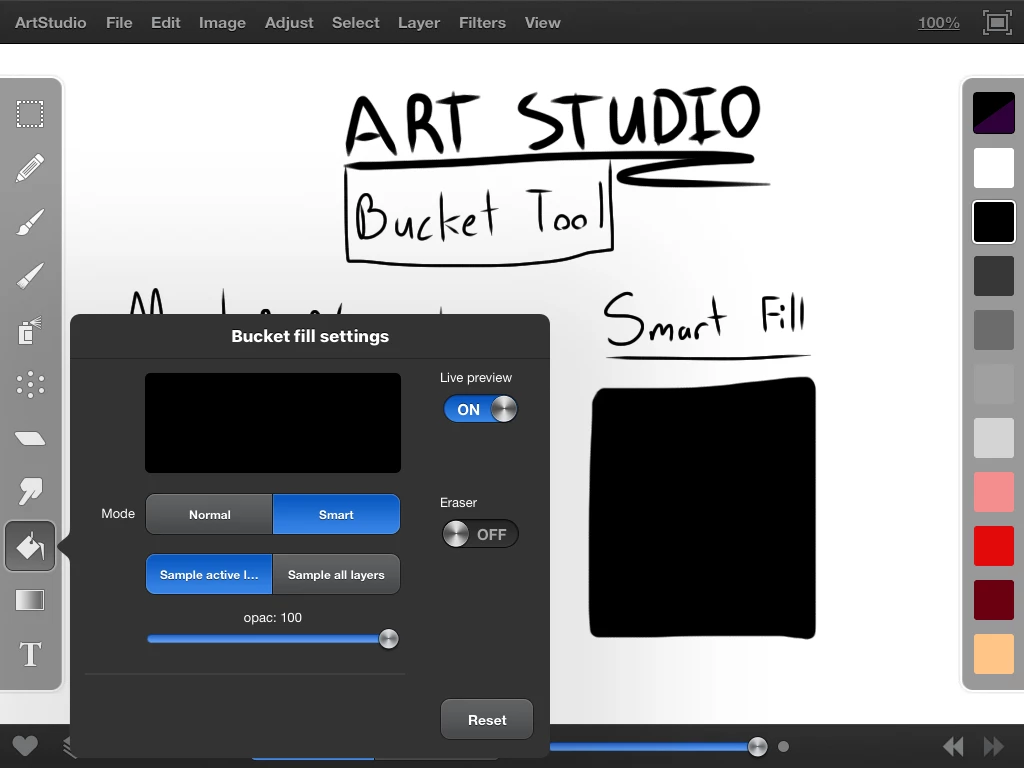
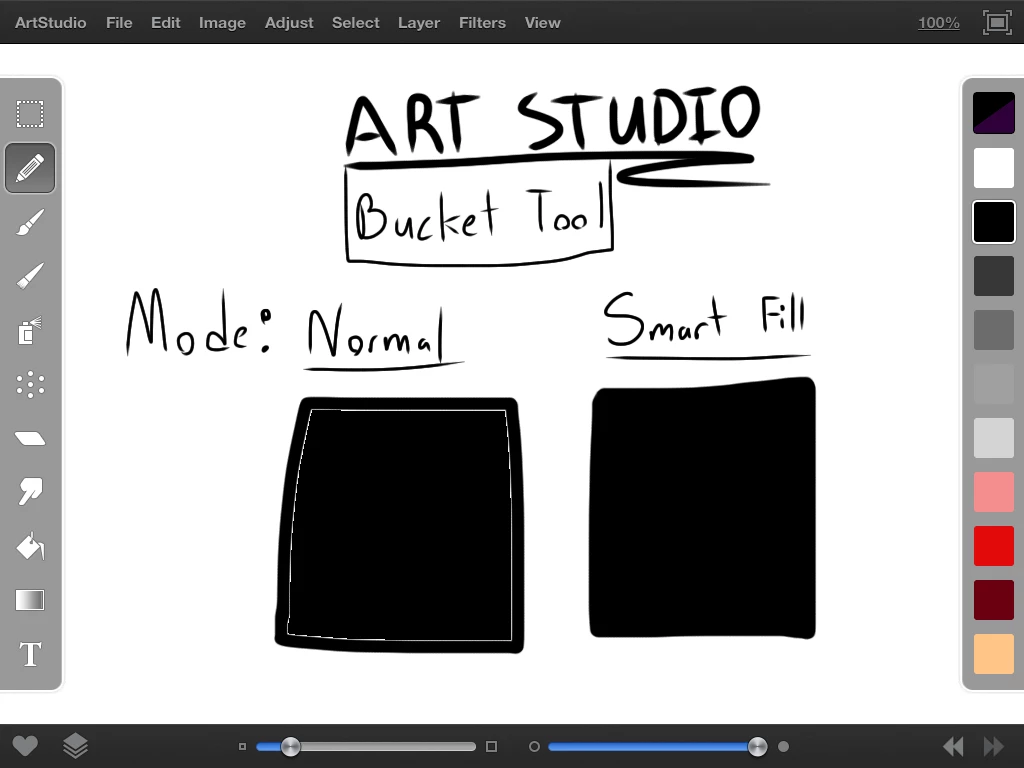
I know Photoshops Bucket Tool should be capable of this, because on my crappy 1st gen. iPad mini I have a program called ArtStudio. It's a travel sized art program that has about 1/4th the capability of Photoshop, and it... it has masted this "One click with the Bucket tool, and an area is filled!" problem!!!

In ArtStudio the "Normal Mode" setting on the Paint Bucket creates the same effect as the Photoshop Paint Bucket. If the "Smart Mode" setting is selected in the Paint Bucket settings, it creates a solid color fill... IN ONE CLICK! 

I love Photoshop, its one of my favorite art programs, but I feel like if this little travel sized IOS art program can do this, then Photoshop should be more then capable of this too. Please if you know how to fix this "Filling in the area WITH ONLY the Bucket Tool, IN ONE CLICK" problem please.... PLEASE share your wisdom and let me know. This is my biggest and only complaint with Photoshop and fixing this/know this would make my day!

    Correct answer D Fosse

    Yes, stop using it. Do it the proper way: make your selection, modify it as needed, then fill with the desired color.

    Paint bucket is really quick and really dirty. The precision level is zero.

    14 replies

    Participant
    October 11, 2024

    draw with pencil tool instead of brush. then if you ever move or resize something make sure to make ur interpolation "nearest neighbor" then u shouldnt have any issues like that with paint bucket. crazy that the "community expert" tried to give u that bs as an answer. rookie lol

    Participating Frequently
    March 25, 2024

    You can duplicate the Line layer and rename it to Colour. then double click (paint bucket) in the Colour Layer. the second click will fill these little pixel outlines.

    but its messier. so make sure you preserve the separate Line layer and check with different backgrounds incase Colour layer fills its own out line and creates a new white outline eveywhere dont want that. . 

    Participant
    July 14, 2023

    I agree this is rediculous. I switched to coloring on my iPad with Art Studio pro. Its fantastic. It's a $12 program that is better than PS for drawing and has expansion settings for the bucket fill.

    Earth Oliver
    Legend
    March 8, 2022

    BTW, folks, this request goes back to the 90s and it boggles the mind that Adobe has yet to implement. And just so you know, Adobe Fresco added the feature some months ago...

    Participant
    March 8, 2022


    Participant
    March 8, 2022

    try that setting it can solve your problem thanks

    leonardc46351862
    Participant
    February 18, 2022

    I've been struggling with that (abuse removed by moderator)  as well for years with photoshop while other programs have an "expand" option that comes with the bucket tool (DUH ADOBE). For what it's worth, the quickest way I've found is to create a script.

    So I just select the area to fill with the magic wand and then play my script that will expand the selection 2px, fill with foreground color, deselect. Hope that was helpfull

    jacobp93607702
    Participant
    May 2, 2021

    Select the area you need to fill with the magic wand tool, then create a layer beneath the lineart, use the fill bucket, and then outline-stroke the selection. I do this on a regular basis for my comic work.

    You can also use shift-W to fill and outline stroke many sections at once.


    Participant
    February 2, 2021

    I am entering waaay late in the game and others have given perfectly good solutions. But here I go.


    First, a philosophical point for those learning:

    Use anything and everything you have at your disposal to get to your goal. There is a divergent/convergent part of the learning curve: you try everything, then you get very selective and particular about what has worked best and what hasn’t.


    I urge you to never stop there. Diverge and converge again and again. Then, instead of being fearful of magic wand, paint bucket, color fill (to name just a few common purported taboos that evoke "never use!" comments), you will actually learn to use all of these skillfully – meaning, when you need them.

    You don’t need a parachute to jump off a curb. What matters is your landing.


    Second, question at hand:

    I find that using the eraser tool and a mask layer (alpha or quick) allows you to make a shape with the desired edge softness and then, when you fill with the paint bucket (contiguous, 254 tolerance) the result will be a filled shape with no inner halo. From there, you can add it to a layer and fill it how you want. I do believe it is always a good idea to use a mask on a pixel layer for a shape, so you can have flexibility to adjust both separately.

    Hope this is useful.

    30 year professional, still at it (I know, I should get a life)

    Ro Hackett
    Inspiring
    December 29, 2020

    Very simple!

    When you click the bucket tool... just click it again!

    In other words fill the same area twice 🤔 🤔