
Participant
August 13, 2020
Answered

Is there any way to set the background to a default color?

  • August 13, 2020
  • 2 replies
  • 3072 views

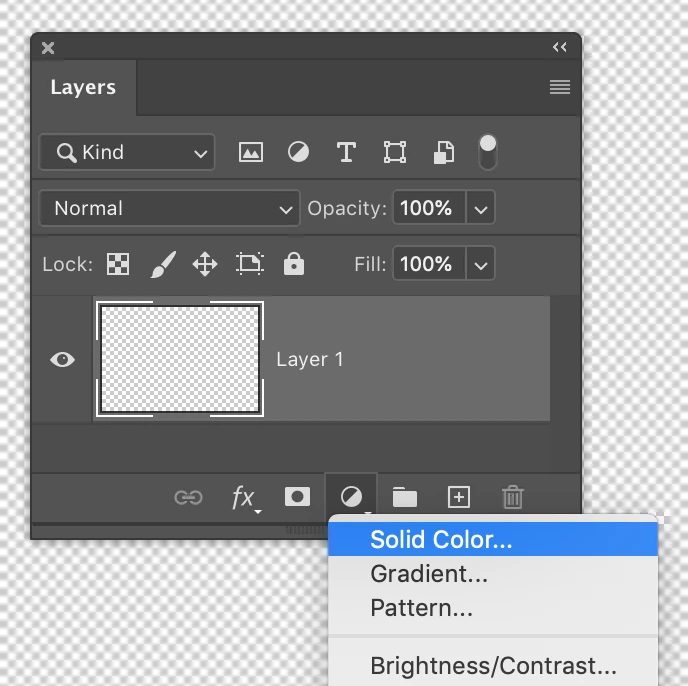
Let's say I open a file and use the crop tool to extend it's size. The default background is transparent (As seen in the attachment). Can I change this for a specific color?

I'm doing a series of edits where I have to "stretch" images and the background color have to be green. Is there any way to make this process faster, instead of using the bucket tool every time I extend the picture?

Thanks!
This topic has been closed for replies.
Correct answer Michael Bullo

A few random things that might help...


The reason you are getting transparency is that you don't have a background layer. When a background layer is present and you expand the canvas through an action such as cropping, Photoshop will automatically fill that area with the background colour.


If you want to convert a regular layer into a background layer you can do so via this menu option...
Layer > New > Background from Layer


When creating a new document one of the options is Background Contents. Set it to White and you get a locked, white background layer. Set it to Transparent and you get an unlocked transparent layer


You might want to consider creating a Solid Colour layer and moving it beneath any other layers. The colour of such a layer can be easily changed at any future time and it will automatically fill the document with that colour regardless of the crop.

2 replies

Nancy OShea
Community Expert
Community Expert
August 14, 2020

Go to File > New > Select your target output size.

Background contents:  Other. 

Place image files in this new document.


Nancy O'Shea— Product User & Community Expert
Participant
August 15, 2020

Thank you!

Michael Bullo
Community Expert
Michael BulloCommunity ExpertCorrect answer
Community Expert
August 13, 2020

A few random things that might help...


The reason you are getting transparency is that you don't have a background layer. When a background layer is present and you expand the canvas through an action such as cropping, Photoshop will automatically fill that area with the background colour.


If you want to convert a regular layer into a background layer you can do so via this menu option...
Layer > New > Background from Layer


When creating a new document one of the options is Background Contents. Set it to White and you get a locked, white background layer. Set it to Transparent and you get an unlocked transparent layer


You might want to consider creating a Solid Colour layer and moving it beneath any other layers. The colour of such a layer can be easily changed at any future time and it will automatically fill the document with that colour regardless of the crop.

Participant
August 15, 2020

Thanks!

Michael Bullo
Community Expert
Community Expert
August 15, 2020

Cheers