Participating Frequently
October 8, 2018
Answered

Mask panel is missing from properties panel

  • October 8, 2018
  • 1 reply
  • 16105 views

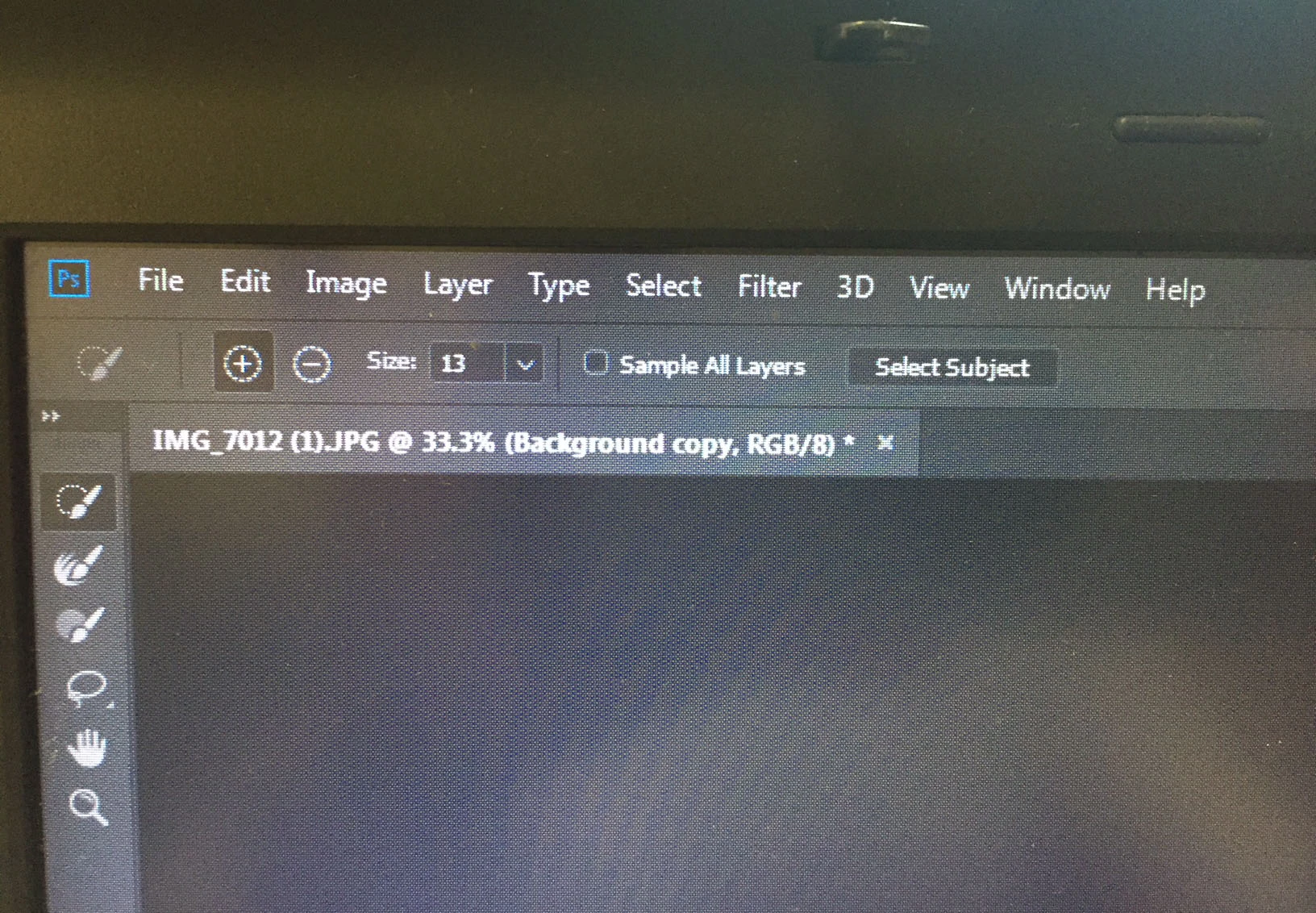
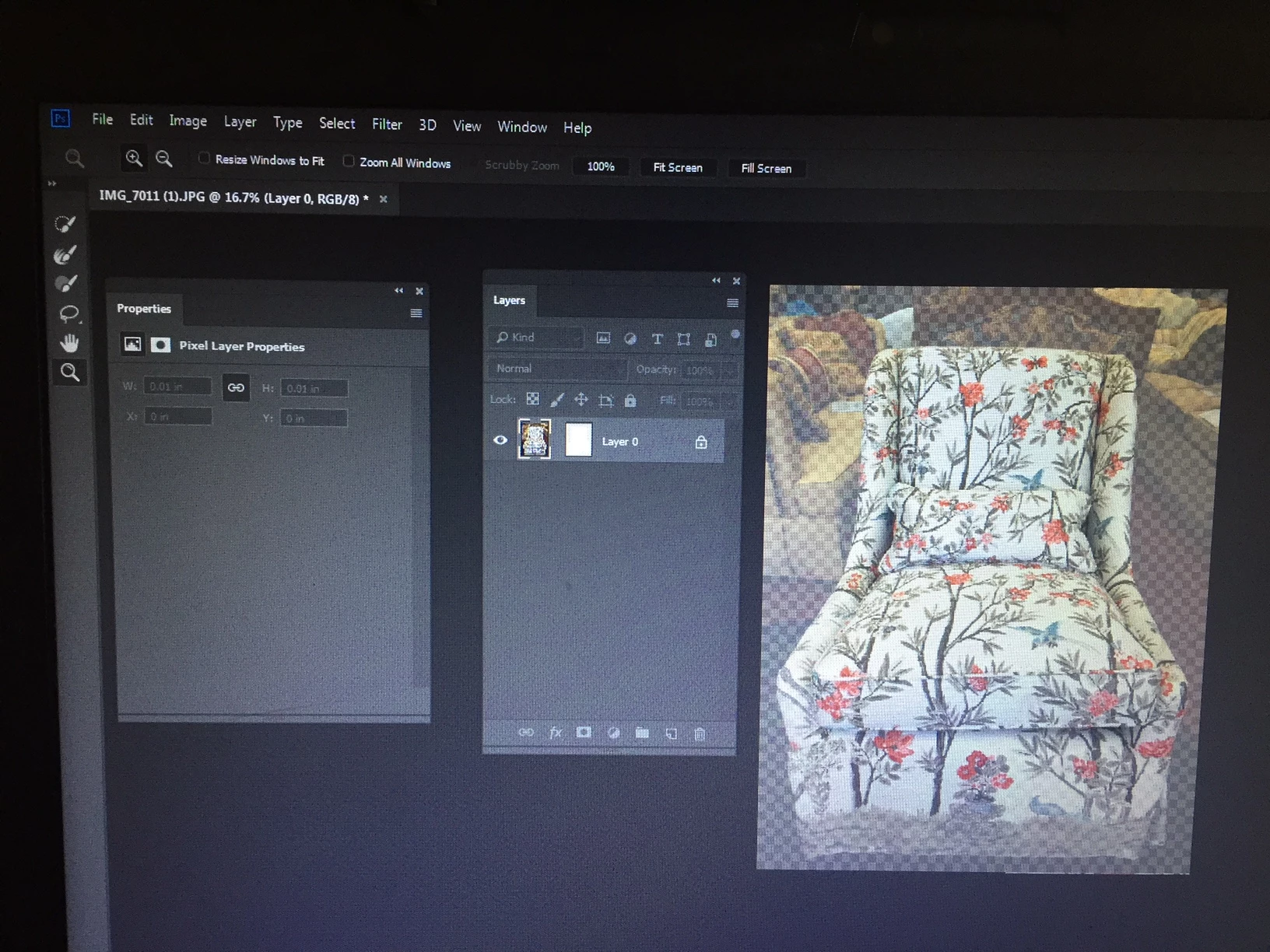
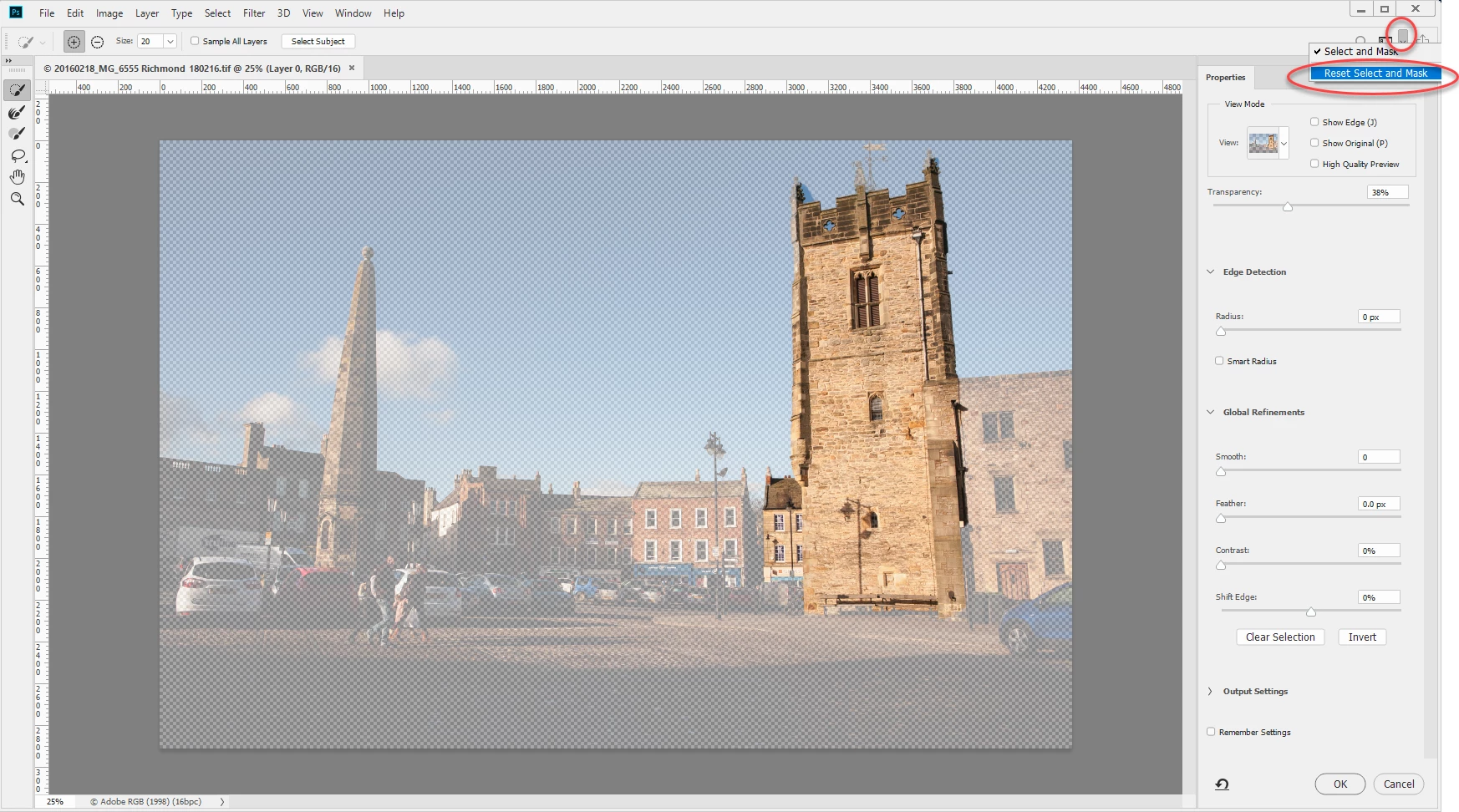
I had been using the mask panel in Photoshop CC 2018 without problem.  Then, when I went to use it again, the mask panel would not appear after choosing "select and mask".  The only thing that appears is the properties panel, without any mask attributes or selections -- eg, no different kinds of views, no way to complete the masking task. If I want to close the file, it will ask me if I want to accept the selection, but I can't find where to do that other than to close the file and respond to the question.   I've looked everywhere on-line to find an answer, but to no avail.  Does anyone have a clue as to how I can get the mask panel back?  I've included three screen shots, 1. The full screen, 2. the properties and layers panels, and the menu section.

Thank you!

Gail
    This topic has been closed for replies.
    Correct answer davescm

    OK, I reset the properties and tried to select and mask again, and still have the same problem, as indicated in the picture below.  Can't edit, no different types of views and no output or mask panel.  Any other ideas???

    Thank you so much for time.


    Hi

    You don't need to use properties in the Select and Mask workspace.  When you double click a mask , or use the Select and Mask button to enter the select and mask workspace use the panels and tools within Select and mask

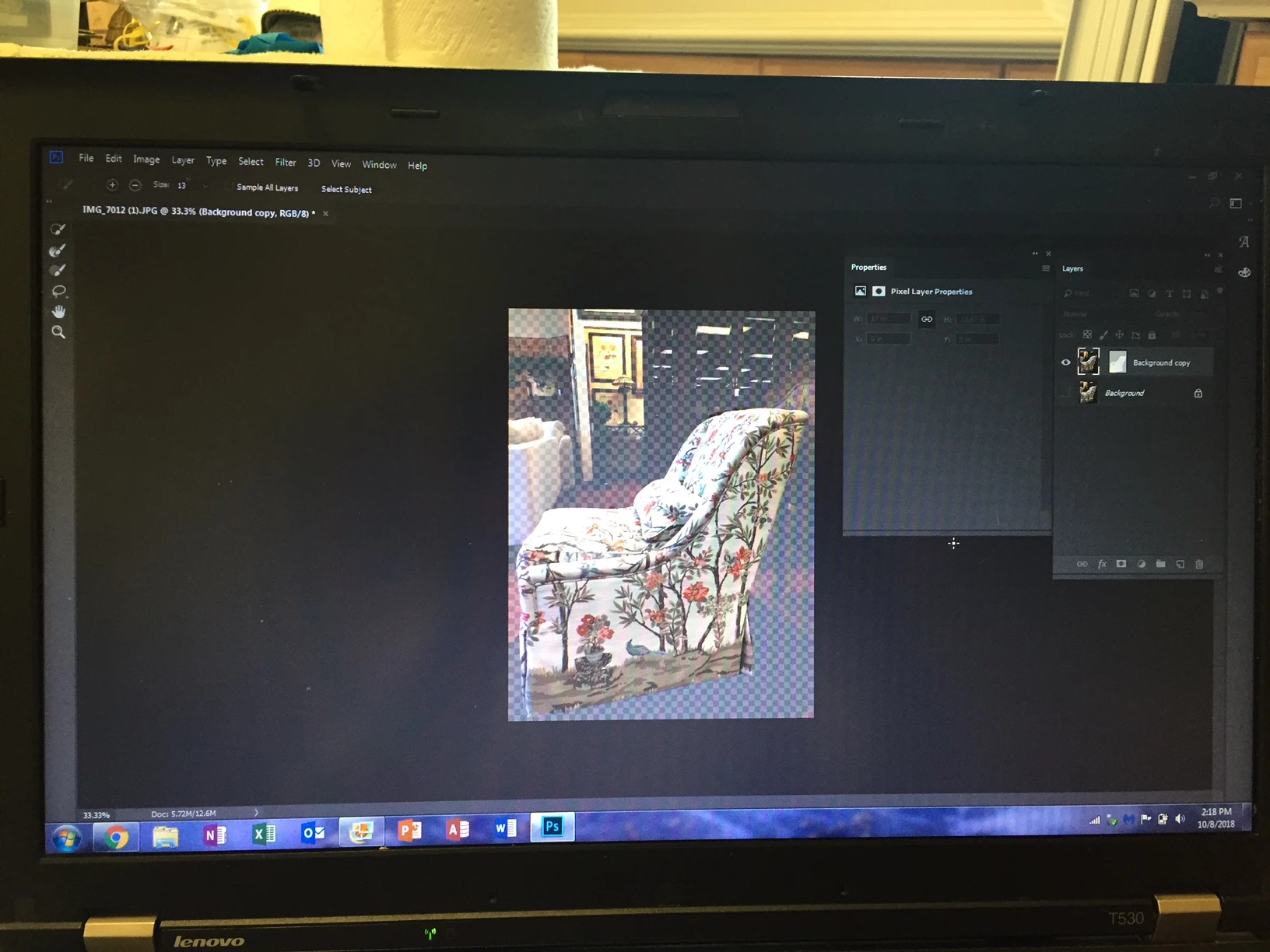
    So first enter select and mask then go to the top right and click the down arrow then choose Reset Select & Mask

    That should put your S&M panels back to the defaults

    Dave

    1 reply

    Legend
    October 8, 2018

    In the Layers panel you have to click on the mask to make it active. In your screenshot the layer is active, not the mask

    Source1Author
    Participating Frequently
    October 8, 2018

    Thank you for your response; however, nothing happens when I click on the mask.

    On Monday, October 8, 2018, 3:14:50 p.m. EDT, Ronald Keller <forums_noreply@adobe.com> wrote:

    Mask panel is missing from properties panel

    created by Ronald Keller in Photoshop - View the full discussion

    In the Layers panel you have to click on the mask to make it active. In your screenshot the layer is active, not the mask

    If the reply above answers your question, please take a moment to mark this answer as correct by visiting: https://forums.adobe.com/message/10665815#10665815 and clicking ‘Correct’ below the answer

    Replies to this message go to everyone subscribed to this thread, not directly to the person who posted the message. To post a reply, either reply to this email or visit the message page:

    Please note that the Adobe Forums do not accept email attachments. If you want to embed an image in your message please visit the thread in the forum and click the camera icon: https://forums.adobe.com/message/10665815#10665815

    To unsubscribe from this thread, please visit the message page at , click "Following" at the top right, & "Stop Following"

    Start a new discussion in Photoshop by email or at Adobe Community

    For more information about maintaining your forum email notifications please go to https://forums.adobe.com/thread/1516624.

    This email was sent by Adobe Community because you are a registered user.

    You may unsubscribe instantly from Adobe Community, or adjust email frequency in your email preferences

    limakid2015
    Inspiring
    January 2, 2020

    Hi

    You don't need to use properties in the Select and Mask workspace.  When you double click a mask , or use the Select and Mask button to enter the select and mask workspace use the panels and tools within Select and mask

    So first enter select and mask then go to the top right and click the down arrow then choose Reset Select & Mask

    That should put your S&M panels back to the defaults

    Dave


    "Reset Select and Mask"... Reset doesn't mean to "cancel", "do not apply" or "erase" changings on the masking? Also panel of the right hand side is not shown accordingly.