
Participating Frequently
October 6, 2019
Answered

Missing Buttons

  • October 6, 2019
  • 3 replies
  • 1375 views

Hi,  I have found that the 7 buttons on the bottom of the Layers panel have disappeared & have no idea how to reinstate them.  I have tried resetting the Workspace, closing the Layers panel then adding it again but still no buttons.  Have closed the programme down and restarted but still no buttons.  Does anyone know how to assist in this vexing problem.  Cheers Syl
This topic has been closed for replies.
Correct answer Jeff Arola

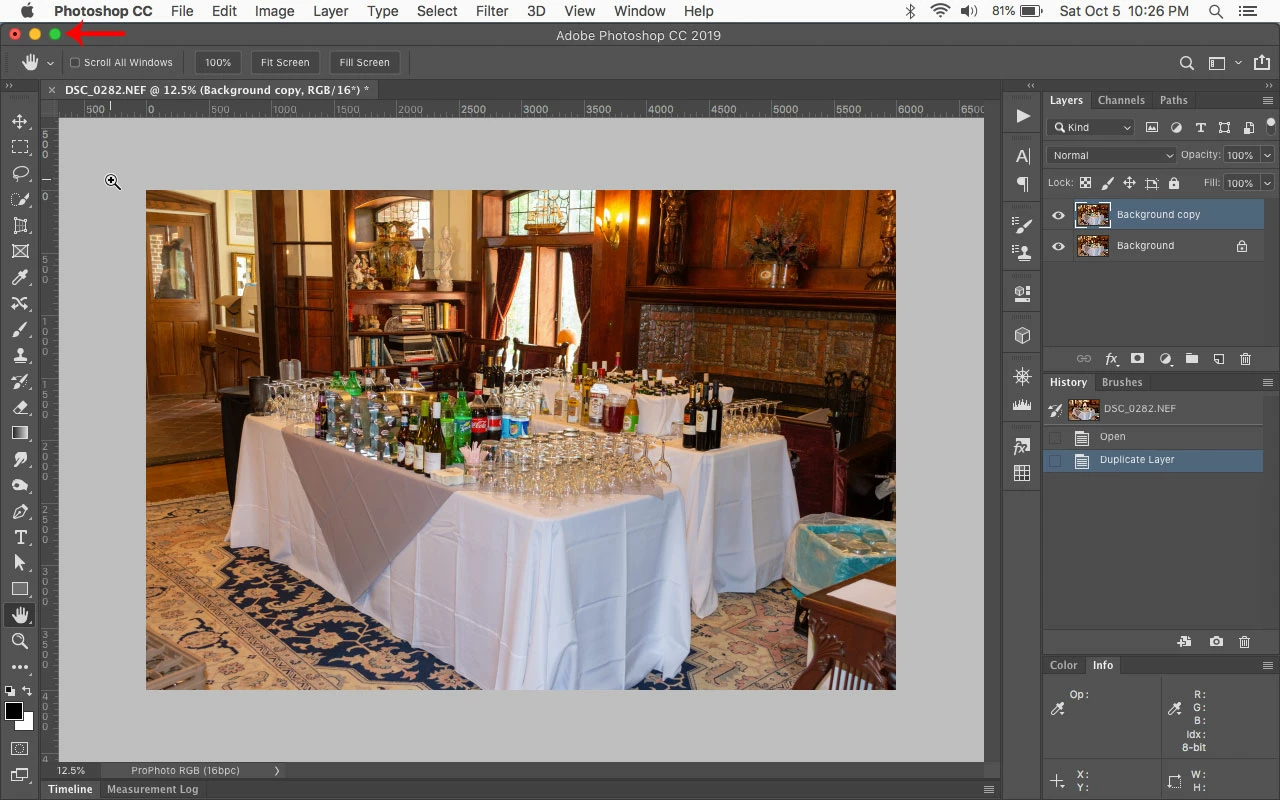
Click on the Green Maximize button in the upper left to fit photoshop to your screen.


3 replies

Jeff Arola
Community Expert
Jeff ArolaCommunity ExpertCorrect answer
Community Expert
October 6, 2019

Click on the Green Maximize button in the upper left to fit photoshop to your screen.


carusylAuthor
Participating Frequently
October 6, 2019
Thanks so much Jeff, I am new to Mac so am not fully conversant with it yet but I will make a note of that Cheers Syl 🙂
Chuck Uebele
Community Expert
Community Expert
October 6, 2019

Looks like you're whole bottem section is being hidden. Are you sure that the frame is in full mode?

carusylAuthor
Participating Frequently
October 6, 2019
You are absolutely correct Chuck & thanks so much for your help. I went into Screen Mode & found that somehow my setting had changed from Full screen mode with Menu Bar to Standard Screen Mode. Thanks once again 🙂
Chuck Uebele
Community Expert
Community Expert
October 6, 2019

Can you show a screen shot? Often they disappear due to the PS window not being fully displayed, or you have some app that calling your attention that it's open (Win), so it brings up the bottom bar and hides PS's layer panel icons.

carusylAuthor
Participating Frequently
October 6, 2019

Thanks Chuck, I am on a Mac and as far as I am aware, there is nothing preventing me seeing the bottom of the screen. It is exactly the same as it was yesterday when all was OK. Here is a screen shot anyway. Cheers