Exit
  • Global community
    • Language:
      • Deutsch
      • English
      • Español
      • Français
      • Português
  • 日本語コミュニティ
  • 한국 커뮤니티
0

my photoshop is yellow-ish not white

New Here ,
Jul 11, 2020 Jul 11, 2020

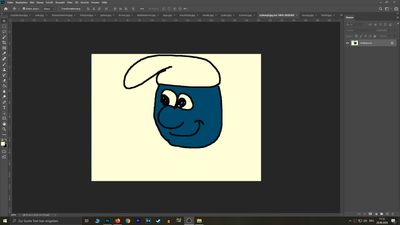
My problem: My working surface is yellow-ish. All colours appear to be more yellow-ish than they should be as you can see in the pictures below.

gelb.jpg

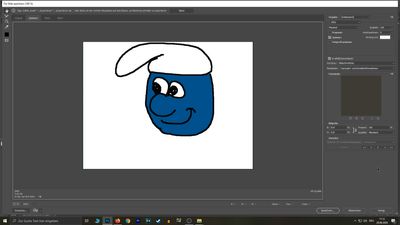
When i export the picture it is normal again (not yellow-ish anymore).

weiss.jpg

Also the pictures in the preview are in the original colours (not yellow-ish).

start.jpg

As you can see it's yellow-ish just in the working surface.

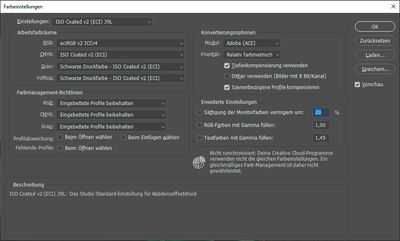
These are my colour settings ... well in german. Also i don't use the view of a proof.

Unbenannt-1.jpg

Maybe some of you have a clue for me.
Thanks in anticipation!

TOPICS
Windows
3.2K
Translate
Report
Community guidelines
Be kind and respectful, give credit to the original source of content, and search for duplicates before posting. Learn more
community guidelines

correct answers 2 Correct answers

Community Expert , Jul 11, 2020 Jul 11, 2020

That's a broken monitor profile. If you have a calibrator, rerun it. If not, get one.


In the meantime you can use sRGB as monitor profile as a temporary fix. It won't be accurate, but better than a broken profile.


Save For Web at default settings has all color management turned off, and the monitor profile is ignored. If you enable it by checking "embed profile" and set Preview to "use document profile", it will use the monitor profile to display, and match Photoshop.


In the same way, your

...
Translate
Community Expert , Jul 12, 2020 Jul 12, 2020

Hi, in case anyone else has this issue heres a bit more detail:


Display profile issues on Windows

At least once a week on this forum we read about this, or very similar issues of appearance differing between applications.

Unfortunately, with Microsoft hardware: Windows updates, Graphics Card updates and Display manufacturers have a frustratingly growing reputation for installing useless (corrupted) monitor display profiles.

I CAN happen with Macs but with far less likelyhood, it seems.


The i

...
Translate
Adobe
Community Expert ,
Jul 11, 2020 Jul 11, 2020

That's a broken monitor profile. If you have a calibrator, rerun it. If not, get one.


In the meantime you can use sRGB as monitor profile as a temporary fix. It won't be accurate, but better than a broken profile.


Save For Web at default settings has all color management turned off, and the monitor profile is ignored. If you enable it by checking "embed profile" and set Preview to "use document profile", it will use the monitor profile to display, and match Photoshop.


In the same way, your photo viewer used to view the exported file is probably not color managed either.


Don't change anything in color settings! That's not where the problem is.


Displayprofile_10_3.png


Translate
Report
Community guidelines
Be kind and respectful, give credit to the original source of content, and search for duplicates before posting. Learn more
community guidelines
New Here ,
Jul 11, 2020 Jul 11, 2020

Seems to be right. Thanks a lot!

Translate
Report
Community guidelines
Be kind and respectful, give credit to the original source of content, and search for duplicates before posting. Learn more
community guidelines
Community Expert ,
Jul 12, 2020 Jul 12, 2020

Hi, in case anyone else has this issue heres a bit more detail:


Display profile issues on Windows

At least once a week on this forum we read about this, or very similar issues of appearance differing between applications.

Unfortunately, with Microsoft hardware: Windows updates, Graphics Card updates and Display manufacturers have a frustratingly growing reputation for installing useless (corrupted) monitor display profiles.

I CAN happen with Macs but with far less likelyhood, it seems.


The issue can affect different applications in different ways, some not at all, some very badly.


The poor monitor display profile issue is hidden by some applications, specifically those that do not use colour management, such as Microsoft Windows "Photos".


Photoshop is correct, it’s the industry standard for viewing images, in my experience it's revealing an issue with the Monitor Display profile rather that causing it. Whatever you do, don't ignore it. As the issue isn’t caused by Photoshop, don’t change your Photoshop ‘color settings’ to try fix it. 


If you want to rule out pretty much the only issue we ever see with Photoshop, you can reset preferences, I never read of a preferences issue causing this problem though:

To reset the preferences in Photoshop: 

https://helpx.adobe.com/photoshop/using/preferences.html


Note: Make sure that you back up all your custom presets, brushes & actions before restoring Photoshop's preferences. Migrate presets, actions, and settings


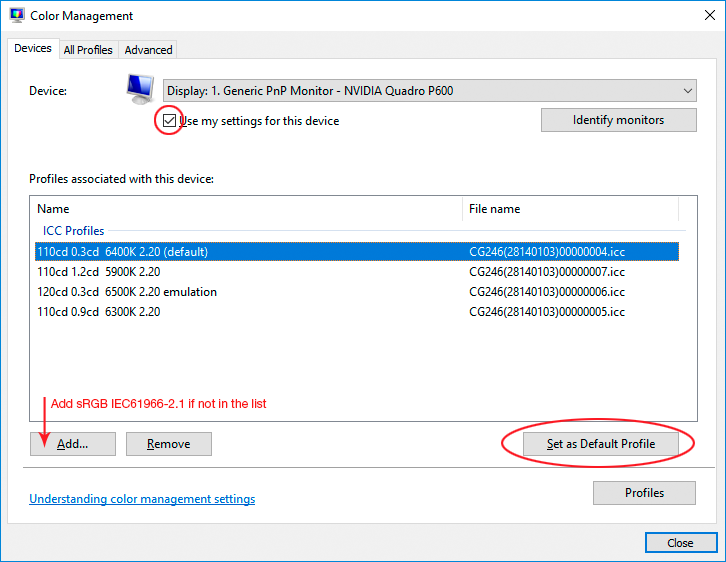
To find out if this is the issue, I recommend you to try setting the monitor profile for your own monitor display under “Device” in your Windows ‘color management’ control panel to sRGB. You can ADD sRGB if its not already listed. 

And be sure to check “Use my settings for this device”.


(OR, if you have a wide gamut monitor display (check the spec online) it’s better to try Adobe RGB instead).

Quit and relaunch Photoshop after the control panel change, to ensure the new settings are applied.
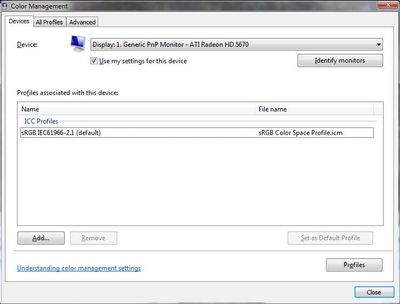
 

NB__colourmanagement_0-1594539847472.jpeg


If this change fixes the issue, it is recommended that you should now calibrate and profile the monitor properly using a calibration sensor like i1display pro, which will create and install it's own custom monitor profile. The software should install it’s profile correctly so there should be no need to manual set the control panel once you are doing this right. 


Depending on the characteristics of your monitor display and your requirements, using sRGB or Adobe RGB here may be good enough - but custom calibration is a superior approach.


I hope this helps

if so, please "like" my reply and if you're OK now, please mark it as "correct", so that others who have similar issues can see the solution

thanks

neil barstow, colourmanagement.net :: adobe forum volunteer

[please do not use the reply button on a message in the thread, only use the one at the top of the page, to maintain chronological order]

 

Translate
Report
Community guidelines
Be kind and respectful, give credit to the original source of content, and search for duplicates before posting. Learn more
community guidelines
New Here ,
Sep 18, 2025 Sep 18, 2025

This worked! thank you!

Translate
Report
Community guidelines
Be kind and respectful, give credit to the original source of content, and search for duplicates before posting. Learn more
community guidelines
Community Expert ,
Sep 20, 2025 Sep 20, 2025
LATEST

@andrewr8483411 great, thanks for letting us know, it helps other users with similar issues. 

do remember, though, to look into this:


If this change fixes the issue, it is recommended that you should now calibrate and profile the monitor properly using a calibration sensor such as a Calibrite display pro, which will create and install it's own custom monitor profile. The software should install it’s profile correctly so there should be no need to manual set the control panel once you are doing this right. 


Depending on the characteristics of your monitor display and your requirements, using sRGB or Adobe RGB here may be good enough - but custom calibration is a superior approach.


I hope this helps

neil barstow colourmanagement - adobe forum volunteer,

colourmanagement consultant & co-author of 'getting colour right'

See my free articles on colourmanagement online


Translate
Report
Community guidelines
Be kind and respectful, give credit to the original source of content, and search for duplicates before posting. Learn more
community guidelines