
Participant
October 22, 2023
Question

No matter what I do Photoshop keeps painting outside my selection

  • October 22, 2023
  • 6 replies
  • 1257 views

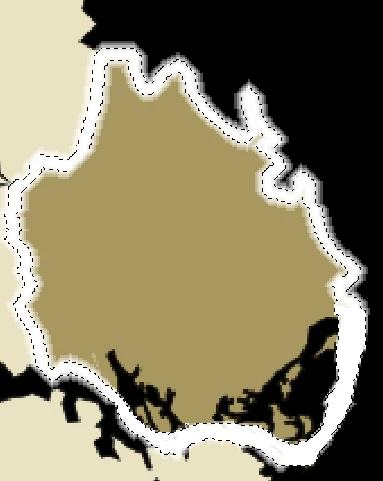
I have put up the hardness in everything, tried inverseselect and delete, but the borders in my selection keeps being feather by photoshop. I just want to have a hard edge, no feathering or anything when I paint. I cannot understand why this is even an issue, as this is default in Paint, but in Photoshop I need to go through some complicated details. 


So this is my selection, I do not want any pixels to be "half tranparent" or anything, just a hard border where the selection ends. I have feather at 0, hard pencil tool, I have tried to set Quick Mask at "Selected Areas", but still PS keeps painting outside of the selection. Why does PS do this and how do I stop it?
 

This topic has been closed for replies.

6 replies

Participant
October 12, 2024

Youre not going to believe this...

you're using select>colour range, right? don't use 200% fuzziness, use 100% fuzziness max. boom. fixed.


Good luck with your Paradox Mod.

Participant
October 12, 2024

Pulling my hair out at the idea that this is basically impossible in photoshop. I have no idea how this is the case. No wonder Adobe is going down the sewers.

PECourtejoie
Community Expert
Community Expert
October 23, 2023

Hi, the problem is that the marching ants do not indicate the end of a selection, but its 50% area.
I just posted a feature request to have a view similar of ACR/Lightroom with two different colors for the start and end of a mask/selection, you can vote on it here: https://community.adobe.com/t5/photoshop-ecosystem-ideas/add-0-limit-to-the-50-shown-in-marching-ants-like-acr/idi-p/14179072#M19349

Trevor.Dennis
Community Expert
Community Expert
October 23, 2023

Is this there a layer mask involved?  If so check mask properties for feathering.


How did you create the selection?  If you Ctrl (Cmd) clicked and object to load it as a selection, then did that object have soft edges?  If Feather is set to zero in the Options Bar, then I can't think how it was introduced other than at the ctreating stage.


I like Jeff's idea of using Quick Mask.  You can see visually.  The QM below is half fully hard, and half has a 10 pixel feather


Applying levels or curves directly, you can take the feather out as Jeff said, but note I have not bought the sliders fully together so as to leave just enough anti aliasing to avoid jaggies.


Bojan Živković11378569
Community Expert
Community Expert
October 23, 2023

Try this: create selection then go to Edit > Stroke, set Stroke parameters and fill it inside, center or outside, experiment to see what results you get. 

If above suggestion is not satisfactory use @Jeff Arola suggestion or paint on separate layer then create layer mask and reduce feathering using Image > Adjustments > Levels, for example.

Jeff Arola
Community Expert
Community Expert
October 22, 2023

How did you make the initial selection?


With the selection active in Quick Mask Mode you can try Image>Adjustments>Levels and move the Highlight and Mid point sliders all the way to the left to take out the feather.