Miker2426
Inspiring
July 7, 2017
Answered

Open shapes on one layer w/the Pen Tool

  • July 7, 2017
  • 1 reply
  • 5213 views

Is it possible to draw separate open shapes on one layer using the pen tool? I would've sworn that you could, but I've run into a wall. The shape either closes, or creates a new layer. I'm either missing something, or maybe I can't do it after all? Thanks for any help!

    This topic has been closed for replies.
    Correct answer Barb Binder

    Originally, this wasn't really a vector job at all. It was an illustration where I was mainly using the brush. However, once I hit the hair, I needed long smooth lines, so I switched to the pen tool to do this work. I got this idea from a youtube tutorial, and the girl on that particular vid uses the pen tool to do exactly that. She's using the pen tool in path mode, and the tool is working as if it were the brush tool, i.e. she's simply drawing lines, the lines are automatically stroking with a 3pt round brush as she clicks away, just single lines, all on one layer. I asked her HOW DID YOU DO THAT AMAZING THING? She said, "Huh? That's how the pen tool works. It's just like the brush tool, but you click."

    Here's the video if you're at all curious: Hair Tutorial: Art Nouveau Style - YouTube

    The inking portion starts about 5.30 into the video. You can clearly see she's somehow doing what I'm talking about, but I can't figure out HOW! haha!

    Thanks again for your responses!


    Morning, Mike. She is using the technique I mentioned earlier with paths. She is drawing paths and then stroking them, but instead of clicking on the Stroke Path button in the Paths panel, she is

    1. drawing a path
    2. right-clicking on the page > Stroke Path
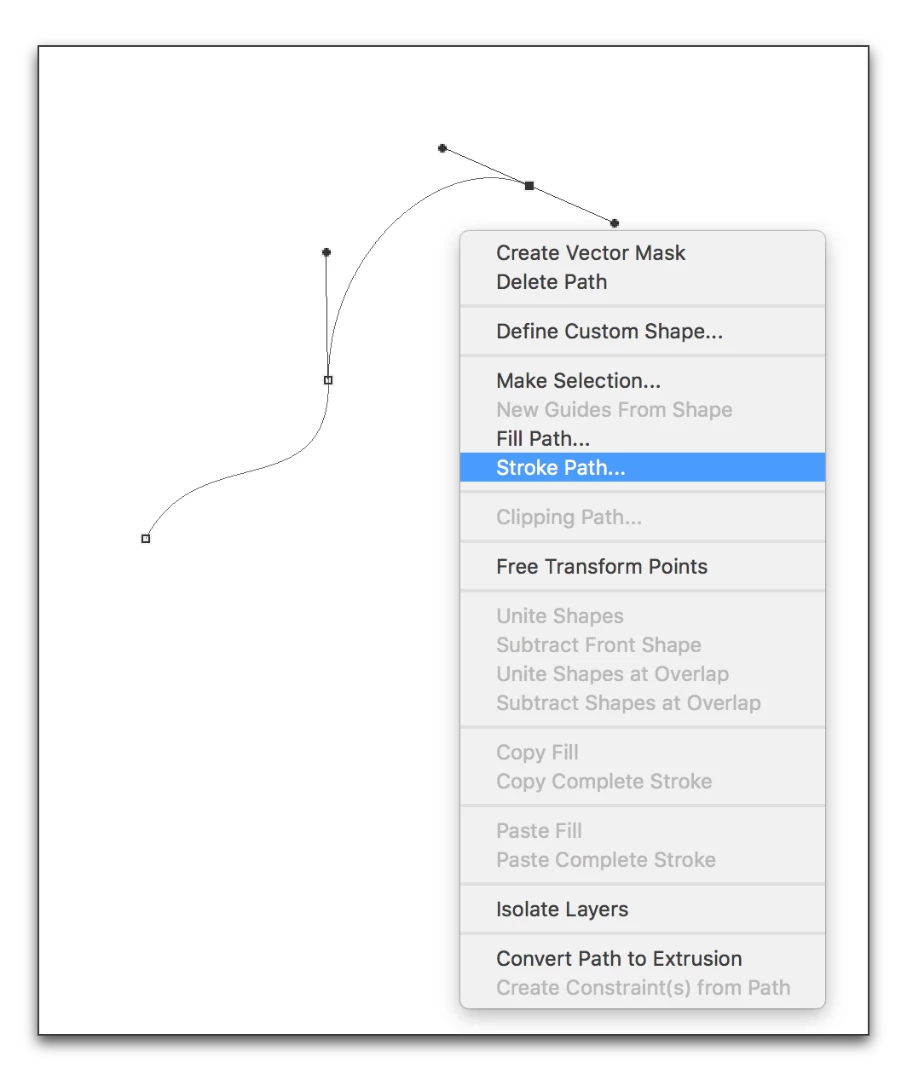
    3. She previously set the brush size, hardness and color, and she previously choose Brush here:
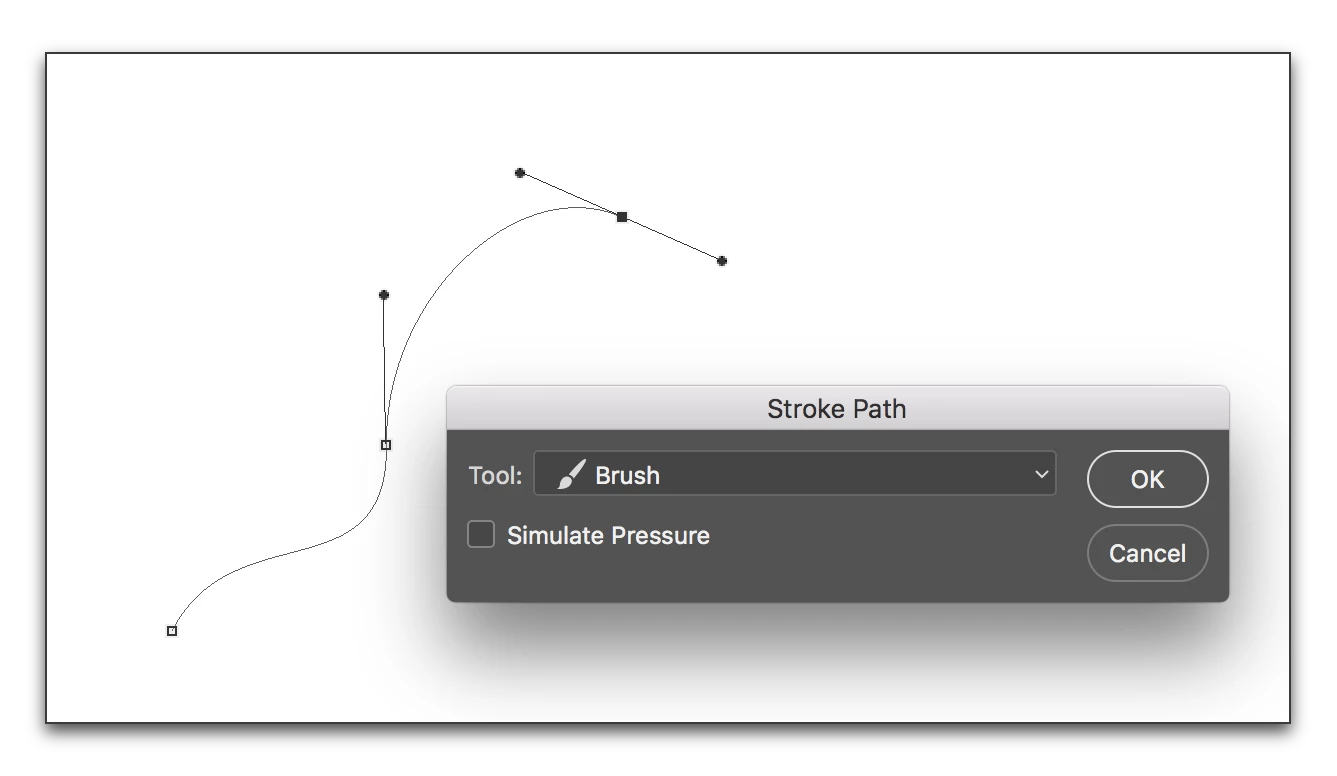
    4. So that all she has to do is press Enter/Return:
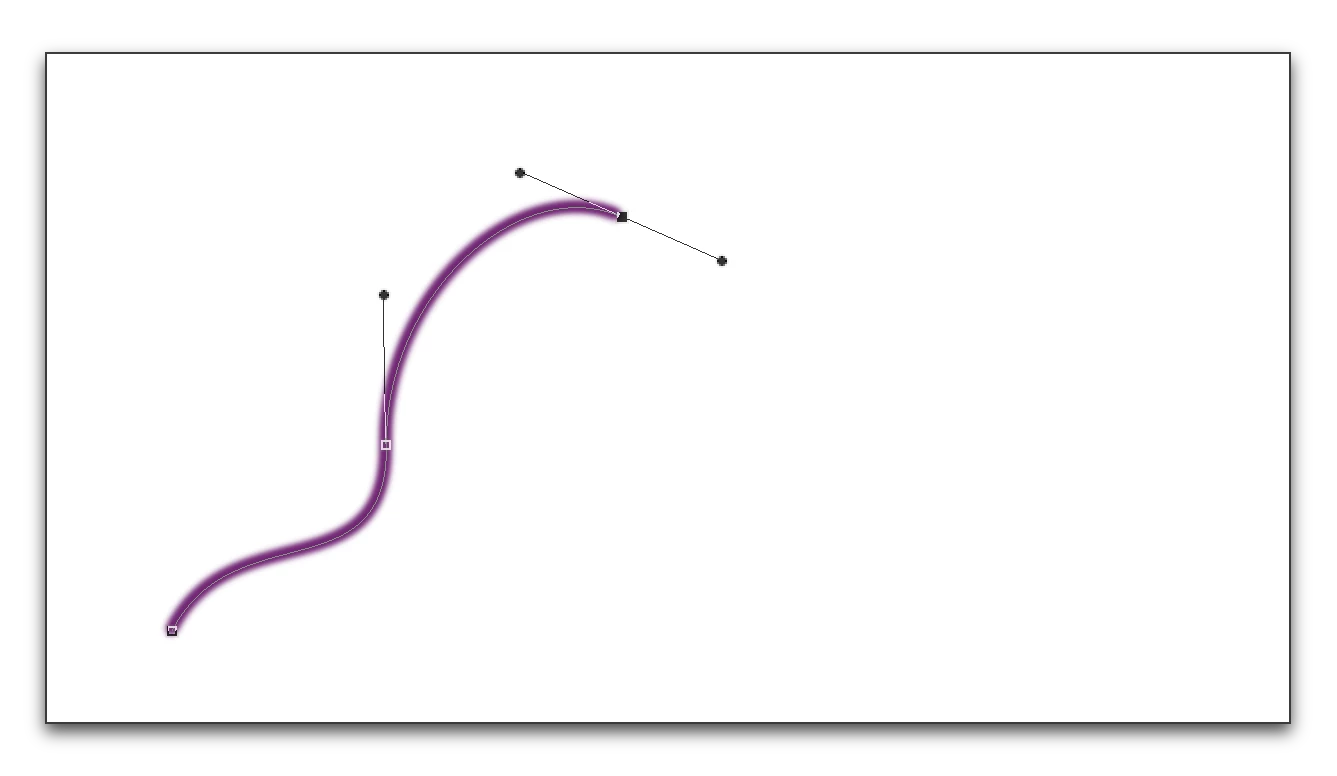
    She explains this technique slowly in the lineart video she referenced (Quick Lineart Tutorial - Snow White Art Nouveau Style - YouTube) and then she is speeding up that part of the video. Go back and watch that one section again (starting around 6:02)—you can see the context menu and the dialog box flashing by once you know to look for them. I'll admit, I didn't see it the first time, either.


    1 reply

    Barb Binder
    Community Expert
    Community Expert
    July 7, 2017

    I don't think you can. You can add multiple closed shapes to a single shape layer with the Shift key (the shortcut for Combine Shape), but you have to indicate that an open path is done—which deselects it—and then any new open path insists on creating a new shape layer. I tested this in CC 2017, CC 2015 and CS6.

    I wonder if you are remembering sub paths in the Paths panel?

    ~Barb at Rocky Mountain Training
    Miker2426
    Miker2426Author
    Inspiring
    July 7, 2017

    Thanks for the response! I appreciate your time!

    re Subpaths - Maybe, but I'm not sure. To be honest the only subpaths I know about are those dealing with closed shapes. If you know anything about OPEN subpaths, I'm all ears!

    Barb Binder
    Community Expert
    Community Expert
    July 7, 2017

    You can have multiple open subpaths on one path. You can stroke all the paths or just the selected subpaths but they aren't dynamic, like shape layers. This workflow proceeded the addition of shape layers (I'm old!).

    I only bring it up because my students are often confused by layers vs paths (vs channels) because they have a similar look:

    If you want to play with it, draw one or more paths, then pick the Paintbrush and set the size, hardness and color. Then pick the Stroke Path with Brush button (more options if you Alt/Opt click the button). But... the color goes on the layer and if you adjust the path later, the color doesn't adjust. That's why Shape Layers took over the vector world in Photoshop.

    ~Barb

    ~Barb at Rocky Mountain Training