


Participant
April 25, 2022
해결됨

P: Colors shift when going from LrC to Ps and back to LrC

  • April 25, 2022
  • 10 답변들
  • 10275 조회

I usually follow a workflow where I export the image from Lightroom Classic CC to Photoshoot for editing and this usually creates a TIFF file that gets added to my Lightroom Catalog. After the recent updates, I am noticing an issue with colors. After I am done editing on Photoshop the very first time I save the TIFF file the colors get completely messed up. It looks like the Embedded RGB profile is somehow getting stripped. If I make another minor adjustment and save the file a second time then things are fine. This never used to happen before. Is anyone else seeing this issue?


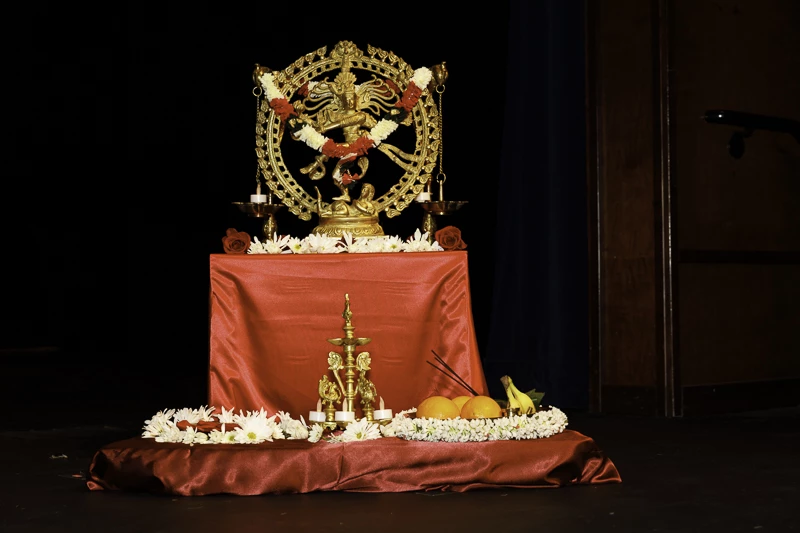
Here is an example. In the below image I just exported the RAW file from LR to PS and saved the file. As you can see below the colors are all dull in LR.  However, on the PS window, it seems fine. Now at this stage, if close the TIFF file in PS and then reopen the same file again in PS I notice the same dull colors as below.
 

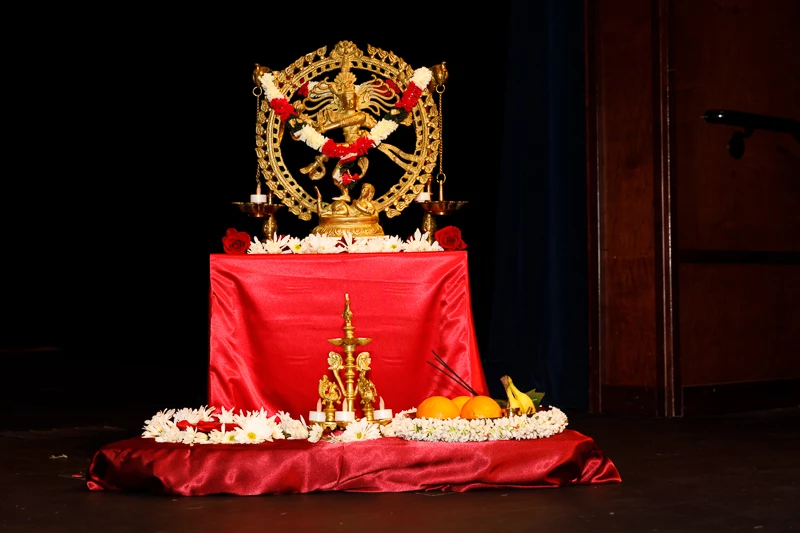
For this experiment without closing the file, I tried to introduce a change. I just duplicated the Background layer and then flattened the image, and saved it the second time. Now the colors look fine on LR. Now if I close and reopen the file both LR and PS shows the right colors.
As a workaround, I am doing this two times saving technique. But this is a bit annoying since sometimes I forgot to do this and the colors are all wrong after the first save.


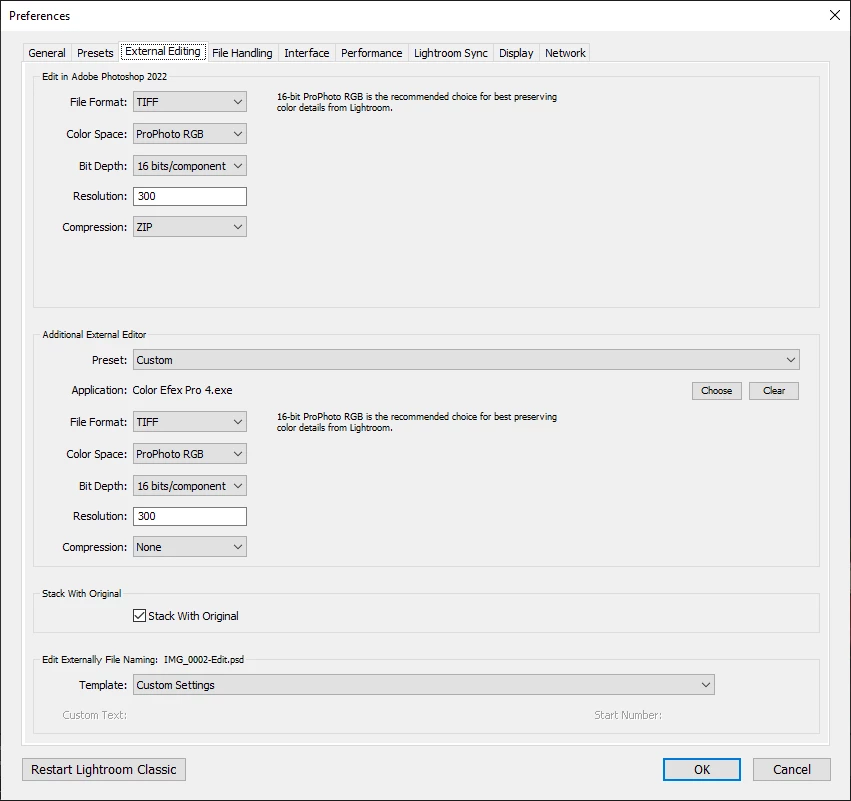
By the way, here are my external editor color settings in Lightroom Classic CC (v11.3.1)
Here are my color settings in Photoshop CC 2022 (v23.3.1)
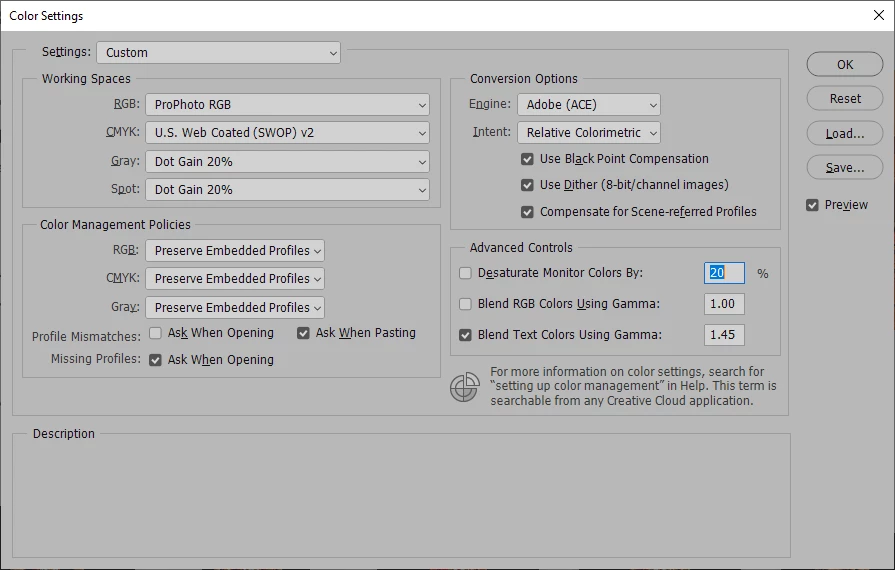
 

I made sure they are both using ProPhotoRGB. I hope I included all the required information. If anyone else is seeing this issue or if there is a fix for this please let me know?


최고의 답변: JohanElzenga

YESSSS  this sounds like exactly what happened!!!!  Thank you @JohanElzenga  🙂 🙂 🙂 


I've found the earlier thread. Reset your Photoshop preferences. That should fix it.


10 답변

Participant
November 2, 2023

Does anyone know of a way to still be apble to apply more colour corredction to an image once it has left LRC gone to PS and back to LRC. Once back in LRC if i go to add any further adjustments or add presents the colours get all messed up

Known Participant
November 2, 2023

Nicole, have you tried deleting Photoshop's preferences as in the earlier answer? That would be a good place to start.

D Fosse
Community Expert
Community Expert
May 29, 2022

It's a known bug that has been reported a good number of times. The fix is to reset Photoshop preferences.


What happens is that the embedded color profile from Photoshop is stripped, so that Lightroom treats the file as sRGB.


After you've reset PS preferences, you may need to assign the correct profile to the PS file again.


Exactly what it is that corrupts the preferences I don't know (hasn't happened here).

TheDigitalDog
Inspiring
May 29, 2022

Let's make sure we merge all the conversations about this issue to this thread as Adobe is tracking it.

Also, if anyone sees this bug, BEFORE resetting preferences, please make a copy because Adobe needs one in this state to examine.

Author “Color Management for Photographers" & "Photoshop CC Color Management/pluralsight"
Participant
May 29, 2022

Hello!  I use PS 23.3.2 and I also use LR 11.3.1 on my Mac Pro M1 15.6 Inches system.  Bothe apps as specific to Mac world.  I have a peculiar situation.  If I edit in an image in PS from LR, on completing my edits in PS, regardless if I flatten the image or not, when I save the image, in PS, the image appears in LR with colors completely downgraded in share and saturation.  Why does this happen?  Has it got to do with some settings?  Am I doing something wrong in my work flow?  Ocassionally, the image in LR appears exactly the way it appeared post edits in PS.  I am quite perplexed and do not know how to solve this issue.  ny suggestions would be helpful. Than you in advance.

TheDigitalDog
Inspiring
May 29, 2022

Before you reset your preferences, make a copy as Adobe may need one to examine. 

Quit Photoshop.
Navigate to Photoshop's Preferences folder:
MacOS**: Users/[user name]/Library/Preferences/Adobe Photoshop [version] Settings
**Note:
The user Library folder is hidden by default on macOS. In the Finder, hold down the Option key when using the Go menu. Library will appear below the current user's home directory. Now you can drag the entire Adobe Photoshop [Version] Settings folder to the desktop or somewhere safe for a back-up of your settings.

Author “Color Management for Photographers" & "Photoshop CC Color Management/pluralsight"
Known Participant
May 23, 2022

My stats: 2017 iMac w/64 GB RAM, OS 10.15.7; PS 23.3.2; LR 11.3.1

Since I updated to the latest versions of LR & PS, I've had a problem moving between LR to PS. I select an image (or images to layer) & choose “Edit in” PS. In PS, I have used the clone stamp tool, the spot healing brush, or content aware to remove something from the image, saved it, and it returned to LR. When it shows up in LR, it looks totally different from what it did when I saved it in PS (also looks different from when I sent it to PS in the first place). This has happened to me several times. PS color space is ProPhoto to match LR’s, so that’s not the problem. Today, I layered two images and used a mask to combine them, then selected the bottom and used Content Aware Scale. I did not use anything else — no levels or saturation, etc. After I saved it, the image returned to LR, briefly looked the way it should have, then turned dull (see images). Whats up with this? I can’t work this way.

Participant
May 24, 2022

My stats: Windows 11 PC, PS 23.3.2; LR 11.3.1 | All is up to date

Hello, today I encountered the exact same problem!

In the morning I edited 200 Wedding images and several other files in the same process I always use -> Lightroom -> PS -> back to Lightroom.

In the meantime, no update or anything else was performed. 

PRESERVE EMBEDDED PROFILES under the Color Management settings are checked as always?

Anyone has a clue what is going on?

In the evening when I wanted to do some more work, the colors of every image I save in PS after opening it in Lightroom are totally off!


Participant
May 24, 2022

To clear it up, in the morning everything was working fine while editing the wedding images. In the evening, the Problem occured.

Participant
May 18, 2022

When I edit a RAW .NEF file in Photoshop via 'edit in Photoshop'  the file appears in photoshop with a colorcast.  

The problem seems to be between Lightroom and Photoshop.  The same NEF file viewed with several other applications does not exhibit a color cast.  If the file is loaded directly into PS, from PS (File open), there is no colorcast.  The colorcast exhibits ONLY with an .NEF file.  Any other raw file type, from any camera manufactuer that I have access to, works fine.  If the offending NEF file is exported to a DNG file from Lightroom, and then the DNG file sent to Photoshop with the 'edit in Photoshop' path there is NO colorcast.  Again, only an NEF file causes the issue.  All color spaces match.  All apps are up to date at this time. 

I tried the process with and without use of the graphics processor; no change.  Any suggestions, anyone?  Thanks.  


Participant
May 30, 2022

I have updated the software but it is still happening.  Any ideas?  Thanks.


Participant
May 30, 2022

BTW, there is a profile issue right now that I'm not sure if it's fixed already. It's an issue where the ProPhotoRGB profile seems to get stripped, and replaced by sRGB. That sure looks like your problem too. Try this: before you send the image to Photoshop, use 'Metadata - Save Metadata to File'.


YESSSS  this sounds like exactly what happened!!!!  Thank you @JohanElzenga  🙂 🙂 🙂 

Chinniah작성자
Participant
April 30, 2022

Thank you all for the reply. Resetting the PS preferences fixed the issue for me.


I am using Windows 10 with NVIDIA GTX 1060 graphics card and Intel Core i7-4790 CPU.

TheDigitalDog
Inspiring
April 25, 2022

Please provide as much information such as the current OS, if resetting PS preferences worked, and maybe before doing so, if you try using Adobe RGB (1998) instead of ProPhoto RGB, does this trigger the bug or not. Thanks.

Author “Color Management for Photographers" & "Photoshop CC Color Management/pluralsight"
Participant
April 25, 2022

Same problem here. The files coming back from Ps to Lr seemed stripped of their color profiles. Resetting Ps preferences fixed the issue.


D Fosse
Community Expert
Community Expert
April 25, 2022

Thanks for reporting, cases are building up. I think we're up to six or seven by now.


Which means that someone should post this to the Bugs section, which is the official bug report channel. I can't reproduce it, so I can't do it.


I wonder what's special about those affected. Did they migrate PS preferences from previous version? That's always potentially risky, as any given setting or configuration may not have exactly the same meaning in the new version.


Participant
August 30, 2022

I am having the same issue as well... mine has been going on for months and months. 


D Fosse
Community Expert
Community Expert
April 25, 2022

Yes, that's it, the very same issue: ProPhoto profile not honored in Lightroom, and treated as sRGB.


Resetting PS (not LrC) preferences has fixed it in all other cases.


This is a curious issue and I'd really like to know why it happens. Since resetting PS prefs fixes it, it would seem that PS is not embedding the profile correctly. But why does that seem to happen only with files coming from Lightroom? Weird. No way for me to find out since it doesn't happen here.


BTW, there is no reason to set both applications to ProPhoto. They don't need to match. In a color managed environment, any profile will be correctly treated, that's the whole point.

TheDigitalDog
Inspiring
April 25, 2022

Settings look fine. I have heard some reports of this issue, whereby users who reset LRs prefe's EDIT PS PREFS see this go away (something to do with the images not getting tagged). Might be worth a try:

Quit Lightroom Classic.
MacOS: Press and hold the Shift + Option keys.
Windows: Press and hold the Shift + Alt keys.
While holding down the keys, launch Lightroom Classic.
When asked, select "Yes". 

Try this again, do they match? 

Author “Color Management for Photographers" & "Photoshop CC Color Management/pluralsight"
TheDigitalDog
Inspiring
April 25, 2022

Correction: reset PS prefs, not LR. 

I will file a bug through  prerelease and reference this URL. I think I can flag this discussion as a bug too, will try.

Author “Color Management for Photographers" & "Photoshop CC Color Management/pluralsight"