
Participant
January 31, 2017
Answered

Paths button missing from option bar

  • January 31, 2017
  • 7 replies
  • 16902 views

I can't find anything anywhere online about this. I was previously using CS6 but I am now on a new Macbook Pro using PS CC.

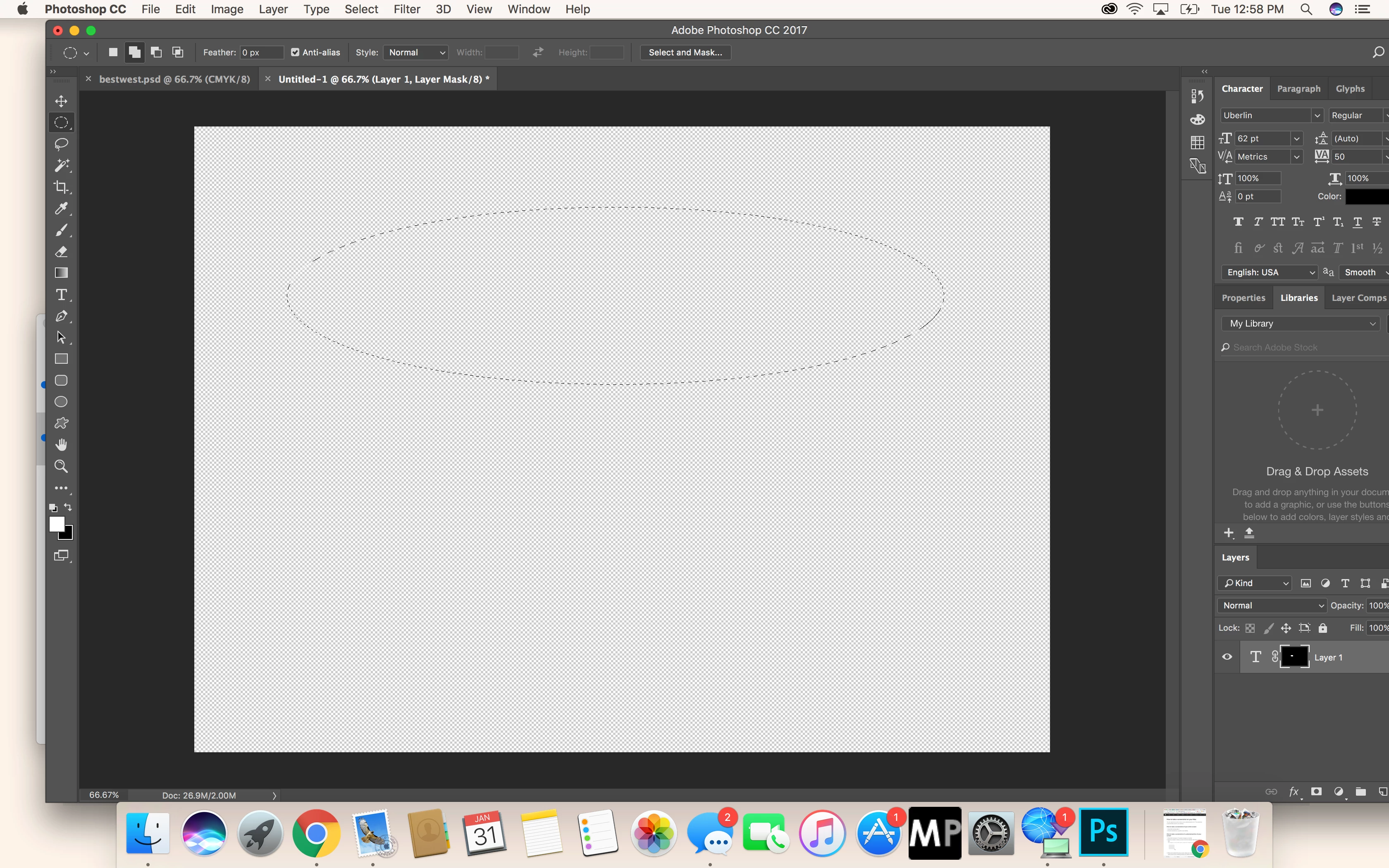
I don't see the paths button, and I cannot for the life of me figure out why it's missing or how to get it to show up. Help??
This topic has been closed for replies.
Correct answer davescm

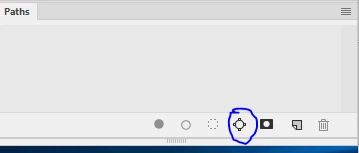
If you want to make a path from your selection go to the paths panel and click on this icon :

Or are you thinking of the option you get when you use the ellipse shape tool ?

Dave

7 replies

Participant
July 27, 2021

That happened to me.  I was in 3D workspace mode.  I switched back to Window - Workspace - Essentials and paths came back.

aprild87267361
Participant
May 5, 2021

Try going to "WINDOW - WORKSPACE- GRAPHIC AND WEB" 

That worked for me to get the "path" option next to the elptical symbol in the optons bar.

Participant
June 28, 2020

im using Photoshop CS6 and i cant see the path tools...

Trevor.Dennis
Community Expert
Community Expert
January 31, 2017

Something that makes a lot of sense to me is to sort out, and save, a more useful workspace when you first start using a new install of Photoshop.  You need to look at the default workspace with a tiny touch of cynicism — the Library panel is right there in your face, because Adobe are pushing Adobe Stock like crazy as an additional revenue stream.  Start with the workspace most appropriate for you.  Maybe the Photography workspace for instance. Have your major panels open on the right, and grow the auto expanding icons along side the major panels. One click opens the thumbnails, and another click collapses them.

I cobbled this workspace below by way of demonstration (I use three screens so don't normally work this way).  In the case of your question, you'd have had the Make work path from selection icon right there ready to use.

Save your new workspace. You can now drag out a panel to make it more convenient, and Reset your work space to get back to default.  The Essentials workspace is hard wired, and the go to method of making sure you seeing everything in as standard.

One more thing that I advise, (but you might like to do it differently) is to have these options unchecked.  It is annoying in the extreme to have those collapsed panels fly in and out for no apparent reason.

davescm
Community Expert
davescmCommunity ExpertCorrect answer
Community Expert
January 31, 2017

If you want to make a path from your selection go to the paths panel and click on this icon :

Or are you thinking of the option you get when you use the ellipse shape tool ?

Dave

Participant
February 8, 2018

I am now using Photoshop 2018 and I am creating a vector mask with the Ellipse Tool. I don't see the Path option from the Options bar and I do not see the Combine Shapes option either. Are these options removed from or hidden in Photoshop 2018?

italosan
Community Expert
Community Expert
January 31, 2017

Hi! Can you please explain your problem better?

By the way, have you tried by selecting The Paths panel (Window > Paths)?

Legend
January 31, 2017

What do you mean by the path button?

Your screenshot shows a selection made by the elliptical marquee tool. It's not a path....

odiug79
Participant
May 1, 2018

With path button , he means the button in the menu. Layers channels path. Mine is gone also . And it pretty anoying that people here react like they dont know what it is.

davescm
Community Expert
Community Expert
May 1, 2018

odiug79  wrote

With path button , he means the button in the menu. Layers channels path. Mine is gone also . And it pretty anoying that people here react like they dont know what it is.

Hi

Can you provide a screenshot showing which menu you say has a missing item. Your description is unclear.

Dave
