
Participant
September 9, 2021
Question

pattern not available

  • September 9, 2021
  • 2 replies
  • 3344 views

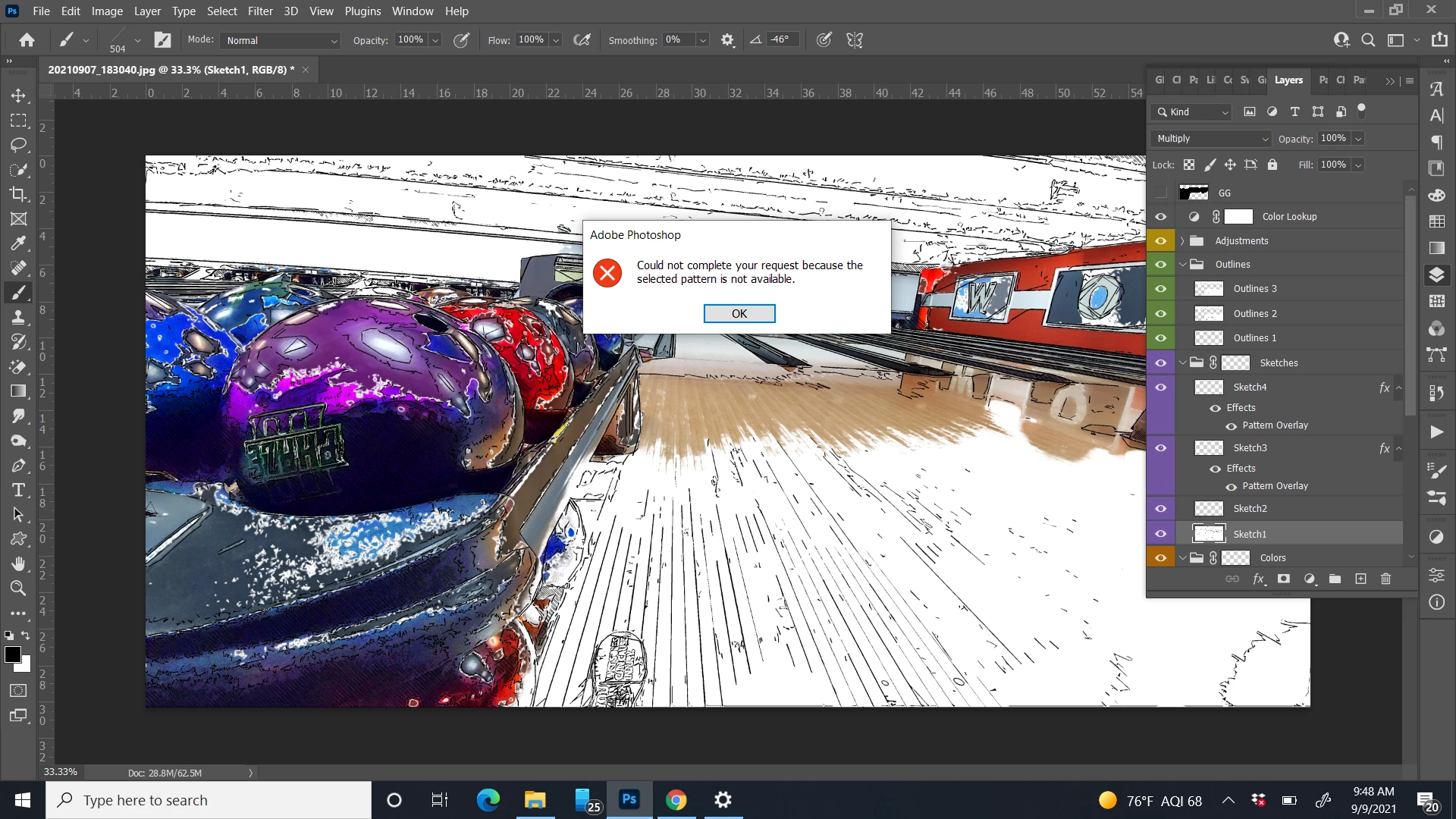
I'm working on a photo that I and have several layers to creates a certain look, but when I try to save or flatten the layers of the image I get the error message: "Could not complete your request because the selected pattern is not available"  


What pattern?!?! 

I am using a PS action from Graphics Garage called Urban Sketch


PS 2021

Windows 10 


This topic has been closed for replies.

2 replies

Missbee
Known Participant
January 7, 2022

I have this problem as well with the same action. The action runs, then I encounter a variety of instability issues attempting to work with the layers. The image disappears. Or layers disappear.  I can't  use the magnifying glass.
If I try to merge layers I get the "could not complete your request because the selected pattern is not available" message.  Or Photoshop crashes. However after Photoshop recovers, the layers function fine. It's a fairly new action, 2019, but I can't reach the developer. Are there changes I can try on the Photoshop side? Thanks.


c.pfaffenbichler
Community Expert
Community Expert
January 7, 2022

Did you load all the Patterns that the Action references? 

c.pfaffenbichler
Community Expert
Community Expert
January 7, 2022

Yes, I did, and double checked. The action itself runs through without a glitch. Photoshop de-stabilizes when I try to manipulate the layers afterward. And most strangely, if Photoshop completely crashes, the layers work fine when Photoshop recovers. (It's a very nice action, hence my persistence.) Thanks.


Well, that does sound strange.


What have you done for all-purpose trouble-shooting so far? 

Restoring Preferences after making sure all customized presets like Actions, Patterns, Brushes etc. have been saved might be a good starting point:

https://helpx.adobe.com/photoshop/using/preferences.html

https://helpx.adobe.com/photoshop/kb/basic-trouble-shooting-steps.html


Does turning off »Use Graphics Processor« in the Performance Preferences (Photoshop > Preferences > Performance > Graphic Processor Settings) and restarting Photoshop have any bearing on the issue? 

Does turning on »Deactivate Native Canvas« (Photoshop > Preferences > Technology Previews) and restarting Photoshop have any bearing on the issue? 

c.pfaffenbichler
Community Expert
Community Expert
September 10, 2021

»What pattern?!?!«

The one in the Pattern Overlay Layer Style maybe?