


in.a.fever.dream
Participant
January 19, 2022
해결됨

Photoshop 2022 grayscale images open brighter compared to Silverfast 9.1.2 - Mac OS 12.1 Monterey

  • January 19, 2022
  • 4 답변들
  • 2892 조회

I have posted this earlier but received no response under the "Bug" category. In fact I am not sure whether this is a bug or a "feature"... So here it goes (again):


I noticed that recently the images that I scan using Silverfast 9.1.2 show visibly brighter when opened in Photoshop 2022. I have been working in colour for a while and this does not seem to be an issue. Two or three months ago this also was not affecting grayscale files. I don't think I changed any settings in Silverfast and Photoshop that could result in this problem, but there were several updates in the meanwhile.


Does anyone have some suggestions what could be the reason for this?


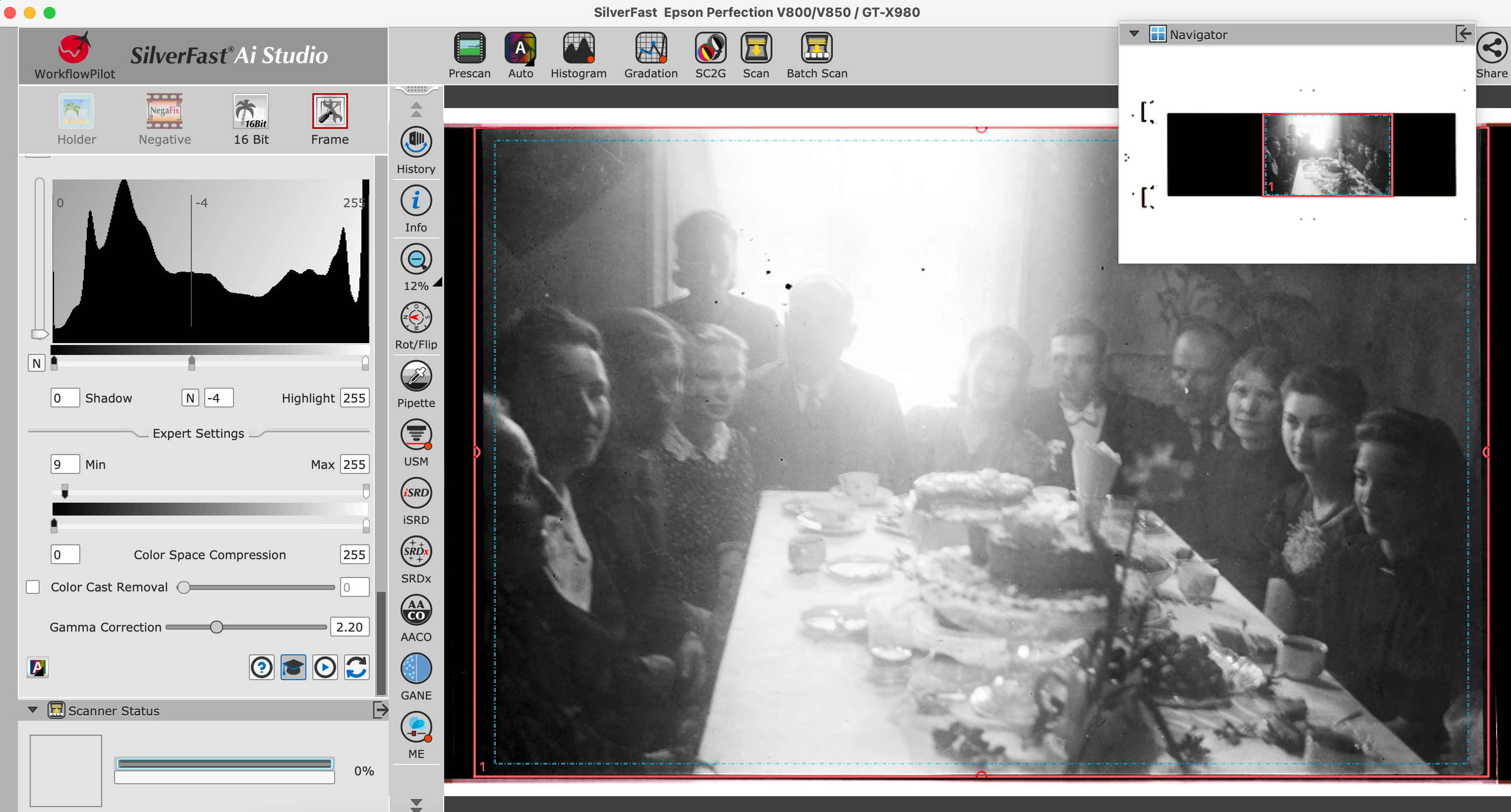
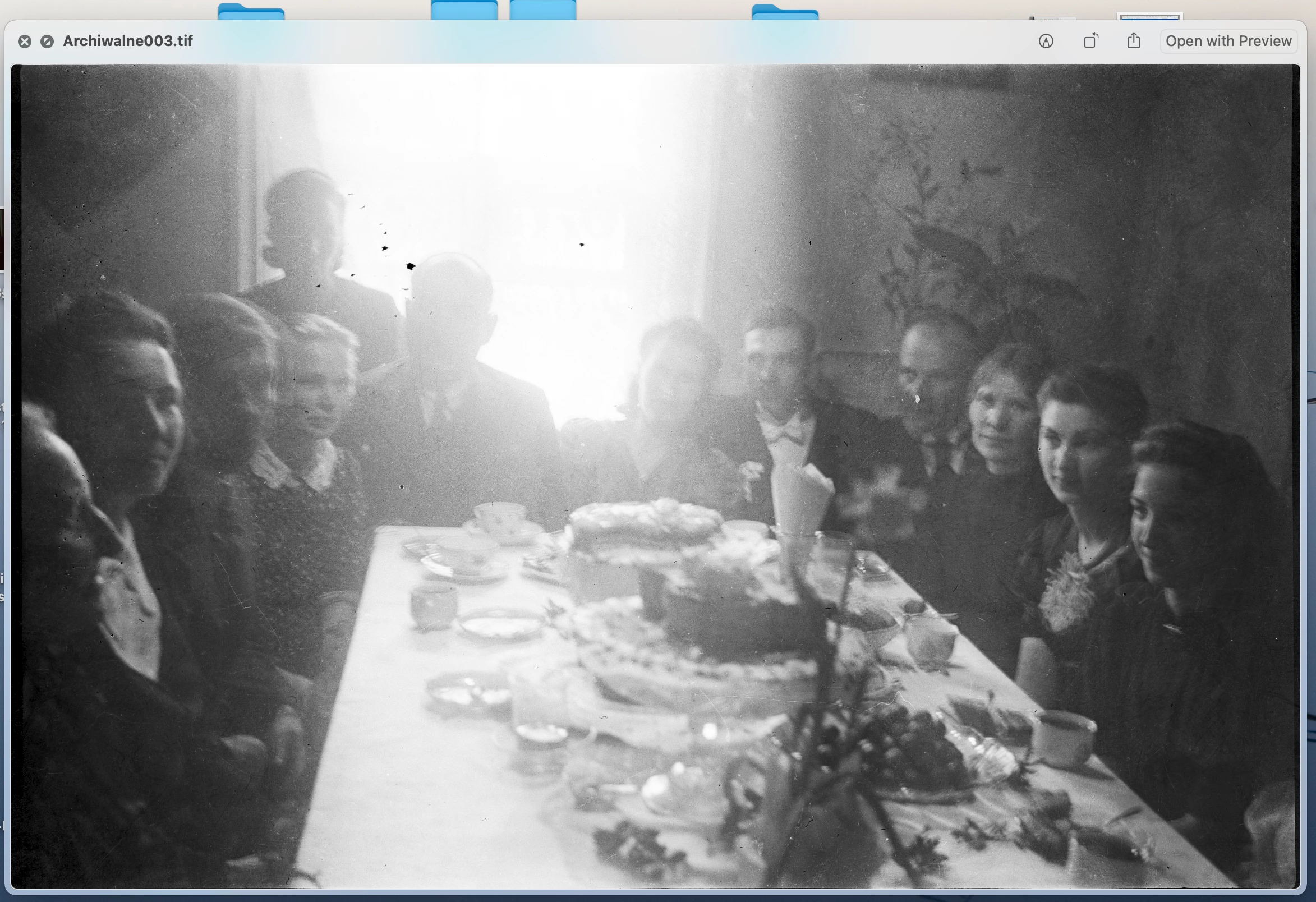
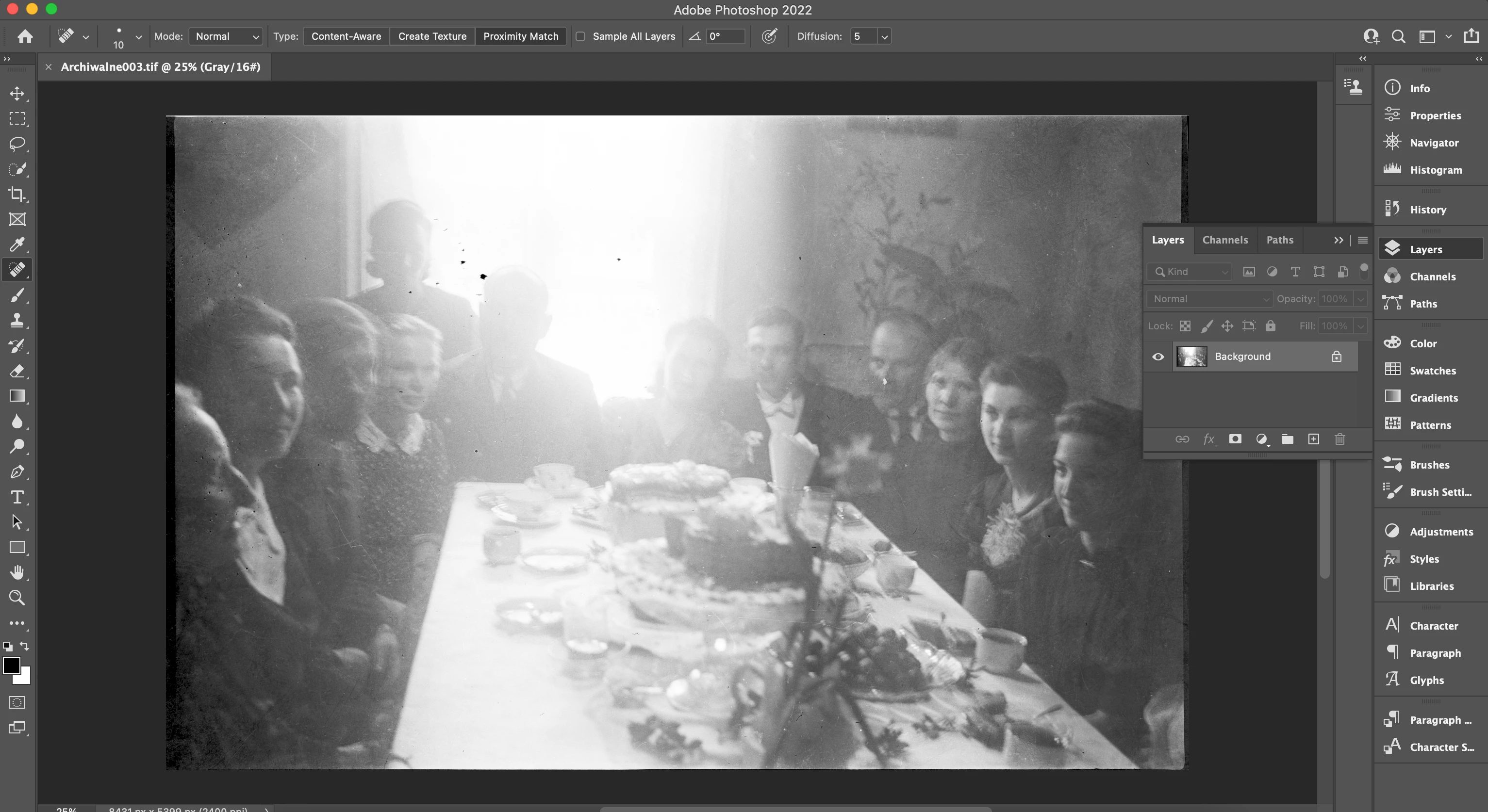
Silverfast (the top screenshot), MacOS Preview (middle), and Photoshop (bottom - image shows slightly brighter):
최고의 답변: D Fosse

In the Color Settings screenshot, see the working gray "Dot Gain 15%" ? That's what is responsible for the difference you saw at first. The dot gain profiles have a tone curve very different from gamma 2.2.


That's not a problem as long as there is an embedded grayscale profile, because it will override the working gray. But without a profile, the working gray kicks in. In Photoshop, there always has to be some profile.


An alternative way to deal with it is to set working gray to Gray Gamma 2.2. You can do that in any case, but that would basically just hide the problem, not solve it. It's better to get into the habit of always having an embedded profile.

4 답변

in.a.fever.dream
Participant
January 21, 2022

First of all - big thanks go to everyone here for helping me out, you are great!

Here are some facts I (we) managed to establish:


1. This was indeed a problem with a missing ICC profile in the grayscale file from Silverfast.


2. Silverfast 9.1.2 can (sceeenshot attached) create a profile for a grayscale negative. In the meantime I received the following response from Silverfast:


"SilverFast does not use embedded profiles for greyscale scans by default. To sync the appearance of the preview in SilverFast with the file opened in Photoshop, please make sure that SilverFast and Photoshop are using the same greyscale profile. In SilverFast you can select the profile in the SilverFast Preferences -> CMS.


Photoshop does also provide some "special features" like "black point compensation" or "gamma" correction you can define in the Color Management Settings.
The Rendering Intent used by the color management system can also pay a role...we are using Perceptual rendering. In Photoshop you have the options "Perceptual", "Relatively Colorimetric", "Absolutely Colorimetric" and "Saturation". Please select the perceptual one."


3. Having assigned the profile in Silverfast fixed the difference in brightness. I also changed the Rentering Intent to "Perceptual" as advised just to make sure.

D Fosse
Community Expert
D FosseCommunity Expert답변
Community Expert
January 21, 2022

In the Color Settings screenshot, see the working gray "Dot Gain 15%" ? That's what is responsible for the difference you saw at first. The dot gain profiles have a tone curve very different from gamma 2.2.


That's not a problem as long as there is an embedded grayscale profile, because it will override the working gray. But without a profile, the working gray kicks in. In Photoshop, there always has to be some profile.


An alternative way to deal with it is to set working gray to Gray Gamma 2.2. You can do that in any case, but that would basically just hide the problem, not solve it. It's better to get into the habit of always having an embedded profile.

TheDigitalDog
Inspiring
January 20, 2022

Silverfast should suppor color management fully (my copy does).

Next, you really need to compare the two at the same zoom ratio and at 1:1 (100%) as zooming out in either product can subsample pixels and produce an incorrect preview.

Yes, the scan from SilverFast mush have an embedded profile, it should if setup correctly, Photoshop should recognize it and at the same zoom, they should match. If not, we can go there (could be a display profile issue, GPU etc).

Author “Color Management for Photographers" & "Photoshop CC Color Management/pluralsight"
Per Berntsen
Community Expert
Community Expert
January 20, 2022

The image is indeed untagged.


I don't use Silverfast, but according to this page it does support color management, but it is turned off by default.

There are instructions on the page I linked to on how to enable it.

However, it is only possible when scanning reflective originals and positive film. There is no color management for scanning negatives.

in.a.fever.dream
Participant
January 20, 2022

Thank you so much for your help!
These are negative transparencies... Does that mean there's no way to avoid that difference in brightness in this case?

That also explains why the colour images were not affected so far - I was scanning mostly colour slide film (positive) and Silverfast assigned profiles to the files by default...

Per Berntsen
Community Expert
Community Expert
January 20, 2022

Try to assign the Gray Gamma 2.2 profile to the image, that might make it a bit darker.

Edit > Assign profile.


Some general advice on scanning negatives –

I always aim for a histogram like the one below, with plenty of space on both sides, which means that there is no shadow or highlight clipping. In other words, all the information in the negative has been captured in the scan.

The image will be flat, but that's easy to correct in Photoshop or Lightroom later.

Make sure to scan and do all edits in 16-bit.


The histogram you have in Silverfast shows clipping of both shadows and highlights, and it may be possible to recover a lot more detail, especially in the highlights.


D Fosse
Community Expert
Community Expert
January 19, 2022

No bug. In fact, Photoshop is about the only application on the planet that treats grayscale correctly.


Grayscale is subject to standard color management just like RGB. No color of course; but the tone response curve is very different in different grayscale profiles.


So does Silverfast give you a choice of grayscale icc profile? And if so, does it embed that profile in the file? An untagged grayscale file is as unpredictable as an untagged RGB file.