Stage 2 of 2: Run a Script to Stack Into Sets of 4 and Create a 2x2 Layout
The following script will stack into sets of 4, it then uses another action to create a 2x2 pattern.
/*

Stack N Number of Docs to Layers.jsx
Stephen Marsh
20th August 2021 Version

A generic, skeleton "framework" script to help fast-track development of similar scripts for combining multiple
"sequence" single-layer files to layers.

This script requires input files from a single folder to be alpha/numeric sorting in order to stack in the correct
set quantity.

Example: File-01.jpg File-02.jpg etc, FileA1.tif FileA2.tif etc, File1a.tif File1b.tif etc.

A minimum of 2 or more files per stack is required. The quantity of input files must be evenly divisible by the stack quantity.

A named action set and action can be set on line 135 to "do something" with the stacked layers.

*/

#target photoshop

// app.documents.length === 0
if (!app.documents.length) {

    try {

        // Save and disable dialogs
        var restoreDialogMode = app.displayDialogs;
        app.displayDialogs = DialogModes.NO;

        // Main script function
        (function () {

            // Select the input folder
            var inputFolder = Folder.selectDialog('Please select the folder with files to process');
            if (inputFolder === null) return;

            // Limit the file format input, add or remove as required
            var fileList = inputFolder.getFiles(/\.(png|jpg|jpeg|tif|tiff|psd|psb)$/i);

            // Force alpha-numeric list sort
            // Use .reverse() for the first filename in the merged file
            // Remove .reverse() for the last filename in the merged file
            fileList.sort().reverse();

            //////////////////////////// Static Set Quantity - No GUI ////////////////////////////
            var setQty = 4;
            //////////////////////////////////////////////////////////////////////////////////////

            // or...

            //////////////////////////// Variable Set Quantity - GUI /////////////////////////////
            /*
            // Loop the input prompt until a number is entered
            var origInput;
            while (isNaN(origInput = prompt('No. of files per set (minimum 2):', '2')));
            // Test if cancel returns null, then terminate the script
            if (origInput === null) {
                alert('Script cancelled!');
                return
            }
            // Test if an empty string is returned, then terminate the script
            if (origInput === '') {
                alert('A value was not entered, script cancelled!');
                return
            }
            // Test if a value less than 2 is returned, then terminate the script
            if (origInput < 2) {
                alert('A value less than 2 was entered, script cancelled!');
                return
            }
            // Convert decimal input to integer
            var setQty = parseInt(origInput);
            */
            //////////////////////////////////////////////////////////////////////////////////////

            // Validate that the file list is not empty
            var inputCount = fileList.length;
            var cancelScript1 = (inputCount === 0);
            if (cancelScript1 === true) {
                alert('Zero input files found, script cancelled!');
                return;
            }
            // Validate the input count vs. output count - Thanks to Kukurykus for the advice to test using % modulus
            var cancelScript2 = !(inputCount % setQty);
            alert(inputCount + ' input files stacked into sets of ' + setQty + ' will produce ' + inputCount / setQty + ' output files.');
            // Test if false, then terminate the script
            if (cancelScript2 === false) {
                alert('Script cancelled as the quantity of input files are not evenly divisible by the set quantity.');
                return;
            }

            // Select the output folder
            var outputFolder = Folder.selectDialog("Please select the folder to save to");
            if (outputFolder === null) {
                alert('Script cancelled!');
                return;
            }

            // or

            /*
            // Create the output sub-directory
            var outputFolder = Folder(decodeURI(inputFolder + '/Output Sets Folder'));
            if (!outputFolder.exists) outputFolder.create();
            */

            // Loop through and open the file sets
            while (fileList.length) {
                // Sets of N quantity files
                for (var a = 0; a < setQty; a++) {
                    try {
                        app.open(fileList.pop());
                    } catch (e) { }
                }

                // Set the base doc layer name
                app.activeDocument = documents[0];
                docNameToLayerName();

                // Stack all open docs to the base doc
                while (app.documents.length > 1) {
                    app.activeDocument = documents[1];
                    docNameToLayerName();
                    app.activeDocument.activeLayer.duplicate(documents[0]);
                    app.activeDocument = documents[0];

                    // Do something to the stacked active layer (blend mode, opacity etc)
                    // app.activeDocument.activeLayer.blendMode = BlendMode.MULTIPLY;

                    app.documents[1].close(SaveOptions.DONOTSAVECHANGES);
                }

                ////////////////////////////////// Start doing stuff //////////////////////////////////

                app.doAction("Run", "2 x 2 A4 Layout");

                ////////////////////////////////// Finish doing stuff //////////////////////////////////

                // Delete XMP metadata to reduce final file size of output files
                removeXMP();

                // Save name + suffix & save path
                var Name = app.activeDocument.name.replace(/\.[^\.]+$/, '');
                var saveFile = File(outputFolder + '/' + Name + '_x' + setQty + '-Sets' + '.psd');
                // var saveFile = File(outputFolder + '/' + Name + '_x' + setQty + '-Sets' + '.jpg');

                // Call the save function
                savePSD(saveFile);
                //saveTIFF(saveFile);
                //saveJPEG(saveFile);
                //savePNG(saveFile);

                // Close all open files without saving
                while (app.documents.length) {
                    app.activeDocument.close(SaveOptions.DONOTSAVECHANGES);
                }

                // Functions

                function savePSD(saveFile) {
                    psdSaveOptions = new PhotoshopSaveOptions();
                    psdSaveOptions.embedColorProfile = true;
                    psdSaveOptions.alphaChannels = true;
                    psdSaveOptions.layers = false; // true for layers
                    psdSaveOptions.annotations = true;
                    psdSaveOptions.spotColors = true;
                    // Save as
                    app.activeDocument.saveAs(saveFile, psdSaveOptions, true, Extension.LOWERCASE);
                }

                /* Not currently used, a placeholder to swap in/out as needed
                function saveTIFF(saveFile) {
                    tiffSaveOptions = new TiffSaveOptions();
                    tiffSaveOptions.embedColorProfile = true;
                    tiffSaveOptions.byteOrder = ByteOrder.IBM;
                    tiffSaveOptions.transparency = true;
                    // Change layers to false to save without layers
                    tiffSaveOptions.layers = true;
                    tiffSaveOptions.layerCompression = LayerCompression.ZIP;
                    tiffSaveOptions.interleaveChannels = true;
                    tiffSaveOptions.alphaChannels = true;
                    tiffSaveOptions.annotations = true;
                    tiffSaveOptions.spotColors = true;
                    tiffSaveOptions.saveImagePyramid = false;
                    // Image compression = NONE | JPEG | TIFFLZW | TIFFZIP
                    tiffSaveOptions.imageCompression = TIFFEncoding.TIFFLZW;
                    // Save as
                    app.activeDocument.saveAs(saveFile, tiffSaveOptions, true, Extension.LOWERCASE);
                }
                */

                /* Not currently used, a placeholder to swap in/out as needed
                function saveJPEG(saveFile) {
                    jpgSaveOptions = new JPEGSaveOptions();
                    jpgSaveOptions.embedColorProfile = true;
                    jpgSaveOptions.formatOptions = FormatOptions.STANDARDBASELINE;
                    jpgSaveOptions.matte = MatteType.NONE;
                    jpgSaveOptions.quality = 10;
                    // Save as
                    activeDocument.saveAs(saveFile, jpgSaveOptions, true, Extension.LOWERCASE);
                }
                */

                /* Not currently used, a placeholder to swap in/out as needed
                function savePNG(saveFile) {
                    var pngOptions = new PNGSaveOptions();
                    pngOptions.compression = 0; // 0-9
                    pngOptions.interlaced = false;
                    // Save as
                    app.activeDocument.saveAs(saveFile, pngOptions, true, Extension.LOWERCASE);
                }
                */

                function docNameToLayerName() {
                    var layerName = app.activeDocument.name.replace(/\.[^\.]+$/, '');
                    app.activeDocument.activeLayer.name = layerName;
                }

                function removeXMP() {
                    if (!documents.length) return;
                    if (ExternalObject.AdobeXMPScript == undefined) ExternalObject.AdobeXMPScript = new ExternalObject("lib:AdobeXMPScript");
                    var xmp = new XMPMeta(activeDocument.xmpMetadata.rawData);
                    XMPUtils.removeProperties(xmp, "", "", XMPConst.REMOVE_ALL_PROPERTIES);
                    app.activeDocument.xmpMetadata.rawData = xmp.serialize();
                }

            }

            // Restore saved dialogs
            app.displayDialogs = restoreDialogMode;

            // End of script notification
            app.beep();

            // Ensure that the following file format filter matches the save format
            // .getFiles(/\.(tif|tiff)$/i);
            var outputList = outputFolder.getFiles(/\.(psd)$/i);
            // var outputList = outputFolder.getFiles(/\.(jpg|jpeg)$/i);
            alert('Script completed!' + '\n' + outputList.length + ' combined files saved to:' + '\n' + outputFolder.fsName);

            // Open the output folder in the Finder or Explorer
            // outputFolder.execute();

        }());

    } catch (e) {

        // Restore saved dialogs
        app.displayDialogs = restoreDialogMode;
        alert("If you see this message, something went wrong!");

    }
}

else {

    alert('Stack "N" Number of Sets:' + '\n' + 'Please close all open documents before running this script!');

}
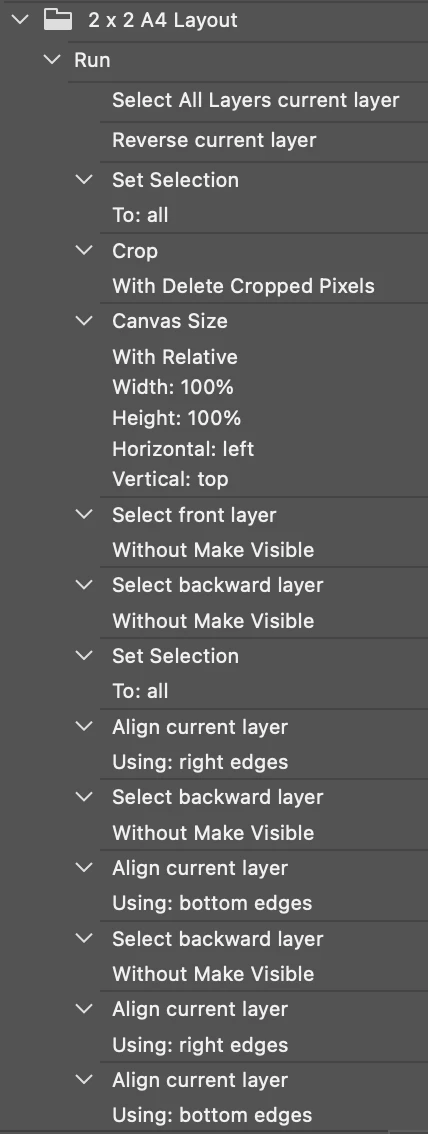
Here is the action utilised by the script:
2 x 2 A4 Layout.atn
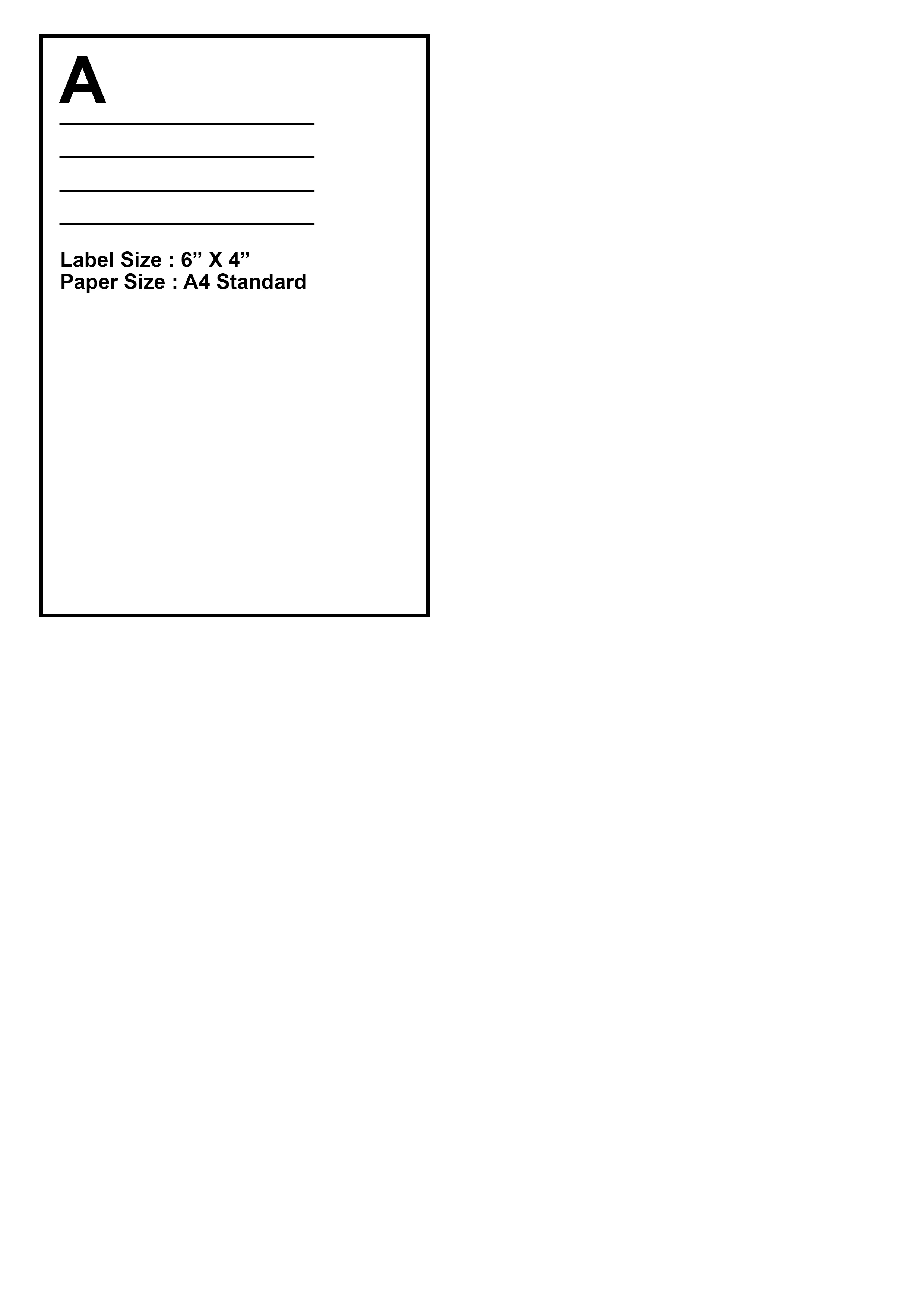
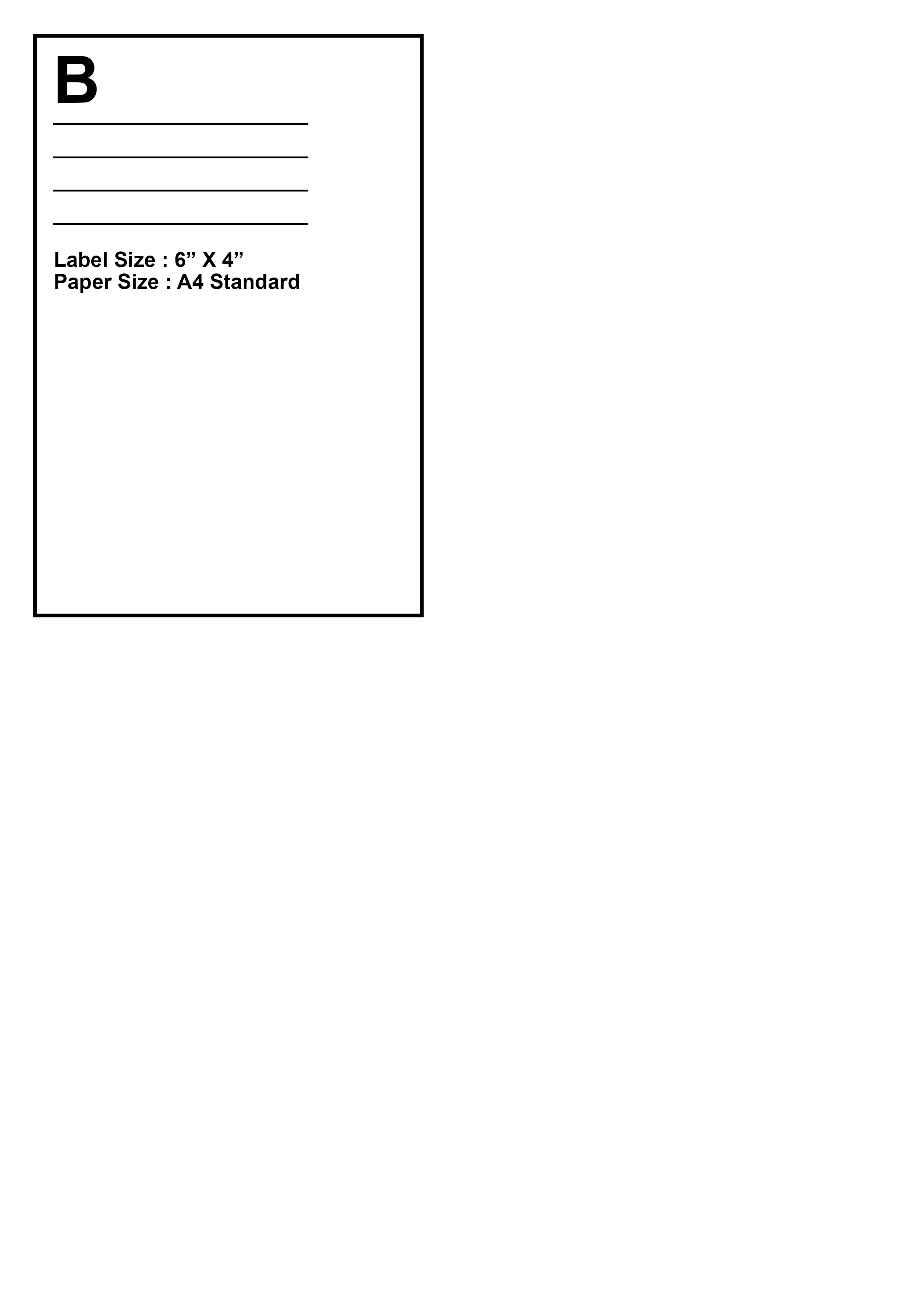
What you should end up with after the previous two workflows:
All labels in sets of 4 in a single PSD file.
All invoices in sets of 4 in a single PSD file.
An extra step would be required to combine the matching sets of label and invoice files into a single 2 page PDF.
Info on saving and running scripts here:
Downloading and Installing Adobe Scripts

 AdChoices