oddshots
Participant
September 21, 2022
Answered

Photoshop brush settings - automatically remove overlapping lines

  • September 21, 2022
  • 4 replies
  • 798 views

Hi all,

Long time listener first time caller...

I am wondering if there is a quick and easy workflow for placing brushes over the top of each other, resulting in the overlapping lines not being visible.

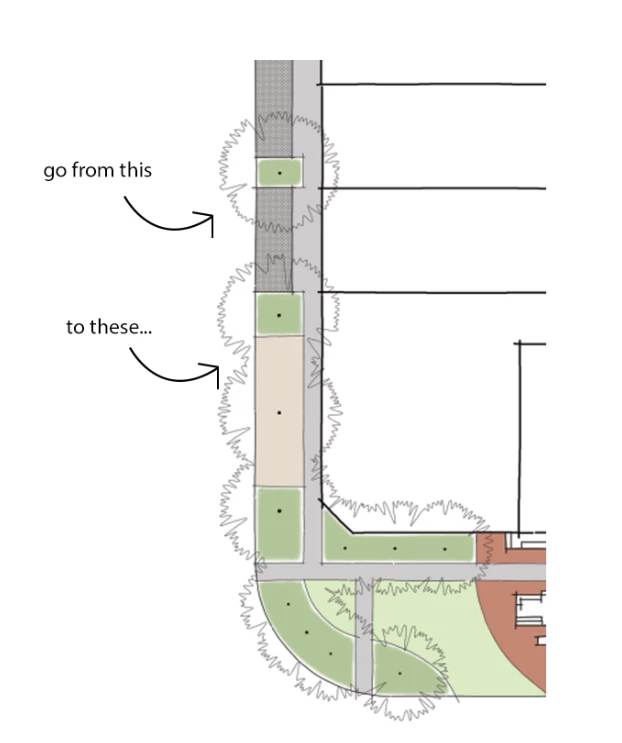
For reference, I am wanting to create an architectural plan using trees in plan view.

The tree brushes are the brushes I am wanting to amend to achieve the effect stated above. 


see pic below for reference.
 

Many thanks in advance. 

This topic has been closed for replies.
Correct answer davescm

Hi

This is easy to do with a brush and layer effect combined.

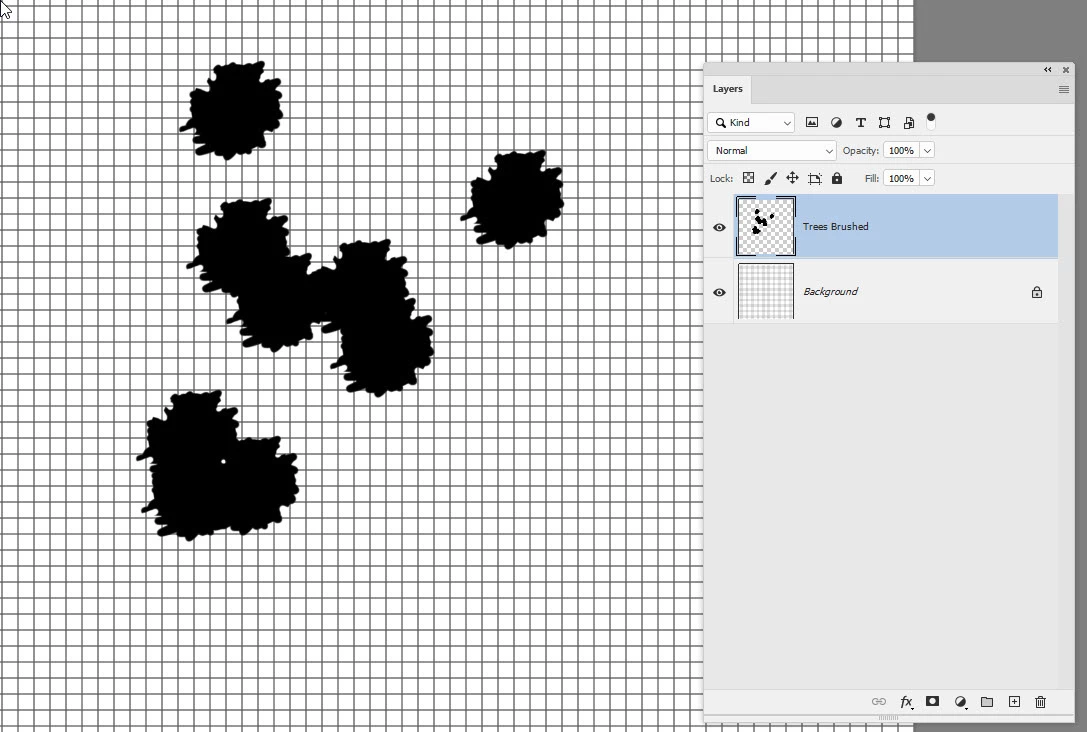
Make a solid brush in the shape you want

Use that brush on an empty layer


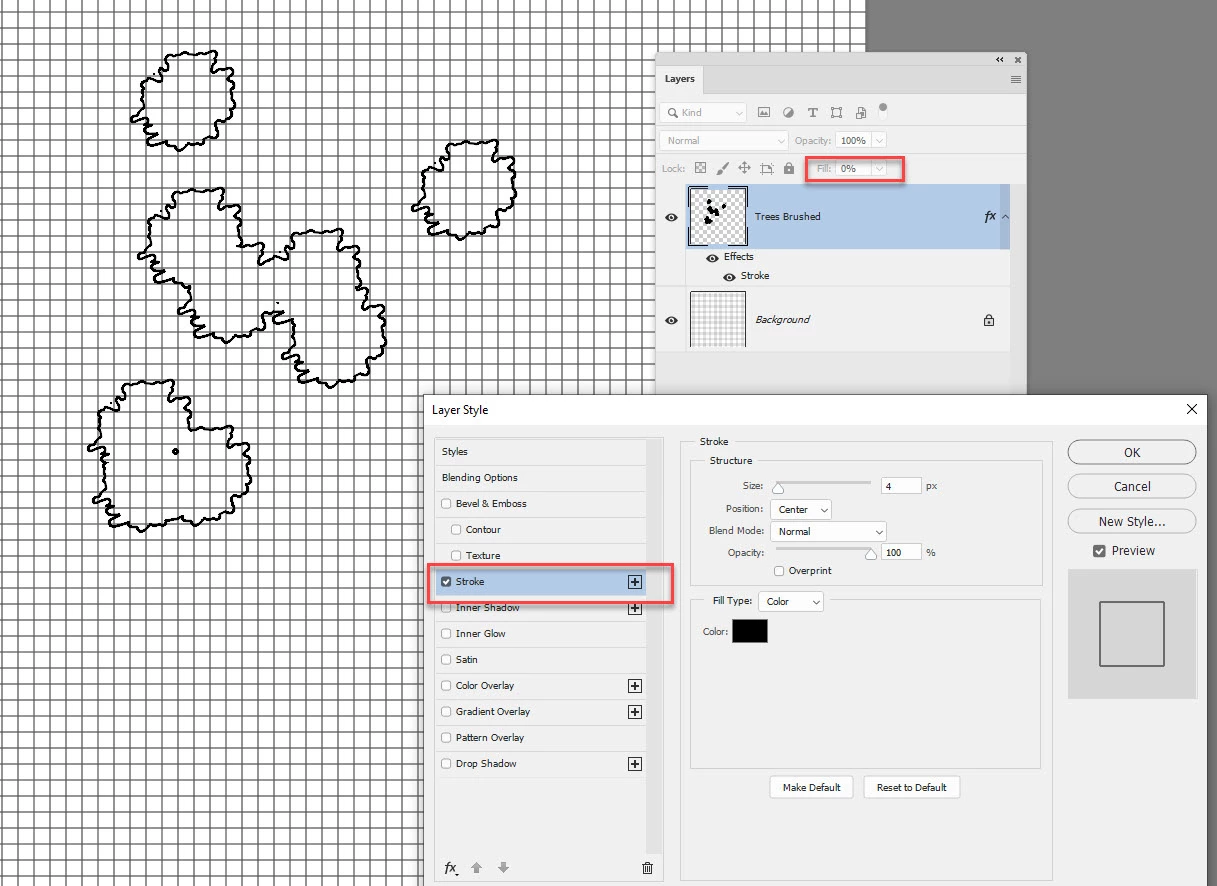
Turn the fill of the brushed layer to 0% . Right click in the layers panel and in Blending options add a stroke, centered on the brushed edge


Dave

4 replies

davescm
Community Expert
davescmCommunity ExpertCorrect answer
Community Expert
September 21, 2022

Hi

This is easy to do with a brush and layer effect combined.

Make a solid brush in the shape you want

Use that brush on an empty layer


Turn the fill of the brushed layer to 0% . Right click in the layers panel and in Blending options add a stroke, centered on the brushed edge


Dave

Trevor.Dennis
Community Expert
Community Expert
September 21, 2022

Excellent idea Dave

davescm
Community Expert
Community Expert
September 21, 2022

I see Tom came up with the same method at the same time. 

Dave

Tom Winkelmann
Inspiring
September 21, 2022

You have to create a new brush...

- make a selection of the inside of your brush

- fill the selection (on a new layer) with black

- Edit > Define Brush Preset (choose any name you like)
- make the brush settings you need (e.g. Shape Dynamics > Angle Jitter)
- make a new layer

- set "fill" in the layers panel to 0%

- add layerstyle: Stroke (size: 1px - color: grey)
- draw your trees

Trevor.Dennis
Community Expert
Community Expert
September 21, 2022

I am thinking probably not.  Does the interior have to be transparent (empty)?  

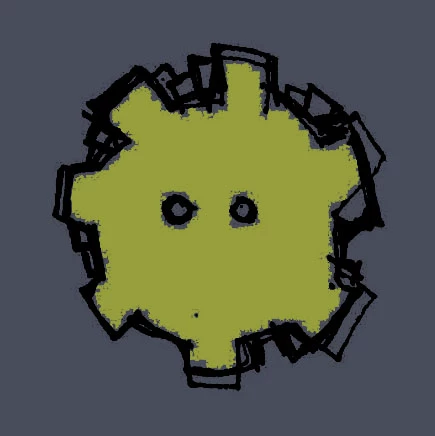
I used the top illustration to make a brush preset. Open up the spacing and downsized to make these plan view trees

I am not coming up with any way to do exactly what you are asking unfortunately.  @davescm  ? 

Bojan Živković11378569
Community Expert
Community Expert
September 21, 2022

If I can understand your request correctly then you must create "effect", its not possible to instruct Photoshop using Brush Setings for such behaviour.