
Exit
  • Global community
    • Language:
      • Deutsch
      • English
      • Español
      • Français
      • Português
  • 日本語コミュニティ
  • 한국 커뮤니티
0

Photoshop CC 2019 transparency bug

Community Beginner ,
Feb 20, 2019 Feb 20, 2019

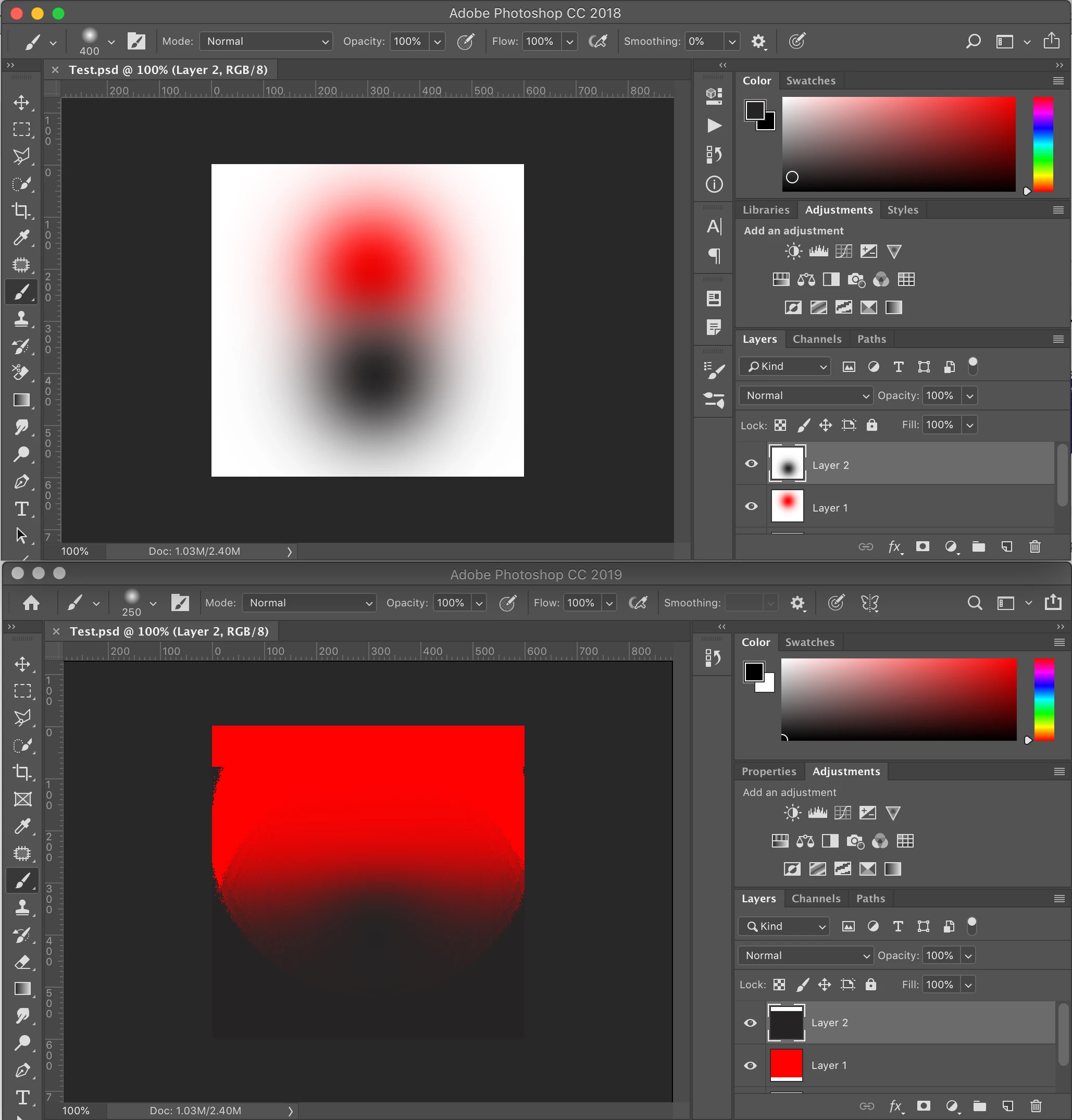
Can anyone provide a fix for a Photoshop CC 2019 transparency issue I've come across?

The screenshot shows the same file opened in both CC 2018 (top) and CC 2019 (bottom). CC 2018 renders the brushes blurred edges correctly while CC 2019 blocks out the transparency on the canvas and in the layer thumbnails.

My system:

iMac (Retina 5K, 27-inch, Late 2014)

macOS 10.14.3

Graphics: AMD Radeon R9 M290X 2048 MB
Screen Shot 2019-02-21 at 9.57.20 AM.png

3.2K
Translate
Report
Community guidelines
Be kind and respectful, give credit to the original source of content, and search for duplicates before posting. Learn more
community guidelines
Adobe
Community Expert ,
Feb 20, 2019 Feb 20, 2019

'm struggling to make sense of the screen shots.  Both UIs show layer thumbnails without any apparent transparency (chequerboard), but blend modes are set to normal, and both have the image zoomed 100%.   Does OSX not show the chequerboard in thumbnails for empty space. 

Looking at the layers panel scroll bars, we are looking at the top of the stack, but there appear to be more layers hidden below them.  This shouldn't have any impact because the upper layers obviously overwrite the lower layers, but like I said, it is not making sense to me.

Translate
Report
Community guidelines
Be kind and respectful, give credit to the original source of content, and search for duplicates before posting. Learn more
community guidelines
Community Beginner ,
Feb 20, 2019 Feb 20, 2019

Thanks your question has actually helped me find a work around.

The out of shot layer was an empty layer so wasn't causing the issue.

As for the grid not showing - I usually turn the transparency grid to none to just show a white background. I went into both versions to turn the grid back on and it fixed the CC 2019 problem. Turning on the grid in CC 2018 simply showed the grid but turning it on in CC 2019 revealed the correct transparency and grid. I'll just keep the grid on but colour both grid swatches to white so I have the white background that I prefer.

Still a bit weird but if it works it works - thanks

Screen Shot 2019-02-21 at 10.58.38 AM.png

Screen Shot 2019-02-21 at 10.58.52 AM.png

Translate
Report
Community guidelines
Be kind and respectful, give credit to the original source of content, and search for duplicates before posting. Learn more
community guidelines
Explorer ,
Feb 15, 2020 Feb 15, 2020

OMG! Thank you thank you thank you! I have been looking for a fix/work-around for this problem for a year! The only work-around I could come up with was to go back to cc2018!

Translate
Report
Community guidelines
Be kind and respectful, give credit to the original source of content, and search for duplicates before posting. Learn more
community guidelines
New Here ,
Apr 21, 2020 Apr 21, 2020
LATEST

Thank you. Works for me.


Translate
Report
Community guidelines
Be kind and respectful, give credit to the original source of content, and search for duplicates before posting. Learn more
community guidelines
Mentor ,
Feb 20, 2019 Feb 20, 2019

jonoash Could you provide us with a psd file to test this for ourselves?

Translate
Report
Community guidelines
Be kind and respectful, give credit to the original source of content, and search for duplicates before posting. Learn more
community guidelines
Community Beginner ,
Feb 20, 2019 Feb 20, 2019
Translate
Report
Community guidelines
Be kind and respectful, give credit to the original source of content, and search for duplicates before posting. Learn more
community guidelines
Community Expert ,
Feb 20, 2019 Feb 20, 2019

I just tried setting my transparency to none

And it appears to messed up things for me as well.  I think we should run this by the Development Team because it feels like a bug to me.  Especially if it is not the same in CC2018.    Pete.Green  is it OK to pass this on to you, or should it go on the Feedback site?

Translate
Report
Community guidelines
Be kind and respectful, give credit to the original source of content, and search for duplicates before posting. Learn more
community guidelines
Adobe Employee ,
Feb 21, 2019 Feb 21, 2019

Thanks for pinging me Trevor.

It looks like I'm able to reproduce as well. At first I had trouble because setting the Transparency to None didn't shift it. I needed to make a change in the Layers Panel in order to get the effect and doesn't look like it happens in 2018. Looks like a bug to me.

I'll go ahead and log a bug for this one. Thanks for the report Jono.

Regards,

Pete

Translate
Report
Community guidelines
Be kind and respectful, give credit to the original source of content, and search for duplicates before posting. Learn more
community guidelines
Community Expert ,
Feb 20, 2019 Feb 20, 2019

Try this

Go to Preferences >Performance and check "Use Legacy Compositing"

Dave

Translate
Report
Community guidelines
Be kind and respectful, give credit to the original source of content, and search for duplicates before posting. Learn more
community guidelines
Community Beginner ,
Feb 20, 2019 Feb 20, 2019

Thanks,

Tried that - it didn't make any difference

Translate
Report
Community guidelines
Be kind and respectful, give credit to the original source of content, and search for duplicates before posting. Learn more
community guidelines