


- Home
- Photoshop ecosystem
- Discussions
- Re: Photoshop CC brushes extremely laggy with Waco...
- Re: Photoshop CC brushes extremely laggy with Waco...
Photoshop CC brushes extremely laggy with Wacom Intuos Pro!

Copy link to clipboard
Copied
I've been messing around with digital painting on an iPad for a while, and just bought a Wacom Intuos Pro (medium) so I could do so on my Macs. I immediately noticed input lag from the Intuos, so started to do some testing. It doesn't appear to be the tablet. The same lag exists in Photoshop when using the Mac's trackpad, but the problem disappears entirely when I move into Corel Painter, trackpad or Intuos. Some lag exists in Illustrator, but not nearly as bad as Photoshop - Photoshop CC really seems to be the culprit.
I've uploaded a video (from my iPad; sorry for the quality) of this behavior: https://www.youtube.com/watch?v=wwR76V-hmLU
Any thoughts? Calling Adobe first resulted in finger-pointing to Wacom (quickly squelched when I pointed out the same problem existed when using the trackpad), and then sending me a link to a 5-year-old Adobe Forum post that's for Photoshop CS4 and Wacom Intuos 4 tablets - that's 3 versions back for Photoshop and 2 versions back for the tablet. (Of course, the solutions present in that post no longer apply.) Here's the link, for anyone interested: http://forums.adobe.com/message/3709366
Any thoughts? Painter seems nice, but I'd really like to be able to do digital painting in Photoshop as well. This issue makes that quite a bit more difficult.



Explore related tutorials & articles
 84
Replies
84
84
Replies
84




Copy link to clipboard
Copied
Boo, you are still not getting it, and I suspect I didn't help when I reintroduced the concept of DPI. The only reason I did that was because you said you
- Intend to print
- That the size would be 16 x 20 which I am assuming are inches.
So DPI is used at the planing stage to give you a suitable canvas size in pixels which - as you say - comes to 4800 pixels x 6000 pixels. That is actually really big, and if you were producing a composite, it could lead to problems finding some source elements of a high enough resolution.
There is another aspect where DPI is relevant, and that is if you will be using Type layers, but I would suggest setting type to a linear unit, like mm. That way you can predict that a font size of 50 would be just under 2 inches, and 1/8th the height of the canvas.
But what you have not told us, is what this document consists of, and I have asked. Nor have you told us on what medium it will be printed, and how it will be used. All these things are highly relevant. I produce a lot of artwork for those big pull out banners, and flags that can be >six foot high, but I wouldn't be using anything close to 300dpi.
Upload a copy of your artwork at 800 x 1000 pixels, and tell us what it will be printed on. Then you can get sensible meaningful advice.

Copy link to clipboard
Copied
It is very simple: dpi is merely an interpretation of how large your file will print on paper. You could create a file with 1 pixel, and print it at a 2.5 by 2.5 inch size by setting the ppi (we talk about ppi when working on screens, not dpi) in Photoshop to 1.
So guys, please: STOP abusing dpi when you talk about image resolution relative to the actual physical pixel. It's PPI, not DPI!
When you print an image, it depends on the paper quality, the inks, (yes, even the atmospheric conditions in a place), and the print method what resolution you will need for the best quality (there's more factors, but let's keep it simple).
"300dpi" is often coined as a standard for most press work - but you must understand that it also depends on the TYPE of artwork you intend to print. Prepress persons often grow tired after a while explaining things to the layman, so it's a "gentleman's agreement" to tell any client "just deliver your artwork at 300dpi". What they are actually saying is that a good acceptable quality print will be possible with an image delivered to them at the required minimum size at 300ppi. The truth of the matter is that if you worked at the optimal resolution and ink settings, there is a good chance you could arrive at a great or beautiful quality print. A lot of printers have no time for this, (regularly lacking knowledge/interest as well), and leave it to automated processing. Besides, clients (like you) lack the knowledge anyway, so the less time spent on these matters, the better.
Just deliver "300dpi" work. No questions asked. 
But not all artwork should be delivered at 300ppi. For example, text and black and white sharp artwork will/can be printed at 1200dpi or more, depending on the press tech. This is because colour work must be rasterized, meaning: any hue of colour consisting of a mix of cyan, magenta, yellow, and a shade of black (for shadows and darks) will be simulated with dot patterns (we call these halftones):
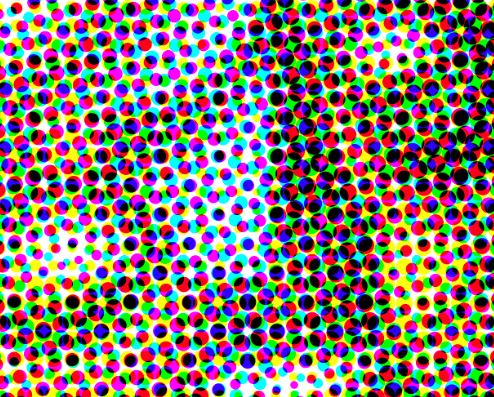
This means you LOSE a lot of the true resolution possible when you print colour work, as opposed to if you just printed with one full ink like black. Actually, high quality press work can have a physical print resolution of 300 lines per inch (LPI) (some cases even more) - and this is used to print those halftone patterns at a dot resolution of 300dpi.
(Read up on LPI)
Black body text does not need to be turned into a halftone, and is therefore printed at a much higher effective resolution. Pure black, that is - so the print raster can be fully utilized (up to the point of what the paper type can process in terms of ink).
However, it also depends on the paper used: newspapers work with an lpi of 85 or so. So images are also not required (nor wanted) to be delivered at 300ppi in that case. Due to the high absorption rate of that type of low-quality paper a 300dpi halftone would just blur anyway - and smear due to too much ink. So they are rasterized at a much bigger dot pattern half tone.
Most people do not realize that printing an image with a far too high ppi will probably print at a lesser quality than an image that has been prepared with the optimal ppi. (Which has to do with several things, but let's not get into that for now)
Still with me?
Now, suppose you have some comic artwork. If you inked the lines with pure black (very probable) for high quality glossy paper you best work at the very least at 700ppi for your required dimensions.
Here are some guidelines**:
- B&W art printed art on interior (vellum) paper stock: no higher than 600-700ppi
- B&W art printed on cover (glossy) stock: 700-800ppi
- Four colour line art printed on interior (vellum) paper stock: no lower than 300ppi; recommend between 400-500ppi.
- Four colour line art printed on cover (glossy) stock: no lower than 400ppi; recommend between 400-600ppi.
Keep in mind that you can also separate the black and white art from the colours - in that case the black and white art must again be at the higher ppi. (This process yields by far the nicest prints - but takes the most effort, because you must treat the pure B&W inking and colour work separately in two different layers, ideally having the ink work as vectors).
So... what does it all mean for you? For full colour artwork (digital paintings, comics) you best work at 600ppi. This will allow you to scale down if required, and still have enough rez for glossy work. Better a bit too much, than not enough is my motto. If you are unsure whether your artwork might be printed at greater physical dimensions on glossy paper (perhaps you are a famous digital (comic) artist who will have his work collected at some time in a big luxurious art book) you may want to work at those dimensions at 600ppi.
This is also a reason why digital painting/drawing software like Krita and Clip Studio offer 600ppi as a standard for new documents)
For B&W work (inks for example) 800ppi is a good resolution, but even better would be to work with vectors or the "printers' standard" of 1200ppi. This why I prefer Clip Studio (Manga Studio) for inks - because the ink tools feel like bitmap drawing, but have the incredible advantage that you can output your work at any resolution you would ever need. At the best quality. Unfortunately Photoshop doesn't do true vectors, so if you intend to stay with Photoshop for inking and b&w work you best work at a minimum of 800ppi (for more flexibility I would set it to 1200ppi).
(Clip studio knows that B&W work is often advised to be set to a ppi of 1200, and also offers this as a standard - I use this ppi setting myself for B&W bitmap inking)
So here is the math:
paper size (final printed size) @ 600ppi (full colour work).
paper size (final printed size) @ 800ppi (B&W work) | or work with/convert to vectors if you can/want. Lettering should be done in a vector/dtp app anyway.
Let's suppose you want to prepare your full colour artwork for a deluxe graphic novel format, glossy paper: 9" x 12¼" @ 600ppi results in: 5400px x 7350px
Next, the question about bit depth. I work at 16bpc whenever I can, because it allows for subtler control over colours, and I do a lot of artwork meant to be viewed on screens (like games, and stuff). However, generally for print 8bpc is enough. But again, it depends a bit on the type of artwork. 16bpc can make a visual difference, so if you have memory and cpu power to spare: by all means work in 16bpc.
Finally, one or two things about Photoshop: for inking and drawing I find Clip Studio a far better proposal, because it allows you to draw directly in true vectors. So I do all my inking and B&W work in Clip Studio. Also, the draw/inking feeling in Clip Studio is unsurpassed, and blows Photoshop out of the water. (I am not alone in this, btw: I know quite a few comic book artists who decided to make the switch from Photoshop for this type of work).
The fact that you can scale your line work up and down without any loss in quality is something that is hard to beat.
Also, Clip Studio has a built-in stabilizer, which can be a great help achieving those smooth curves (incidentally, Krita also offers this option, as does Gimp, as does the latest beta of Photoline). For photoshop there is the Lazy Nezumi plugin (which costs extra $$).
I always say: the right tool for the right job. Photoshop is not that great for inking and B&W work - an artist has to be realistic about these things 😉
Last, but certainly not least: discuss these concerns with your printer. An expert printer will generally be pleasantly surprised (well, not always...) when you ask him/her how to achieve the best quality print, and work with you in achieving this. Remember, the "300dpi" is merely a standardized requirement to prevent most problems. But depending on the paper, the inks, and so on, a higher resolution (ppi) may yield much better looking prints.
Anyway, I hope this cleared up some things. And stop using dpi when talking artwork resolution settings in Photoshop - it's PPI 
---------------

Copy link to clipboard
Copied
sorry, this is all just a blur now.
It's not just me - do a simple search over the internet for this issue and you'll find that there are several theories on this... hence the mass confusion and mis-undertanding of this entire subject all around the globe..so before you shoot me, please understand that i'm not the only one having a hard time grasping this
all I know from my position is that so long as the pixel count is the same, it doesn't matter what dpi the document is at. 72dpi 4800x6000 pixels will yeild the same image editing quality as 300dpi 4800x6000 pixels. As long as the pixel quantity is the same, it doesn't matter what dpi it's at. This is what I am now beginning to understand.
But working at the 72dpi 4800x6000 level means that the physical document size goes way up from 16 inches x 20 inches to 66.667 inches X 83.333 inches. Does this mean that when the image is printed, it can print at that enormous size with no indication of quality loss of the print?
If so, why does the 300dpi image print only at 16 inches x 20 inches? Can you bump it up to 66.667" x 83.333" with no quality loss? i'm sorry but this has spiralled way out of control, i just do not get it.. i really wish i was one-on-one in person with someone to figure this out, we could sketch it out
and again trevor, i've specified that this is only for traditional-type artowrk, for work such as pastel drawings, watercolors, etc. there is no photography involved. I'm never sure of the paper used to print on, because that is up to the publisher that i submit the work to. they only specify that the work be deliverd at 300dpi, 16 inches X 20 inches.
So my question is, why can't I deliver it to them at 72dpi, 16 inches X 20 inches if it makes no difference?
Copy link to clipboard
Copied
Remember, your document has no dpi - it's ppi. The distinction is important. You work with pixels when setting the resolution, and dpi is merely the interpretation of the ppi into printed dots.
Anyway, the resolution of you file counts. You are correct in that. You are also correct that by increasing the ppi (but NOT resampling the actual pixels) your work will print bigger on paper. So a 5 by 5 inch colour image at 300ppi, when changed to 600ppi will print twice the original size - at the expense of halving the resolution. You will start to see grains and blurry pixels/artefacts.
Even if you do upsample: there is just no real information to base the higher rez version on, so it will become blurry. Same result when printed. Bad quality.
So, in a nutshell: work at the optimal ppi at the paper size you require.
No, large banners the size of buildings are NOT printed at huge pixel dimensions of thousands of ppi - what counts is the distance between the viewer and the print: this is why 300dpi printed matter for colour work in books and magazines works at 300dpi: we can no longer see the dots, and it the colours look homogeneous, i.e.smooth.
As for your question about the 72dpi printed version versus the 300dpi printed version: the first one will print much larger, but from a close distance the pixels will be quite obvious. Looking from a greater distance (like a banner/billboard) it looks the same as the 300dpi version.
Next time you are waiting for the bus or public transit, walk up to one of those billboards, and examine the print - you will notice that the coloured artwork looks dreadful up close. Like a blown-up 300dpi print
And although many people have theories about dpi/ppi, printing, and the lot: in truth it is quite simple, and most people I encounter have no idea about the real theory behind printing and prepress - they invent their own theories.
Read up on this in the book I linked in the previous post - it explains everything quite well.
Copy link to clipboard
Copied
boo radley 2013 wrote:
sorry, this is all just a blur now.
Copy link to clipboard
Copied
Copy link to clipboard
Copied
Herbert2001 wrote:

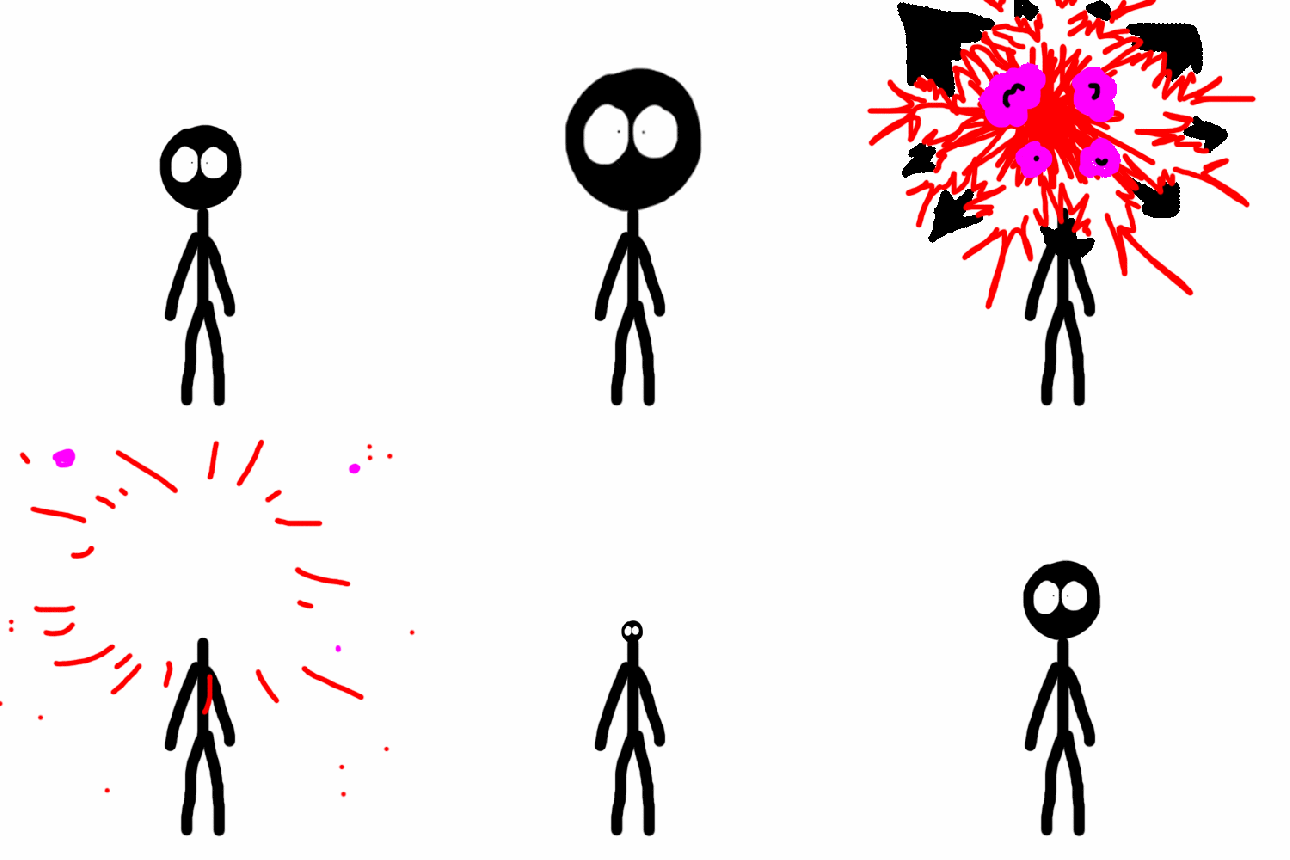
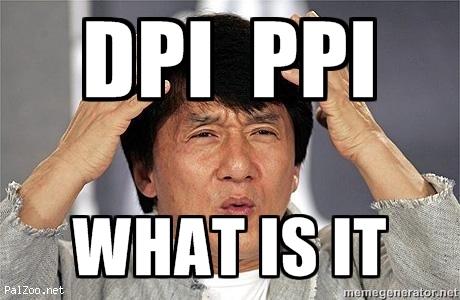
With apologies to Jackie Chan for the unforgivable segway, but his picture made me think of the news item last night, that it is about to become mandatory that everyone in North Korea addopts the same hair cut as leader Kim Jong Un. Especially the women . Actually, I think it has since been reported that it was a hoax, but it was a lovely story while it lasted.

Copy link to clipboard
Copied
DPI is simply pixel size. If you take you camera image and print it using you cameras actual pixel size you wind up with a image the sized of your camera sensor, You eyes can dot see the indivusal pixels the detail each bring to the table they are too small to resolve down to. When you increase the size you print a piles you see al larger size image and you start to see more detail. You can start to see the detail each pixel brings when you print pixel larger the 1/300"x1/300" you cap start to see the actual pixel. If the pixel has high quality you will see high detail. It the quality is not there you will not. DPI is not magic

Copy link to clipboard
Copied
I always try to advise people to think in pixel counts FIRST, and think about physical sizes when needed. Of course the thinking needs to bi-directional - for example, if I need to make a 300 ppi image 16 inches wide, it's simple math to get the pixel count: 16 x 300 = 4800 pixels wide.
Ideally, to maximize your interactive painting performance you will want minimize your pixel counts. On the other hand, to maximize your resultant image quality you will want to make the pixel count larger. Thus, what you're trying to achieve is a BALANCE where resultant quality is good enough and speed is fast enough so that you can be creative.
And yes, a more powerful computer does move the balance point.
-Noel
Copy link to clipboard
Copied
And we still have no idea what Boo is creating or what he wants to print it on. I get the impression it is not a photograph, and that (s)he doesn't need anything like the pixels (s)he is using.
Copy link to clipboard
Copied
it's traditional artwork, as I have already stated Trevor - see above, I have mentioned that one of the projects is a portrait with a pastel-look. I'm only developing and delivering the artwork, and am working under requested guidelines of 300dpi. The client will take care of the printing. So they ask for 300dpi, I give them 300dpi, it's my job. But it seems that this could have been done at 72dpi as long as the pixel quantities are the same, but I think I'm cluing in to the fact that if it's done at 72dpi then it will be a much larger print, which would be intended to be viewed at from somewhat of a distance ( a large poster maybe). Changing it to 300dpi would shrink it down in physical size, meant to be viewed from a closer distance when printed (a picture book maybe). Starting to make sense now. So whether I work in 72dpi or 300dpi doesn't matter - this much has been explained well and now I think I understand (I hope).. by the way I love the exploding head Trev , lol
Copy link to clipboard
Copied
Bo when you work in Photoshop your working on pixel data there is no image If you working in 8bit rgb color there is an 8bit value for red 8 bit value for green and a 8bit value for blue for each pixel you have for an image 3 byes. If you working in 16 bit color there are twice as many bits 6bytes per pixel. Now from this data Photoshop can render image for you see and look at. However it can not render 72Dpi image on your display and render 300dpi images on you display. It may be able to render one or the other if the resolution of your display is 72DPI or 300DPI however most likely it can not render either. The only time you see the images actual pixels is when you zoom the image to 100% then you can not see all the image pixels for your display does not support that many pixels, And when your viewing the actual pixels you viewing them at a different size then they should be.
If you client want to print an image 8" by 10" at a 300 dpi resolution give him what he wants do the math 300x8=2400 300x10=3000. He wants an image 4:5 aspect ratio 2400pixel wide and 3000pixel high so open a new document and set the width to 2,400 pixels and 3,000 pixels high. It does not matter what you set the dpi value to while you creating the image the dpi setting is meaningless, But you could do your client a favor and set it to 300dpi. In fact it you don't care to do the math you can set the width to 8" and the height to 10" and the DPI to 300DPI and Photoshop will do the math for you.
Hopefully by now your getting it. Oh and just reviewing the numbers if you happen to have an old IBM T221 display laying around you could display all the image actual pixels on screen. if to install it in a portrait orientation. The display displays 3860x2400 pixels 9.2MP. In portrait mode it would display 2400x3860 pixel your 2400x3000Pixel image would fit but because of the display resolution the image displayed would only be a 204DPI image.
Copy link to clipboard
Copied
JJMack wrote:
Oh and just reviewing the numbers if you happen to have an old IBM T221 display laying around you could display all the image actual pixels on screen. if to install it in a portrait orientation. The display displays 3860x2400 pixels 9.2MP. In portrait mode it would display 2400x3860 pixel your 2400x3000Pixel image would fit but because of the display resolution the image displayed would only be a 204DPI image.
Goodness! That's a serious display, and a new one on me. It doesn't look like it would easily stand in portrait mode, but I'm sure it would be doable
http://www.amazon.com/IBM-T221-22-2-3840x2400-Monitor/dp/B00006HS5R
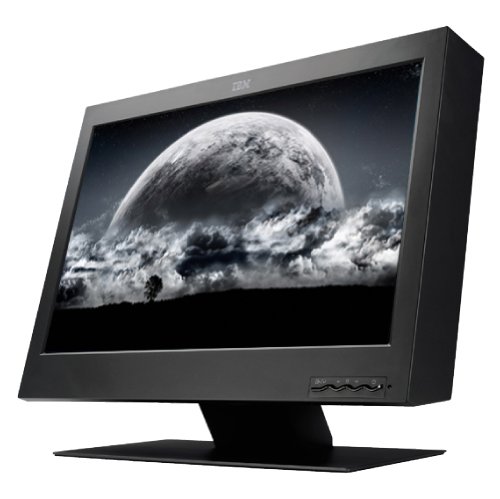
A nice side benefit of the 1920 x 1200 display I now use for my second monitor in portrait mode (an idea that came from this forum), is that I can so easily drag a portrait mode image across to preview in much more detail, so this IBM beastie would be very impressive.
Copy link to clipboard
Copied
thanks JJ. I've read cave heiroglyphics with blindfolds on and had a better understanding of what I was reading as opposed to what you just posted, but that's due to my own lack of understanding of dpi... i appreciate the help, but I do think I finally have some sort of a grasp on this now.
As I had said from the start, it makes no difference if I'm working in 72dpi or 300dpi so long as the pixel quantity is the same. The difference will be the document size (in inches), and that can be re-sized when going to print - so yes, I have learned something new today. So in essence, dpi is something I should eliminate from my vocabularly entirely, and replace the word with 'pixels' - so long as I keep an eye on the document size first (inches) and then convert if necessary. Hopefully I get it now. thanks also for all the additonal help here.
Copy link to clipboard
Copied
JJmack: please stop confusing dpi for ppi - there is a very fundamental difference, and it only confuses people when you keep using one for the other.
When you talk about the actual print on paper: dpi.
For screens and image resolution: ppi.
Pixels are not converted to dots in a one-on-one fashion in most cases. The fact that most people treat dpi and ppi as being the same things is bad enough as it is, and we should avoid doing the same thing on these forums, in my opinion.
That T221 screen displays images at 204ppi. There are no "dots" with screens, only pixels. And they are not the same.
Copy link to clipboard
Copied
Most people don't care which term is used DPI or PPI for LCD pixels the are made for three sub pixel parts one red one green and one blue. These can be address which make things like clear type possible. Also Print Images pixels are not done with a single drop or dot of ink. Instead the prints large pixels printed via many drop of ink. How many depend on the pixel size and the print quality used. Printers use their higher resolution droplets of ink to paint in the images larger pixels the correct color and size. You will find the many will use DPI and PPI interchangeably neither represent reality.
Copy link to clipboard
Copied
boo radley 2013 wrote:
So my question is, why can't I deliver it to them at 72dpi, 16 inches X 20 inches if it makes no difference?
It DOES make a difference - it depends on the actual resolution of your file in pixels!
Again, dpi is only an interpretation parameter that defines how many pixels should fit in the 2.5inch WHEN PRINTED. You could create an image with 10 square pixels at 1ppi which translates to a 25inch sized print at 1dpi (dots per inch).
Your printer is requesting 300dpi (he actually means ppi) - which translates to 300 pixels per inch for the dimensions you need, If you DOWNSAMPLE to 72ppi, you lose a lot of pixels. You cannot discuss ppi without knowing the dimensions you require - and this translates in a minimum number of pixels you need for a good print.

Copy link to clipboard
Copied
Wow, what a thread. I haven't really read it until now.
Not that I have anything new to add, it's all been covered - but again the problem seems to be to get down to the basic underlying concept. Then it's quite simple.
And it's all there in the acronym PPI: pixels per inch. That really sums it all up, doesn't it?

Copy link to clipboard
Copied
If you gentlemen don't mind, I'd like to interrupt this thread hijacking with a suggestion to Ezra Ekman. You remember him, right? He started this thread with a question about the brush lag he was getting with his Intuos tablet in Photoshop on his Mac?
Here's my suggestion: Open the Wacom Tablet panel in System Preferences and turn "Tip Double Click Distance" to Off and see if that speeds things up a bit.
Copy link to clipboard
Copied
Thank you, Frank. I didn't want to be rude, but yes; that's kind of what I was thinking. 😉 I appreciate you bringing the thread back around.
I'm not in front of that machine at the moment, I'll give that a shot and see if it works. If so (or if not), I'll report back. Thanks again!
Copy link to clipboard
Copied
You never posted what the canvas sizes were in the video you posted. You also did not post anthing about the two brush setting you used.
I also posted that I have not installed Painter so I do not know when you work in painter if painter works on scaled down canvas and up samplet to the actual pixels in the background.
Photoshop seems to work one the canvas actules pixels. That If I make a new document with a 144mega pixels canvas and I zoomed out so the entire camvas is shown on screen. If a paint with a normal brush with a 100 pixel diameter round tip the brush the stroke will look the exact same as the stroke he showed in the video the same size and the same lag. That if I zoom in to actual pixels so the only 2Mpixels of the 144MPixel canvas was on my 1920x1080 display that no matter what brush size I use thers was no lag.
That on the other hand that was not the story in I use a large bush tip size on a wet mixer brush the was a big lay. If the brush tip is small on the wet mixer brush the was still some lag but not a problem IMO. So Photoshop is actually working on the 144MegaPixel canvas in real time not in the background.
I don't know how Painter works does it work small and up sample to the real canvas size in a background task. You provided no information about the sizes and settings used in both of you demo strokes.
Copy link to clipboard
Copied
You are correct, JJMack - please accept my apologies. I'd attempted to post those details in a response to your first post, but it appears that that post has been devoured by the internet.
The files in question are 3840x2400 pixels (at 144 dpi due to that being the MacBook Pro's native resolution). I went with that size simply because it was the highest resolution of which the MacBook Pro is capable, and I wanted to create something that, when displayed full-screen, was at 100%. (For sake of ease and performance.) This is on a Late 2013 2.6GHz Intel Core i7 MacBook Pro 15" with 16GB RAM, a 1TB solid state drive, and the NVIDEIA GeForce GT 750M 2GB graphics chip.
Given those hardware specs and that (relatively) small file, I'd expect pretty snappy responses. I've done a little searching and I don't appear to be the only one seeing this behavior.
Copy link to clipboard
Copied
Ezra: have you tried turning off hardware acceleration in the preferences? For me drawing is much smoother when I turn off the graphics processor.
Copy link to clipboard
Copied
Herbert: In which app? Intuos preferences, Photoshop, Mac OS?
Copy link to clipboard
Copied
Photoshop > Preferences > Performance
Maybe different settings rather turn off completely


Find more inspiration, events, and resources on the new Adobe Community
Explore Now
 AdChoices