
danb82803553
Participant
August 28, 2023
Answered

Photoshop Opacity not looking correct

  • August 28, 2023
  • 3 replies
  • 354 views

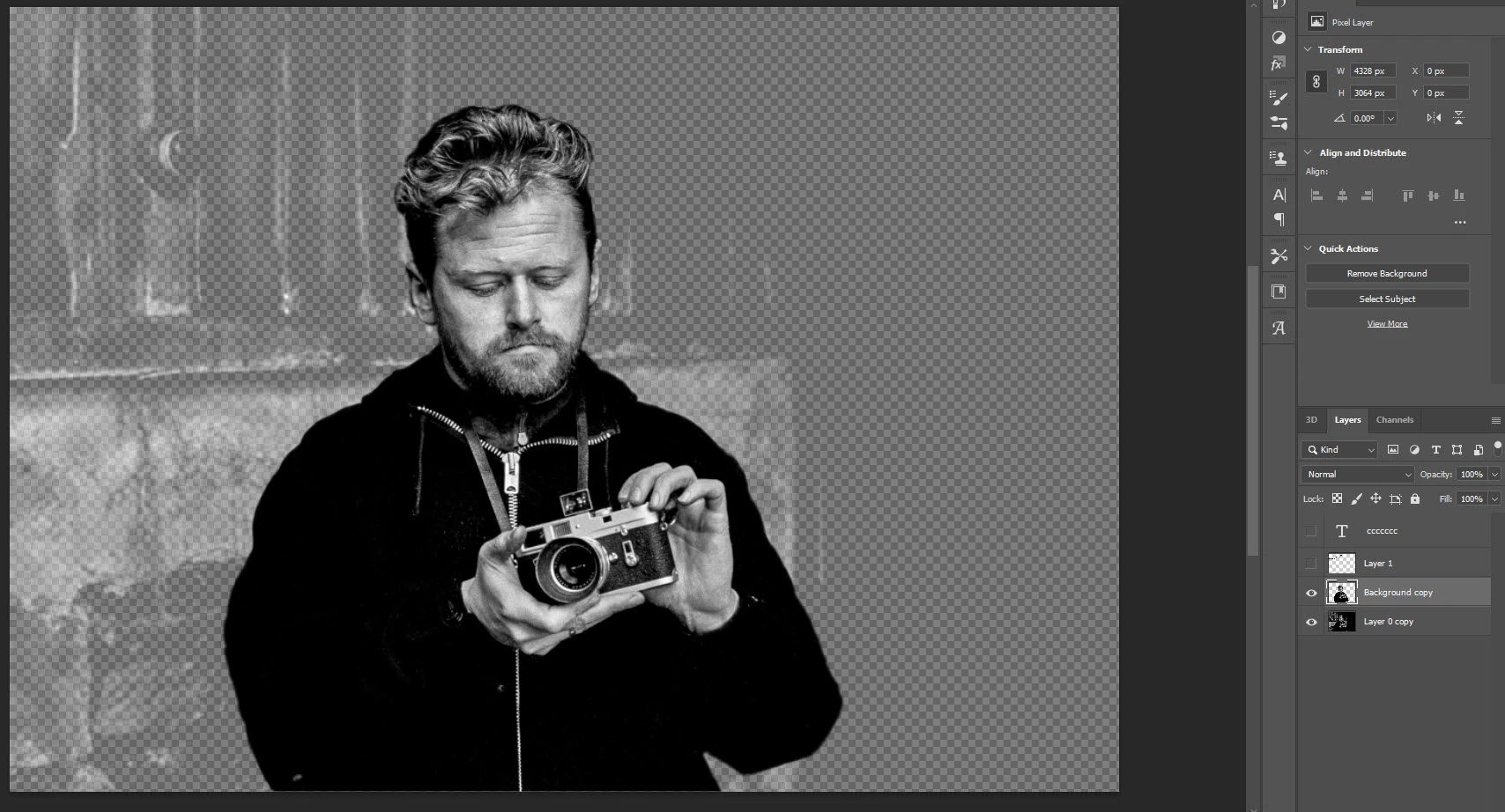
I've set the opacity to 79% on the first/ lowest layer. Why is it showing as tranparent instead of just lower opacity on rhe whole image?

I've tried this on a number of files and get the same results. I've reset all settings but this did not help, and this didnt happen a few days ago. What am I doing wrong or is this a bug?
Any help would be greatly appracited. 


This topic has been closed for replies.
Correct answer Bojan Živković11378569

Why is it showing a checkerboard pattern? This is because of the Transparency Settings in the Preferences > Transparency and Gamut section. In my opinion, this is not a bad thing because you can immediately see that a layer has transparency settings without having to look at the Layers panel and selecting it.

3 replies

danb82803553
Participant
August 29, 2023

Thank you both for you're input. I dont use opacity too much but I was fully convinced there was something up. Maybe like Jane-e suggested I always had a solid colour at the bottom layer. 

Thanks again for making this clearer. 

Bojan Živković11378569
Community Expert
Community Expert
August 29, 2023

Why is it showing a checkerboard pattern? This is because of the Transparency Settings in the Preferences > Transparency and Gamut section. In my opinion, this is not a bad thing because you can immediately see that a layer has transparency settings without having to look at the Layers panel and selecting it.

jane-e
Community Expert
Community Expert
August 29, 2023


@danb82803553 

If Layer 0 copy has 79% opacity as you say, this is expected behavior.


If it bothers you, you might add a new bottom layer and fill it with white as you work, the hide or delete it when finished.


Jane