johnw40285944
Participating Frequently
October 15, 2019
질문

Photoshop saving dark images on Surface Book 2

  • October 15, 2019
  • 16 답변들
  • 1553 조회

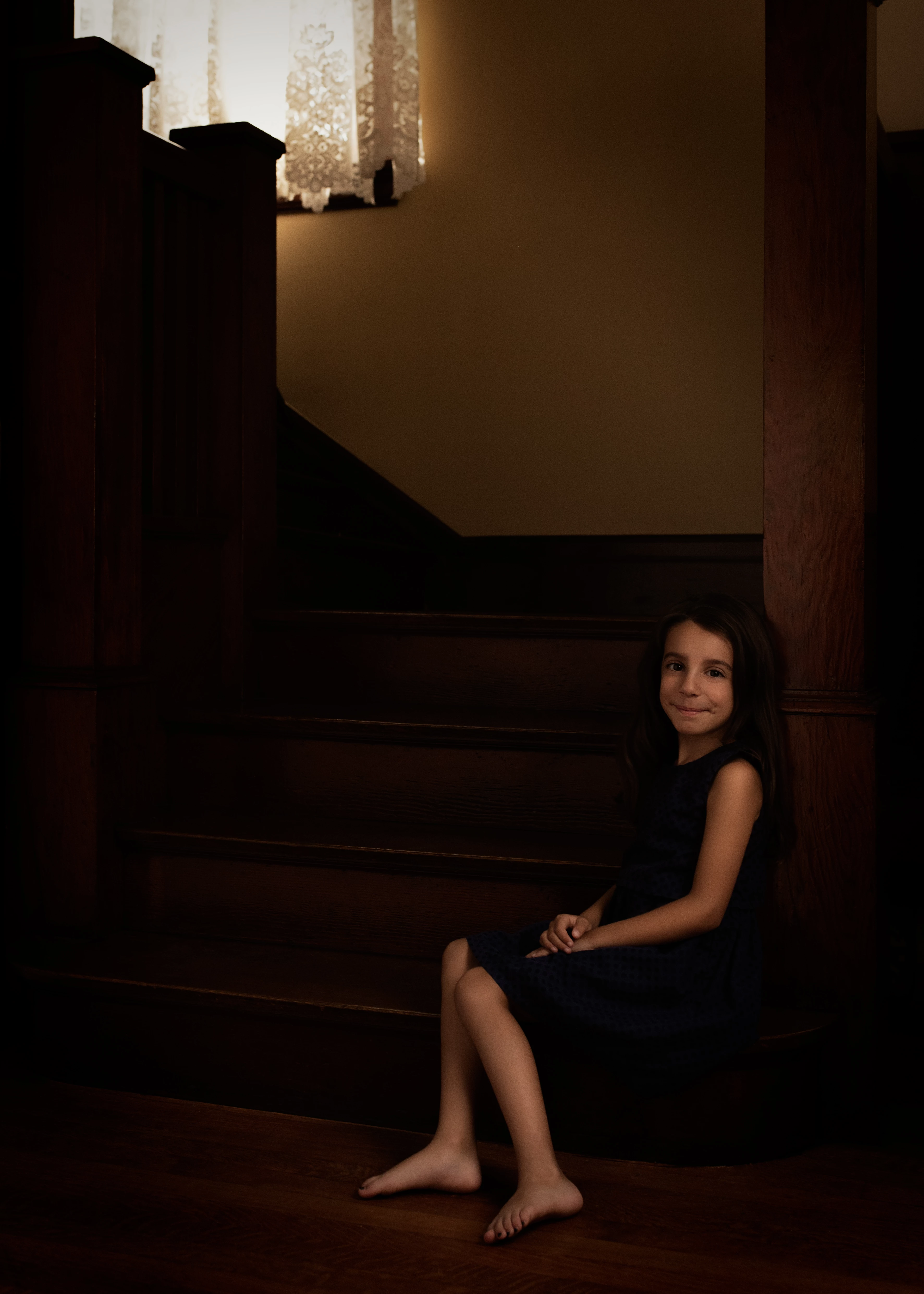
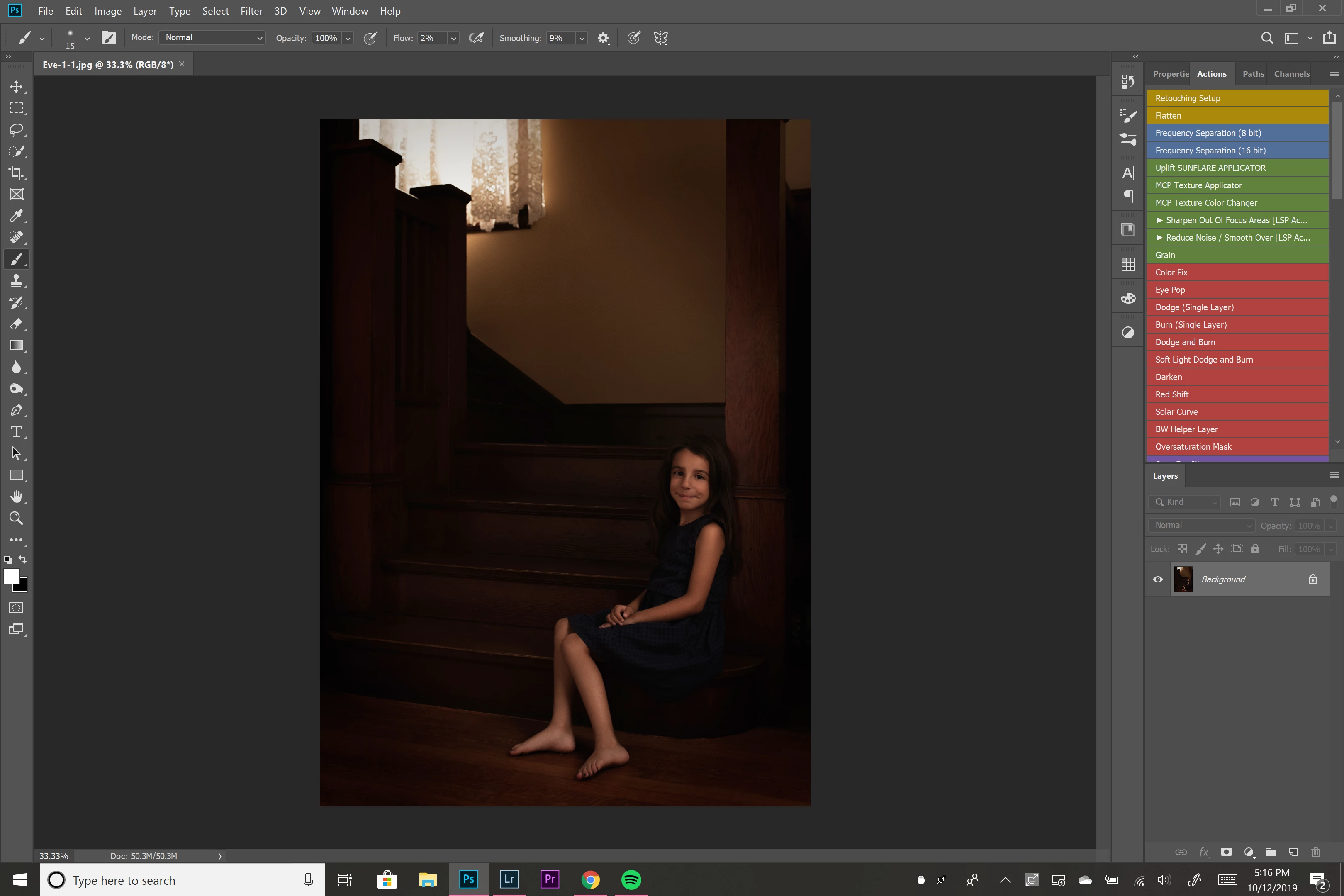
I am having an issue with my Surface Book 2 that I've never had with any other computer before. When I save a RAW image as a jpeg in the correct color profile of sRGB the image is significantly darker. I've included an example of a screen shot of the image in photoshop and the saved version. I didn't think it was a photoshop issue since I didn't encounter this on my Macbook Pro. I contacted Microsoft and they were pretty useless. I'm at a complete loss of what to do. 


이 주제는 답변이 닫혔습니다.

16 답변

D Fosse
Community Expert
Community Expert
October 15, 2019

Again - view it in properly color managed software. Not Windows Photos, not MS Edge.


Photoshop displays correctly, assuming your monitor profile is valid. That's what a calibrator does for you.

johnw40285944
johnw40285944작성자
Participating Frequently
October 15, 2019
Ok, thanks. Doesn't really solve my problem though. If I need to post on Instagram, for example, then what you are saying is that it doesn't work.
D Fosse
Community Expert
Community Expert
October 15, 2019

Not edit lighter, but view it correctly. Most major web browsers are color managed today - with the exception of MS Edge.


Getting a screen to print match is a different problem. Put very simply - if your print is too dark, then your screen is too bright. You can't change the color and brightness of paper, so that's the reference you calibrate the monitor to. You want monitor white to match paper white. It's just a visual match, the actual numbers will vary with circumstances.


On a slightly more advanced level, you do the same for monitor black vs. maximum ink on paper.


It's entirely possible to get an almost perfect match between screen and print. What you see is what you get. The trick is to calibrate the monitor to match the print, not the other way around.

johnw40285944
johnw40285944작성자
Participating Frequently
October 15, 2019
Ok, lets set the printing issue aside for a minutes. You said, "Not edit lighter, but view it correctly". What do you mean by that. It is saved as an sRGB. Most of my work is posted online and when I post it online it is too dark. All the details are lost in the shadows and blacks. They are not lost in photoshop. That is what I'm trying to understand. I am working on a calibrated monitor, I'm saving as a jpeg sRGB. I'm not sure what else I'm supposed to do or how to solve this problem.
D Fosse
Community Expert
Community Expert
October 15, 2019

This in fact confirms what Test Screen Name says. Yes, if you're viewing in an application that isn't color managed, shadows will appear darker and "crushed" with less detail. This is because all LCD screens have a native dip in the shadows. The curve drops towards black.


A color managed application, using a valid monitor profile, will correct for this and produce a linear on-screen response. Thus the file is represented correctly on screen.


A lot of people misunderstand what color management does, and why there should be a difference on-screen. They think a monitor profile is about correcting the monitor, and so everything should display correctly. But that's not how it works. The monitor profile is just a description, that the application uses to do the correction. The profile doesn't correct anything. The application does. Or doesn't, as the case may be.


Windows Photos, if that's what you're using, is not color managed.

johnw40285944
johnw40285944작성자
Participating Frequently
October 15, 2019
Got it and I want to make sure I fully understand what you are saying. Basically, there isn't much I can do here except intentionally edit lighter? Since posting this I did do a test print on my color managed printer from photoshop and the print was also extremely dark with detail lost in the shadows. What am I missing here to get my images to look the way I see them when I edit? If I intentionally make them lighter in anticipation of them being viewed in apps that aren't color managed I feel like I'm editing blindly. Also, how come I never noticed this when I was working on a Macbook Pro? It's only since working on the Surface Book that I'm having this problem.
johnw40285944
johnw40285944작성자
Participating Frequently
October 15, 2019

The color space is sRGB per my workflow. The image is darker in all apps. From the windows photo viewer to, Google photos, Instagram, Facebook, and the Mac photo viewer. This is happening on all images since I started working on the surface book. 

PECourtejoie
Community Expert
Community Expert
October 15, 2019

Hello, do not forget that the surroundings of the image influe on its perception: the white around the second image make it look darker than with the dark grey background of the first one.

to me, the second image looks lighter in the light areas... Is there a different gamma?

I also wonder which app is used to open the image.

Did you look in Bridge?

johnw40285944
johnw40285944작성자
Participating Frequently
October 15, 2019
I get what you're saying. But if you click an open the image will see the details in the blacks in the second image or completely lost. when viewed in different apps on different screens after I have saved it as a JPEG and an srgb it's still darker with details completely lost in the shadows.
Legend
October 15, 2019

A common problem is viewing final images in apps that aren't colour managed, so not capable of showing accurate colour, then feeling that Photoshop is the one that's wrong... So, to check on this, what is the app used to view the second picture?


If you want to check if the colour is accurate, re-open in Photoshop.