Participating Frequently
August 7, 2024
Answered

Photoshop Toolbar Missing Icons & Key Icons Missing from Edit Toolbar

  • August 7, 2024
  • 4 replies
  • 4995 views

Hi all -- 
I really need HELP... I see @Sameer K addressed this on Sep 12, 2023 (Photoshop tool icons are missing), however, PSD has evolved so much  AND I am not super technical. So, before I attempt that solution, I'd like to know if Sameer K's fix is still the right solution for today's Photoshop. Thank you in advance for your help!! Here are the details:

Adobe Photoshop 2024 - PC Desktop - Windows 10

  • Opened Photoshop last week
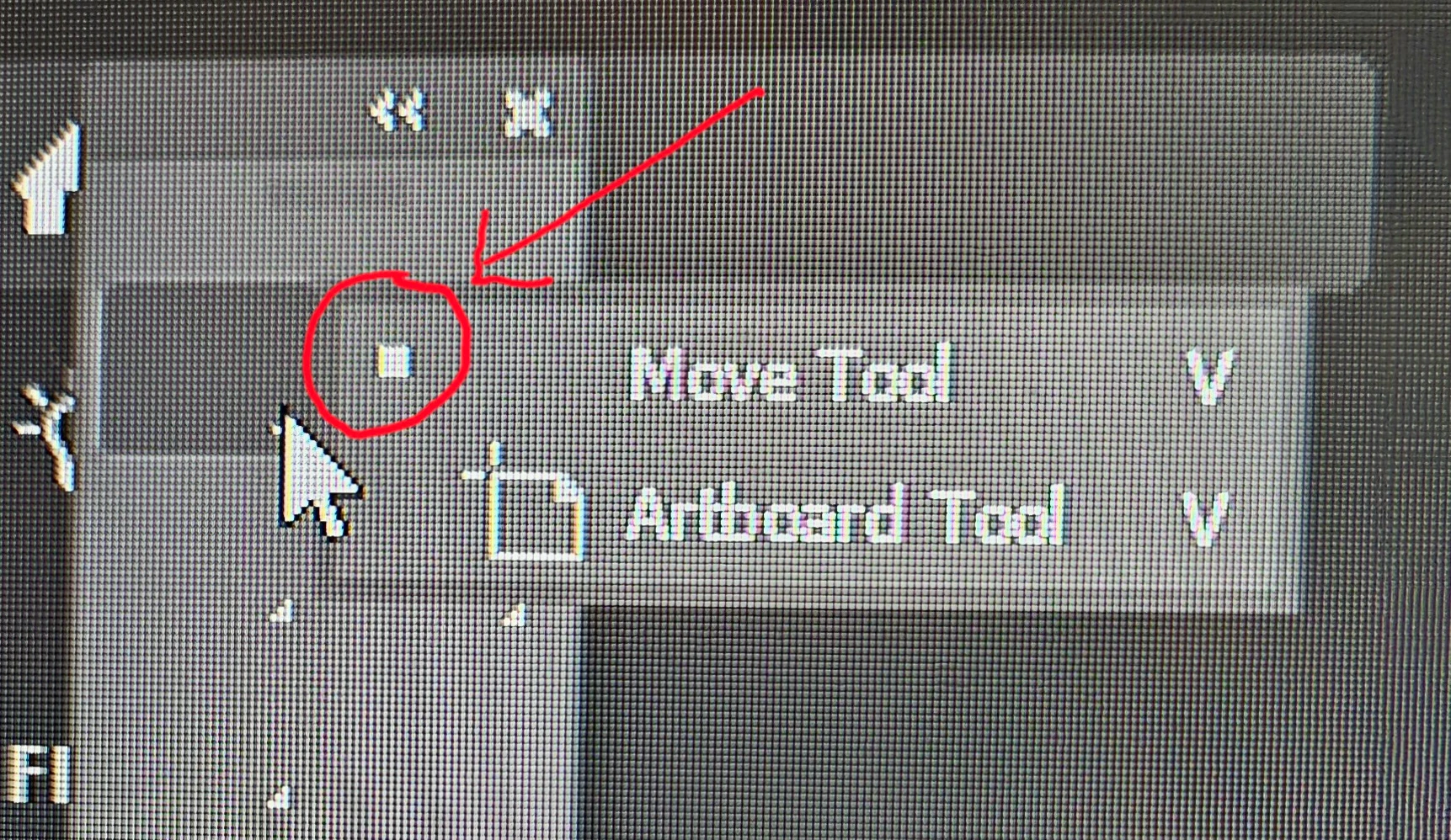
  • Icons missing from toolbar  (see three photos below)
  • When I click to CHOOSE a tool within a specific field in the toolbar some icons are there, but IMPORTANT tools are missing (move, crop, brush tools, etc)   (see three photos below)
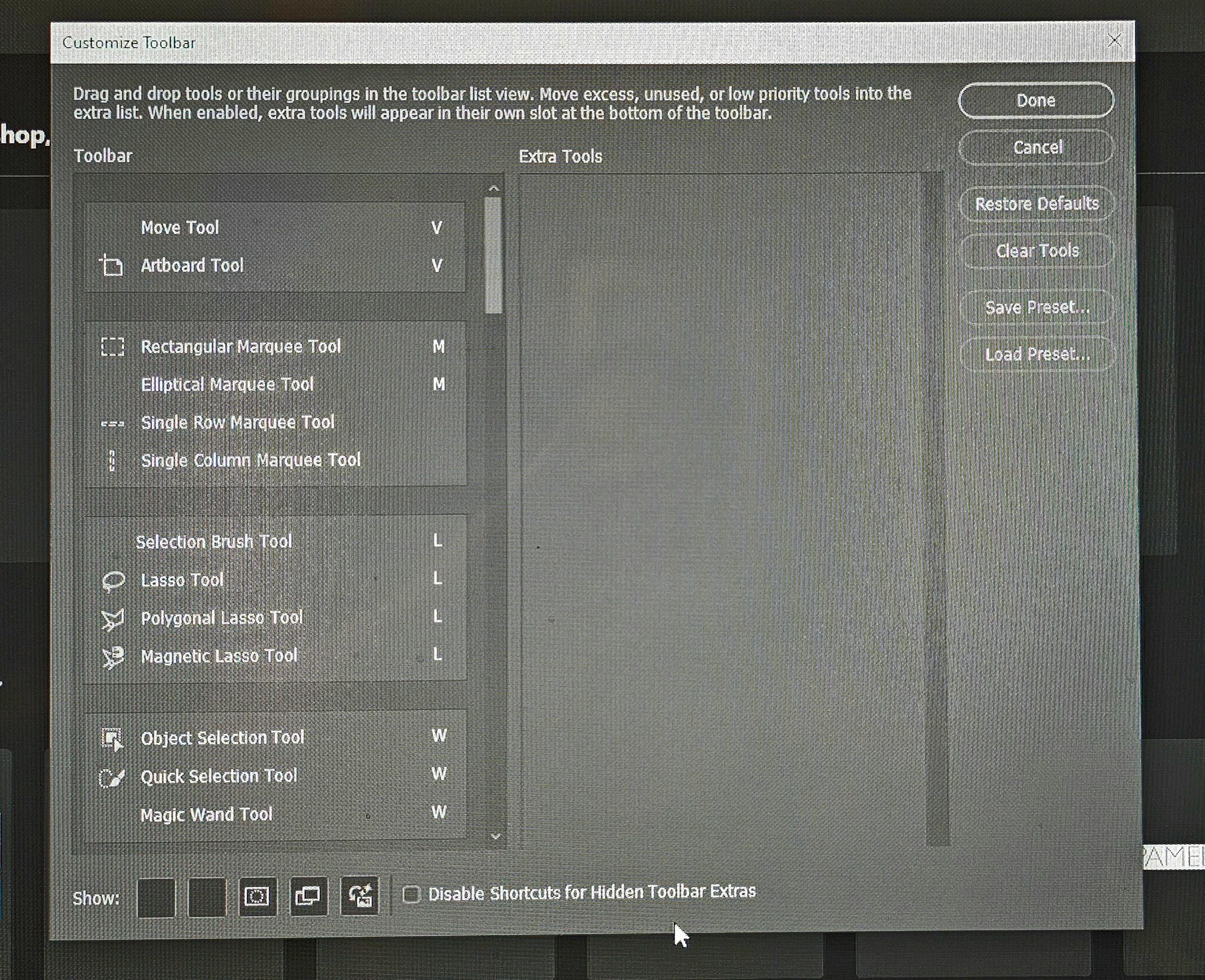
  • Important tools missing from edit > toolbar view (move, crop, brush tools, etc) (see three photos below)
  • Logged into Adobe CC - Updated Photoshop
  • Tool icons were there when I relaunched Photoshop
  • Today, a week later, the tool icons are MIA
  • Logged into Adobe CC for other updates (no other PSD updates since I updated last week)
  • Closed/relaunched Photoshop several times
  • Toolbar icons still missing and important tools still missing from edit>toolbar (see three photos below)

          and...

Correct answer Sly Session

Apparently you have to do the below operations and it will work:

1. Navigate to this location on Windows 10/11: Users/[your username]/AppData/Roaming/Adobe/UXP/PluginsStorage/PHSP 2. Press Windows + R and type %APPDATA%\Adobe\UXP\PluginsStorage in the Run window. 3. In the PHSP folder, rename the 26 folder by adding .old at the end (like this: 26.old). These changes should give a refresh to panels in Photoshop. 

4 replies

Participant
April 14, 2026

I am also facing same issue, it does not help me, please suggest other way 

Participant
April 14, 2026

Below method helped me out.

  1. Close Photoshop.
  2. Navigate to C:\Users\[Username]\AppData\Roaming\Adobe\UXP\PluginsStorage\PHSP (Windows).
  3. Rename the PHSP folder to PHSP.old.
  4. Restart Photoshop.
Claire H.
Community Manager
Community Manager
April 14, 2026

Hi ​@SajidAttar Thanks for sharing what helped you fix the missing items in the toolbar, and for being part of the Photoshop Community. Please don’t hesitate to reach out if you run into any other issues. Happy editing! ^CH

Participant
October 2, 2025

Sly Session

You are a wonder worker! Many thanks

Tom

davescm
Community Expert
Community Expert
August 7, 2024

Your issue looks slightly different. Try the following:

Go to menu Edit >Toolbar.

Click on Restore defaults

Click Done


Dave


Participant
January 13, 2025

@davescm has a solution been found for this issue yet? I've had the same issue for a few weeks. The tool icons will show up every 5th or 6th time I open Photoshop, maybe. I've tried every fix suggested. What's next? Attached is a screenshot showing my missing icons. 


joelf57292415
Participant
March 2, 2025

Apparently you have to do the below operations and it will work:

1. Navigate to this location on Windows 10/11: Users/[your username]/AppData/Roaming/Adobe/UXP/PluginsStorage/PHSP 2. Press Windows + R and type %APPDATA%\Adobe\UXP\PluginsStorage in the Run window. 3. In the PHSP folder, rename the 26 folder by adding .old at the end (like this: 26.old). These changes should give a refresh to panels in Photoshop. 


Thanks so much! Had this issue for days and this hack actually fixed it. It's INSANE that photoshop constantly has these problems and the only sollustion is to go into the software and create random text files or edit existing text files. Beyond frustrating.

kglad
Community Expert
Community Expert
August 7, 2024

in the future, to find the best place to post your message, use the list here, https://community.adobe.com/

p.s. i don't think the adobe website, and forums in particular, are easy to navigate, so don't spend a lot of time searching that forum list. do your best and we'll move the post (like this one has already been moved) if it helps you get responses.


<"moved from cc desktop">
essieBAuthor
Participating Frequently
August 14, 2024

Thank you @kglad - Although, not much help here either. Any other suggestions? I am dead in the water w/ photoshop while I look for a solution.
NOTE: When I launch PSD, I've been getting this message well over 6 months - I'd close it and just keep working without any issue. Would this be related? Thank you in advance for any info you may have.

Cheers!


kglad
Community Expert
Community Expert
August 14, 2024

flag a ps expert like @davescm