Participant
December 17, 2024
Question

Photoshop UI Bug

  • December 17, 2024
  • 4 replies
  • 374 views

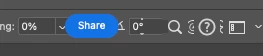
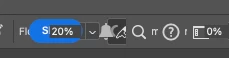
With the application frame visible, when reducing the window size of the application, the UI elements overlap. Tried restaring computer and program, and the bug persists.



Photoshop Version: 26.1.0

Computer: MacBook Pro - 16" Nov. 2023

OS: macOS Sequoia v15.2


4 replies

Conrad_C
Community Expert
Community Expert
January 3, 2025

I think this is normal, but unfortunate, behavior, and it’s worked this way for years. It has gotten worse recently as more options, such as the Share button, have been added to the options bar. Resetting preferences is unlikely to resolve it because it’s more or less “expected behavior”: There are too many options for the available window width.


If this happens to you even if the application window is maximized or full screen, what width x height and scaling is your display set to? Because the demo below shows how much width is free on the options bar when your display is set to the Minimum or Recommended display settings in the published Photoshop System Requirements.


If your display meets the Recommended settings, (1920 x 1080 px at 100% display scaling), there is no problem, there is plenty of room.


If your display meets the Minimum settings (1200 x 800 px at 100% display scaling), the options for some tools may run out of room on the right. And the Tools panel is cut off at the bottom. This is not great, but again…these are not the Recommended settings, and that is probably one reason why you run out of room.


So the main solution is: Check your display settings and see if you can set them to reach at least the Recommended settings in the Photoshop system requirements.


(Windows) If your display is above the Minimum settings but options still don’t fit, check your display scaling settings. The more above 100% you have it set, the more chance that items will be so enlarged that they will crash into the right side items or get pushed off the screen.


What if you don’t want to change your current width x height and display scaling? (For example, if there are eyesight issues.) You can set Photoshop to use the Enable Narrow Options Bar option in Photoshop Preferences / Workspace. That shortens the options bar by using more icons and less text, saving space. But because it isn’t showing text, you may have to rely on tool tips to identify some options.


melissapiccone
Community Expert
Community Expert
January 3, 2025

Mine does it too, how small are you making the screen? Anything less than 1/2 of my screen and it overlaps. I think this is normal behavior. 

Melissa Piccone | Adobe Trainer | Online Courses Author | Fine Artist
Participant
December 18, 2024

Hi @Anshul_Saini,


I deleted my Photoshop preferences per your suggestion and it didn't resolve the issue. Any other thoughts?

Anshul_Saini
Community Manager
Community Manager
January 3, 2025

Thank you for updating us, and I completely understand how challenging it must be to deal with this persistent UI issue. Let’s try another approach:

1. Rename the UXP Folder:

• Go to: Macintosh HD/Library/Application Support/Adobe/UXP.

• Rename the folder UXP to ~UXP.


This will force Photoshop to recreate the UXP folder, which often resolves interface-related issues.

2. If the issue persists:

• Could you share your UI scaling settings from Photoshop’s Preferences (Preferences > Interface)?

• If possible, please record a small video clip demonstrating the overlapping UI behavior. This can provide better insight.

• Lastly, sharing your MacBook’s screen resolution will help us understand if this might be linked to display settings.


We’re here to support you and will continue troubleshooting until we get this resolved for you!

Best,
Anshul Saini

Anshul_Saini
Community Manager
Community Manager
December 18, 2024

Hi @dinah_stee,


Thank you for sharing the details and screenshots. This seems to be unusual UI behavior. I’d recommend resetting Photoshop preferences to see if that resolves the issue. This can help eliminate any settings causing the UI overlap.


Before resetting, make sure to back up your current preferences:

Here’s a step-by-step guide: https://adobe.ly/3P0DUfK.


Let me know if the issue persists after resetting preferences, and we can continue troubleshooting further!


Best,

Anshul Saini