Participating Frequently
December 1, 2022
Question

Question on how to batch conversion with neural filter colorize

  • December 1, 2022
  • 3 replies
  • 6346 views

Hello everyone,


I hope someone can give me some suggestions.  I have a folder of 100+ B&W photos. 

I want to use Filter> Neural Filters > Colorize for each of the photo in the folder.


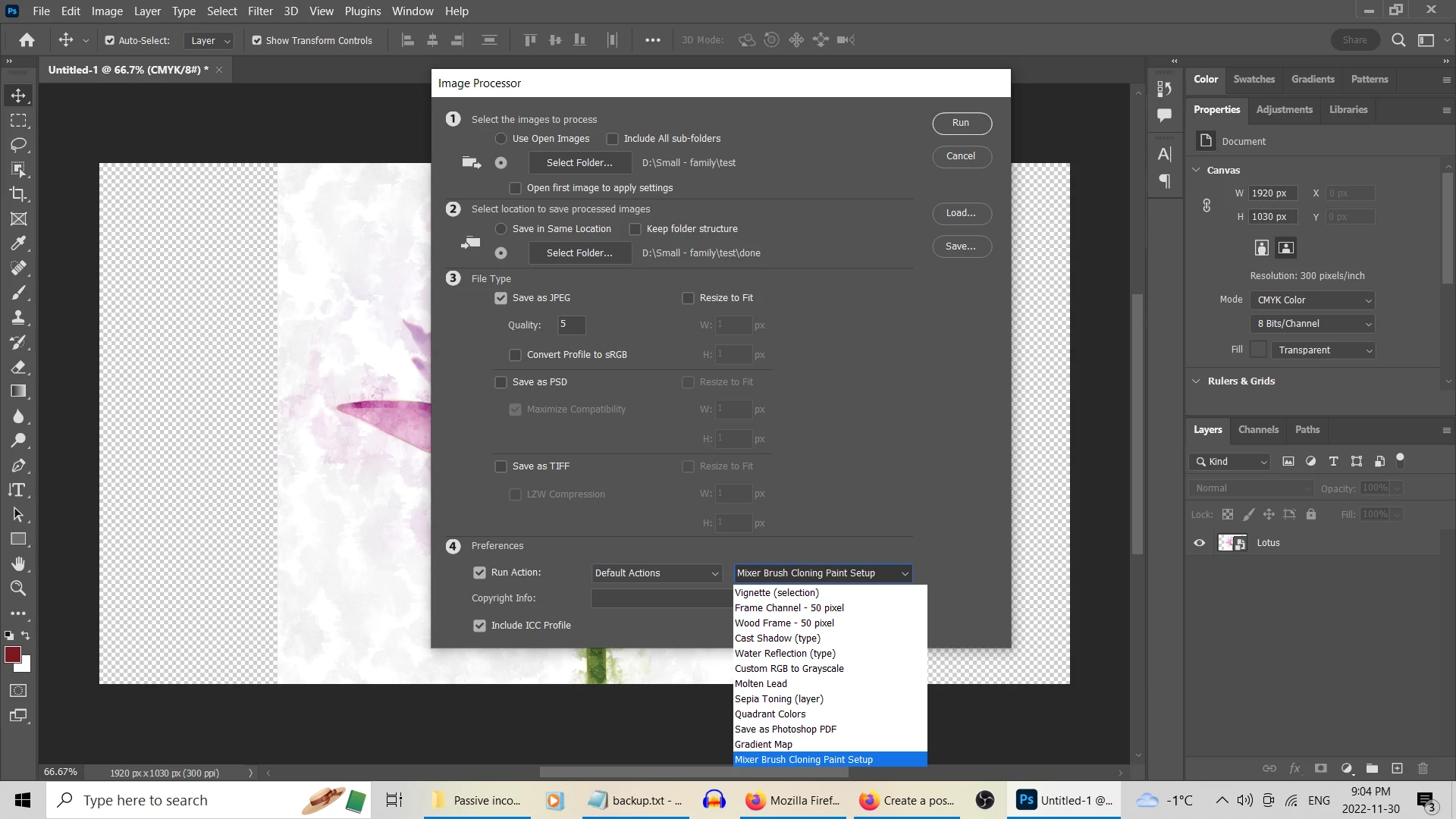
Rather than doing that one by one manually, i try to use File > Script > Image Processor.


However it does not have colorize this option at 4 Preference. 


May someone gives me suggestion how to batch convert all these photo into colorize?  I searched online for awhile but no luck.  Thak you! 


3 replies

Stephen Marsh
Community Expert
Community Expert
December 21, 2022

@Richard and Max 


I haven't had time to test the following script, it is a quick re-working of another script.


It will batch a folder of files to layered PSD, running a specified action.


All you need to do is change the name of the ACTION and ACTION SET (lines 9 & 10), the spelling has to be exact and is Case Sensitive.


/*
Batch Action Folder to PSD.jsx
v1.0, 22nd December 2022, Stephen Marsh
https://community.adobe.com/t5/photoshop-ecosystem-discussions/question-on-how-to-batch-conversion-with-neural-filter-colorize/m-p/13437356
*/

#target photoshop

var actionName = "Molten Lead"; // Action to run, change as needed
var actionSet = "Default Actions"; // Action set to run, change as needed

var inputFolder = Folder.selectDialog("Please select folder to batch the action to...");
var outputFolder = Folder.selectDialog("Please select the folder to save the PSD files to...");
var searchMask = '*.???';
var fileList = inputFolder.getFiles(searchMask);
fileList.sort();

var savedDisplayDialogs = app.displayDialogs;
app.displayDialogs = DialogModes.NO;

var psdOptions = new PhotoshopSaveOptions();
psdOptions.embedColorProfile = true;
psdOptions.alphaChannels = true;
psdOptions.layers = true;
psdOptions.spotColors = true;

for (var i = 0; i < fileList.length; i++) {
    var doc = open(fileList[i]);
    app.doAction(actionName, actionSet);
    var docName = doc.name;
    doc.saveAs(new File(outputFolder + '/' + docName.split('.')[0] + '.psd'), psdOptions);
    doc.close(SaveOptions.DONOTSAVECHANGES);
};

app.displayDialogs = savedDisplayDialogs;

alert('Script completed!' + '\n' + 'Files saved to:' + '\r' + outputFolder.fsName);


  1. Copy the code text to the clipboard
  2. Open a new blank file in a plain-text editor (not in a word processor)
  3. Paste the code in
  4. Save the text file as .txt
  5. Rename the file extension from .txt to .jsx
  6. Install or browse to the .jsx file to run (see below)


If these simple instructions are too abbreviated, you may need to read on...

https://prepression.blogspot.com/2017/11/downloading-and-installing-adobe-scripts.html#Photoshop


EDIT – A related topic here:

https://community.adobe.com/t5/photoshop-ecosystem-discussions/neural-filters-as-part-of-image-processing-or-batch-mode-not-completing/td-p/13435813

Participating Frequently
December 24, 2022

Oh And I even tried Molten Lead which is a default action. And the script runs fin from the actions window, but nothing happens when run from the File > Scripts > Molten Lead (when added correctly to the scripts folder so it will appear)

Stephen Marsh
Community Expert
Community Expert
December 26, 2022

I just tested the script and it works correctly. It was only offered as a quick suggestion to see if an alternative batch approach to running an action would work for you.

Bojan Živković11378569
Community Expert
Community Expert
December 1, 2022

"However it does not have colorize this option at 4 Preference."


On the left side under Preferences you have checked Run Action, thats why drop down lists are available to you. Drop down lists allows you to choose action set and action to run while batch processing. First drop down list is for action set, second for action. On my screenshot Set 1 is action set, Colorize BW is my naming convention for action and Neural Filters is action step that must be manually recorded.


In short, you must record action step Neural Filters and use it while processing photos.

By the way, do you follow some instructions?

Participating Frequently
December 2, 2022

Thank you Bojan!  This is very helpful and I have successfully to create a folder of colorized photo quickly.  So thank you for the quick reply!  it helps me tremendously!

Stephen Marsh
Community Expert
Community Expert
December 1, 2022

Step 4 is for Action Sets/Actions that you have created or Action Set .atn files which you downloaded and installed.


https://helpx.adobe.com/au/photoshop/using/creating-actions.html


https://helpx.adobe.com/photoshop/using/processing-batch-files.html#convert_files_with_the_image_processor


Participating Frequently
December 2, 2022

Thank you so much Stephen!  The link helps me so much.  I did not know you can record a procedure!  This is a time saver for sure!!