


Participating Frequently
March 26, 2025
Question

Randomly pixelated layer mask

  • March 26, 2025
  • 2 replies
  • 376 views

Sometimes when I create a layer mask on a reasonably decent quality image it becomes really pixelated for no apparent reason.
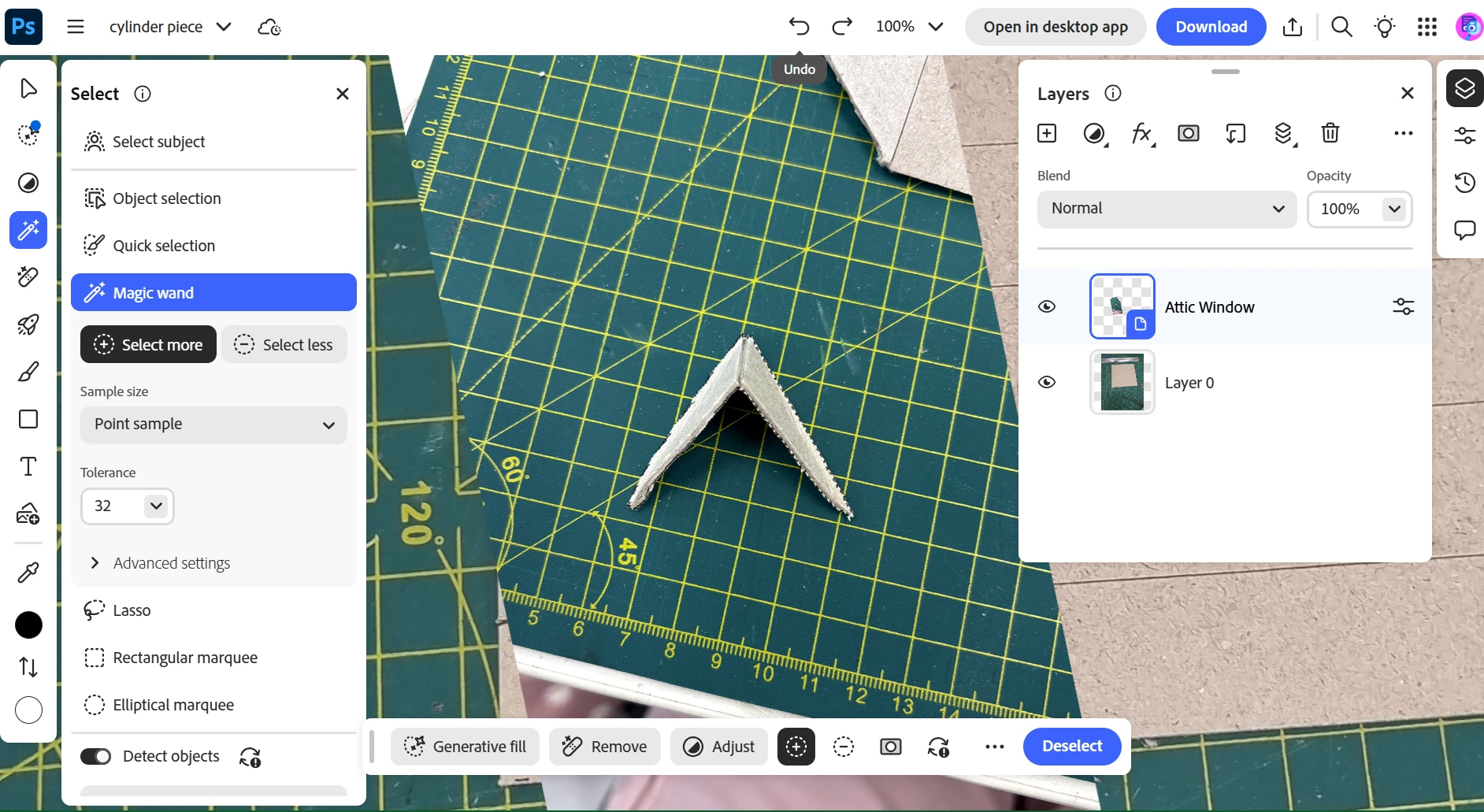
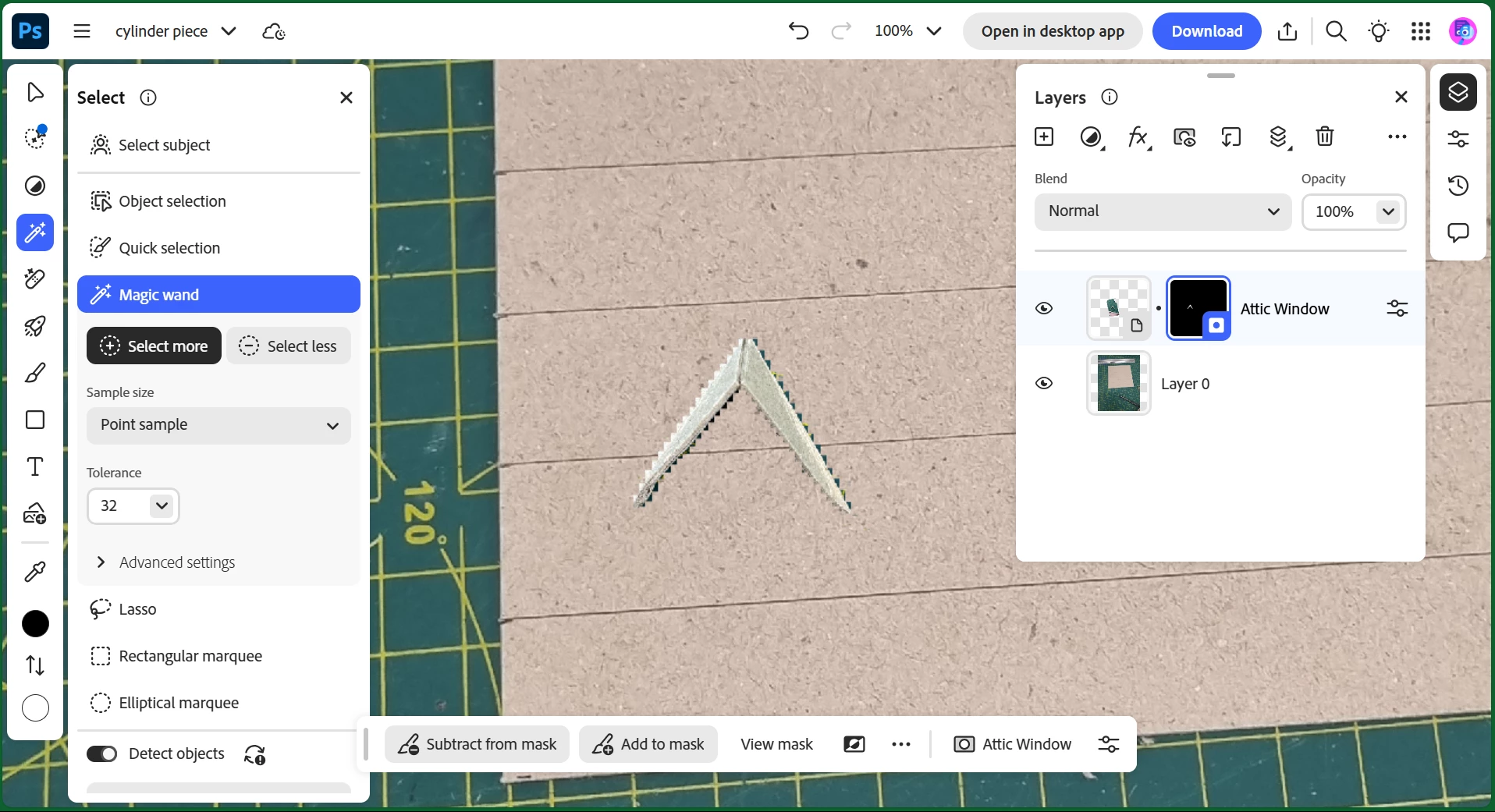
I am using the web based version cause my computer struggles to run the app if anything else at all is open on my computer and I thought I could do this on the web.

I don't know how clearly you can see, but it selected the object just fine and it wasn't pixelated at all, but when I created the layer mask it was so pixelated. Same story when I used the add to/subtract from mask brush.

I exported the image to see if it was just not displaying it to the highest quality but it was really pixelated there as well.


But wait - it gets weirder (I don't have pics of this cause I deleted what I was working on)

This issue kicked in the other day while I was halfway through something and half of the mask was a normal level of pixelisation ie. as pixelated as the image, but part of it was really pixelated like the above image.


But essentially (in both cases), I selected the bit I wanted (all good) then I clicked the "create mask" button (all bad) and I don't understand why or how to fix it

2 replies

Trevor.Dennis
Community Expert
Community Expert
March 28, 2025

It has a Nearest Neighbor look about it, but I am wondering how the Interpolation method would affect a selection/mask?  Is this the Web version?  Or could it be the iPad version? I have no experience with either, so I don't know if it has Interpolation options.  Have you rotated the object or mask?


With the full version, if we rotate an object — especially to a shallow angle — using Nearest Neighbor will lead to pixelation/jaggies.  Could that fit with the edits you have used?  BTW  I am zoomed in to 208% for this screen shot.

Participating Frequently
March 30, 2025

I'm using it on my laptop, so it would be the normal web version.

I tried rotating it a bit, but it didn't seem to change when the layer mask was already applied, or if I added the mask after I had rotated it.

I think it's really weird because I can see the pixelated layer mask at 100% zoom, even though I cannot see the individual pixels at this scale

Trevor.Dennis
Community Expert
Community Expert
March 30, 2025

I'm sorry, I have no experience with the Photoshop Web version.  If you save out to JPG is the jagged edge still apparent?

Community Manager
March 26, 2025

Hi @imogen_6380! Welcome to the community! 😊

Does this issue happen with specific images only? Have you noticed any patterns with the images where this occurs? Also, could you let me know which browser and version you're using?

Thanks a bunch!

Alek

*(If you mention me with an @, like @Aleke, I’ll get a notification and can respond faster.)*
Participating Frequently
March 30, 2025

I'm working on an assignment for uni, so I've done a few different goes with different images depending on what I need, and it seems to happen pretty randomly. 

I'm using Microsoft edge, and I keep everything as up to date as I can, so it is version 134.0.3124.93 (Official build) (64-bit)