
Valc2
Known Participant
January 19, 2021
Answered

Re: Swatches Panel

  • January 19, 2021
  • 1 reply
  • 958 views

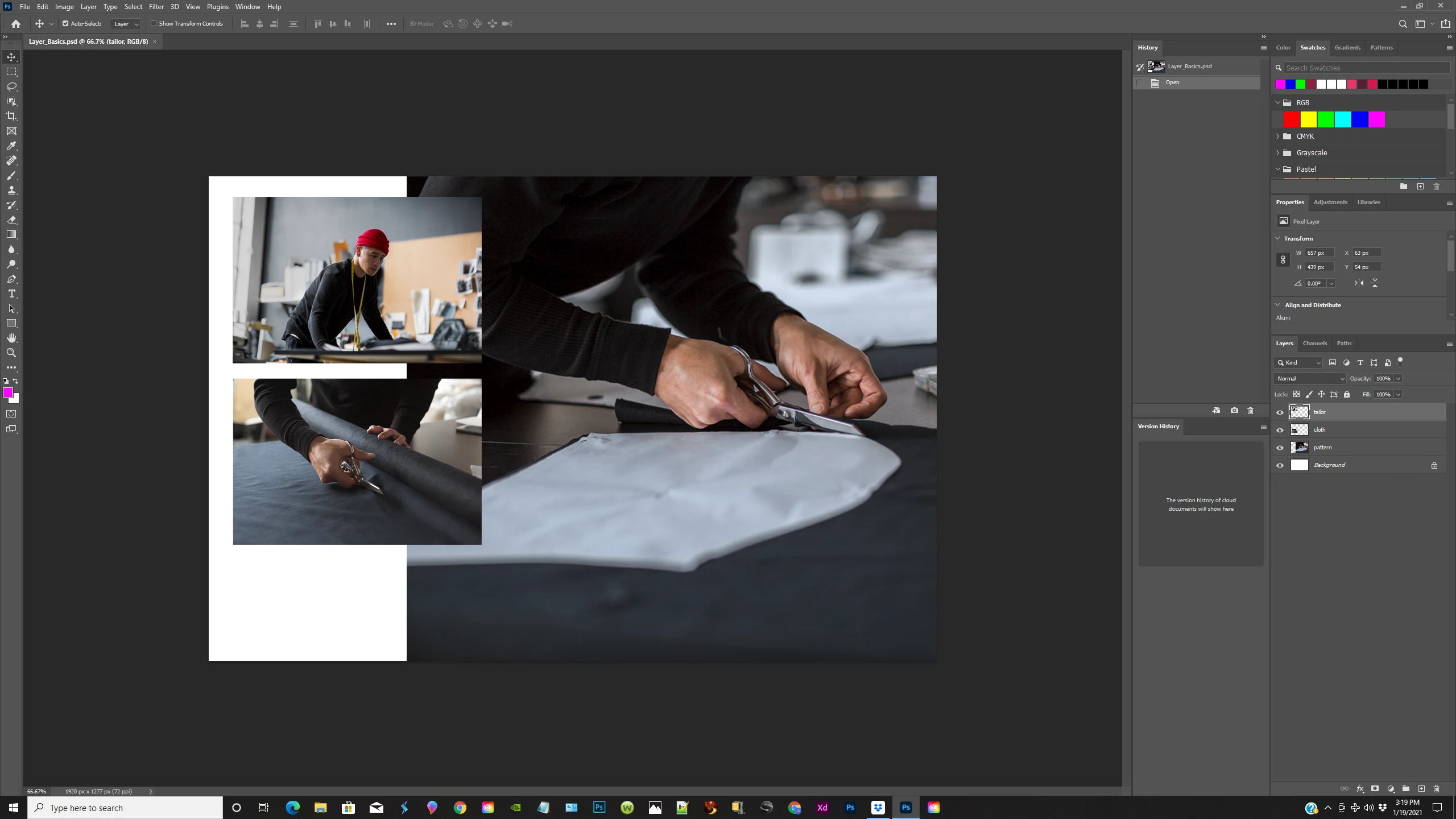
I upgraded to the new photoshop the 22.1 version and now I don't have the bigger swatches panel. I only have a colored line to the right  that is adjusted by a slider. HOw can i get the  swatches panel with the little colored boxes?

this picture from a tutorial will show you what i mean I hope anyway.

Please help!
This topic has been closed for replies.
Correct answer jane-e

Hi @Valc2 


To see the old swatches, open the Swatches panel menu and select Legacy Swatches. To learn how the new Swatches work, see here:

https://helpx.adobe.com/photoshop/using/choosing-colors-color-swatches-panels.html


~ Jane

1 reply

Valc2
Valc2Author
Known Participant
January 19, 2021

I see from the photo i have a few colored boxes but not like the ones before. The old swatches panel had lots of them

jane-e
Community Expert
jane-eCommunity ExpertCorrect answer
Community Expert
January 20, 2021

Hi @Valc2 


To see the old swatches, open the Swatches panel menu and select Legacy Swatches. To learn how the new Swatches work, see here:

https://helpx.adobe.com/photoshop/using/choosing-colors-color-swatches-panels.html


~ Jane

PECourtejoie
Community Expert
Community Expert
January 21, 2021

hi Jane e

Thank you again for your reply. another problem I have been having is the eyedropper tool keeps coming up when I have not selected it. How do I get rid of it or do I need to choose a new tool?


Hello, if you hold the ALT/Option key while a brush tool is in use, it will trigger the eyedropper.

Likewise if you hold the "I" key.