
Participant
January 11, 2020
Answered

Rectangular marquee tool

  • January 11, 2020
  • 2 replies
  • 2494 views

Hi. I've hit an odd problem. Every time I try to use my rectangular marquee tool to select a portion of an image so I can crop it, I get the Warning: No pixels are more than 50% message. This isn't happening if I try to use the elliptical marquee tool or the single row or single column tools. I've checked the opacity of the image and it's 100%. However, just to see what would happen, and in case it had something to do with the background layer, I tried creating a new layer and filling it and it only filled at, I'd guess, about 50% although all the settings were telling me it was at 100%. The other thing I've noticed is that, although the image is 640x360, if I try to scale it (just to play around and see what would happen), it's showing me a much bigger canvas size. It seems to me that a couple of things are happening. One is that somewhere there's an Opacity option accidentally left checked and, possibly, for some reason, Photoshop things the canvas size is a lot bigger than it actually is. And, again, this problem is only happening with the rectangular marquee tool. 


In the meantime, I'm using the crop tool but I'd really like to sort this out. I have done a search and the most recent answer deals with a different question.


Thanks a bunch.
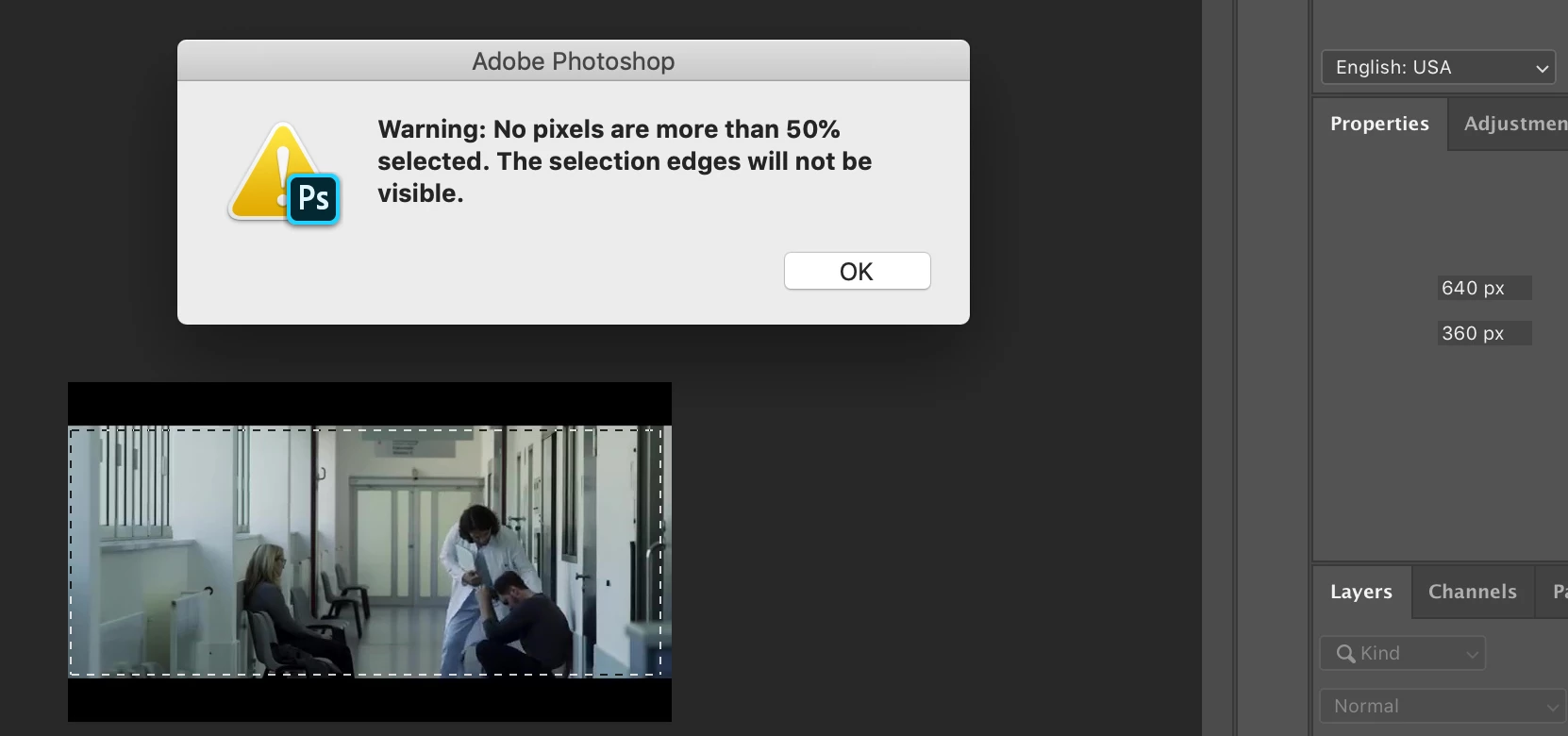
This topic has been closed for replies.
Correct answer Chuck Uebele

It sounds like your feathering on the marquee tool is set too high. This is on the tool itself and not in select and mask. That is why you're getting a round selection when you're using the rectangular tool. You can reset the tool or you preferences to get back to normal.

2 replies

Chuck Uebele
Community Expert
Chuck UebeleCommunity ExpertCorrect answer
Community Expert
January 11, 2020

It sounds like your feathering on the marquee tool is set too high. This is on the tool itself and not in select and mask. That is why you're getting a round selection when you're using the rectangular tool. You can reset the tool or you preferences to get back to normal.

RAsparrowAuthor
Participant
January 11, 2020

BINGO! I'd never have even thought there was a setting for that. Awesome! I must have accidentally just checked it and never even noticed. Thanks a bunch!

Chuck Uebele
Community Expert
Community Expert
January 11, 2020

Can you include all your layer panel in the screen shot? Are you on the layer with pixels? What is the feathering set at on the marquee tool?

RAsparrowAuthor
Participant
January 11, 2020

Hi. Thanks for the quick reply. I tried to include the layering panel but as soon as I had the cursor over the image panel, it disappeared and I couldn't get it back until I clicked OK on the Warning which brought back the layering panel but, of course, removed the Warning notice. Feathering is set at 0 in the Select and Mask option. I've also tried to modify the feathering in the Select menu but it gave me a message that it had to be at least 0.1. When I set it at that and tried to use the rectangular marquee tool, I just got the same Warning message. The other problem I have is that, with some images, if I try to use the rectangluar marquee it defaults to the circular one. I'm wondering whether it might be worth uninstalling and re-installing PS? I'm not new to PS. I've been using it in its various forms for around a decade, now, but I'm willing to recognise that things change with upgrades. 


Again, thanks.