
Marinapomorac
Inspiring
October 19, 2021
Question

Remove ALL white that is JUST in the BG of an BW PNG image

  • October 19, 2021
  • 2 replies
  • 9743 views

Hello.


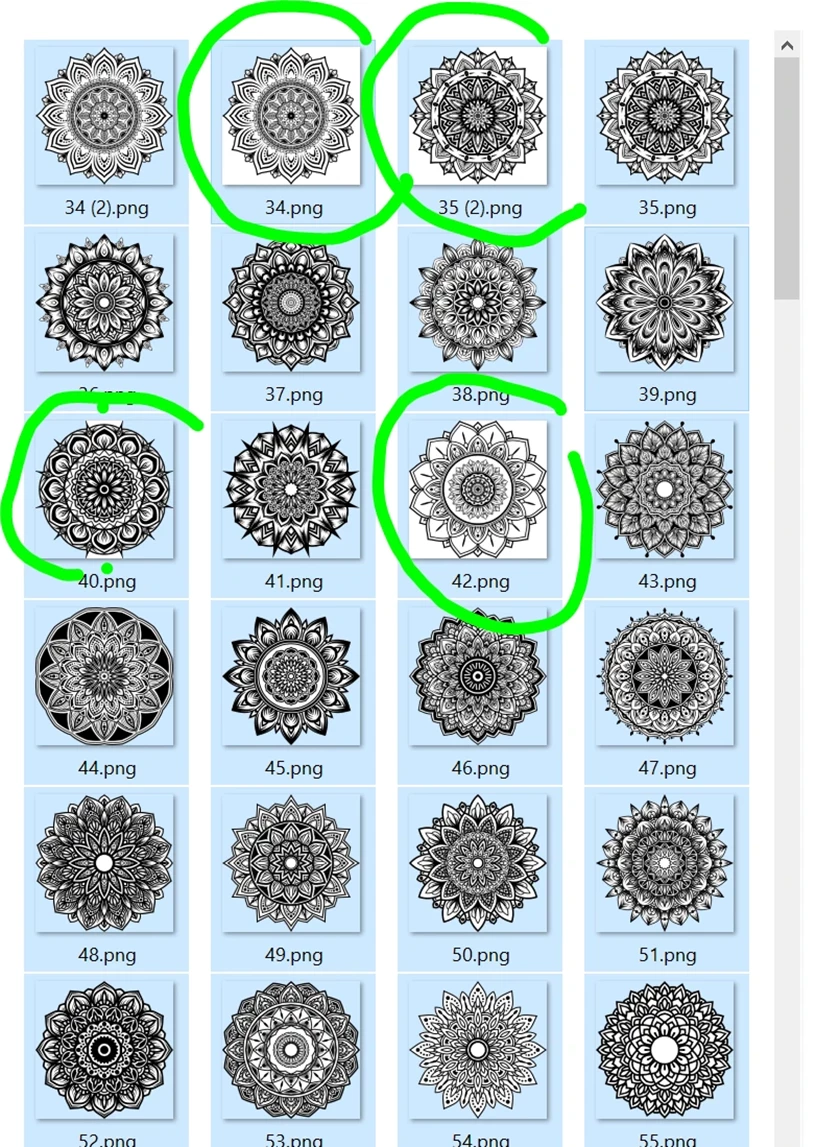
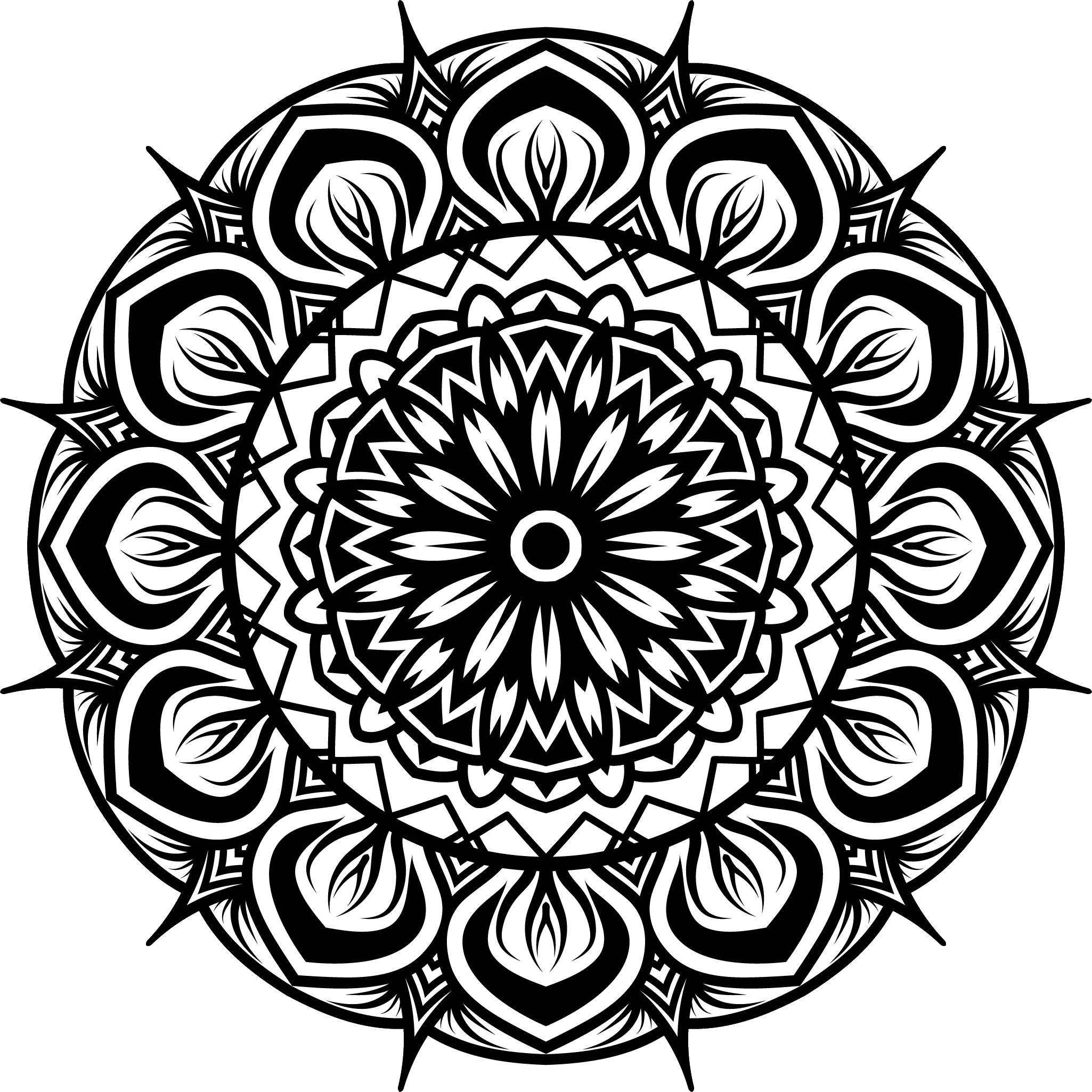
I have +5000 black and white PNG images with black drawings (mandalas) on them that have square dimensions but the image it self is not squared.

I need batch action that will:
a) Select all white around using magic wand
b) Invert selection
c) Crop image to selection
d) Change dimensions to 3000×3000px
e) Save as PNG transparent with 300px (the original is 300px)

Problems I am facing: 
- if mandala in original photo is touching the edge the magic wand only selects one corner of white. I hoped I can make multiple magic wand clicks in to action but it is not working. 

- save as PNG for some strange reason changes resolution to 96px

Windows 10 PC
Photoshop 22.5.1.441 (others have bugs, artboard is not transparent even if both settings are checked)

I tried using these:


and

I do not understand this one:
With Photoshop, how to batch replace white background with transparent in the image


and how to convert from tiff to PNG at the end. Why export to PNG is not acceptable?

This topic has been closed for replies.

2 replies

JJMack
Community Expert
Community Expert
October 19, 2021

In your action you could set your preferences units to percentage.  Then use the magic wand in the top left corner then hold the shift key and use the magic in the other corners to add to the selection. You could also use the wand in other edge area the you feel will never bet black.

JJMack
Marinapomorac
Inspiring
October 19, 2021

Thank you. Can you point me to the service store where I can hire someone to make this action for me start to end and that it works? I also need similar action to work in Illustrator Remove white from BW but keep the inside white SVG/AI
If I could hire someone to make these two actions that would help.
I do not use Photoshop on daily bases, just to batch process images. 

Legend
October 19, 2021

These forums are not really intended to be job boards, so it would need to be a different website.

Stephen Marsh
Community Expert
Community Expert
October 19, 2021

@Marinapomorac wrote:


Problems I am facing: 
- if mandala in original photo is touching the edge the magic wand only selects one corner of white. I hoped I can make multiple magic wand clicks in to action but it is not working. 


Start recording the action with the following first:


1) Press Ctrl D (Default foreground/background colours of black/white)

2) Image > Canvas Size, add say 20px to the width/height with relative checked to expand the canvas before making selection


Now you should be able to remove the background with a single magic wand click in the upper left and crop to selection (double check the toolbar options for tolerance, contiguous on etc).

.

Marinapomorac
Inspiring
October 19, 2021

So you are saying that I should first treat all images with enlargment then use the BG removal action?

So I opened Photoshop and some random file then click on New action, record.

Then:
CTRL + D
X  - exchages swatches

Image - canvas size relative 20 20
Save
Close

That is action #1

Action 2 is:
Set selection
Inverse

Crop

Save


The first one worked, second one I get "The command "Select" is not currently available."


Marinapomorac
Inspiring
October 19, 2021

Stephen's action will do it. The point is that the added canvas ensures nothing touches the edge, and a single magic wand click will select everything around.


I think you may have complicated it by already starting to select one corner. The partial transparency is what trips it up. You need to undo that, or go back to the originals.


As for your other question: Export does not save at 96 ppi. Export saves without any ppi value at all, not 96, not 300, nothing. A ppi number is not needed for what Export is intended for: web, screen and mobile devices.


96 ppi appears as a default number when the file is reopened in a Windows app. Photoshop will assign 72 when there is no ppi.


Use Save A Copy, which will retain the ppi number. You can also assign 300 ppi later (make sure resample is unchecked!) - and this can also be done with an action.


@D Fosse 

How do you explain this?

I opened same file and click Quick Export as PNG in Photoshop 22 (that has bug and wont have transparent artboard):

Then I opened identical file and clicked Quick export to PNG:

One has no transparency but exports in 300px. Other has transparency but exports in 96px. You are saying that values are irrelevant and both files are identical?

@Lumigraphics All drawings are squared but not in original form as in artbords are not always squared but the crop drawing will alway be.  I took cat screenshot by accident. The first file shared are the actual files. I run action on htem and it doesnt work.