Participant
August 15, 2025
Answered

Remove back

  • August 15, 2025
  • 2 replies
  • 232 views

This quick action is very useful, but assigning a shortcut key would make it easier and faster.

Correct answer Stephen Marsh

@Bidzina.5C95 


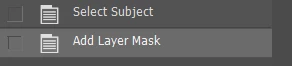
The "quick action" simply performs two steps, as indicated by the history panel:


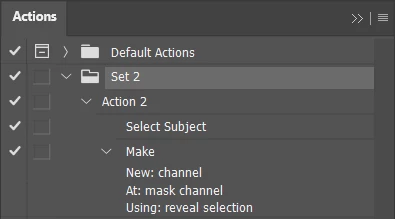
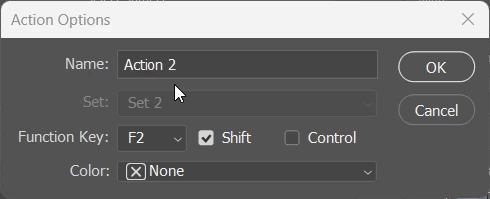
You can create your own custom action, using the "Insert Menu Item" and then assign an F-key shortcut to the action.


Using a custom script, one can go a step further using Edit > Keyboard Shortcuts and assign a regular keycut (I don't like F-key ones as I often use a laptop).

2 replies

Stephen Marsh
Community Expert
Stephen MarshCommunity ExpertCorrect answer
Community Expert
August 15, 2025

@Bidzina.5C95 


The "quick action" simply performs two steps, as indicated by the history panel:


You can create your own custom action, using the "Insert Menu Item" and then assign an F-key shortcut to the action.


Using a custom script, one can go a step further using Edit > Keyboard Shortcuts and assign a regular keycut (I don't like F-key ones as I often use a laptop).

Stephen Marsh
Community Expert
Community Expert
August 26, 2025
quote

Using a custom script, one can go a step further using Edit > Keyboard Shortcuts and assign a regular keycut (I don't like F-key ones as I often use a laptop).


By @Stephen Marsh


Here it is as a legacy .jsx for use in a custom keyboard shortcut (to be installed in the Presets/Scripts folder):


#target photoshop
if (app.documents.length != 0) {
    // Active layer check by jazz-y
    s2t = stringIDToTypeID;
    (r = new ActionReference()).putProperty(s2t('property'), p = s2t('targetLayers'));
    r.putEnumerated(s2t("document"), s2t("ordinal"), s2t("targetEnum"));
    if (executeActionGet(r).getList(p).count) {
        // Select subject
        var idautoCutout = stringIDToTypeID("autoCutout");
        var desc6 = new ActionDescriptor();
        var idsampleAllLayers = stringIDToTypeID("sampleAllLayers");
        desc6.putBoolean(idsampleAllLayers, false);
        executeAction(idautoCutout, desc6, DialogModes.NO);
        // Add layer mask
        var idmake = stringIDToTypeID("make");
        var desc213 = new ActionDescriptor();
        var idnew = stringIDToTypeID("new");
        var idchannel = stringIDToTypeID("channel");
        desc213.putClass(idnew, idchannel);
        var idat = stringIDToTypeID("at");
        var ref13 = new ActionReference();
        var idchannel = stringIDToTypeID("channel");
        var idchannel = stringIDToTypeID("channel");
        var idmask = stringIDToTypeID("mask");
        ref13.putEnumerated(idchannel, idchannel, idmask);
        desc213.putReference(idat, ref13);
        var idusing = stringIDToTypeID("using");
        var iduserMaskEnabled = stringIDToTypeID("userMaskEnabled");
        var idrevealSelection = stringIDToTypeID("revealSelection");
        desc213.putEnumerated(idusing, iduserMaskEnabled, idrevealSelection);
        executeAction(idmake, desc213, DialogModes.NO);
    } else {
        alert('A layer must be active to run this script!');
    }
} else {
    alert('A document must be open to run this script!');
}


  1. Copy the code text to the clipboard
  2. Open a new blank file in a plain-text editor (not in a word processor)
  3. Paste the code in
  4. Save as a plain text format file – .txt
  5. Rename the saved file extension from .txt to .jsx
  6. Install or browse to the .jsx file to run (see below)

https://prepression.blogspot.com/2017/11/downloading-and-installing-adobe-scripts.html

Participant
August 15, 2025

*remove background