
Participant
August 5, 2018
Question

Removing black lines from a drawing made up of black and red lines

  • August 5, 2018
  • 3 replies
  • 2382 views

Hello all. I have a couple of scanned images of animation sketches (something like this:
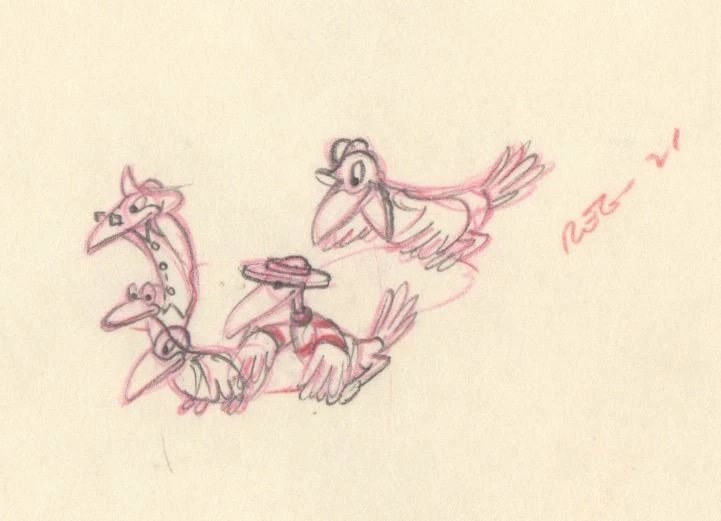
As you can see, the artist first did the rough drawing in red pencil and then the final drawing on top of it in black/normal pencil. I was wondering if there is some way in Photoshop through which I can remove/fade away the black pencil lines and leave only the red pencil lines? Any help/advice/suggestion would be most appreciated. Thank you!

    This topic has been closed for replies.

    3 replies

    Norman Sanders
    Legend
    August 5, 2018

    1. Edit > Color Settings > CMYK > Custom.

    2. Change Black Generation to Light. (Note the effect in the GCR Gray Ramp. GCR does not kick in for almost half the scale.)

    3. Open the image and change the Mode to CMYK

    4. In he Channels panel Edit > Fill the Cyan and the Black channels with white

    5. Change the Mode to RGB and apply an Unsharp Mask. Start with Amount 85, Radius 2.2 Threshoid, then increase Radius as you see fit.

    (When complete, return your Custom Settings to its previous value.)

    [Edit: Actually, this is a compromise since red is a component of the black lines. Even if you could remove the black from the illustration, you would be left with a blank or color value...a similar result as would be seen using the Blend If command.)]

    Norman Sanders
    Legend
    August 5, 2018

    D Fosse​ Dag, now and then don't long for the old Pan film days, Wratten No. 25 and silver masks?

    D Fosse
    Community Expert
    Community Expert
    August 5, 2018

    No way This is an area in which the world really has moved forward. In others, not so much.

    Eugenio.NYC
    Participating Frequently
    August 5, 2018

    Hi there

    If you want to remove the black lines the result is not that good because you will lose detail, but if you want to do that this is the way

    Go to the menu edit and select convert to profile

    From the drop down menu select Custom CMYK

    Inside this box change the black generation to Maximun

    Go to the channels panel and change the visibility of the black channel

    You can delete that channel and go back to RGB

    That is the way

    Regards

    Eugenio

    D Fosse
    Community Expert
    Community Expert
    August 5, 2018

    Not in the sense that you can "peel off" the black pencil, to "reveal" what's under. What you can do is make the black lines red, so they don't stand out.

    There are many ways to do this, at varying levels of complexity. I think the simplest is to adjust the output levels of each channel. This was done with only one single Levels adjustment layer, nothing else. Start with the red channel and push the black slider to the right:

    D Fosse
    Community Expert
    Community Expert
    August 5, 2018

    Actually a Curves adjustment might be a little more illustrative. It's the same thing, adjusting the output levels:

    The green and blue lift is just to knock back overall saturation a bit, which otherwise tends to boost.