@Stephen Marsh
your action didn't do what I needed. But I got a process from your answer.
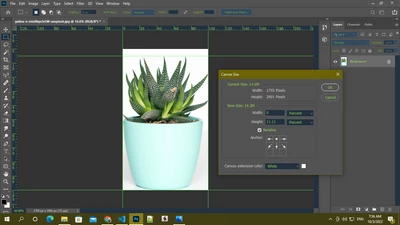
the process is -
1. Create a new layer
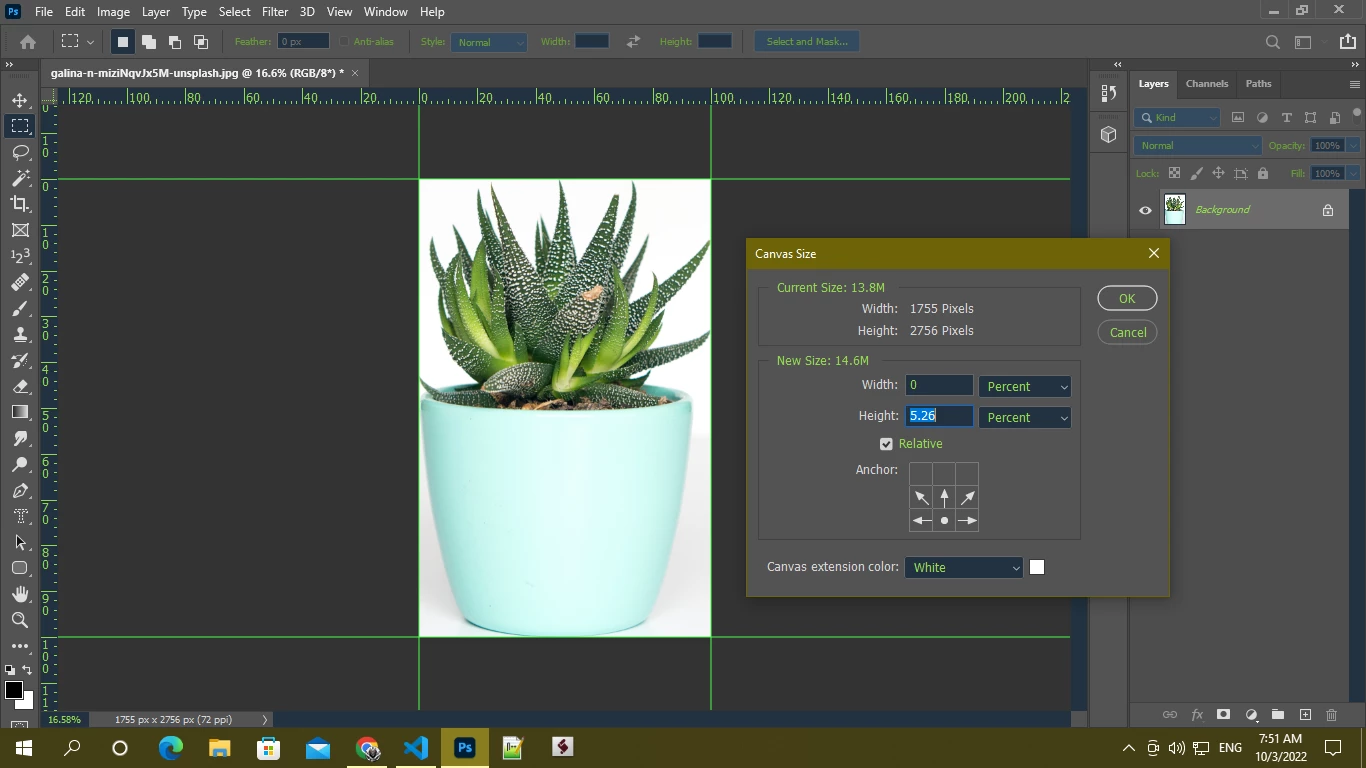
2. Transform the layer (increase height by 17.65%*)
3. Use reveal all
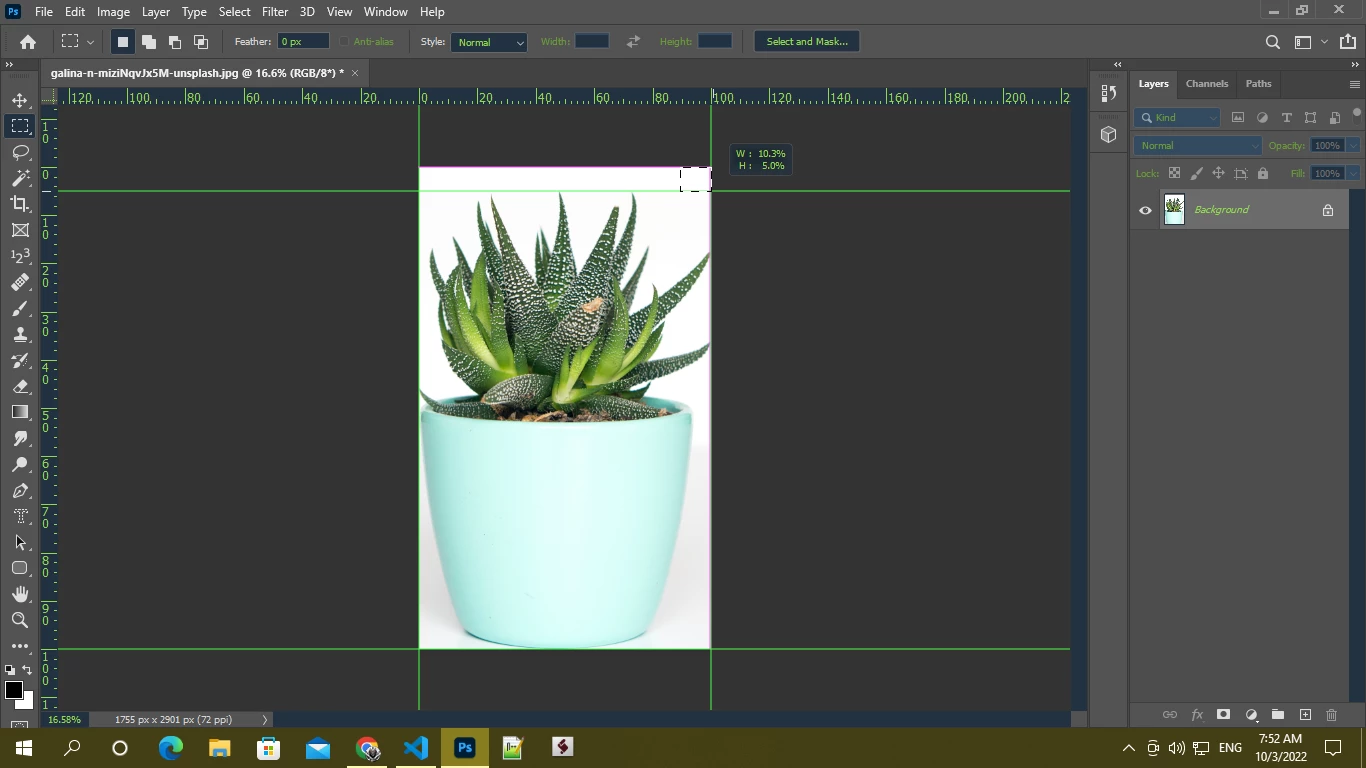
4. Then translate the layer (converted pixel value from 2.5%)
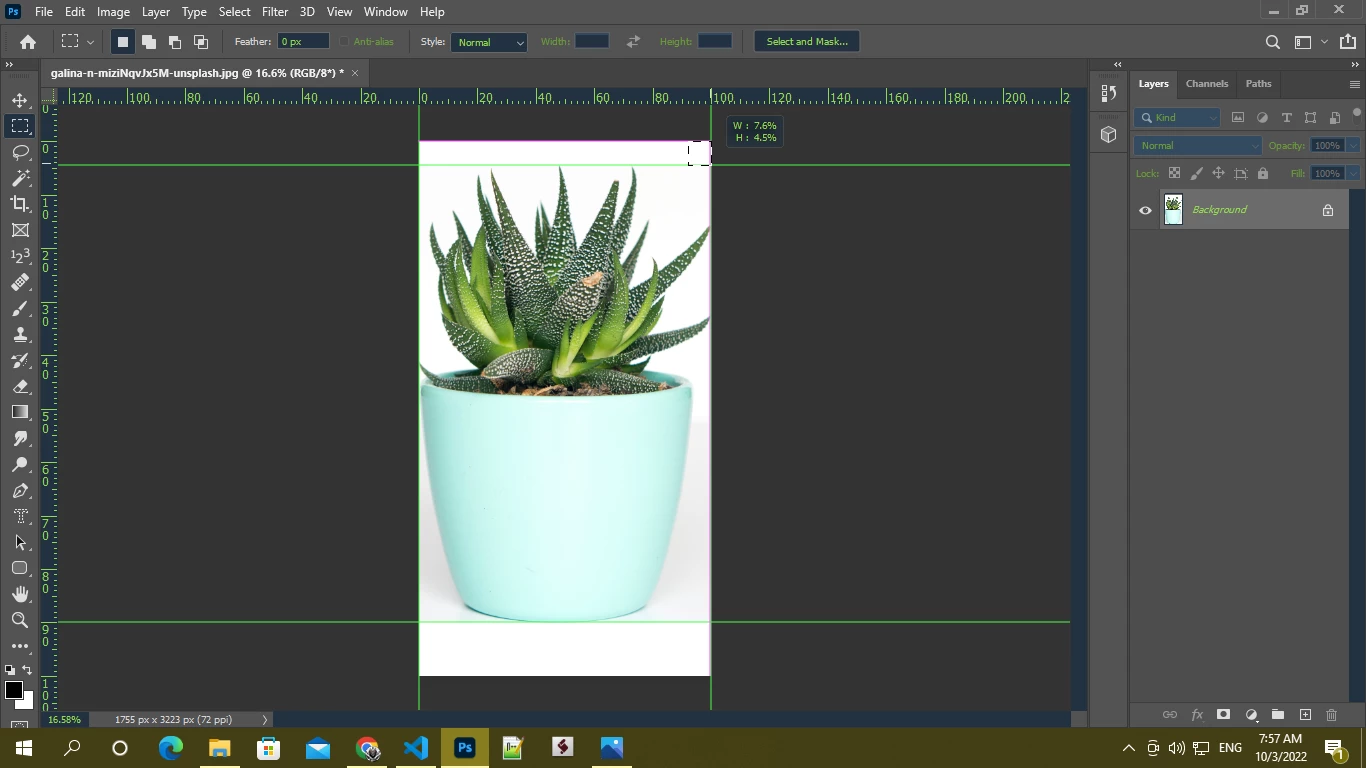
5. Use the select pixel of this layer and cropped it
6. after cropping delete the layer.
*. when increasing or decreasing canvas size u can't use the exact value like if u want to increase x% of the current canvas size u have to use [ (x/(100-x))*100 ] this equation. This equation will give you a value that you need to apply . after applying the value increased canvas size will be x% .....if u don't use this equation increased canvas size will be lesser than x%.
5%+10% = 15%
15/(100-15)*100 = 17.647059=~17.65%
reason of translate 2.5% - as I transform the layer by 15% and anchorposition : middlecenter the increased size in both top and bottom will be 7.5% but I need 5% in the top that's why I just simply translate the layer by 2.5% so that it stayed 5% in the top ...
Thanks, @Stephen Marsh @Chuck Uebele for trying to help me



 AdChoices