Sometimes in the middle of a project, I'll crop to zoom in on a specific element, and do a quick export. Once that's done, I want to go back to the initial crop. The one that shows all the pixels in the image, in my original aspect ratio.
By @pseudoclever
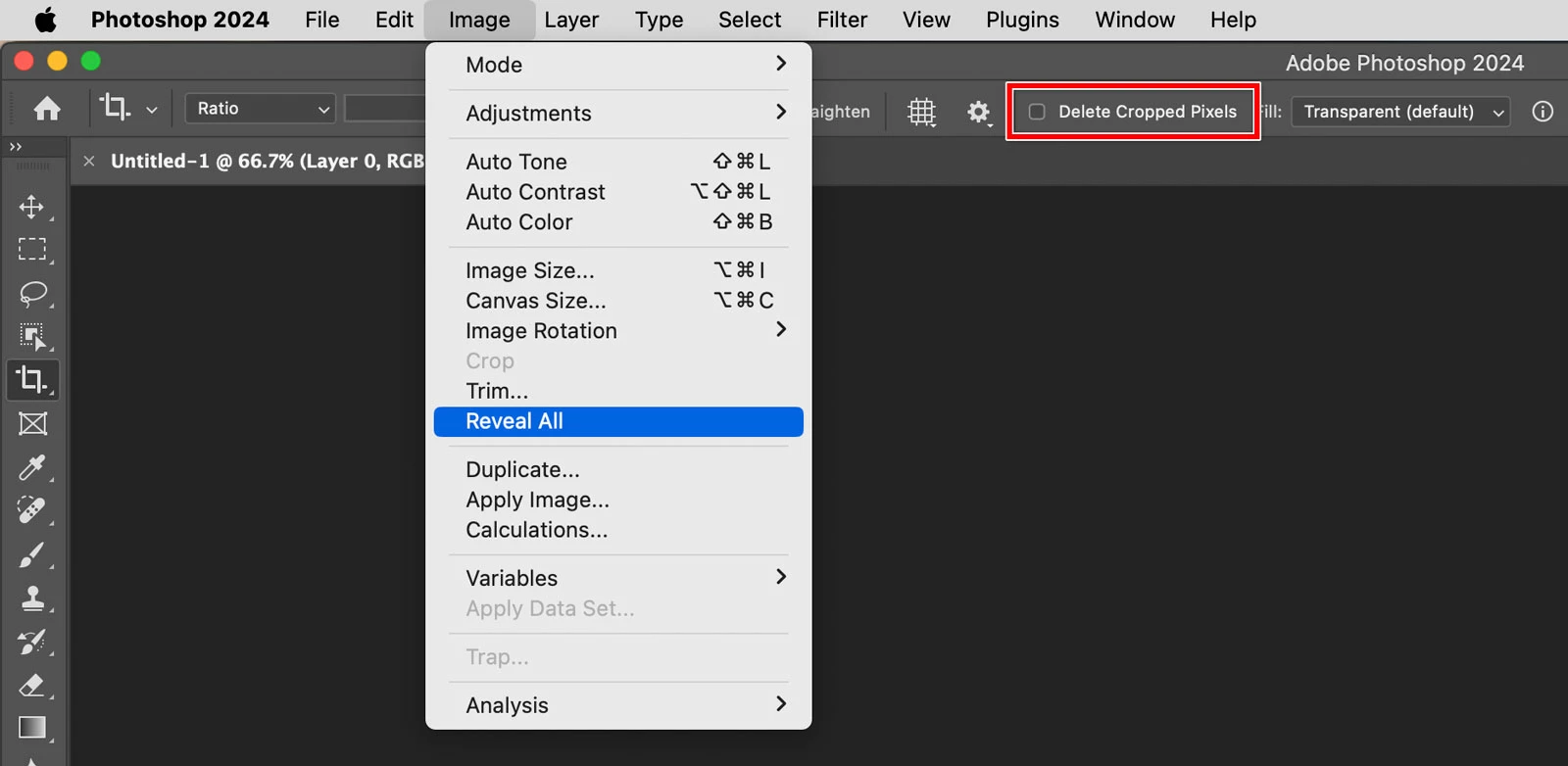
There is a command that does this: Image > Reveal All.
Technically, that doesn’t restore any previous crop, it restores all available non-transparent (Opacity > 0%) pixels that are currently hidden outside the canvas. That means you might not get the exact original canvas size if the original content had a large area of transparency between the pixels and the canvas edge. But if you work with images such as camera photos that are normally opaque from edge to edge, then Reveal All will always restore the original crop.
However – this is very important – Reveal All works only if, in the Crop tool options bar, Delete Cropped Pixels was disabled while you were cropping. If Delete Cropped Pixels was enabled, then the cropped pixels were not kept, so you can’t go back except through Undo or the History panel. If Delete Cropped Pixels was disabled, cropped pixels are only hidden, and you’ll notice in the Layers panel that there is no Background layer because the document isn’t flattened. That’s so Photoshop can hang on to the cropped pixels outside the visible canvas area, in case you want them back later.
So just make sure Delete Cropped Pixels is disabled, and you should be able to use Image > Reveal All after cropping.
(FYI, the opposite of Reveal All is Trim, which removes all contiguous pixels of the same color value, starting in from the edges…useful for removing extra space.)


 AdChoices