Participating Frequently
November 8, 2021
Answered

RGB Colour displaying like CMYK in 2022 PSD

  • November 8, 2021
  • 18 replies
  • 1390 views

Can anyone tell me why there is such a difference in RGB colour from Photoshop 2021 to Photoshop 2022?
And more importntly how to fix it?
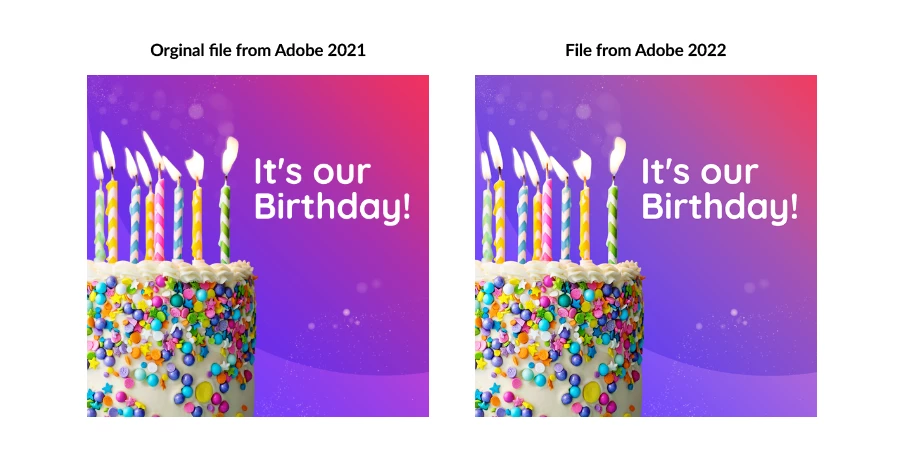
Below is a comparrisson image. Same file. One jpeg saved yesterday and one saved today


Correct answer Chain83
quote

If the PSD displays correctly in both versions, the jpgs should also display correctly, provided that you follow the exact same procedure in Save for Web, checking both Convert to sRGB and Embed profile.

But in a previous post you say that both jpgs are in Adobe RGB, so I'm confused.


By @Per Berntsen 


The problem isn't in the export (so not sure why that is even mentioned here as it just confuses things). In his screenshot you can see the two images look different in the two versions already when he opens them. So the problem is present when you open a document from the old version of Photoshop in the new version of Photoshop.


Specifically, the blending of the gradient differs. (Overall colors are correct).


This is because Adobe created the new "Perceptual" and "Linear" gradient modes in the latest update, but forgot to make gradients made in older versions default to "Classic". This means that all documents made in older versions of photoshop that use gradients will appear wrong in the new version. Yay.

18 replies

NB, colourmanagement
Community Expert
Community Expert
March 19, 2025

@jeet_0636 do you have a question for us?

Legend
November 11, 2021
Participating Frequently
November 11, 2021

This was it!!! Solved the issue. Thank you 🙂 
Yup probably a bad title LOL. I was freaking out when this happened

Chain83Correct answer
Inspiring
November 9, 2021
quote

If the PSD displays correctly in both versions, the jpgs should also display correctly, provided that you follow the exact same procedure in Save for Web, checking both Convert to sRGB and Embed profile.

But in a previous post you say that both jpgs are in Adobe RGB, so I'm confused.


By @Per Berntsen 


The problem isn't in the export (so not sure why that is even mentioned here as it just confuses things). In his screenshot you can see the two images look different in the two versions already when he opens them. So the problem is present when you open a document from the old version of Photoshop in the new version of Photoshop.


Specifically, the blending of the gradient differs. (Overall colors are correct).


This is because Adobe created the new "Perceptual" and "Linear" gradient modes in the latest update, but forgot to make gradients made in older versions default to "Classic". This means that all documents made in older versions of photoshop that use gradients will appear wrong in the new version. Yay.

Per Berntsen
Community Expert
Community Expert
November 9, 2021

Yes the first image attached to this post is how the PSD file looks when opened in both version of the program


By @Carter Concepts


If the PSD displays correctly in both versions, the jpgs should also display correctly, provided that you follow the exact same procedure in Save for Web, checking both Convert to sRGB and Embed profile.

But in a previous post you say that both jpgs are in Adobe RGB, so I'm confused.

Inspiring
November 9, 2021

The problem is the new update to gradients in Photoshop (You can now choose the visually more accurate "Perceptual" and "Linear" modes). Adobe messed up, so that gradients made in an older version are not set to "Classic" as they should but change to "Perceptual".


Your gradient fill layer (or gradient overlay?) will have to be changed to "Classic" to look like it did when you created the image.


Adobe needs to fix this asap.
(The two new gradient modes also don't honor channels in CMYK).


RGB Colour displaying like CMYK

That is a terrible title as it is completely wrong 😜

Participating Frequently
November 9, 2021

Yes the first image attached to this post is how the PSD file looks when opened in both version of the program

Per Berntsen
Community Expert
Community Expert
November 8, 2021

What about the original – the file you're exporting from?

Does that also display washed out in the 2022 version?

Participating Frequently
November 8, 2021

Ok so I just did those steps you said and unfortunately the export is still displaying a washed out colour. I don't believe this issue is to do with the export as the same file displays bright colours when opened in the 2021 program and washed out colours in 2022 program. I think there's something wrong in their colour profiles. Thank you for your help though 🙂 

Per Berntsen
Community Expert
Community Expert
November 8, 2021

You must check Embed profile in the Save for Web dialog.

It should be checked by default, but unfortunately, it's not. Go to this thread and vote for it to be checked by default.


Create your jpgs again with Embed profile checked, and see if that makes a difference.

Also, set Preview to Use document profile instead of Monitor color, which gives you a preview without color management.