Pattie-F
Legend
June 26, 2020
Pergunta

Rotate patterns in Photoshop

  • June 26, 2020
  • 9 respostas
  • 48685 Visualizações


Using Rotatable Patterns in Photoshop


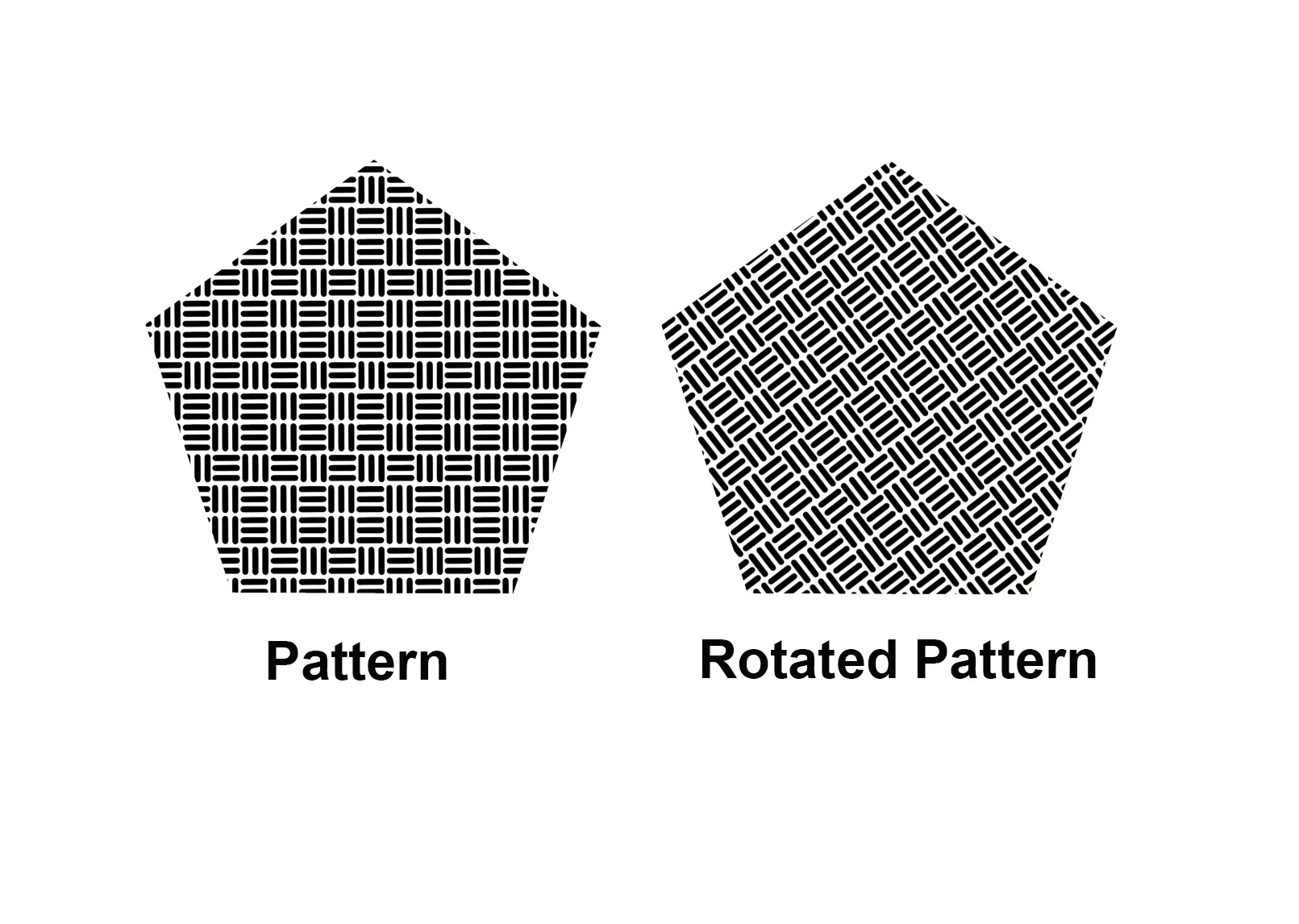
One of the cool new features found in the June 2020 release of Photoshop is rotatable patterns. This feature allows you to rotate patterns (non-destructively) to change the angle of the pattern. You can change the orientation of any pattern in Pattern Overlays, Pattern Strokes, and Pattern Fill Layers. For this tutorial, I will rotate a pattern fill layer.


Create a pattern (or use an existing one)

  • Open the image you want to make a pattern from
  • If you prefer, you can choose a pattern from the Window>Pattern panel
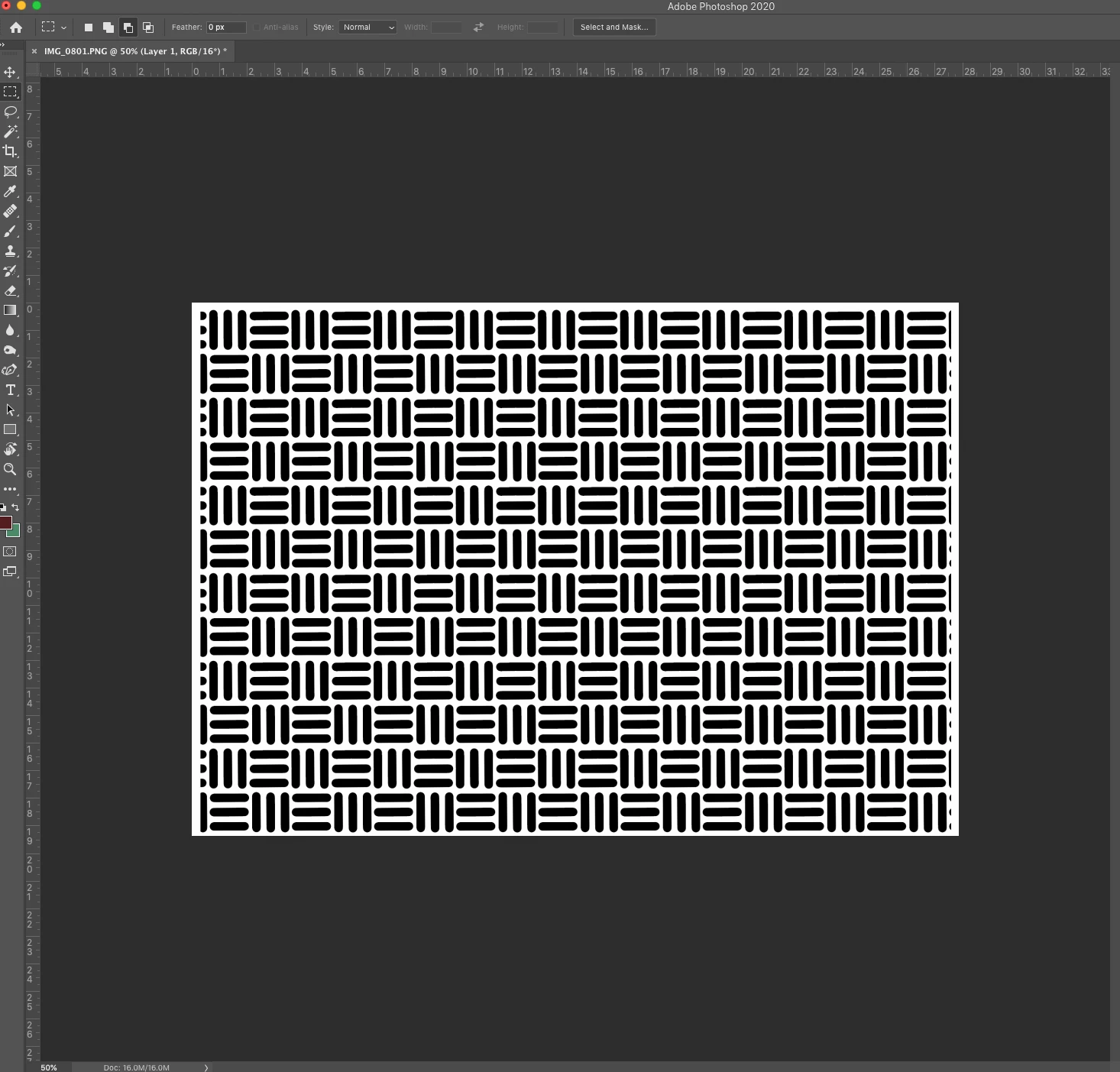


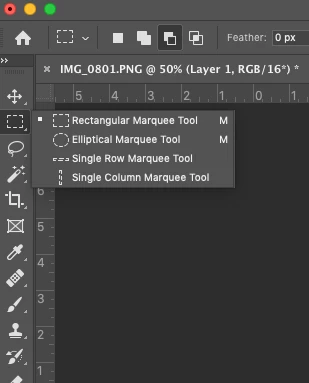
  • Select the Rectangular Marquee tool 


  • Select an area to use as a pattern. (Ensure feather is set to 0 pixels)  
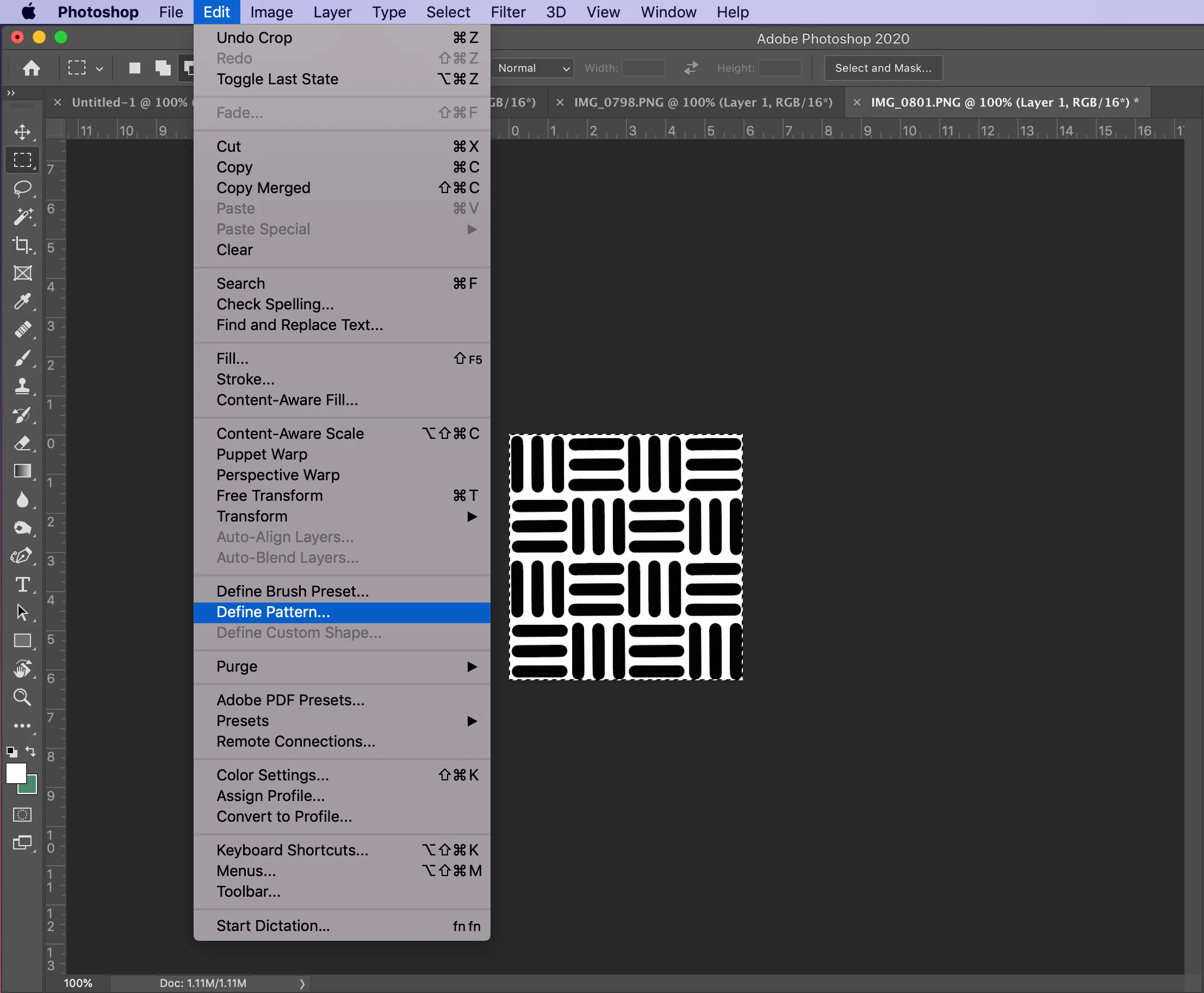
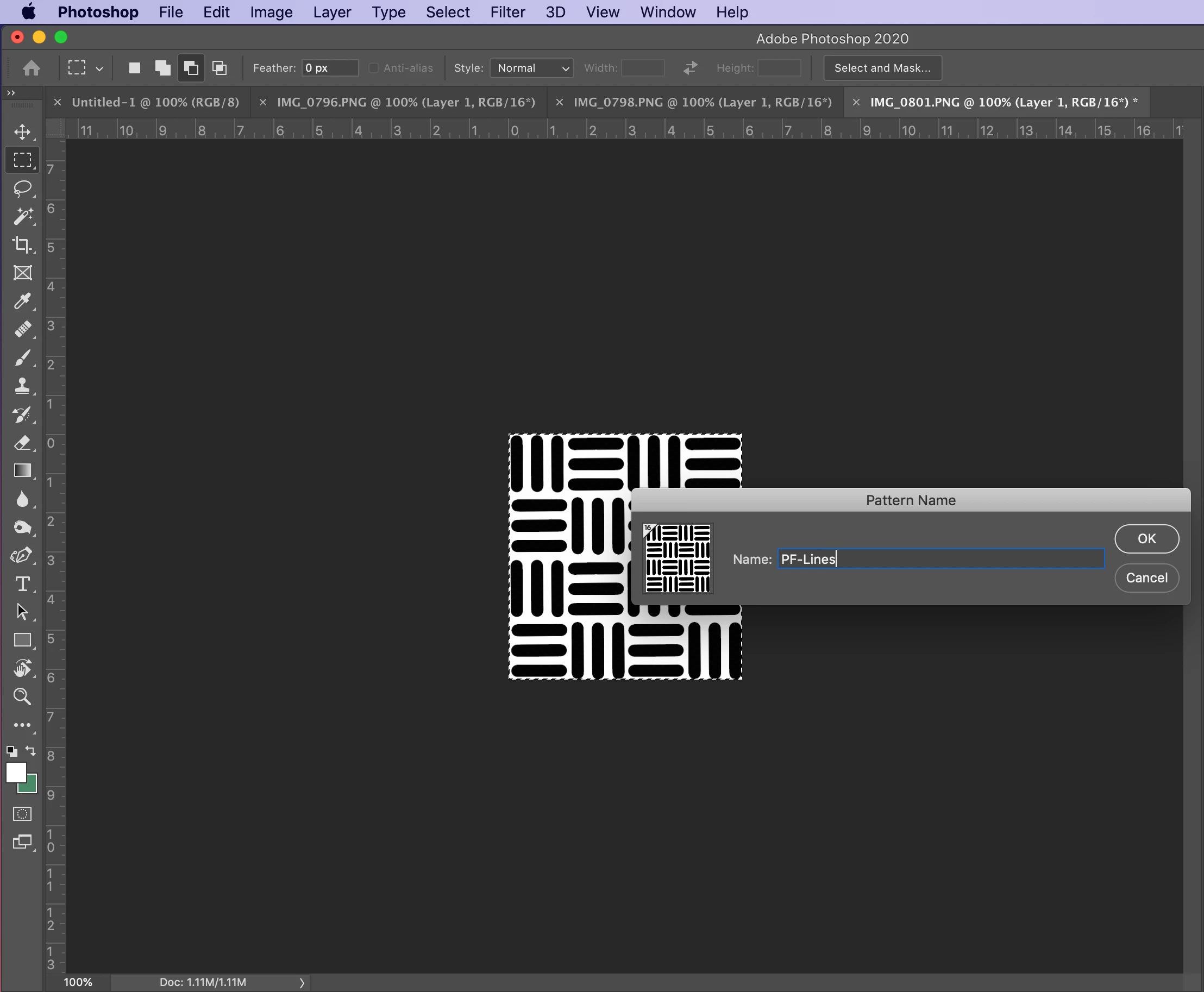
  • Choose Edit > Define Pattern


  • Type a name for the pattern  in the dialog box


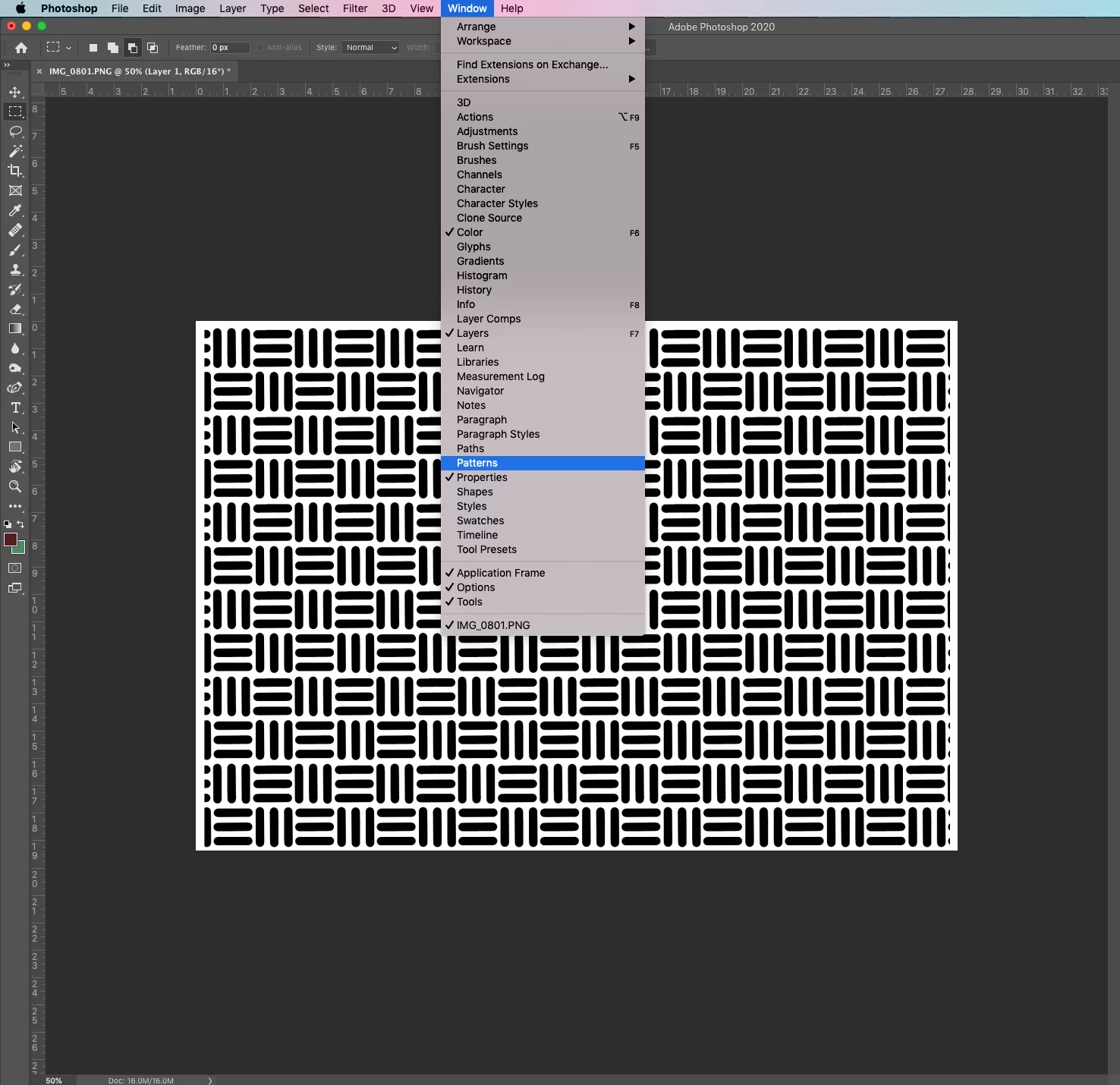
  • Open the pattern window by navigating to Window>Pattern to see your new pattern


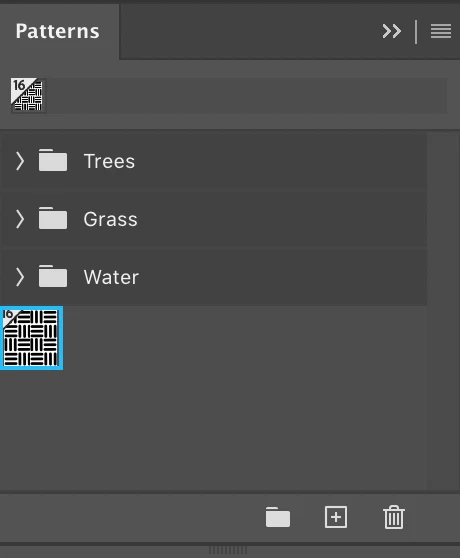
  • The new pattern now appears in the panel


    ❷ 
    Open a file
  • Open an existing file or create a new one
    Create, open, and import images
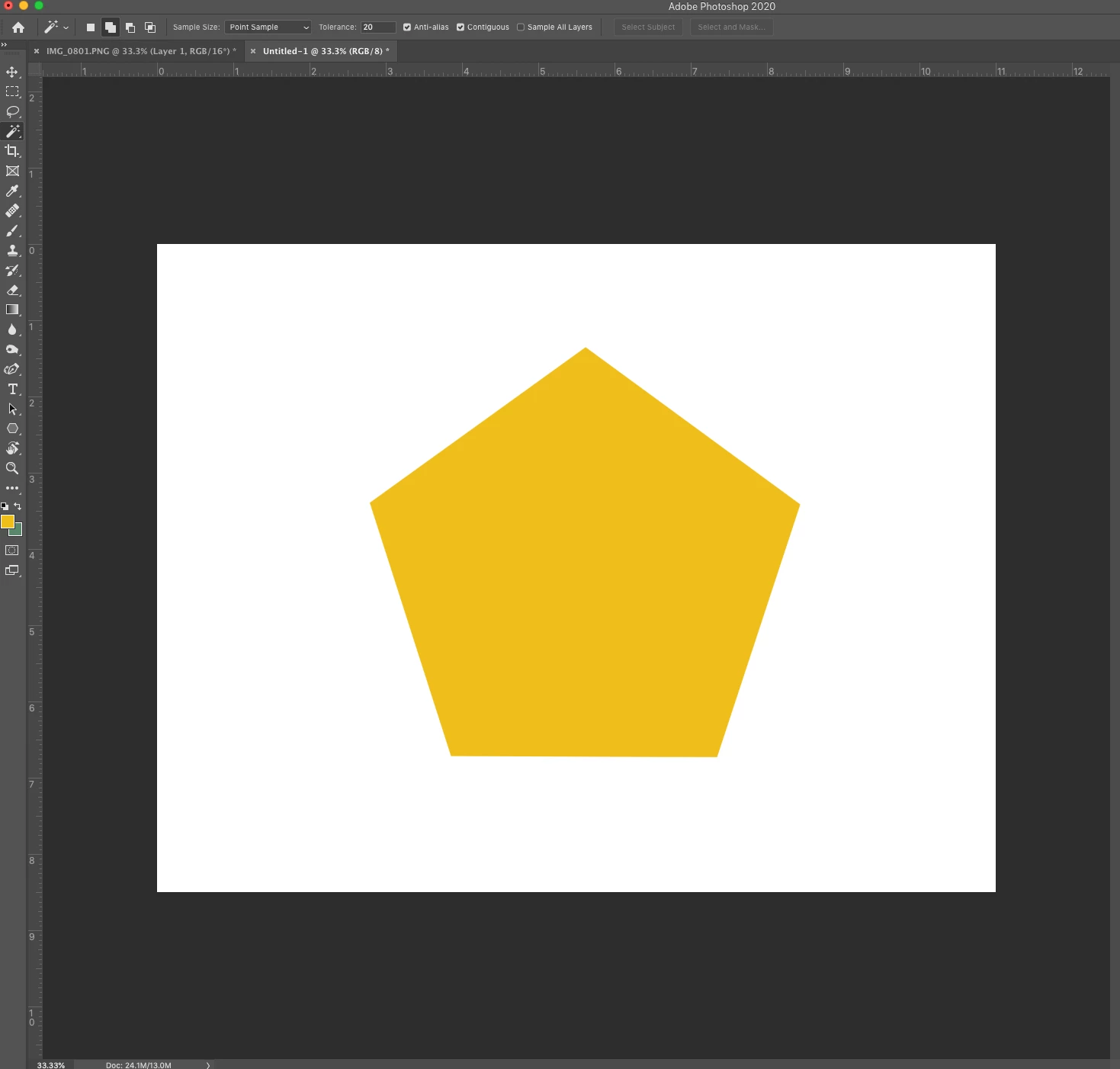


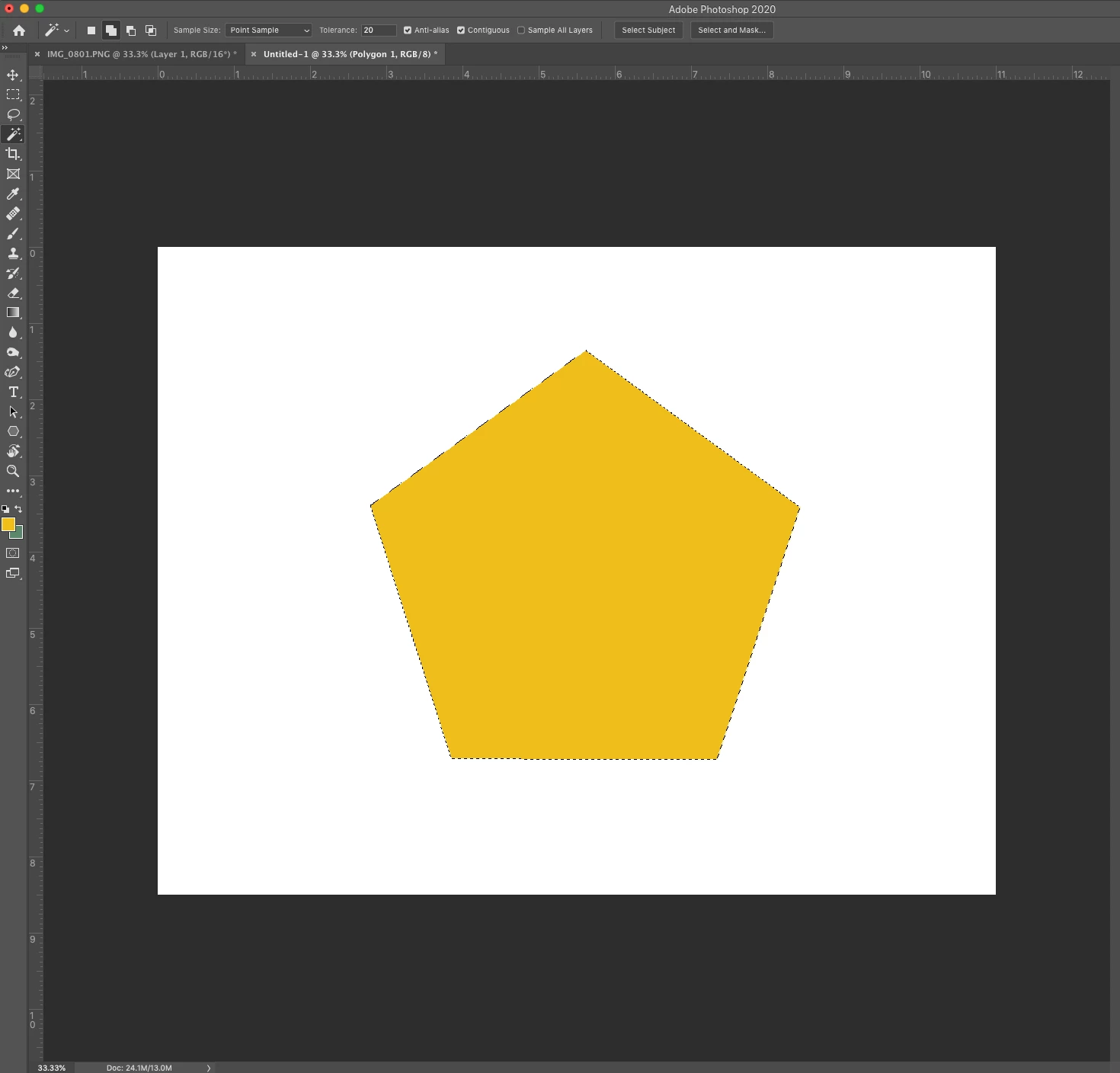
Select an area to fill

Fill the selection with a pattern

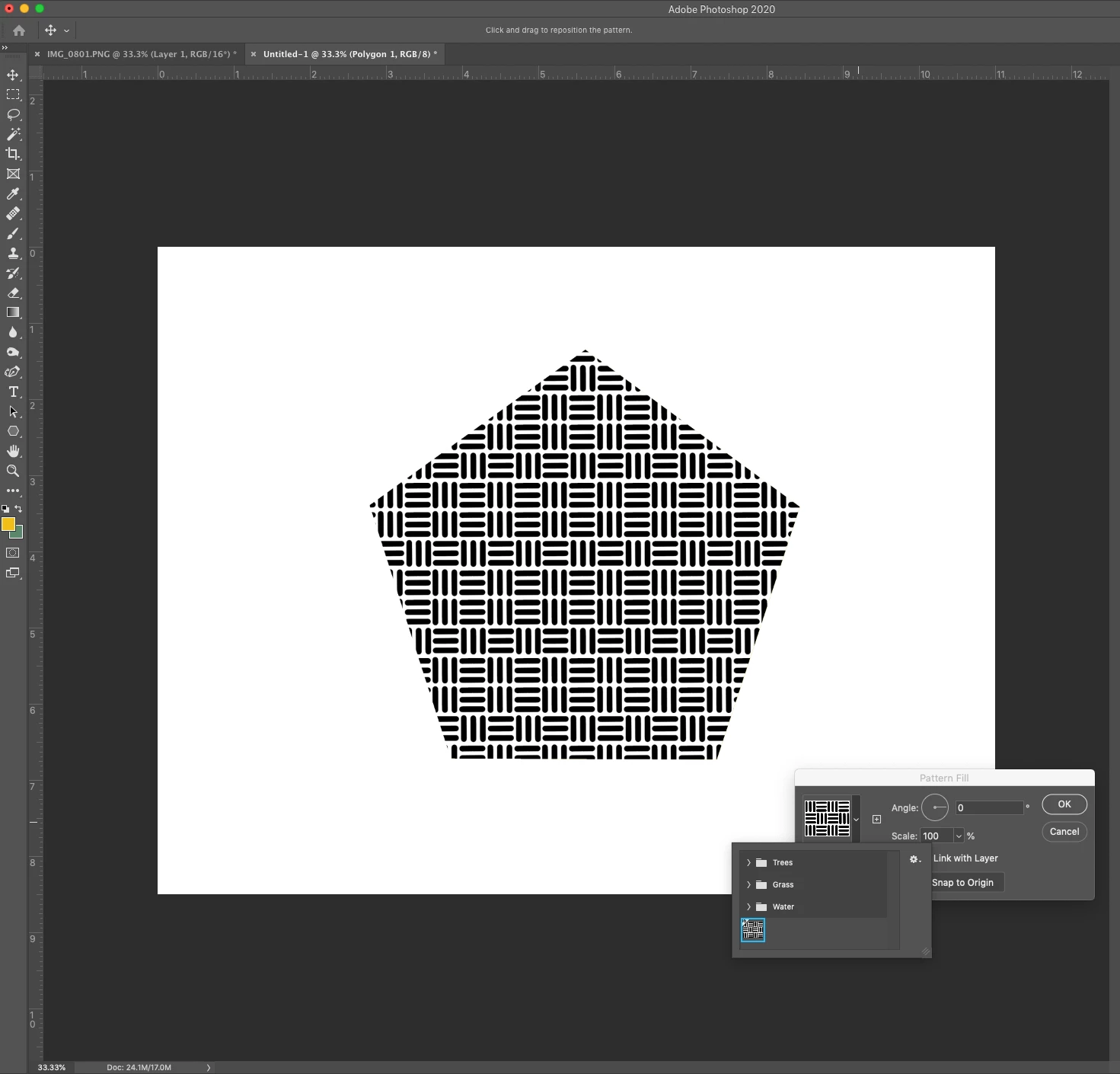
  • From the menu, select  Layer> New Fill Layer > Pattern
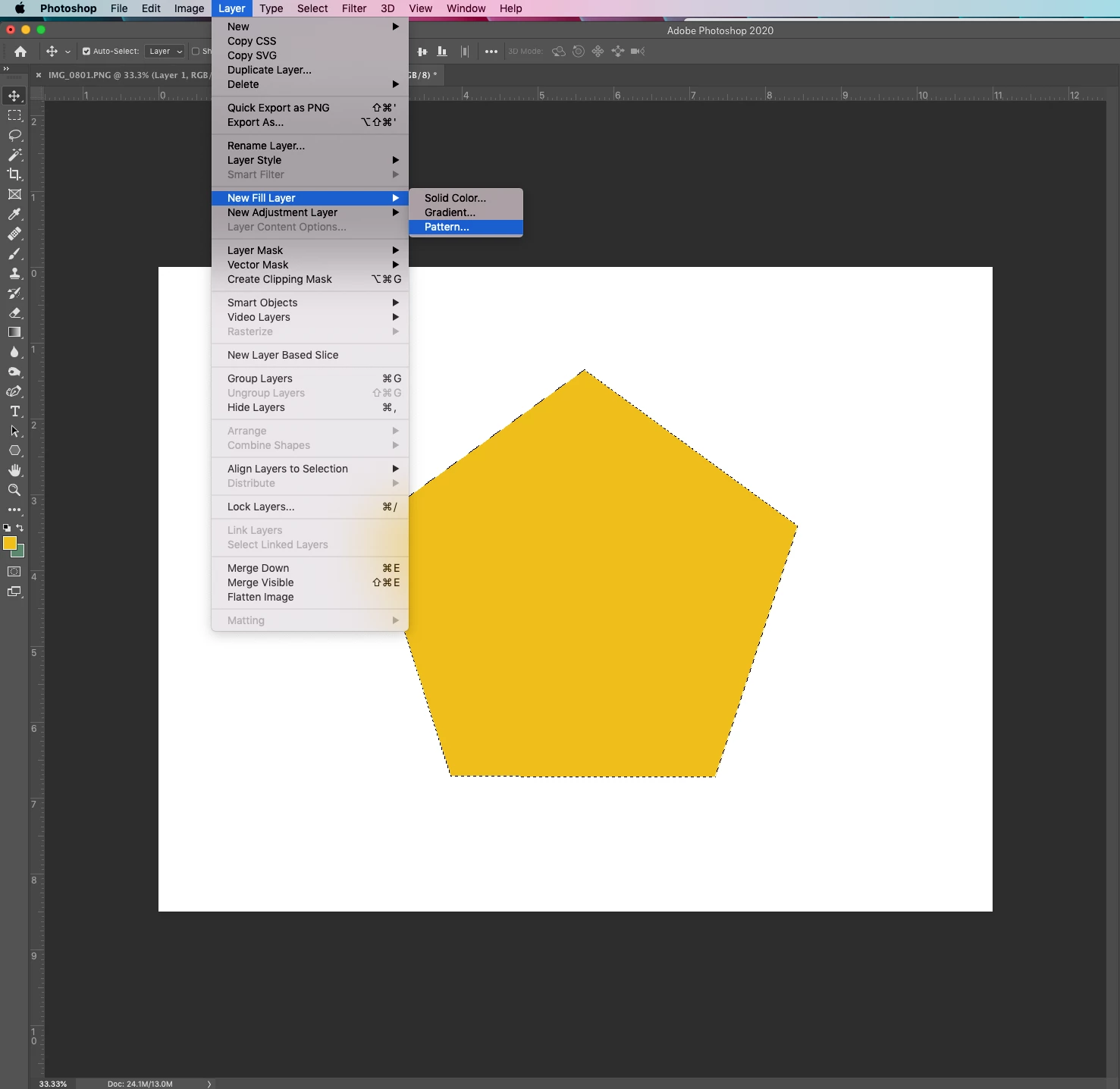


  • Click OK


  • Click on the pattern thumbnail for select from different pattern options
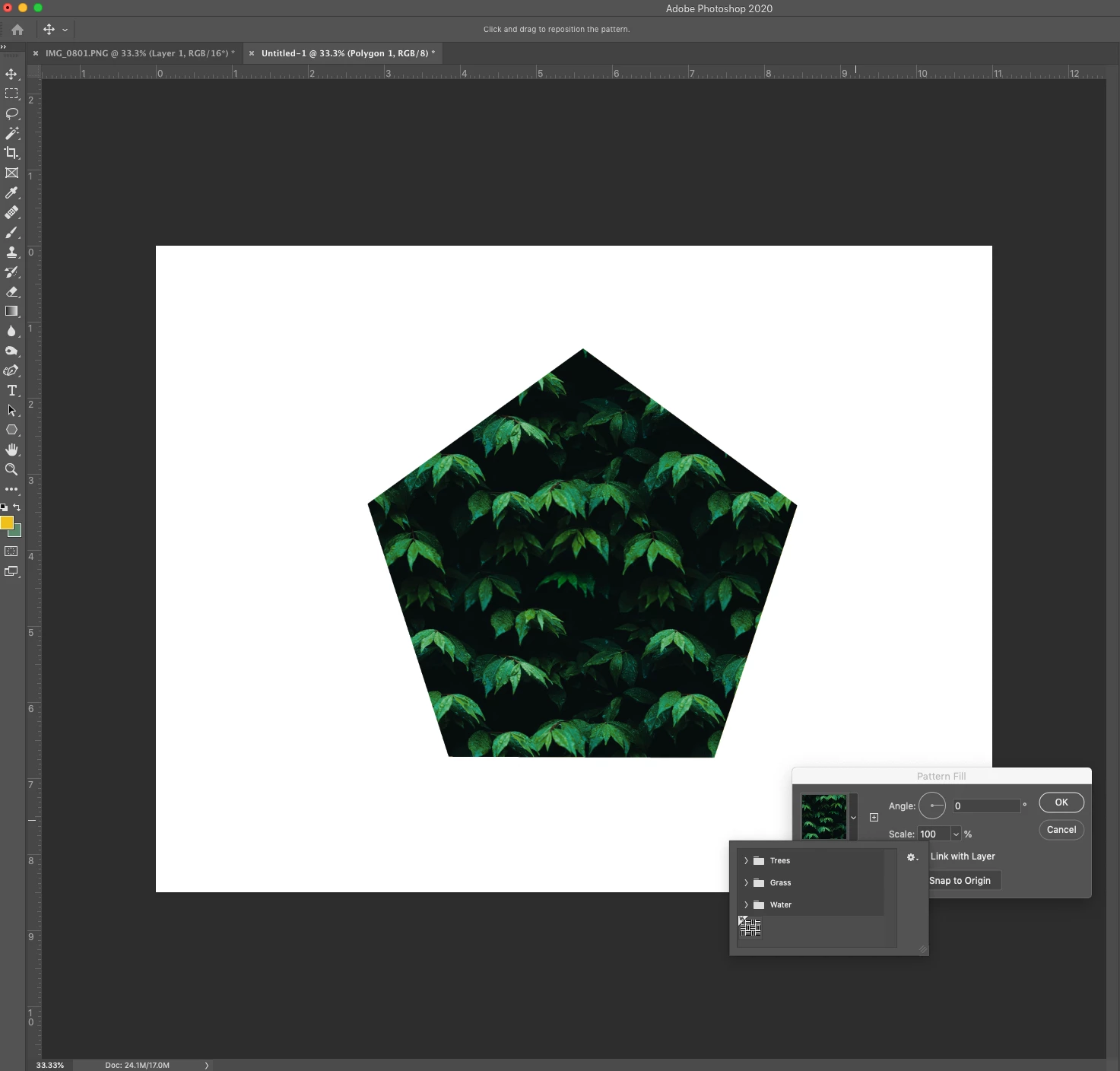


  • Select the pattern you just created


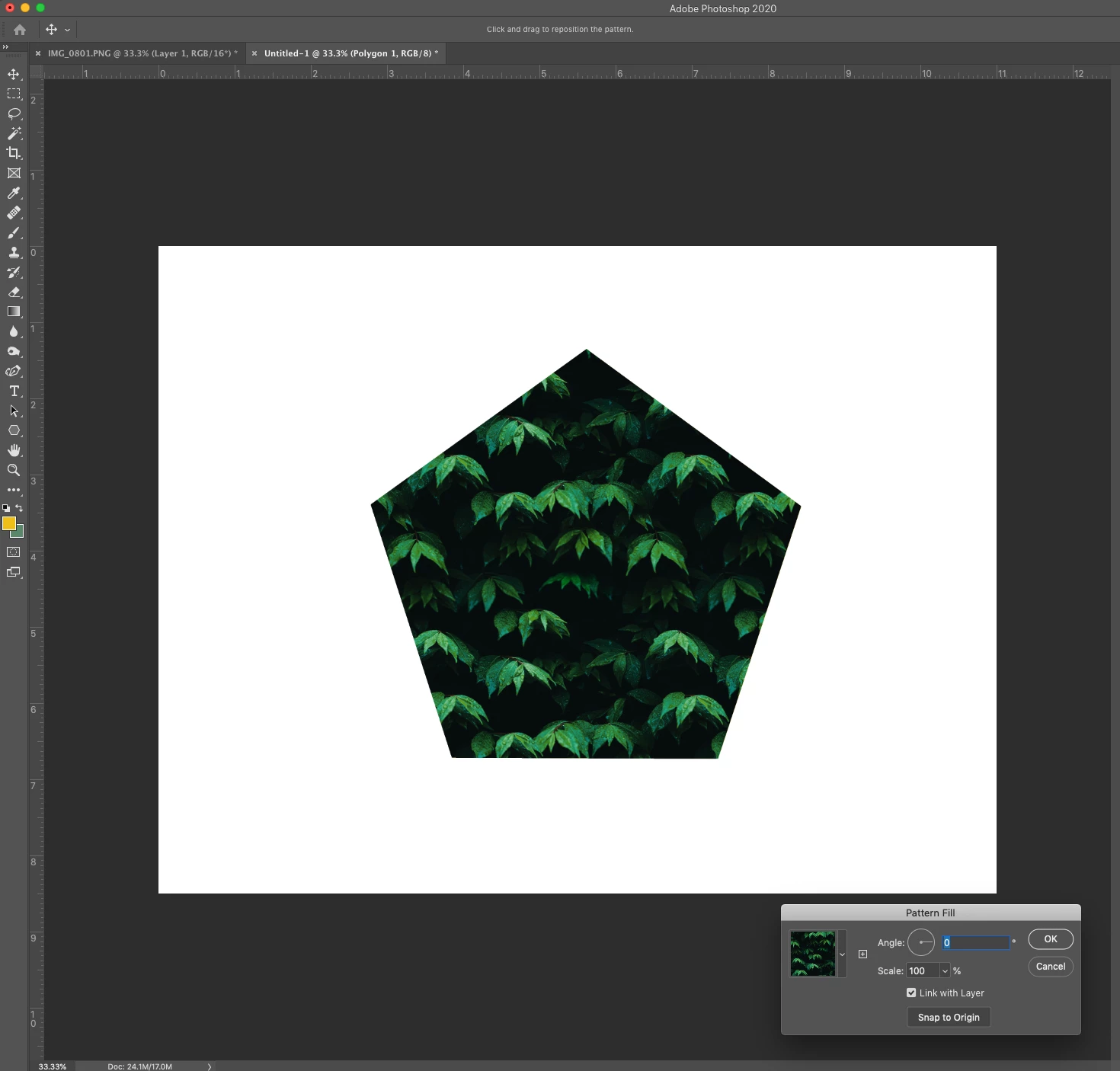
❺ Rotate the pattern

  • Adjust the angle of the pattern in the Pattern Fill dialog, 
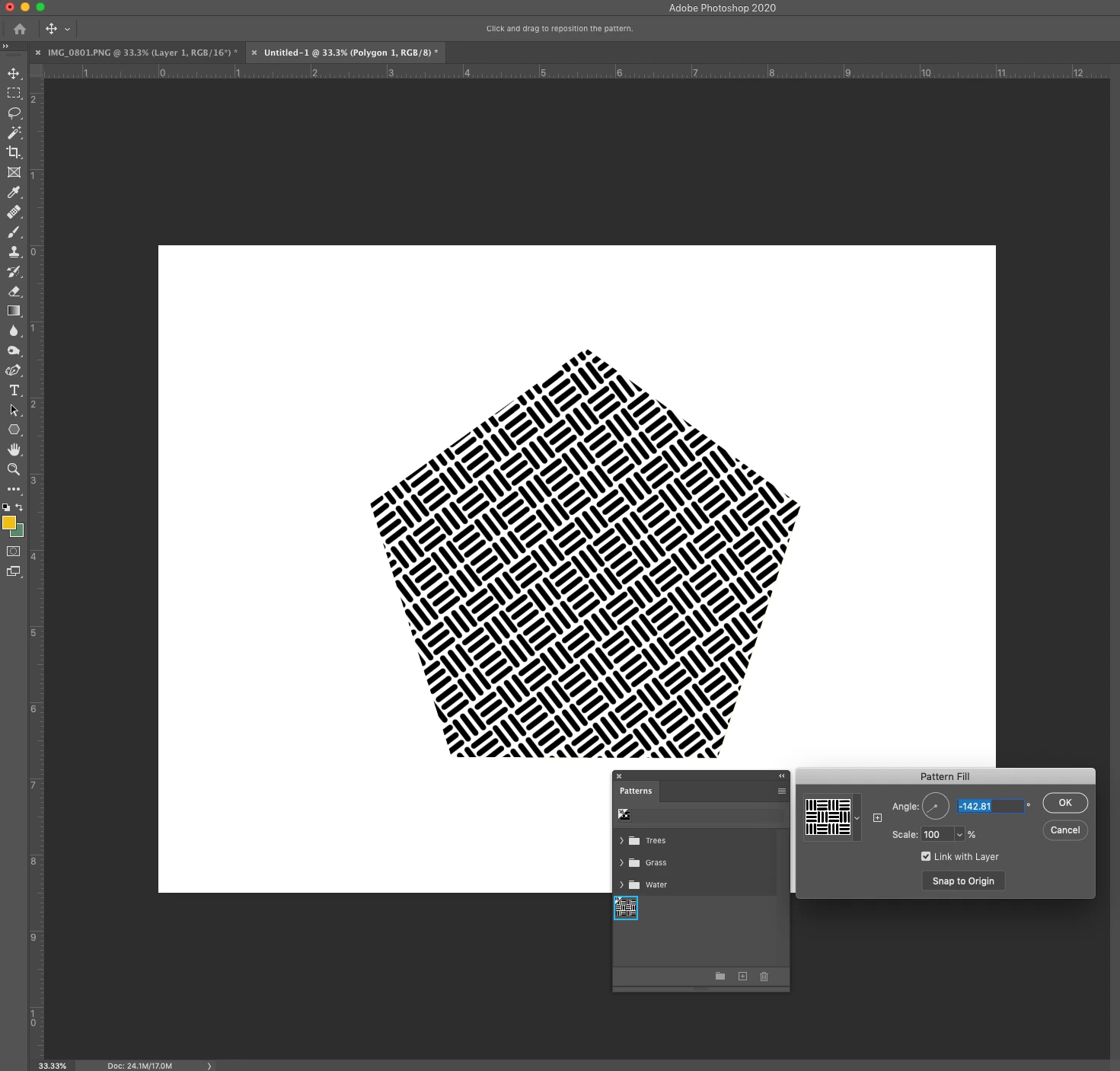
 

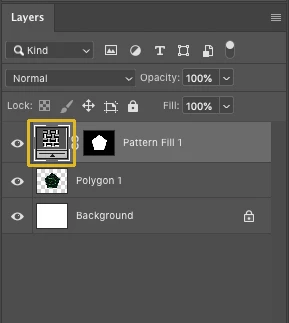
  •  If you want to adjust the angle later, just click on the pattern in the layers panel and change the angle

Note: The pattern angle selector can be accessed from these locations in the user interface:

Layers
  • Layer menu or Layers panel > New Fill Layer > Pattern > Pattern Fill dialog
  • Layer menu or Layers panel > Layer Style > Pattern Overlay > Layer Style dialog
  • Layer menu or Layers panel > Layer Style > Stroke > Fill type > Pattern > Layer Style dialog
Shapes
  • Options bar or Properties panel > Fill as Pattern
  • Options bar or Properties panel > Stroke as Pattern
Frames
  • Properties panel > Stroke as Pattern


Related links:

Create patterns in Adobe Photoshop

Adjustment and fill layers


Este tópico foi fechado para respostas.

9 Respostas

New Participant
April 30, 2022


 There is no angle option available how i enable it ?

like This one

Jeff Arola
Community Expert
Community Expert
May 1, 2022

What version of photoshop do you have?


You can see the exact version from within photoshop by going to Help>System Info and looking at the top line.

Mario Arizmendi
Legend
July 1, 2021

Hi all

I am on a Mac, Photoshop CC 2019, and the rotate pattern control doesn't appear at all, what's wrong?


Jeff Arola
Community Expert
Community Expert
September 24, 2020
August 20, 2020

I just messed up with the pattern.  Thanks Anyway. 


c.pfaffenbichler
Community Expert
Community Expert
August 20, 2020

I found it takes some getting used to that hitting tab and the intended percentage now actually rotates the pattern, but I am not sure if this is your issue, too. 

Could you elaborate? 

c.pfaffenbichler
Community Expert
Community Expert
August 11, 2020

I can easily reproduce the issue of the 104% scaled Pattern Overlay by defining the Style with a 100% Patttern at 72ppi and applying it at 75ppi. 


chet60, sorry about the private message, the thread seems active now, so either I made some mistake or there was a temporary snafu. 

chet60
Participating Frequently
August 11, 2020

I am new to this forum so I am not up to speed on how it works.

so ...thank you for your persistance.

Here is the workflow for building, defining patterns and assigning weaves in photshop.

1. New file :  Resolution (matching the loom) in this case 75ppi.

     build the pattern, define it.

2. New file: image - colors reduced- colors deconstructed into layers.

   Resolution: (matching the loom) in this case 75 ppi.

3. Apply layer style....and result should be 100% on first one?

 (I have seen that if you catch and correct the first pattern overlay - the rest will be correct like a "sticky" setting should.)

I see that you used 72ppi and 75 ppi..... 

I am often asked what resolution to use for the patterns.  They are very small. 2x2, 4x4, 8x8, up to 24 x 24 or so.  I usually respond that they should use the same resolution as the loom - to reduce errors - i.e. things they forget to check. The resolution is the baseline in this process. 1 pixel = 1 thread. So most of the time - these 2 values are the same. (sometimes I don't do it...but over time I have checked to see if this has an impact and I havent seen it. )


Do you see that you do?


c.pfaffenbichler
Community Expert
Community Expert
August 11, 2020

The issue appears to be that the resolttions for the file in which you define the Style and the one in which you apply it are not the same. 


In the screenshots you can see the resolution in the Status Bar (bottom left) and the same applied Style has the Pattern at 100% at 72ppi and 104% at 75ppi. 

Apparently the Patterns in Styles are applied according to length measurements (as in mm) and not in percent or plain pixels – so resolution matters. 


So just make sure that all the files have the exact same resolution

If the issue arises descpite this please provide the files (the one in which the Style is defined, the one in which it is applied and the asl-file) for testing. 

JJMack
Community Expert
Community Expert
June 27, 2020

What users need more then cool new features is a more reliable Photoshop. There are too many reported and acknowledged bugs in Photoshop that Adobe does not seem to care to fix.  Bugs reported in CS2 version 9 of Photoshop are still in version 21.2 of  Photoshop.  With  every new version of Photoshop Adobe add new bugs and feature. Photoshop is a mind field Photoshop that is impacting their users work. User need a more reliable Photoshop.  Adobe need to fix bug not add new buggy features that really is not cool.   However, I'll would bet that Adobe  will continue to break features and not fix them in the future enlarge their mine field. 

JJMack
c.pfaffenbichler
Community Expert
Community Expert
June 27, 2020

What I find particularly annoying is when Feature Requests are »implemented« but in an obviously unsatisfactory manner. 


Apart from the rotatable Patterns the additional Warp-grid-lines come to my mind – one can add them, sure, but the bezier handles of non-corner-points snap to 90˚ angles on editing. What good is that supposed to be? 

rayek.elfin
Legend
June 27, 2020

I agree. Instead of implementing a LONG TIME requested function like this one in a more usable way and taking this opportunity to rethink the incredibly archaic pattern controls GUI, the PS developers implement pattern rotation in the worst way possible. And with anti-aliasing issues, it seems.


Heck, even the defunct Fireworks offered a more interactive interface to deal with this.


For comparison PhotoLine implemented a very usable and intuitive pattern widget to control patterns.

This widget allows for quick scaling (proportional and non-proportional), rotation, skewing (both x and y axes), and repositioning.


Why the Photoshop dev team seems content (even celebratory) touting a half-baked and poorly implemented feature is past me. Adobe seems to be stuck in the dark ages instead of checking out the competition that does a far better job with far less resources! Why not at least attempt to do better and be more forward-thinking?


It boggles the mind. It really does. I do hope the responses to this thread will wake them up a bit. Sigh.

c.pfaffenbichler
Community Expert
Community Expert
June 26, 2020

And another thing: 

Why are the rotation angle vaues negative compared to rotating Layers?

The Smart Object is roated 12˚, the Pattern -12˚. 

c.pfaffenbichler
Community Expert
Community Expert
June 26, 2020

And to make sure that the transparency in the Pattern was not the problem here a screenshot with a Pattern that has no transparent pixels (unrotated, rotated Pattern, rotated SO): 

Lukas Engqvist
Community Expert
Community Expert
July 14, 2020

It seems that the pattern tiles are not antialiased when rotated, so that of you have a pattern that is same colour on both edges it will tile better… having seen this the pattern example you have is the worst case scenario… yes it needs to be fixed. Hope it can be reproted in a good way. 

c.pfaffenbichler
Community Expert
Community Expert
June 26, 2020

Too bad the feature uses such a bad resample method … compare a rotated Smart Object with the Pattern to the rotated Pattern in the screenshots: 


Edit: I appreciate that »bad« is an ambiguous term here but I think the undesirability of the result in the example should be evident.