Copy link to clipboard
Copied
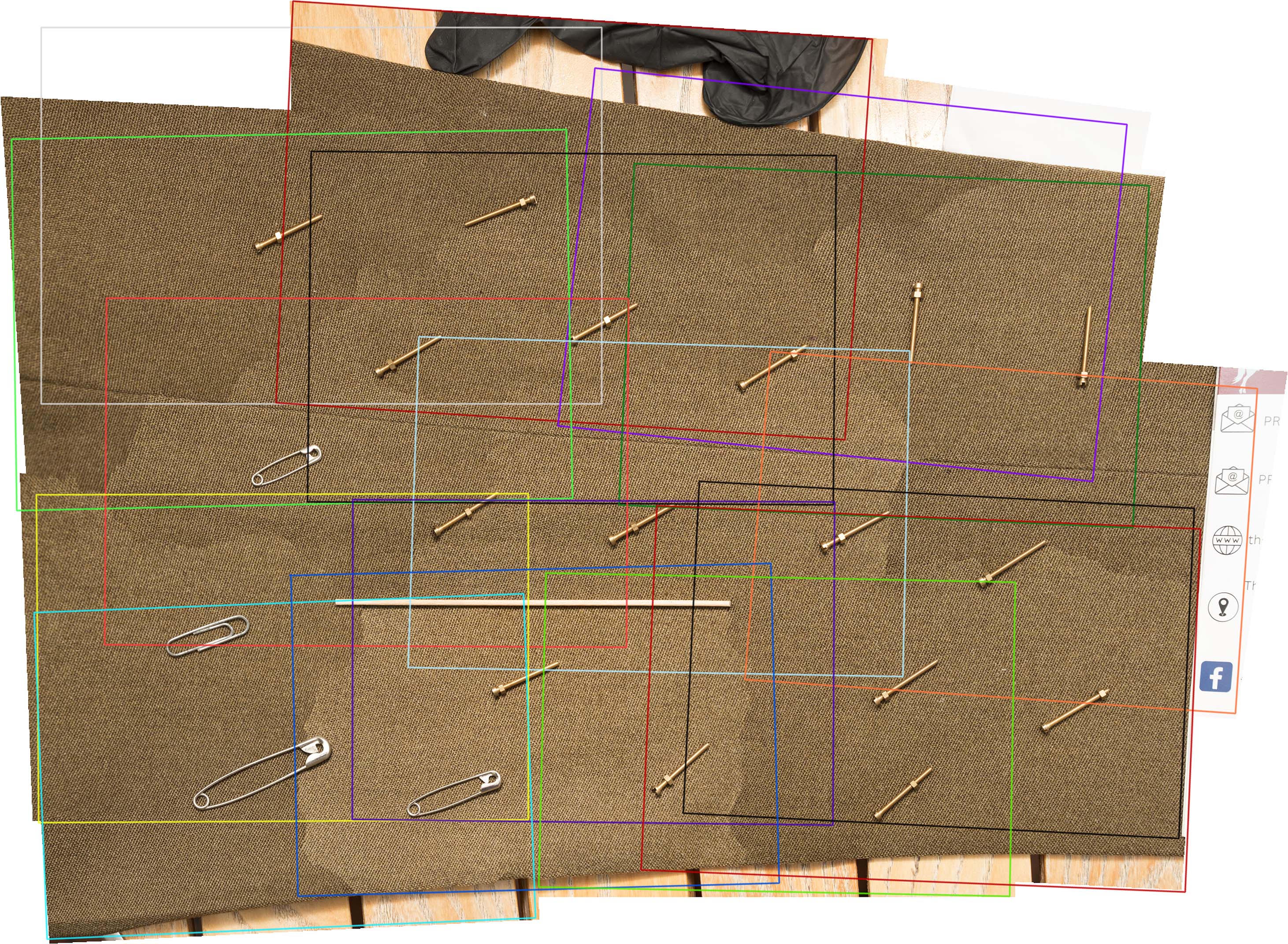
Hi, photographed a piece of cloth in a tiled way, with small linear objects laid out to afford kniting together ability visually, perp straight down, to get the detail of the weave, so as to knit it together in pshop to make a large piece if cloth for a website background, and despite bounce flash off a low white ceiling, giving apparent same looking cloth pics, Automate photomerge makes a bad patchwork quilt of lightness, worse than the photos appear to be. I had hoped moving from CS6 to 2025 photomerge would have an AI ability to even out exposures or hue etc in panoramas, but it doesnt. Surely thats par for the course by now ?
So do it the ancient way, I need to sample a large area, get a value for lightness, and adjust each pic to get the lightness values all matching.
I cannot even see how to take the pipette with its gunsight and values to do a sample of e.g. 40% or more of the cloth, a pin point sample is no use at all. In Pshop one can set pipette to 1 pixel or 5x5 or more, but in ACR which is supposed to be THE DOGS DANGLIES when it comes to correct place to work, the tool seems completely incapable of offering a choice of sample areas. With 30 yrs of developement of Pshop I am sure its me and not a crap tool, so how is this done ?
Also where is the data for lightness as that tool does RGB, no more. I need lightness value.
Is there an AI way of getting ACR to equalise the pics so photomerge makes one uniform cloth ?
How do I become the AI and get an average sample of lightness using a tool that seems to want to do a pinprick ? It wont drag select a square area as I read to try.
Seems incapable of such a basic need.
Merlin

Copy link to clipboard
Copied
Hi Merlin,
Can you show us a screen shot of your image? That would be most helpful. Also, what is the resolution of the background you are trying to create? And, what is the resolution of your camera—is it possible to shoot the cloth with just one shot and have enough resolution to create your backgound?
To be able to help you with Photomerge and evening out the tone of your image, please give us a screenshot of your window, panels, and layers as well as your image.
Thanks,
Michelle
Copy link to clipboard
Copied
You could try merging the files manually as a start point.
Load them into Photoshop layers. You can do that automatically from Bridge.
Select all layers and go Edit > Auto Align Layers. Rather than let Photoshop decide, perhaps better to specify Tiled.
Then select all layers again, and chose Edit > Auto Blend Layers with Seamless Tones and Colors.
Note: This is from memory, and I have not used it in well over ten years, so it might be a bit different now.
See where that gets you. If you still need to fine tune, you might be able to use the Color Sample tool and drop (up to 10) points over each layer area. You can see the results in ther Info panel.
You could then try to adjust each layer by clipping a curves or levels adjustment layer. I should have put a highlight on this, but if you look at #3, you can see the input value. Ctrl Click on the layer (if using curves) and move the resulting point on the curve to bring that value to the layer you want to match it to. The numbers don't lie, so you don't need to be an expert. Just follow the numbers.
Copy link to clipboard
Copied
There's something else worth a try, but I have no idea if this will work.
Select the layer you want to use as the master, and go Filter > Neural Filter > Hamonize
Note you might need to download it if you have not used it before.
It will ask you to select a layer, so select one of the other layers and see if it matches it to your master layer.
You just never know what might work nowadays. Someone uploaded an image that had dreadful light streaks, including across the faces of the two subjects in the picture. I suggested trying the new Reflections tool, and it just about did a perfect fix! By heck Photoshop is getting clever now.
Copy link to clipboard
Copied
Hi,
Filter > Neural Filter > Hamonize cannot get to work, says needs to be masked, so create a total selection save to channel, still no joy, wont let me select a layer.
attached are three of the tiles and an overview of where the tiles were. clearly differing in lightness, just need to equalise the lightness, though having done that between two of them I could see a need for slight saturation change, if only photomerge had an option that allowed selection of a target pic and others were changed to match. I tried the edit auto align layers and couldnt get that to work.
My 1920x1200 monitor measures 20" wide x 12.5" tall and the trousers were about that for the area photographed.
I am gobsmacked that ACR does not have a selection tool giving lightness saturation and hue value as it has in pshop. ACR is where adjustments can be made to values to match but no data readout of such per image on screen in a sampled area, archaic to not have such.
Merlin
Find more inspiration, events, and resources on the new Adobe Community
Explore Now